Connections
Connect Ramp
Make a Ramp developer app with read scopes only, then bring its cards, payments, cashback, receipts and cardholders into the books, and its Bill Pay bills.
Ramp is in Beta in LedgerIt: it is built and tested on sample data, and not yet proven against the live API.
Ramp connects through an app you make in Ramp's developer settings, and one app brings in every card and, if you pay vendors through Ramp, every bill. You need someone who can open Ramp's developer console, and an owner, admin or accountant in LedgerIt.
LedgerIt only reads from Ramp. It never moves money, never approves, schedules or pays a bill there, and every scope below is read-only.
The short version
- In Ramp, open the Ramp Developer Console and create an app with the Client Credentials grant and seven read scopes, plus two more if you use Ramp Bill Pay.
- Copy its client ID and client secret.
- In LedgerIt, open Add connection at Ramp, paste both and select Connect Ramp.
What comes in
- One account, Ramp card. Every Ramp card lands on it, because Ramp bills the business one balance whatever card was used. Each charge keeps its card and its cardholder.
- Charges. A charge that has not settled arrives but does not post until it does, and one Ramp declines is removed.
- Statement payments and cashback. Both reduce what the card owes, and the statement payment pairs with the transfer out of your bank.
- Receipts your team uploaded to Ramp, attached to their charges.
- Who spent it, with their email, so a missing receipt reaches the right person.
- Balances: what the card owes today, counting settled charges only, and what each statement of the last two years closed at, including the ones from before you connected Ramp. A statement that ends partway through a day is not recorded, because it is not that day's close. These figures reconcile the card at the close.
Reimbursements are not read.
Bills from Ramp Bill Pay
Give the app bills:read and vendors:read as well, and the bills you pay through Ramp Bill Pay come into Bills, each one once, so you do not enter them again.
| In Ramp | In your books |
|---|---|
| Approved or paid, and your books know where that vendor's bills go (its Default account, or the account its earlier bills charged) | Approved on its own. Its page says Approved by LedgerIt and that it came from Ramp; you can send it back to draft while nothing is paid on it |
| Waiting for approval, or from a vendor whose account nobody has chosen yet | A draft under Bills, its lines on Uncategorized expense. Choose the account and select Approve |
| Paid | Settled by the bank or card transaction that carried the money. Nothing new is posted, so the cash is counted once |
| Rejected or deleted, in another currency than your books, or dated before your books start | Kept as Ramp sent it and not entered |
- The vendor is the one you already have, found by Ramp's own id for the vendor, then by the card merchant Ramp says is the same company, then by its contact's email, and by name only when none of those does.
- How the paying transaction is found. The card charge Ramp names, for a bill paid by card. Otherwise the one transaction for exactly the payment's amount, within a week of it, that names Ramp or the vendor. When two fit, LedgerIt leaves them for you, and a transaction you or a rule already filed is asked about in the Inbox rather than changed.
- To settle one yourself, open the transaction and select Settle under Open bills it may pay, as Pay a bill from the bank explains.
- Until that transaction arrives, the bill stays owed. If the bank account Ramp pays from is not connected, connect it.
A draft you change is yours from then on, and one you delete does not come back. A draft whose bill is later rejected or deleted in Ramp stays a draft: delete it. A bill already on your books stays until you void it. The invoice file is not copied from Ramp yet.
A charge Ramp categorizes as SaaS / Software or Advertising is filed to that account in your books without waiting for review.
The first sync reads up to 400 days of history, or back to the day your books start if that is later. After that, Ramp syncs every 6 hours.
Make an app at Ramp
Ramp's own guide is Authorization.
1. Open the developer console
Sign in to Ramp and open the Ramp Developer Console. If you cannot open it, ask an admin of your Ramp account.
2. Create an app
Create a new app for LedgerIt, and turn on the Client Credentials grant type in its settings. LedgerIt connects with that grant and no other, and does not use a redirect address.
3. Give it read scopes only
Give the app the first seven scopes below, the last two as well if you pay bills through Ramp, and no others. Never give it a scope that ends in :write: LedgerIt does not use one.
| Scope | LedgerIt uses it for | Without it |
|---|---|---|
transactions:read | The card's charges | LedgerIt refuses the connection |
transfers:read | The payments of its statements | LedgerIt refuses the connection |
cashbacks:read | Its cashback | LedgerIt refuses the connection |
receipts:read | The receipts your team uploaded to Ramp | Charges sync without their receipts, and nothing on screen says why |
users:read | Each cardholder's email | Cardholders are known by name only, and the connection shows Can't read your team |
business:read | What the card owes today | No figure for today to compare the card against |
statements:read | What each statement closed at | No statement close to reconcile the card against |
bills:read | The bills in Ramp Bill Pay, with what Ramp says about each payment | The card syncs and no bill comes in. Under the connection, a line says LedgerIt cannot read all of Ramp's Bill Pay yet |
vendors:read | Each bill's vendor: its contacts, payment terms and the card merchant it is | Bills come in with the vendor known by Ramp's id and name only, and the same line shows under the connection |
The first three are the books themselves. LedgerIt needs all three because a card read without its payments would seem to owe every charge ever made. Without the others the books still sync, with less.
4. Copy the client ID and secret
Copy the app's client ID and client secret from Ramp. Keep the secret somewhere only you can reach until you have pasted it.
Connect it in LedgerIt
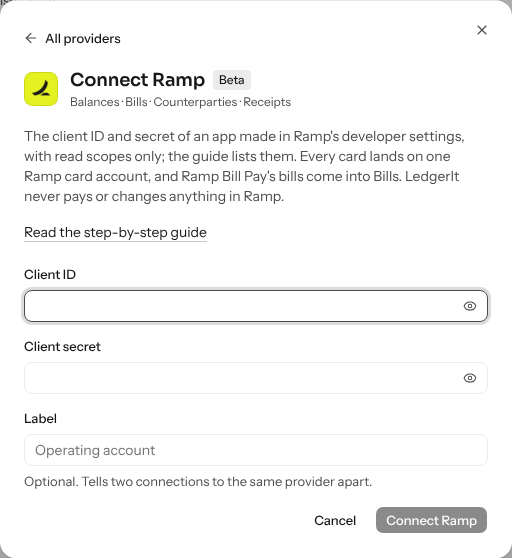
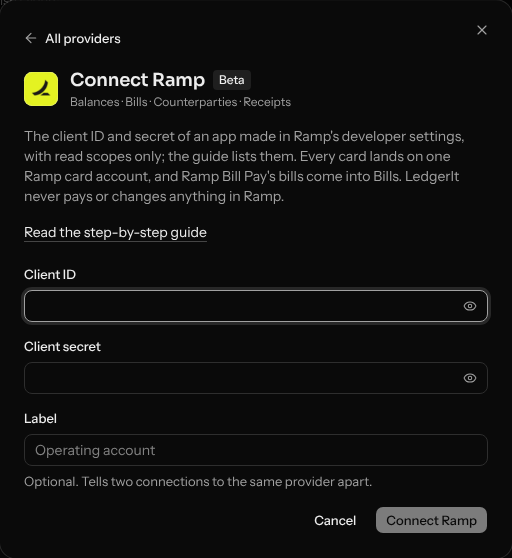
- Open Add connection at Ramp. To click your way there, go to Integrations, select Add connection and, under Banks and cards, choose Ramp.
- Paste the app's values into Client ID and Client secret.
- Optionally, give the connection a Label. You need a different one for each Ramp business you connect.
- Select Connect Ramp.
LedgerIt checks the client ID, the secret and the three scopes for the books with Ramp before saving anything, then encrypts them. They are never shown again. The first sync starts from there: see Sync and check a connection.
If something goes wrong
| What you see | What it means | What to do |
|---|---|---|
| Ramp rejected that key when connecting | The client ID or secret is wrong, the app lacks one of transactions:read, transfers:read and cashbacks:read, or Client Credentials is not turned on | Check all three in the developer console, then connect again |
| Last sync failed | Read the Last error under the connection. The secret may have changed, or one of the three scopes for the books may have been taken off the app | Put the scope back, or select Reconnect and enter the client ID and secret again |
| Can't read your team | The app lacks users:read | Give the app the scope, then select Reconnect Ramp and enter its client ID and secret again. See Let a card program name its cardholders |
| Charges with no receipts | The app may lack receipts:read | Give the app the scope. LedgerIt asks Ramp for a new token on every sync, so the next sync reads them |
| No balance or statement figure at the close | The app lacks business:read or statements:read | Give the app the scope. The next sync reads it |
| A line under the connection saying LedgerIt cannot read all of Ramp's Bill Pay yet | The app lacks bills:read or vendors:read | If you pay bills through Ramp, give the app both scopes. The next sync reads them and the line goes. If you do not use Ramp Bill Pay, nothing is missing |
| A Ramp bill is still a draft | It is not approved in Ramp yet, your books do not know its vendor's account, or its month is closed | Open it under Bills, choose the account and select Approve |
| A bill Ramp paid still shows an amount owed | The bank transaction that paid it has not arrived, does not name Ramp or the vendor, or more than one could be it | Sync the bank it was paid from, or open the transaction and select Settle under Open bills it may pay |
| Behind | It has not synced successfully within 24 hours | Select the sync icon. If it fails, the badge becomes Last sync failed |
Reconnecting under the same label replaces the old client ID and secret rather than adding a second connection, and everything already in the books stays.
How long the credentials last
Ramp's authorization guide gives a client secret no expiry date. LedgerIt keeps only the client ID and secret. For each sync it asks Ramp for short-lived tokens and throws them away when the sync ends, so no token is kept to expire.
If you change the secret or retire the app at Ramp, the next sync fails and the connection shows Last sync failed. Enter the new values with Reconnect.
Disconnect Ramp
- Open Ramp from Integrations.
- On the connection's row, open the ⋯ menu and select Disconnect, then confirm.
LedgerIt destroys its copy of the client ID and secret, and everything Ramp brought in stays in your books, its bills included. The app itself is yours: to retire it, revoke it at Ramp.