Bookkeeping
Read your chart of accounts
See every GL account your books can post to, what each one holds today, and every line that made its balance what it is.
The chart of accounts is the list of GL accounts your books post to: where cash sits, what you owe, what you raised, what you earned and what you spent. Open GL accounts to see each one with its balance, and open any account to see the lines behind that balance.
What the chart is made of
- Reads on the
- Balance sheet
- Grows with a
- Debit
- What it holds
- What the company holds or is owed.
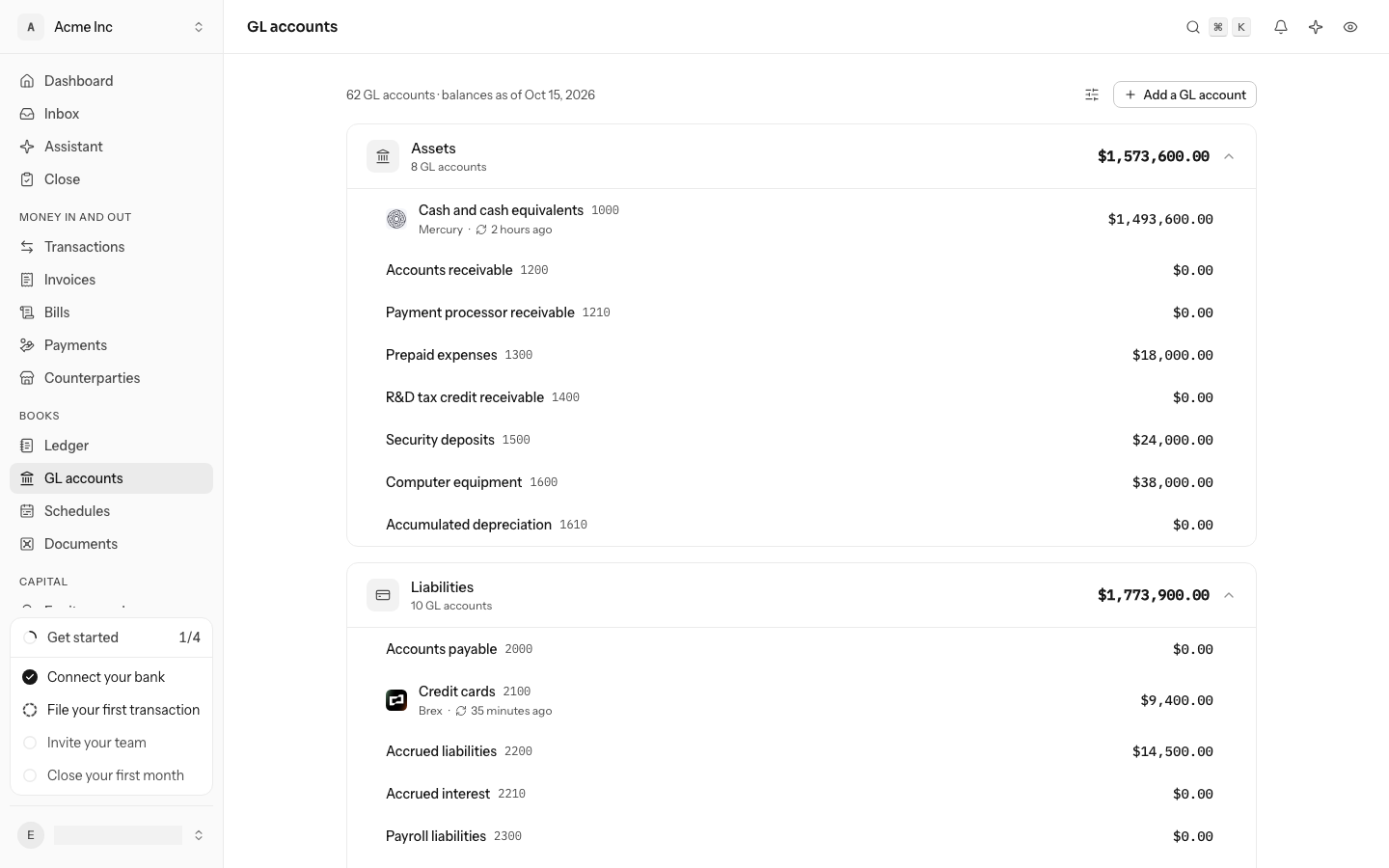
- 1000Cash and cash equivalents
- 1200Accounts receivableControl
- 1210Payment processor receivableControl
- 1300Prepaid expenses
- 1400R&D tax credit receivable
- 1500Security deposits
- 1600Computer equipment
- 1610Accumulated depreciation
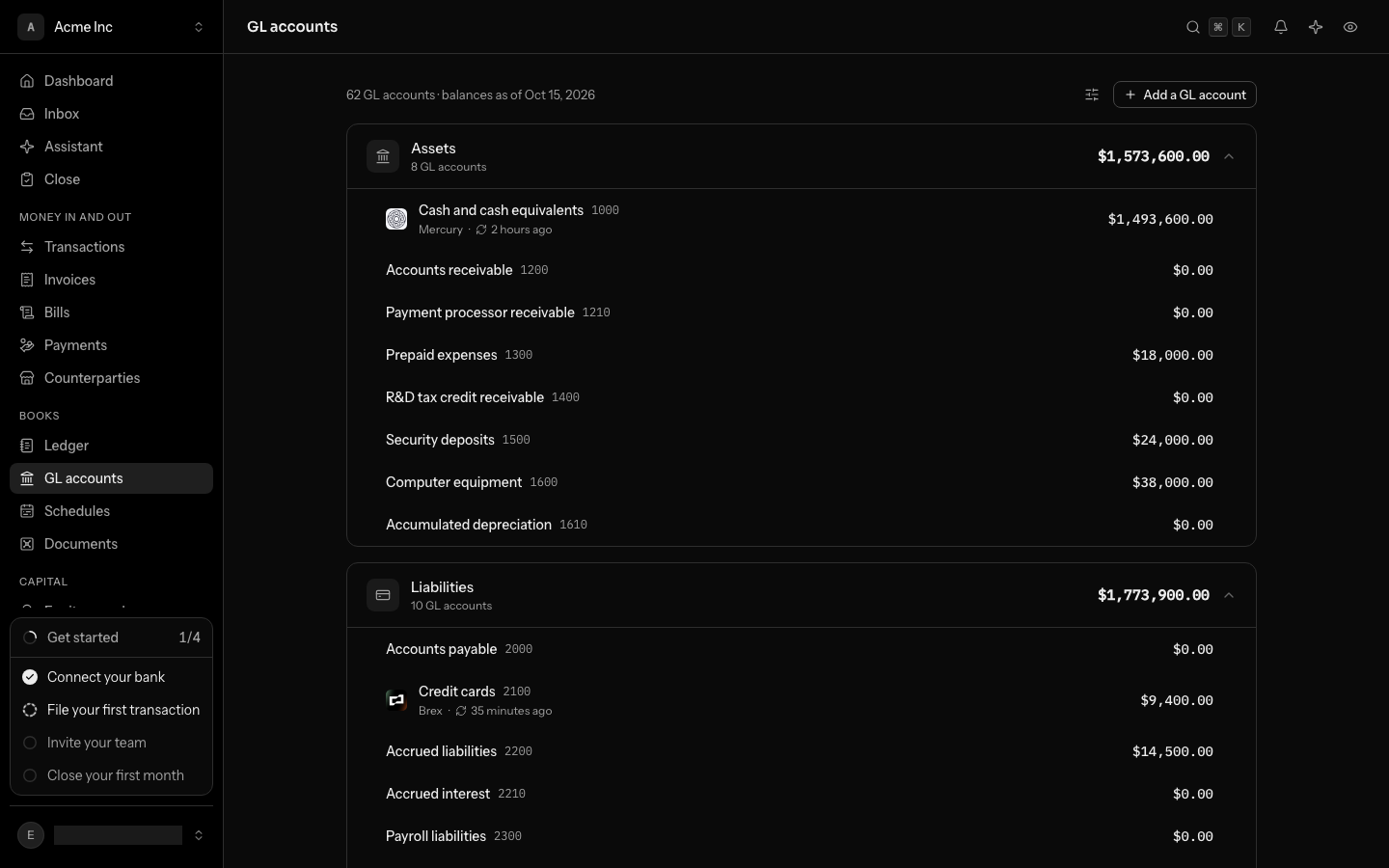
Assets use codes starting 1, read on the balance sheet and grow with a debit. A balance on its normal side shows as a positive number.
Every GL account has a code, a name and one of five types. The type decides where the account appears on your statements, and the first digit of the code always matches it: assets use the 1000s, liabilities the 2000s, equity the 3000s, income the 4000s and expenses the 5000s to 7000s.
Every new set of books starts with a chart built for a venture-backed startup. Hosting, payment processing and API costs sit in cost of revenue, above the gross-margin line. Operating expenses are split into research and development, sales and marketing, and general and administrative, the way a board reads a P&L. SAFEs and convertible notes are liabilities until they convert, and venture debt is a liability until it is repaid. Interest owed on notes or debt and not yet paid sits in Accrued interest (2210). A SAFE your accountant classifies as equity waits in SAFEs classified as equity instead (see Record SAFEs and convert them).
Books made before October 2, 2026 started without Accrued interest and Venture debt. A chart is yours once it exists, so LedgerIt does not add to it: add them yourself if you need them (see Add a GL account).
Two accounts catch what has not been filed yet: Uncategorized income (4900) and Uncategorized (6900). A transaction parked there is in suspense until someone files it. See Review and file transactions.
Read the chart
-
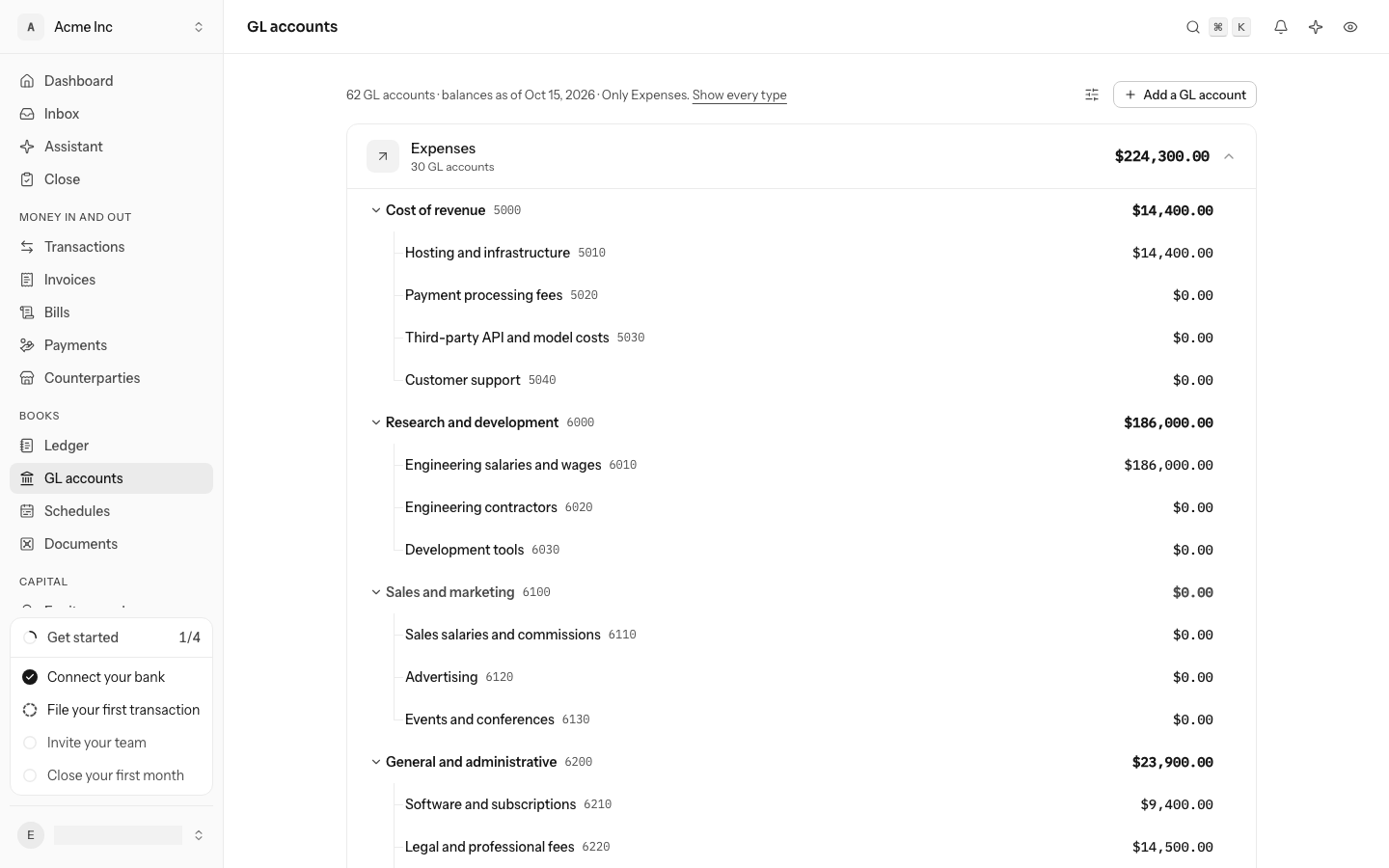
Open GL accounts. Select a type's header to fold it away, or open View options (beside Add a GL account) and select Collapse all.
-
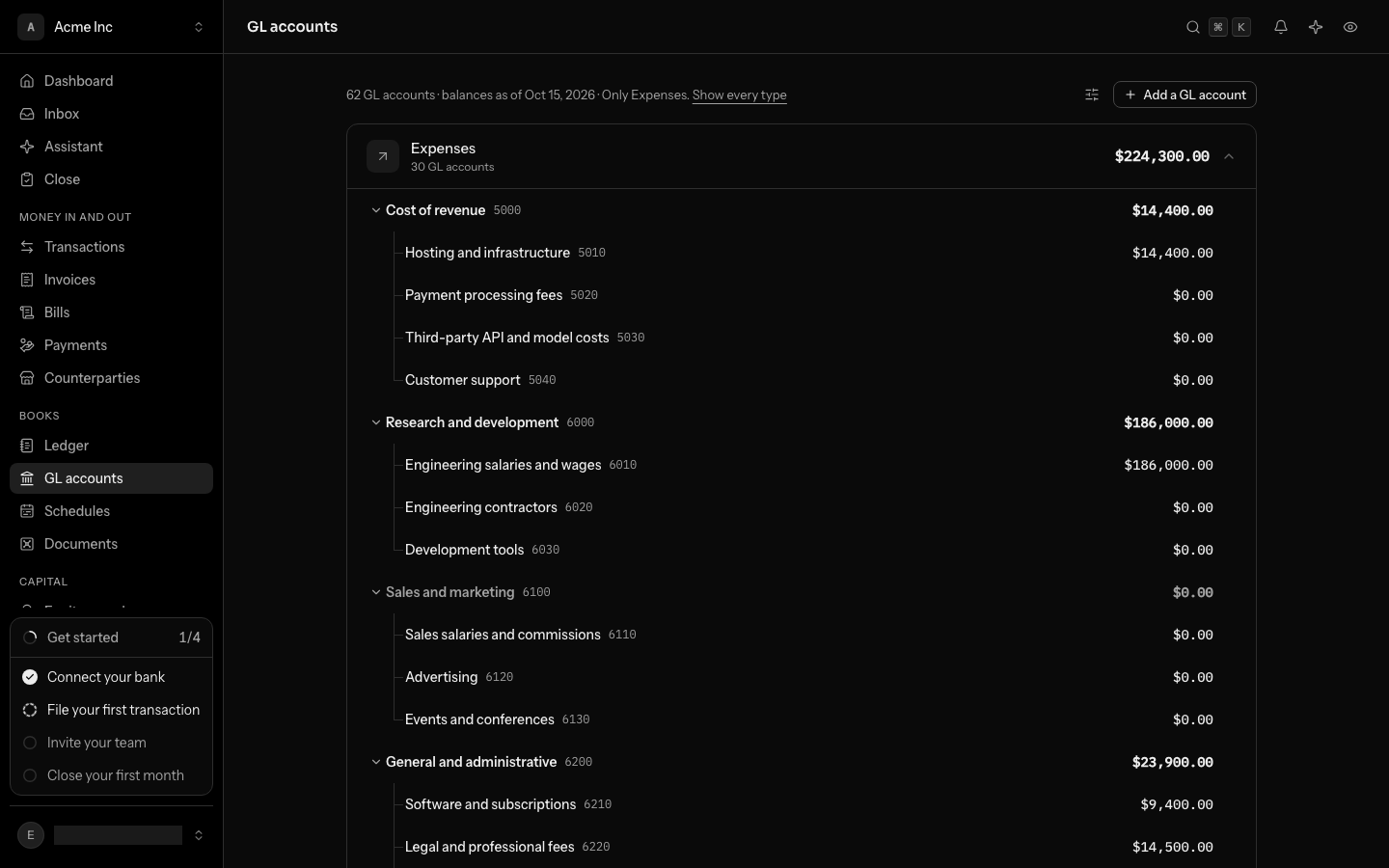
Accounts are drawn as a tree: a line runs down from a grouping account and branches into each account under it, so you can follow the line to see which account sits inside which. Select the arrow beside a grouping account to fold the accounts under it away, and again to bring them back; its figure still counts them. An account in bold is a grouping account: nothing posts to it, and the figure beside it is the total of every account under it. A grouping account whose accounts are all unused starts folded: select its arrow to see them. One whose single account on screen carries the same total is left out, so the figure is not repeated.
-
An account marked Closed no longer takes new postings. It stays in the chart because its history does.
-
An account a bank or card connection feeds shows that provider's logo and when it last synced. So does every account under a provider's grouping: each Brex card, and the Brex card account above them, wears Brex's logo. An account with a logo you uploaded shows that instead (see Give an account a logo).
-
By default the page hides postable accounts with a zero balance, except the ones a connection feeds. Open View options and select Show unused GL accounts to see the whole chart.
- 6200General and administrativeSubtotal
- $14,720.00
- 6210Software and subscriptions
- $3,120.00
- 6220Legal and professional fees
- $4,800.00
- 6240Rent and facilities
- $6,800.00
Nothing posts to 6200. Its figure is what the three accounts under it hold, so moving an account in the chart changes which subtotal counts it, and nothing posted.
Balances are shown the way the balance sheet reads them. Cash you hold and a card balance you owe are both positive numbers, because each is on its account's normal side.
See why an account holds what it holds
Select any account to open its page.
- The top of the page shows the account's code, its type, the account it sits Under, the provider that feeds it (a link to that provider's page), and its Balance as of today. Each of them is a link: the code opens GL accounts on the account's own row, the type opens GL accounts showing only that type (Show every type brings the rest back), and the balance opens the Ledger narrowed to this account up to that day, the entries the balance is made of. On a subtotal, the balance jumps to GL accounts under it.
- For a subtotal account, GL accounts under it lists each child with its own balance.
- Activity covers 1 January of this year to today, unless you came from a report: then it covers the report's period, and Show this year returns to the usual window. A chart draws the running balance across the window, and under it every line posted to the account, in the order they were posted: the Opening balance, each line's Change (money in with a + sign) and the running Balance, down to the Closing balance. The closing balance is the number at the top of the page, so the register adds up to it. A window nothing was posted in says so in one line instead. A reversed entry and its reversal share one line when both fall in the window: the amount is struck through, the line says Reversed by and links to the reversal, and the running balance skips the pair, since together they moved nothing. A reversal of an entry from before the window stays a line of its own.
- On a bank or card account, See all transactions opens Transactions filtered to that account.
- On a subtotal account, each line also names the account under it that the line actually sits on.
- Rules that file here lists every rule that files transactions to this account, with the text it matches and whether it is paused. Select one to open the rule and change it. See Automate filing with rules.
- Reconciliations, Required on every line and History share one card at the foot of the page, each usually a line long.
Give an account a logo
An account wears the logo of the integration that feeds it, so a Brex card shows Brex's. Any other account shows the icon of its type until you give it a logo of your own: a bank you have not connected, a loan, a cash box.
-
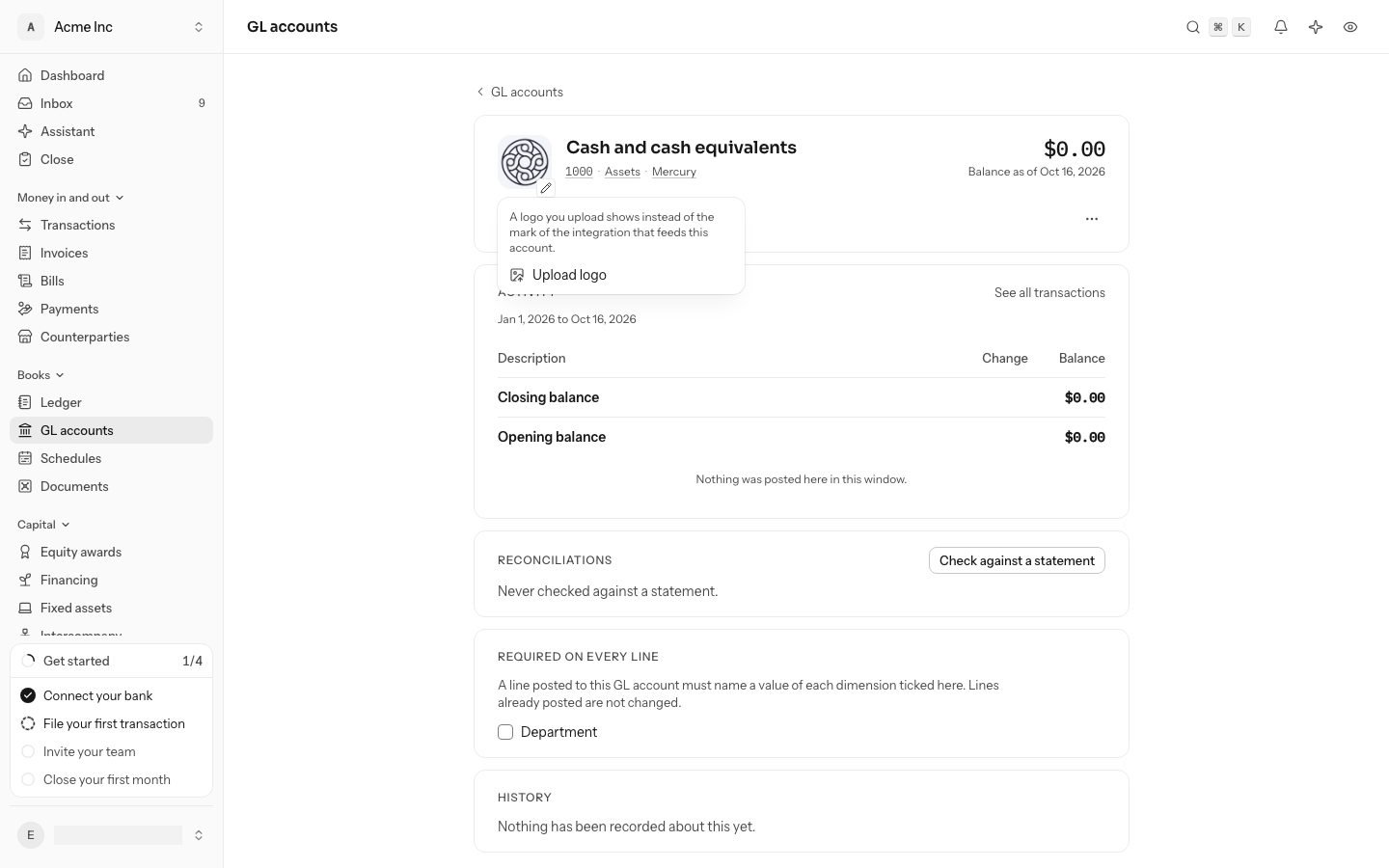
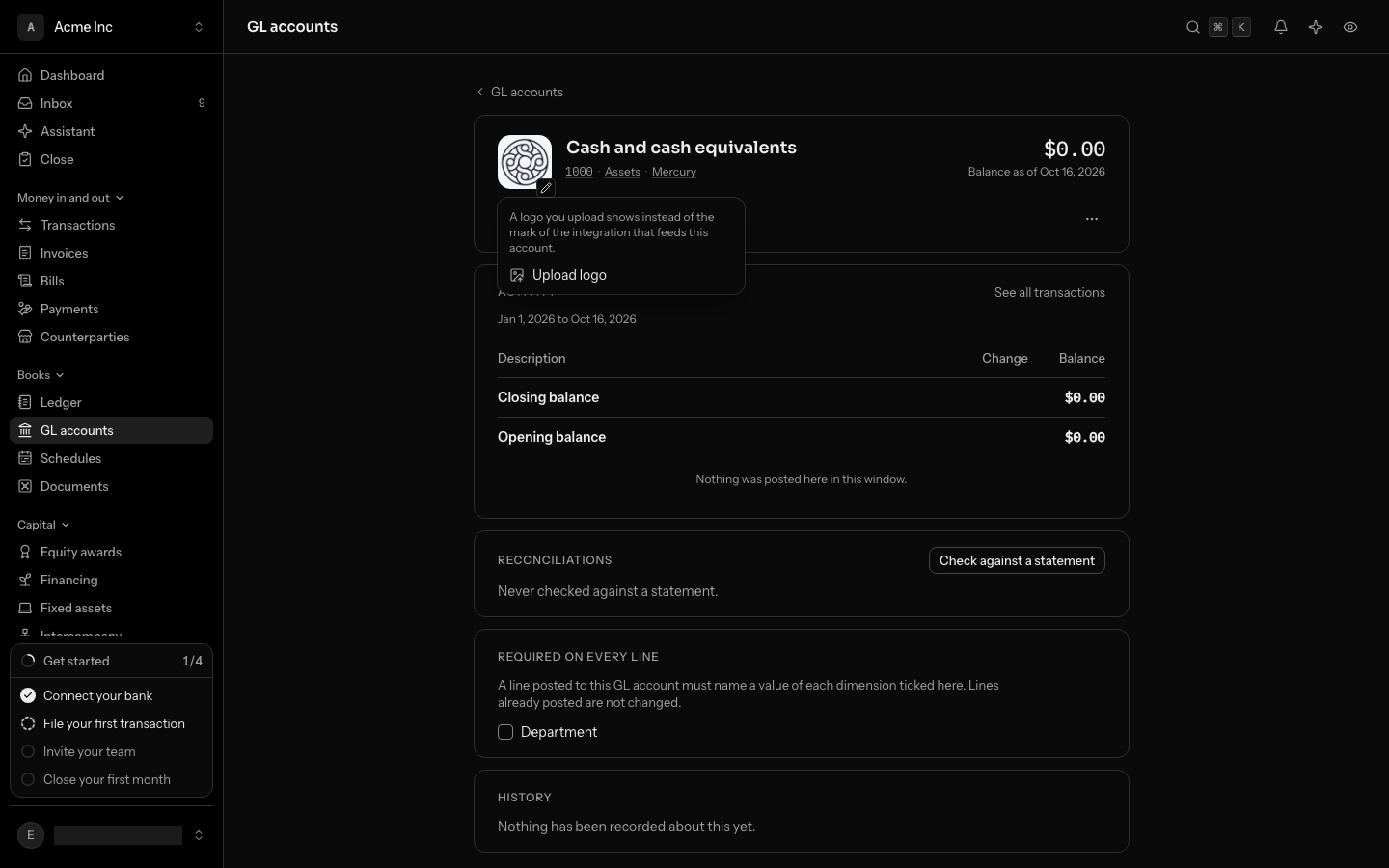
Open the account, and select its logo or icon at the top of the page.
-
Select Upload logo and choose a PNG, JPEG or WebP image, at least 32 pixels across and 1 MB at most. It shows straight away, on the account's page and on its row in GL accounts, and replaces the integration's logo.
-
To go back, select the logo again and then Remove uploaded logo. The account shows its integration's logo again, or its type's icon when nothing feeds it.
Changing the logo takes the owner, admin or accountant role. The logo is only a picture: nothing posted to the account changes.
The page shows up to 500 lines. When a window has more, only the most recent ones are listed, and the opening balance is the balance before the first of them.
Each line names its journal entry number, so you can find the entry in the Ledger.
Control accounts: receivables, payables and processor clearing
- 1200Accounts receivablePartyNorthwind LabsCustomer$12,000.00
- 2000Accounts payablePartyHarbor Legal LLPVendor$4,800.00
- 1210Payment processor receivablePartyStripeVendor$2,390.50
- 2000Accounts payablePartyNobody namedRefused$950.00

Accounts receivable (1200), Accounts payable (2000) and Payment processor receivable (1210) are control accounts. Every line posted to one must name who it is with, a counterparty in these books, so you can always say who owes you and whom you owe. On Payment processor receivable that is the processor holding your money between a charge and its payout: when Stripe is connected, every line it posts there names Stripe. When you write a journal entry by hand with a line on one of them, the form asks for a Party on that line. See Write and correct journal entries and Keep track of vendors and customers.
Dimensions: department and other slices
A dimension slices the books without adding accounts: department, project, location. Every set of books starts with a Department dimension whose top-level values are the three functions, research and development, sales and marketing, and general and administrative. Teams can nest under them.
An operating expense line that names a department counts toward that department's function on the income statement, whatever expense account it sits on. A line that names no department counts toward its account's own group.
A transaction from a bank or card names its department on its own page, and its line carries it: see Name its department.
An account can require dimensions: once it does, every new line posted to it must name a value of each one, and a transaction filed to it waits in the review queue until it names them. Open the account and tick the dimension under Required on every line; untick it to stop requiring it. The change is saved as you tick, and takes the owner, admin or accountant role. Lines already posted are not changed, and a dimension or value that a posted line carries cannot be deleted.
Add a dimension and its values
- Open Settings and go to Dimensions.
- Select Add a dimension. A new card opens at the end of the list: type its name, for example Project, and press Enter. The Key beside it is what the API calls it; it is filled in from the name as you type and never changes once the dimension is added. Escape puts the card away.
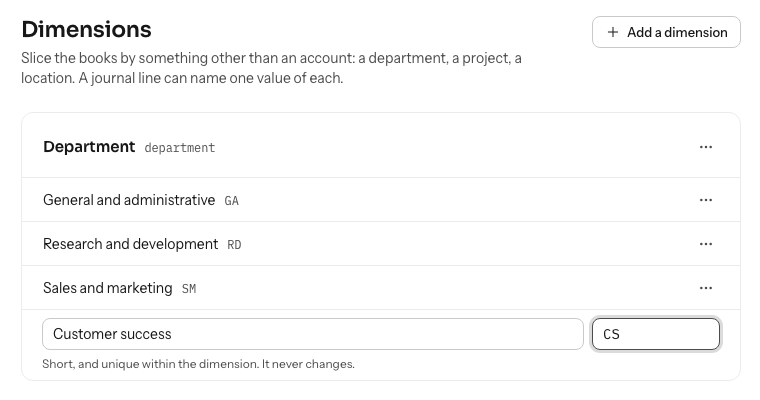
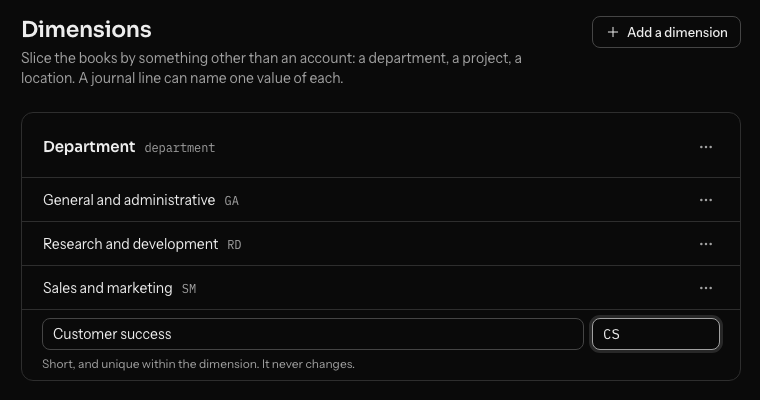
- Select Add a value at the end of the dimension's list. A row opens in place: type its name (Engineering) and a short code (ENG), and press Enter. The row stays open for the next value; Escape closes it. The code is unique within the dimension and never changes.
If LedgerIt refuses a dimension or a value, for example a key or code already taken, it says why on the row, and nothing is added until you change it.
Rename, move or delete
- Rename a dimension or a value by selecting its name and typing over it. Enter or leaving the field saves it; Escape puts the old name back. Rename in its ⋯ menu does the same. The key and the code never change, and lines already posted keep the dimension.
- Move under in a value's ⋯ menu nests it under another value, or takes it back to the top with Nothing (top level). A value can't be moved under itself or under one of its own.
- Delete, last in either menu, removes a dimension with its values, or one value. Values under a deleted value move to the top. A dimension or value that a posted line carries can't be deleted: LedgerIt says so and leaves it in place. Rename it instead.
Everyone with access to the books can read the dimensions. Adding, changing and deleting them takes the owner, admin or accountant role.
A line names its dimension values in the journal entry form: see Write and correct journal entries.
Add a GL account
- On GL accounts, select Add a GL account, or press N.
- Choose its Type: assets, liabilities, equity, income or expenses.
- Choose the account it sits Under, or leave it at the top of its type. An account sits under one of its own type.
- Check the Code. LedgerIt offers the next free one after the accounts beside it; you can type another. A code starts with the digit of its type (1 for assets, 2 for liabilities, 3 for equity, 4 for income, and 5, 6 or 7 for expenses), and each code is used once.
- Give it a Name. Tick A subtotal if it is only there to group other accounts: nothing posts to a subtotal.
- Select Add. The new account's page opens.
A new account holds nothing, so the chart lists it once something posts to it, or when Show unused GL accounts is on.
Rename a GL account
Open the account and click its name at the top of the page, or press E. Type the new name and press Enter; Escape keeps the old one. The code does not change, and everything already posted shows under the new name.
Move a GL account in the chart
An account sits under another account of its type, or at the top of its type. To change where:
- Open the account and select Move in the chart in the ⋯ menu, or press M.
- Choose the account it sits Under, or Nothing (top of its type).
- Select Move.
Nothing posted changes, and the code stays the same. What changes is the subtotals: the ones above its old place stop counting it, and the ones above its new place start. A subtotal takes everything under it along.
An account can't be moved under itself, under an account that is under it, under an account of another type, or under a closed account.
Close a GL account you no longer use
An account with anything posted to it is never deleted: the history has to stay. Closing it takes it out of use instead.
- Open the account, select Close this GL account in the ⋯ menu, then confirm.
- The account is marked Closed. It is no longer offered when you file a transaction or write an entry, and nothing new can be posted to it.
- Everything already posted stays, and still shows in reports.
To bring it back, open it and select Reopen this GL account.
LedgerIt refuses to close three kinds of account, and says which applies: one the books cannot run without (retained earnings, the suspense accounts, receivables and payables), a subtotal that still has open accounts under it, and an account a rule still files to. Change or pause the rule first: Rules that file here on the account's page lists them.
Who can do what
Everyone with access to the books, including viewers, can read the chart and every account's activity. Adding, renaming, closing or reopening an account, or setting which dimensions an account requires, takes the owner, admin or accountant role.
Rules the books keep
An account's code must start with its type's digit and be unique in the books, and a child account has the type of the account it sits under. Once an account has postings, its type cannot change and it cannot be deleted.
Do this through the API
Everything in this guide is also an API call, for scripts and agents. The reference lists each operation with its parameters and objects.