Bookkeeping
Find receipts and invoices
Upload, photograph or email receipts, open the ones behind your transactions, see which card spend is still missing one, and how LedgerIt keeps its own copy.
Documents are the paper behind your transactions: the receipts and invoices that prove what a charge was for. LedgerIt brings them in from your card programs and keeps them with the transaction they support, so every figure in your books traces back to its evidence.
Where documents come from
From a card program
Brought by you
Either way, LedgerIt copies the file into private storage for your books, so it still opens months later.
Documents arrive with your card feeds. When you connect a card program that keeps receipts, such as Brex or Ramp, each sync brings in the receipts attached to its transactions: add the receipt in the card program, the way your team already does, and the next sync brings it in.
You can also bring a receipt in yourself: upload it, take a photo of it on your phone, or forward it by email. See Upload a receipt or take a photo and Forward a receipt by email. Or connect your Gmail or Outlook mailbox, and LedgerIt finds the receipts of charges that have none there itself: they show as Found in your mailbox (see Find receipts in your mailbox).
A receipt belongs to the transaction from the moment the card program reports it, often before anyone has filed the charge. When a card authorisation is later replaced by the settled charge, the same receipt supports both, rather than being stored twice.
See Connect your banks, cards, payroll and revenue to connect a card program.
Open a receipt from a transaction
- Open Transactions. A transaction with paper attached shows a paperclip beside its description.
- Select the paperclip. The document opens in its panel on the Documents page.
You can also open a transaction itself. Select the paperclip icon on its page, or press D. Receipts lists each document with what was read off it: the merchant, the date and the total. Choose one to open it. See Review and file transactions.
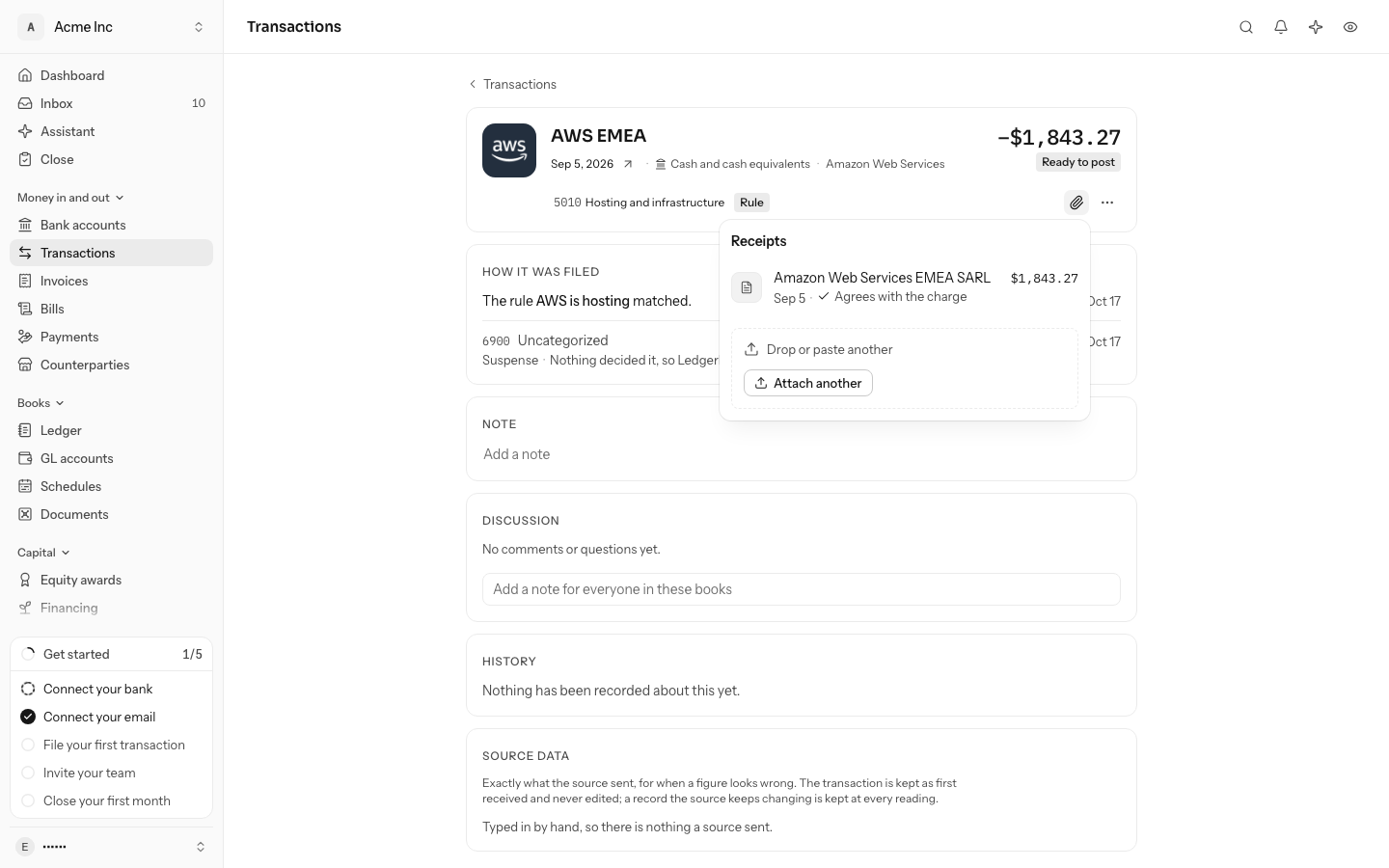
Each receipt is checked against the charge:
- Agrees with the charge. The total, the date and the currency read off it match the transaction. The date may be up to seven days away.
- $2.10 more or $2.10 less. The total is not the charge's amount. A tip or a currency fee often explains it.
- Another date. The receipt is dated more than a week from the charge.
- Total not legible. LedgerIt could not read the total clearly enough to compare it.
- Reading it. LedgerIt has not finished reading the receipt yet.
The check only tells you. It never changes the transaction or the receipt.
Find the missing receipt from the transaction
When a transaction has no receipt, its Receipts panel shows every way to get one there.
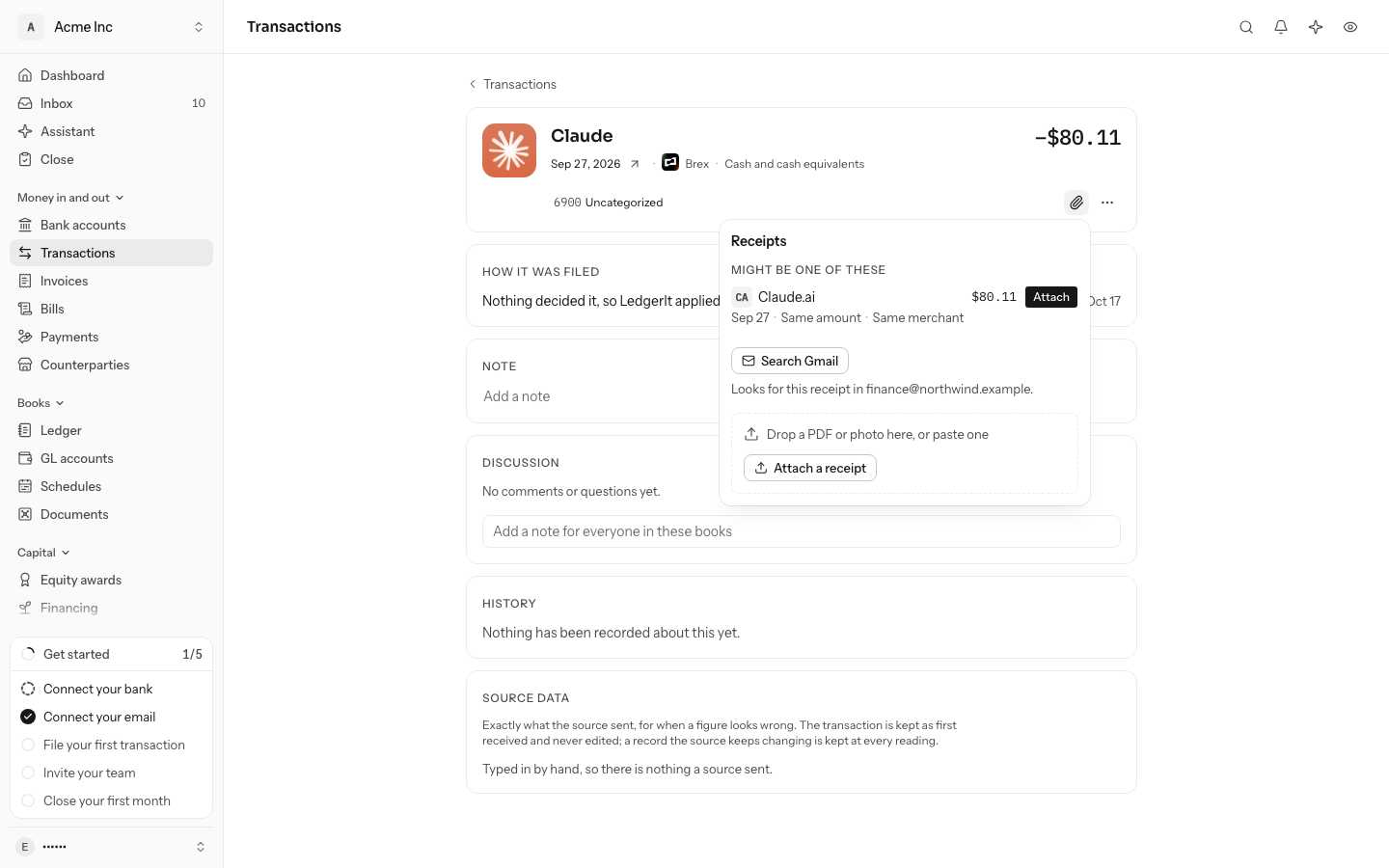
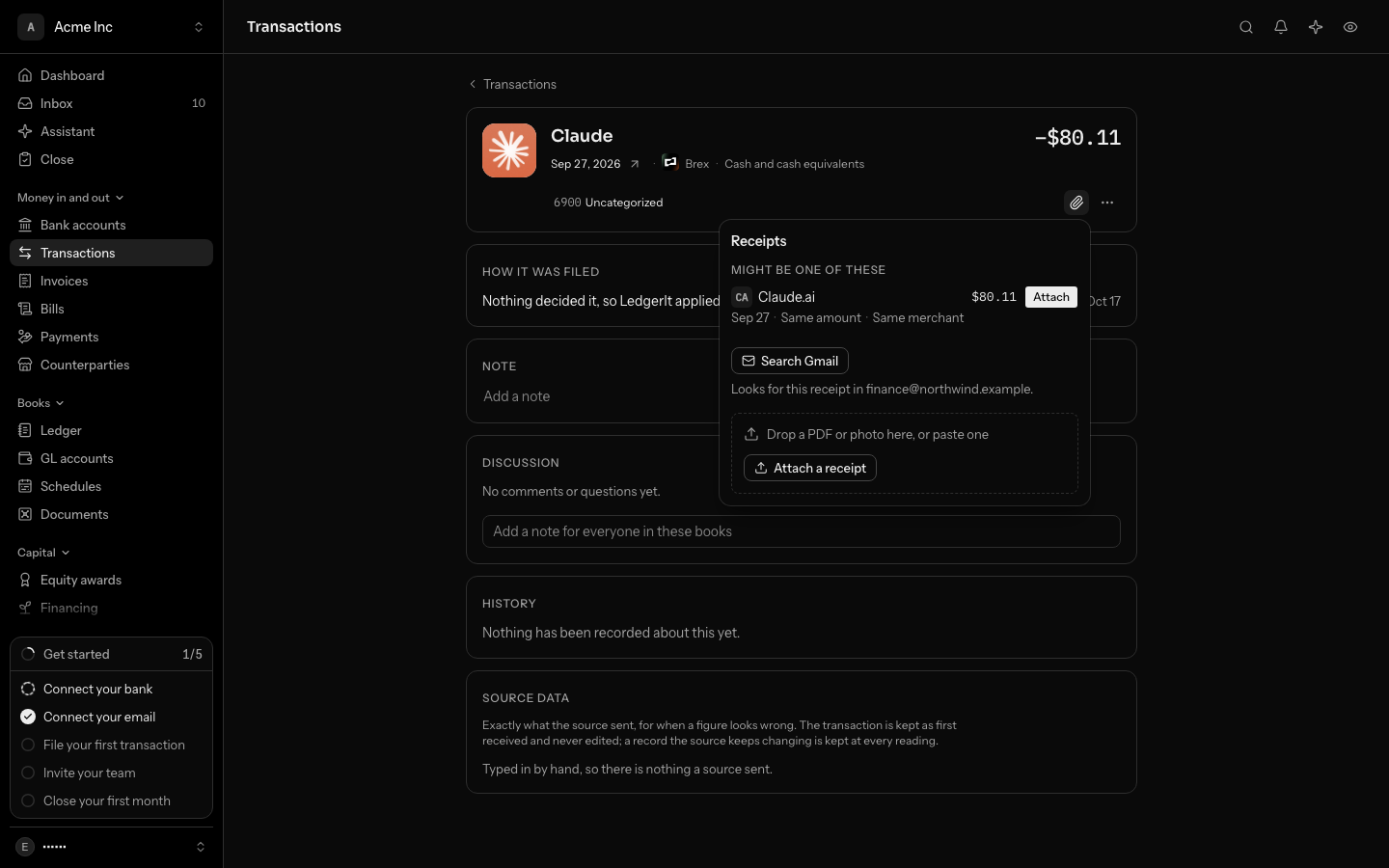
- Might be one of these. Receipts you already brought that no transaction has claimed, closest first. Each says why it is suggested: Same amount, Same merchant, and the date it was read with. Select Attach to attach it to this charge. A receipt is never suggested on its date alone, and never one dated more than 45 days away or in another currency.
- Search your email. With Gmail or Outlook connected, select Search Gmail to look for the receipt in your mailbox. See Find receipts in your mailbox.
- Drop or paste it. Drag a PDF or a photo onto the panel, or paste one you copied, and it is attached to this charge at once. Attach a receipt chooses a file, and on a phone Take a photo opens the camera.
- Forward it. The panel shows your books' receipt address under Or forward it to; select it to copy it.
How LedgerIt keeps your documents
A card program shares a receipt as a link into its own storage, and those links expire. After each sync, LedgerIt copies the file into its own private storage for your books, so a receipt still opens months later.
- Each time a document's file is shown or opened, LedgerIt creates a fresh link that works for a short time. There is no permanent public address for any file.
- Until the copy has been made, the document opens from the card program's own link.
- The same file sent twice is stored once. If two receipts are byte-for-byte identical, both transactions point at the one copy.
Find card spend that is missing a receipt
When you close a month, LedgerIt lists card spend that is missing its paperwork as open items on the close.
- Card spend with no receipt. A card expense of 75.00 or more in your books' currency, reported by a card program that tracks expenses, with no receipt attached.
- Card spend the card program has not approved yet. An expense still waiting for approval in the card program.
These items are there to tell you, not to stop you: they do not block closing the month. Each clears itself when a later sync sees the receipt or the approval, or as soon as a receipt is attached to the charge. Select View the transaction beside an item to go straight to it. See Close the month.
Only spend that stands in the books is asked for a receipt. An excluded transaction, a duplicate and a card authorisation that has not settled yet are not.
The Documents page
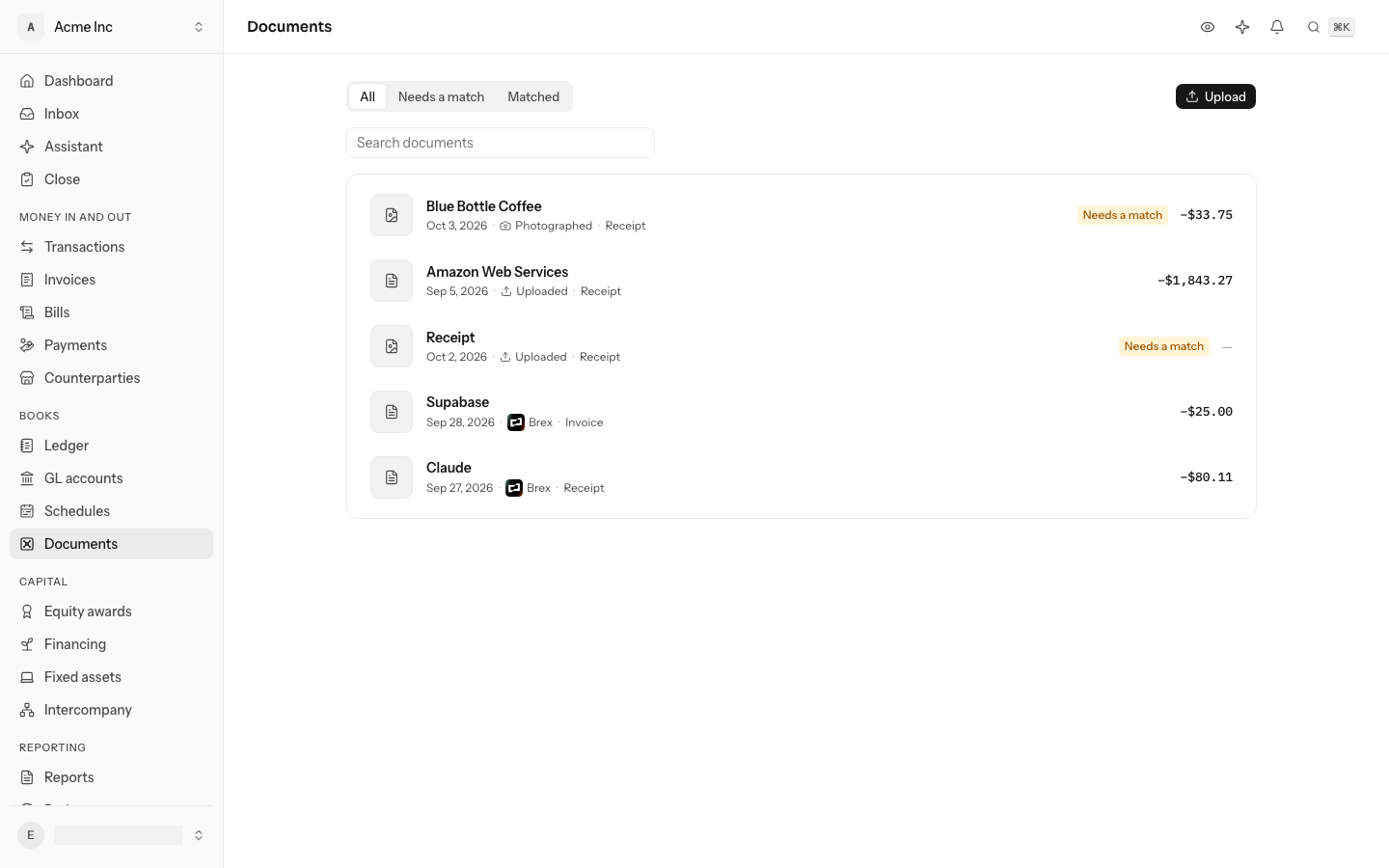
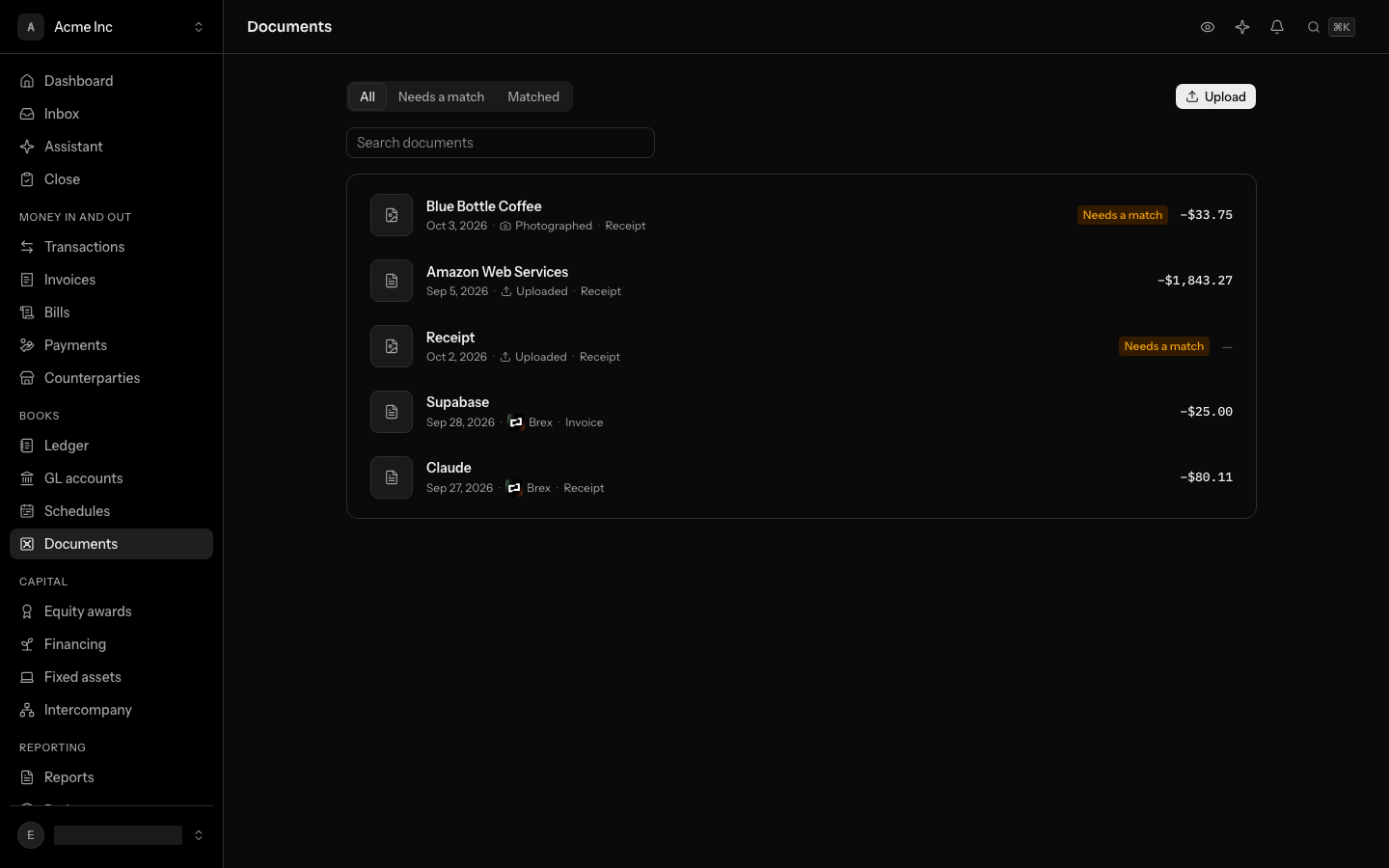
The Documents page lists every receipt and invoice in your books, newest first.
| Tab | What it shows |
|---|---|
| All | Every document. |
| Needs a match | Documents that do not support a transaction yet: the charge has not arrived. On All, these are the rows marked Needs a match. |
| Matched | Documents attached to the transaction they support. |
To find one, type in Search documents above the list. It reads the description of the transaction a document supports and the merchant read off the document itself, and works together with the tab you are on.
Select a row to open its panel. The file comes first, shown in the panel itself once LedgerIt holds its copy: a PDF page by page, a photo as the image. To see it full size or save it, select Open in a new tab in the ⋯ menu at the top of the panel. A file of any other kind, or one LedgerIt has no copy of yet, has Open the file instead. If the file cannot be shown, select Try again. Then Supports, the transactions it belongs to, each one a link.
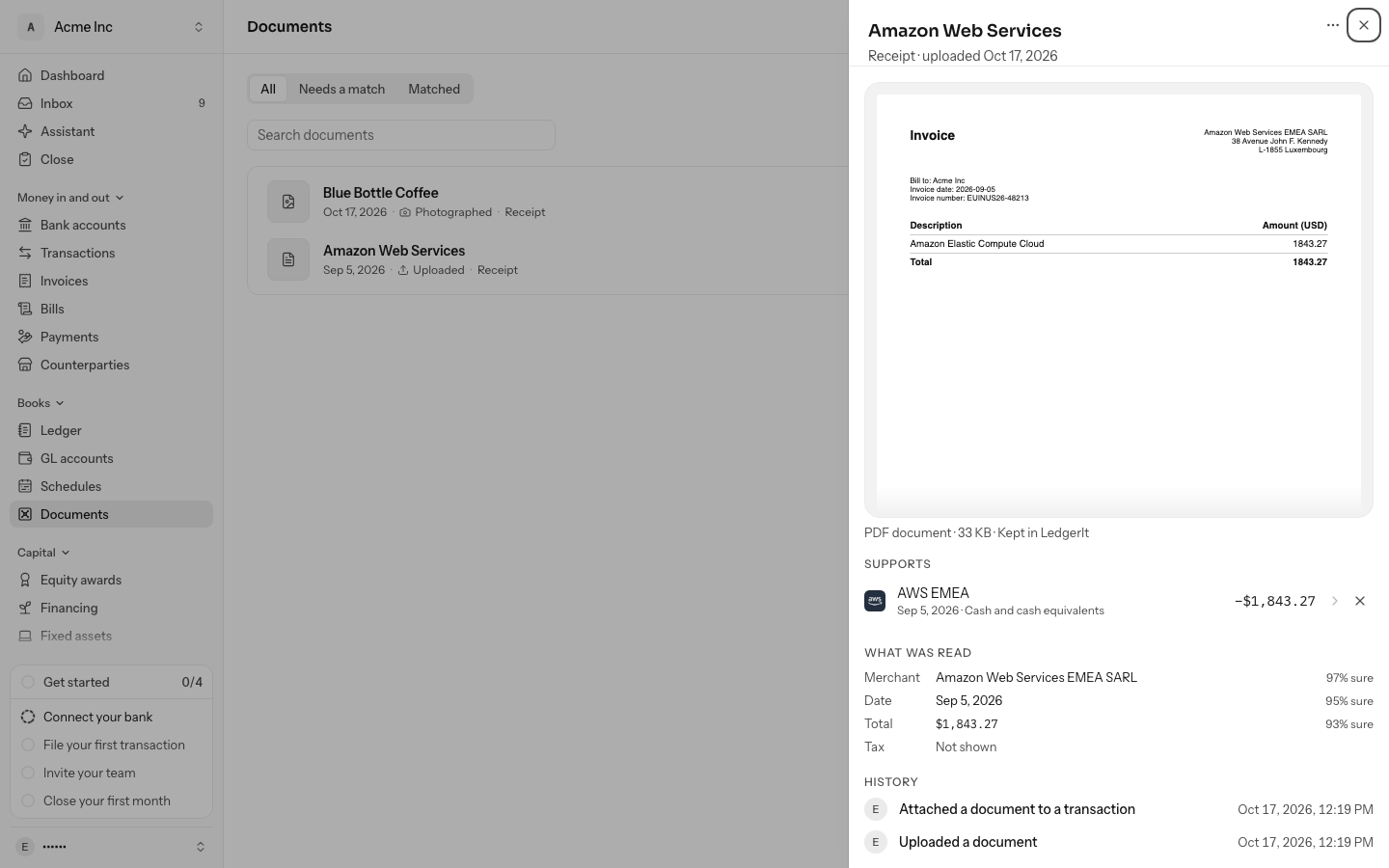
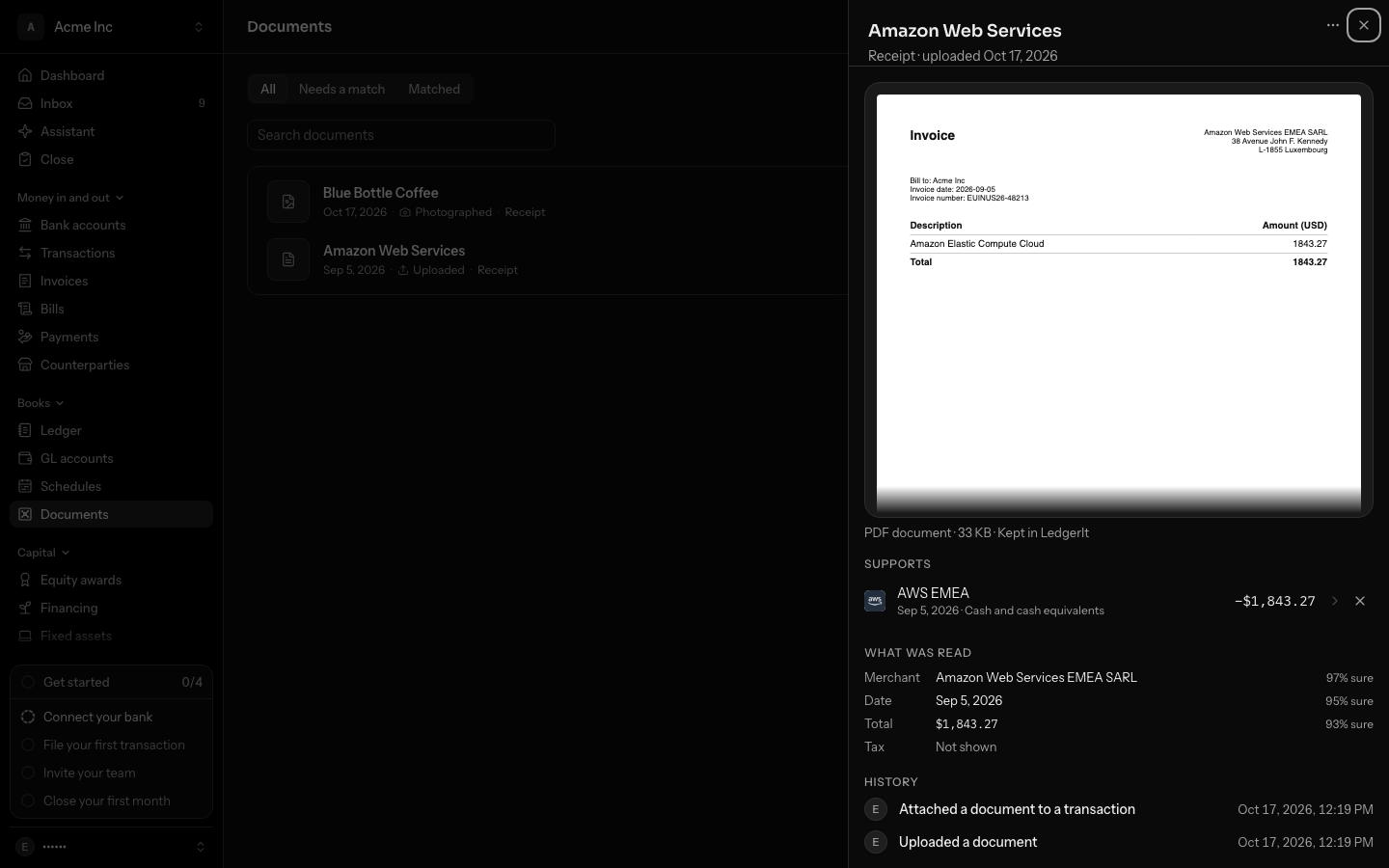
Under the panel's title is what kind of document it is, where it came from and when it arrived; beside the file, its type, its size and whether LedgerIt holds its own copy yet. Under those, History lists what people did with the document: who uploaded it, attached it to a transaction or detached it, and when. The panel has its own address, so you can share a link to one document.
The same list is in the public API as documents; see the API reference.
Upload a receipt or take a photo
- Open Documents and select Upload. Before your books have any documents, it is under No receipts yet. Choose one or more files: a PDF, or a photo in JPEG, PNG, WebP or GIF, up to 25 MB each.
- On a phone, select Take a photo instead to photograph the receipt in your hand.
Each file shows as Uploading while it is on its way, then as a document. Uploading the same file twice keeps one document.
To bring a receipt straight to the charge it belongs to, open the transaction, select the paperclip icon, and select Attach a receipt. It is attached at once.
Forward a receipt by email
Your books have their own address for receipts. It is shown at the top of Documents, beside Forward receipts to; select Copy to copy it.
- Forward the email with the receipt to that address, from the address you sign in to LedgerIt with.
- Each PDF or photo attached to it becomes a document, read and matched like one you uploaded. It shows as Emailed.
What LedgerIt keeps, and what it does not:
- Only from a member who can attach receipts. Email from any other address, including your own personal address if it is not the one you sign in with, is refused and nothing in it is kept.
- Only attachments. A PDF or a photo in JPEG, PNG, WebP or GIF, up to 25 MB each. Images that are part of the email itself, such as a logo or a signature, are left. A receipt that is only the text of the email is not kept from a forwarded email; save it as a PDF and forward that, or connect your mailbox, where LedgerIt reads receipts that are only text too.
If the address has been shared somewhere it should not be, an owner or admin can select New address in the ⋯ menu beside Copy. The old address stops reaching your books at once, so everyone who forwards receipts needs the new one.
What LedgerIt reads from a receipt
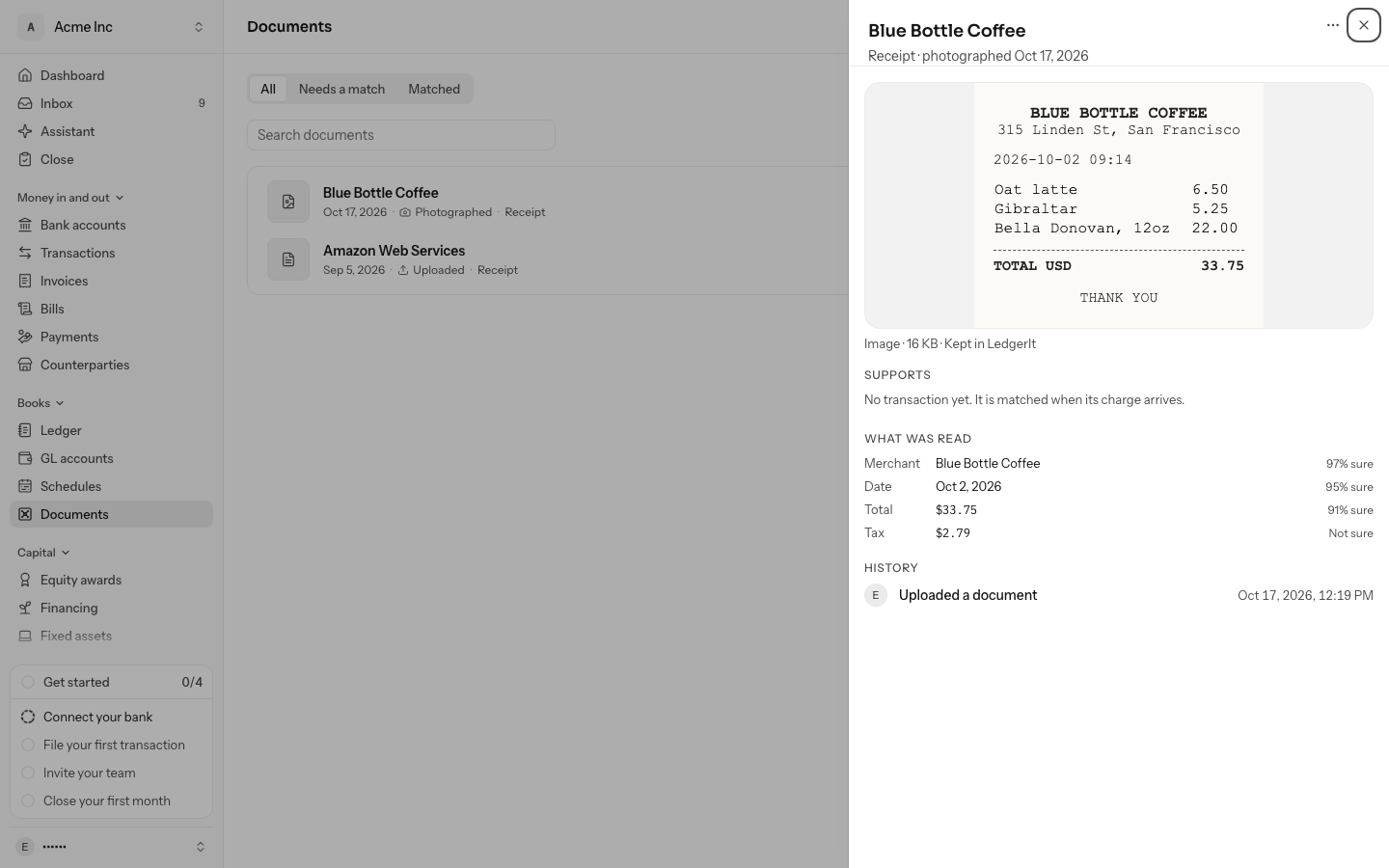
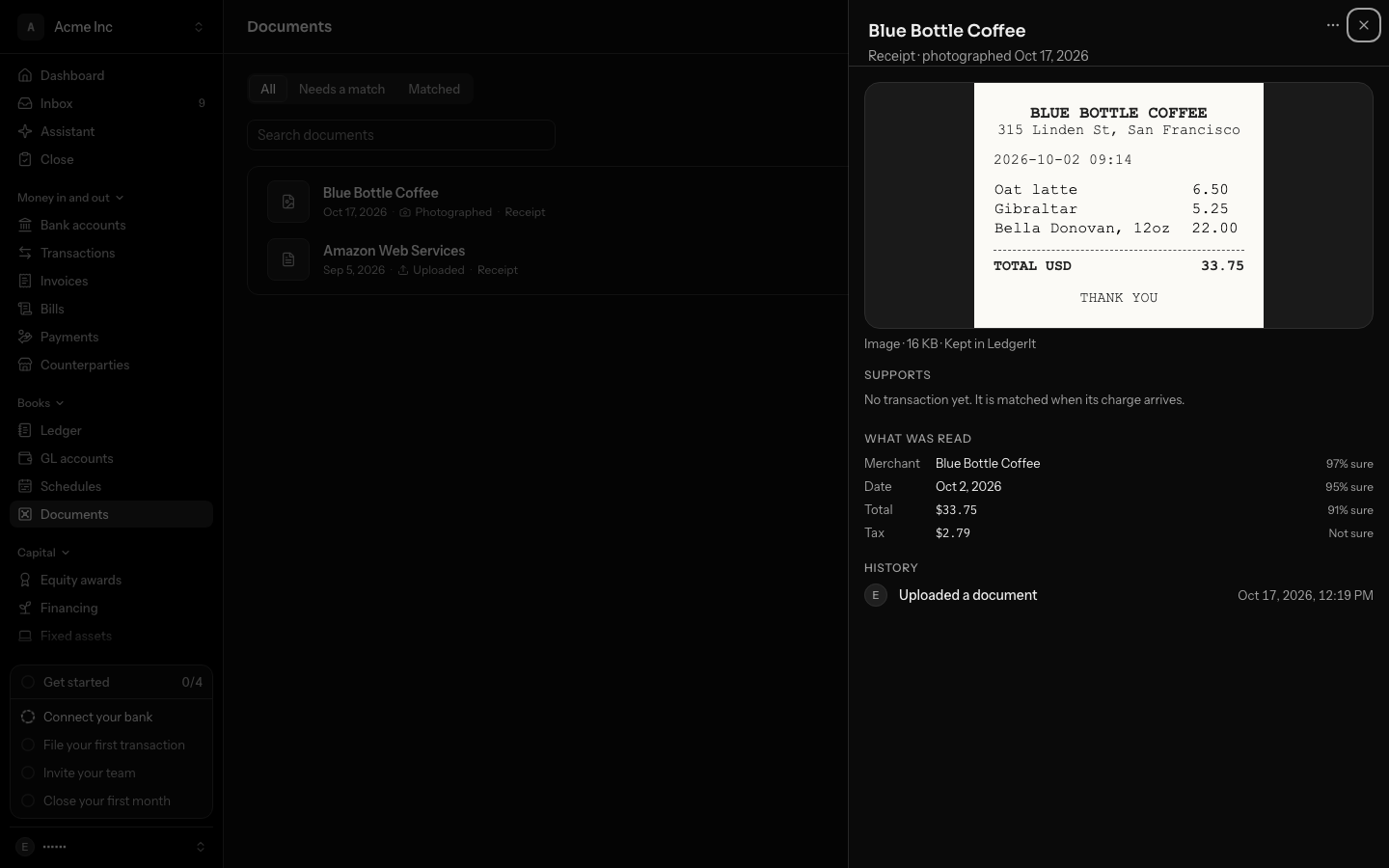
LedgerIt reads the merchant, the date, the total, the currency and the tax from each receipt you bring, uploaded, photographed or emailed, usually within a minute or two. Open the document to see them under What was read, each with how sure LedgerIt is, or Not sure when it is too unsure to rely on. What it read is shown and never acted on: text in a receipt is part of the receipt, not an instruction to LedgerIt.
A receipt is then attached to a transaction only when exactly one fits: money out, the same amount and currency, a date within seven days, and no receipt yet. Otherwise it waits under Needs a match.
- Merchant
- Figma
- Date
- Mar 12, 2026
- Total
- $45.00
- Currency
- USD
- FigmaMar 10−$45.00Fits
- UberMar 15−$32.40Another amount
- UberMar 17−$32.40Another amount
- NotionFeb 20−$96.00Another amount
- Lumen CloudMar 4−$320.00Another amount
Exactly one charge fits, so the receipt is attached to Figma, Mar 10.
Detach or delete a receipt
- Detach. In a document's panel, select the cross beside a transaction under Supports. The document stays, and LedgerIt does not match it again: once you attach or detach a receipt, the choice is yours.
- Delete. A receipt you uploaded, photographed or emailed that supports no transaction has Delete in the ⋯ menu at the top of its panel, beside the close button. The file and what was read from it are deleted. A card program's receipt cannot be deleted, because the next sync would bring it back; detach it instead.
All of this is in the public API as documents; see the API reference.
Who can open documents
Anyone with access to the books, including viewers, can open the documents attached to their transactions. Owners, admins, accountants and members can upload, attach, detach and delete receipts; viewers cannot. Documents belong to one set of books: a link never opens a file from another company's books.
When a set of books is deleted, every document stored for it is deleted too.
Do this through the API
Everything in this guide is also an API call, for scripts and agents. The reference lists each operation with its parameters and objects.