Bookkeeping
Record equity awards and expense them
Record the options and stock you grant, let every close expense them as stock-based compensation by department, and forfeit them when someone leaves.
An option or a share you grant a hire costs the company nothing in cash, but it is still pay. Accounting rules (ASC 718 in the US) say its value on the grant date is an expense, spread over the years the holder has to stay to earn it. Equity awards keeps the list of those grants, and every month-end close posts each month's stock-based compensation for you.

Find your way around
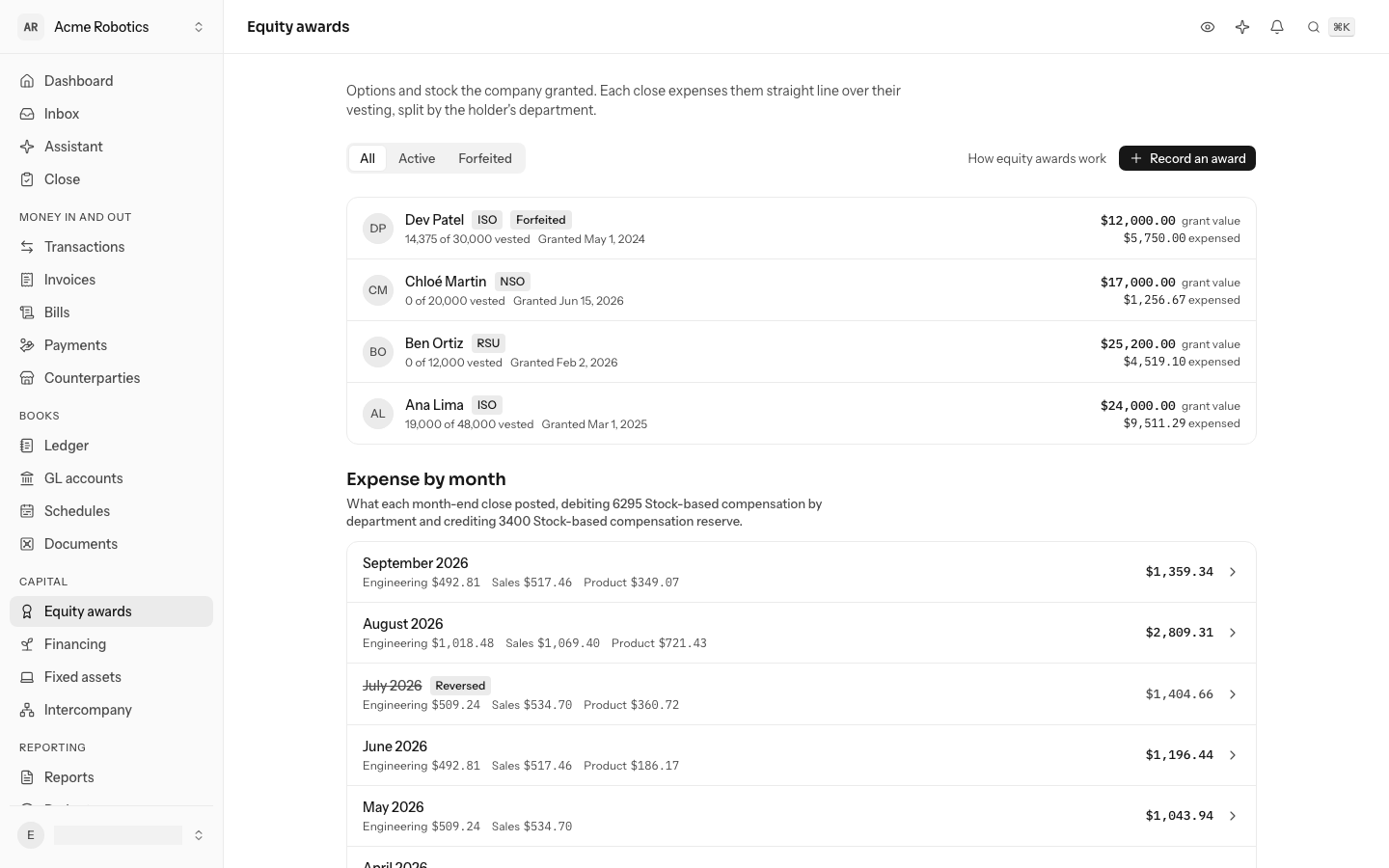
Equity awards is on the left rail, under Capital; from the keyboard, press G then Q. Each award shows its holder, its type (ISO, NSO, RSA or RSU), how many of its shares have vested, its grant value and what the closes have expensed so far. Show narrows the list to Active or Forfeited awards.
Below the awards, Expense by month lists what each close posted, split by department. Select a month to open its entry.
Record an award
Your cap table tool or your board consent has the numbers. Record each grant once.
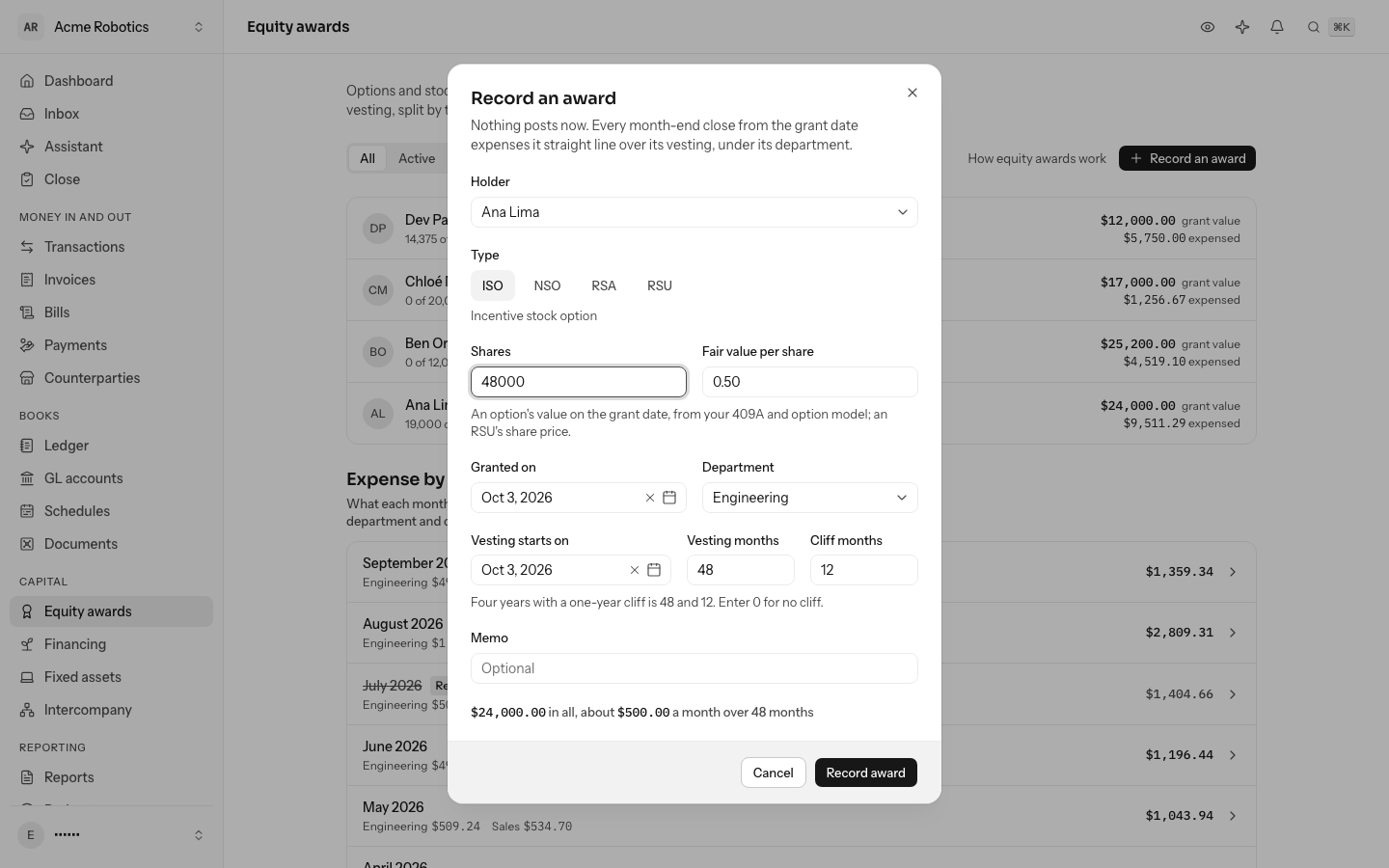
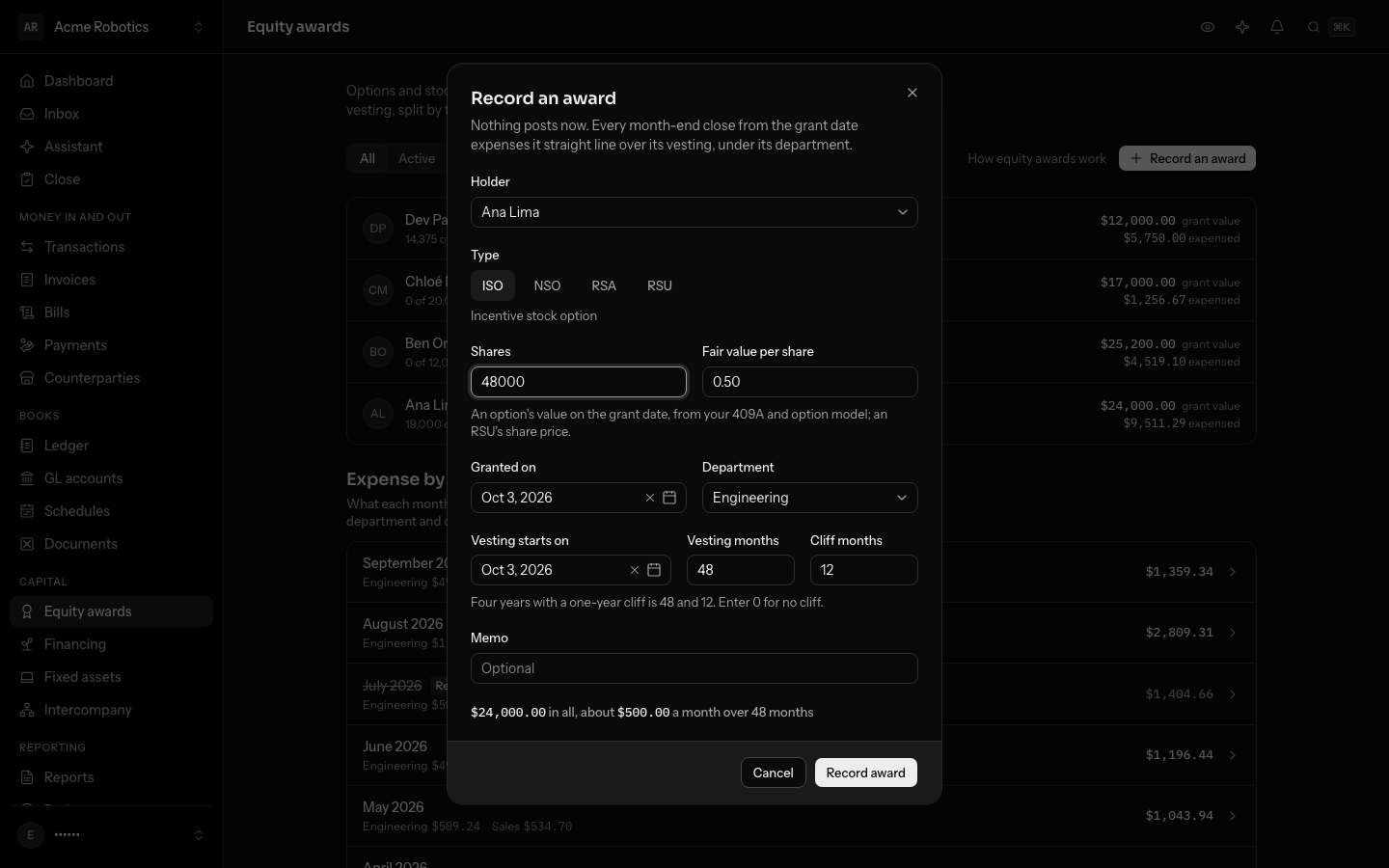
- Select Record an award.
- Choose the Holder. They are one of your counterparties; add the person there first if they are not.
- Choose the Type and enter the Shares and the Fair value per share: for an option, its value on the grant date from your 409A and option model; for an RSU, the share price.
- Enter the day it was Granted on and pick the Department its expense belongs to. Departments come from Settings, under Dimensions.
- Enter when Vesting starts on, the Vesting months and the Cliff months: four years with a one-year cliff is 48 and 12.
- Select Record award. The dialog shows the grant value and the rough monthly expense before you do.
Nothing is posted when you record an award. You can change any of its terms, or delete it, until a close expenses it.
How expense is recognised
Each award is expensed straight line, by day, over its vesting. When you close a month, LedgerIt works out what every award should have cost by the month's last day and posts the difference from what is already in the books, in one entry dated that day:
- a debit to 6295 Stock-based compensation, one line per department, so the P&L shows each team's share;
- a credit to 3400 Stock-based compensation reserve, in equity.
LedgerIt opens 6295 for you with the first award. Service before the grant date is caught up at the first close after the grant. The cliff does not delay the expense: it is recognised from the start, because the holder is earning the award from day one.
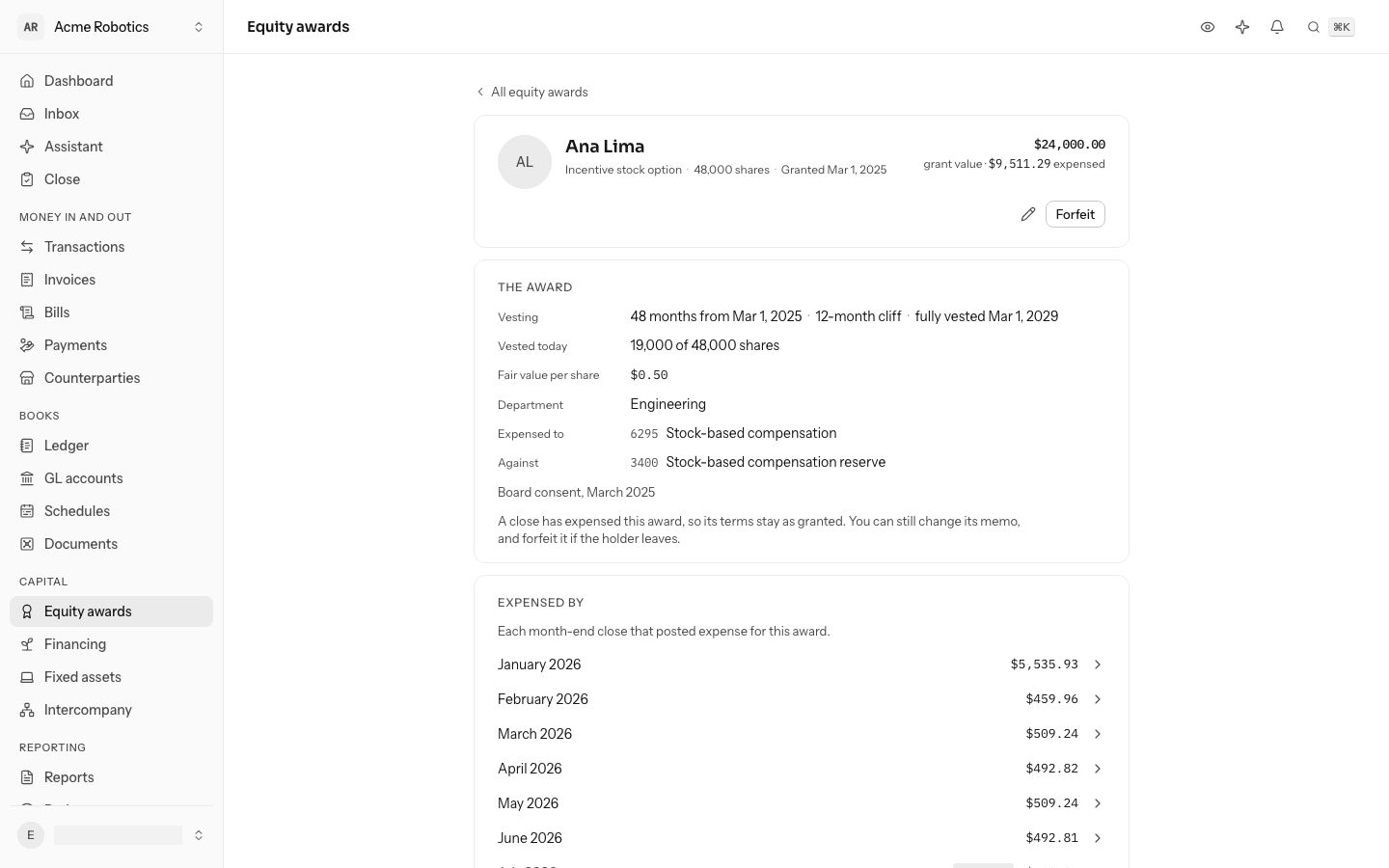
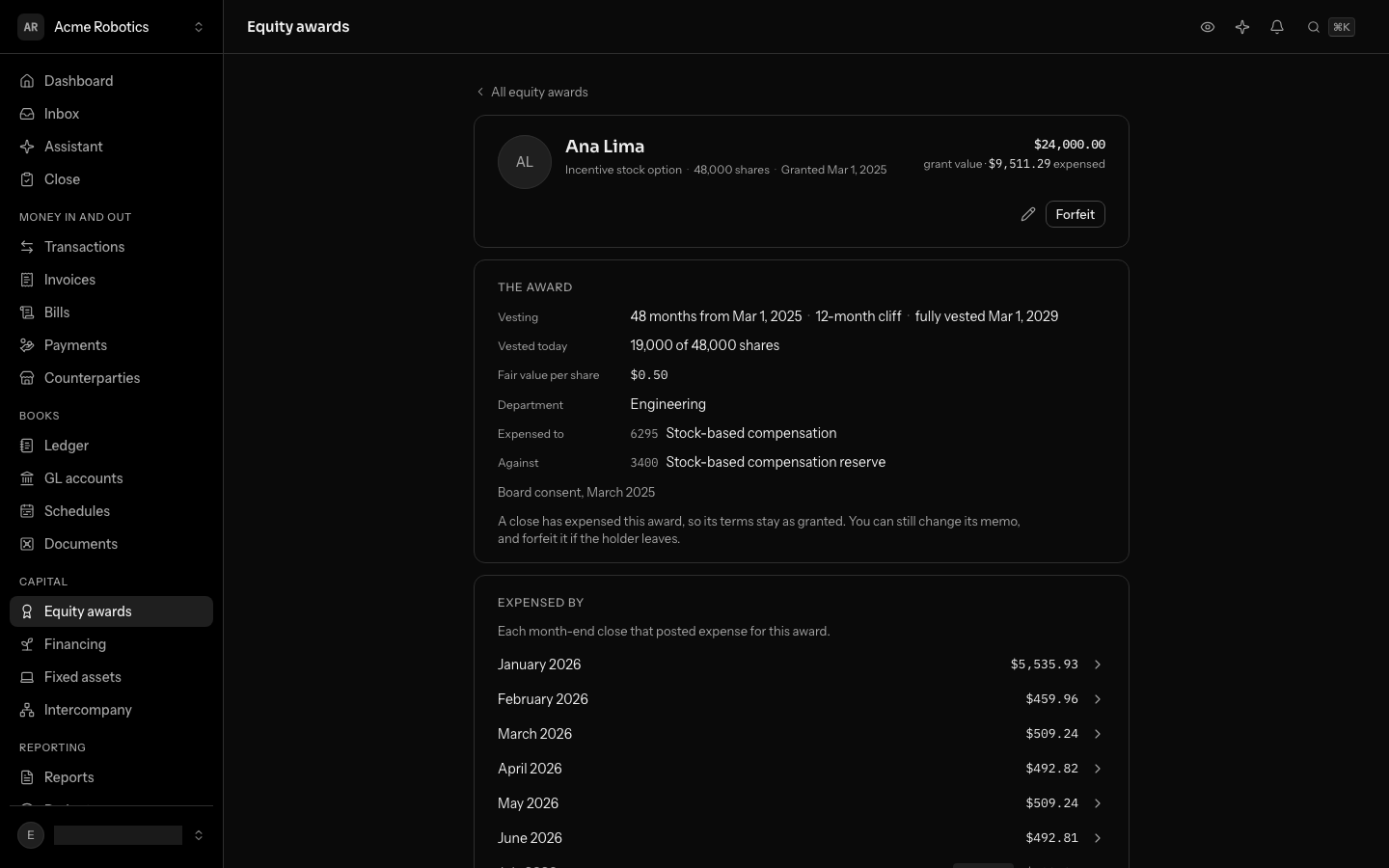
Open an award to see its terms, the closes that Expensed by it, and Month by month: the shares vested and the expense to date at the end of each month.
Forfeit when someone leaves
When a holder leaves before all of their award has vested, the unvested shares go back. Open their award and select Forfeit.
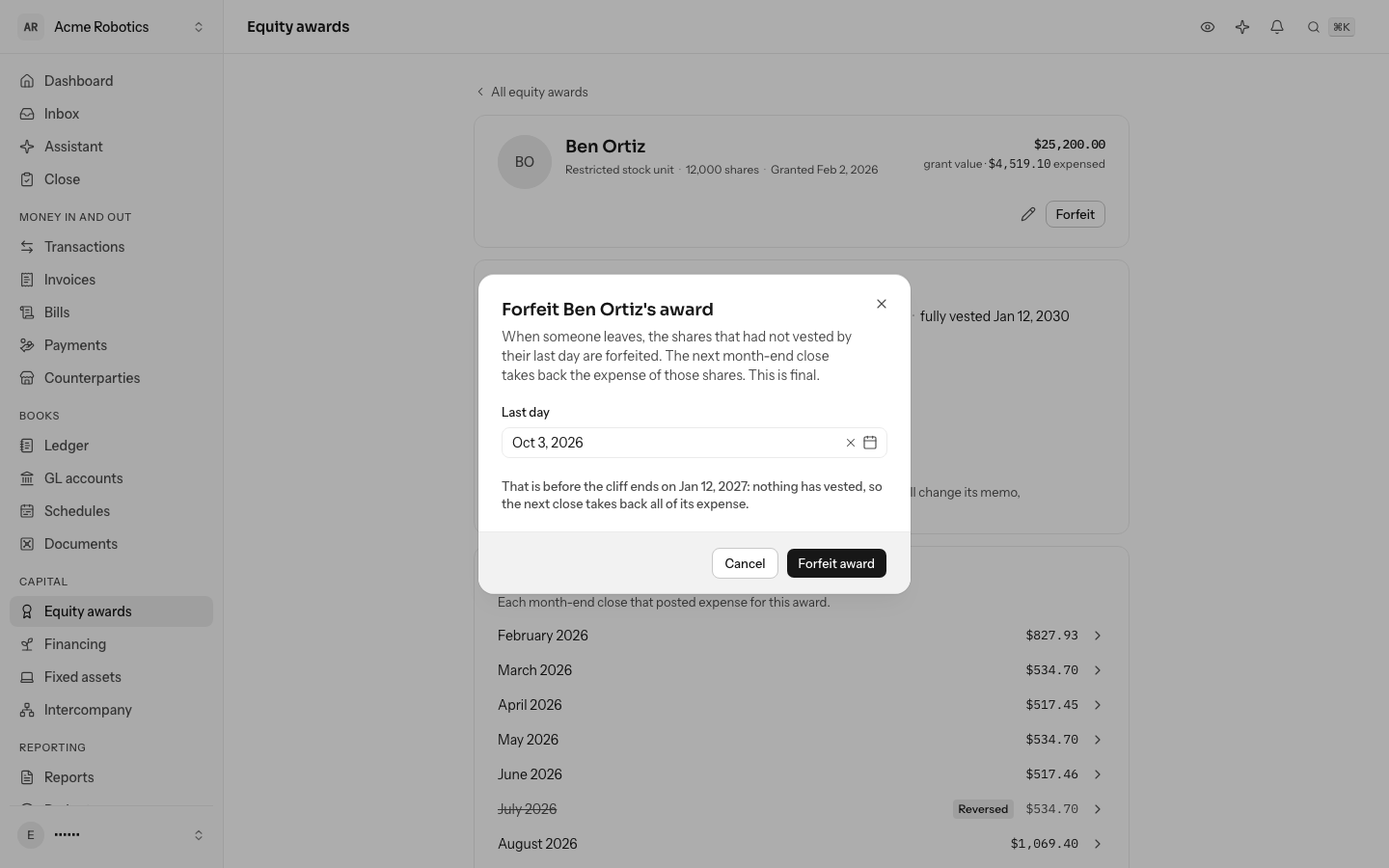
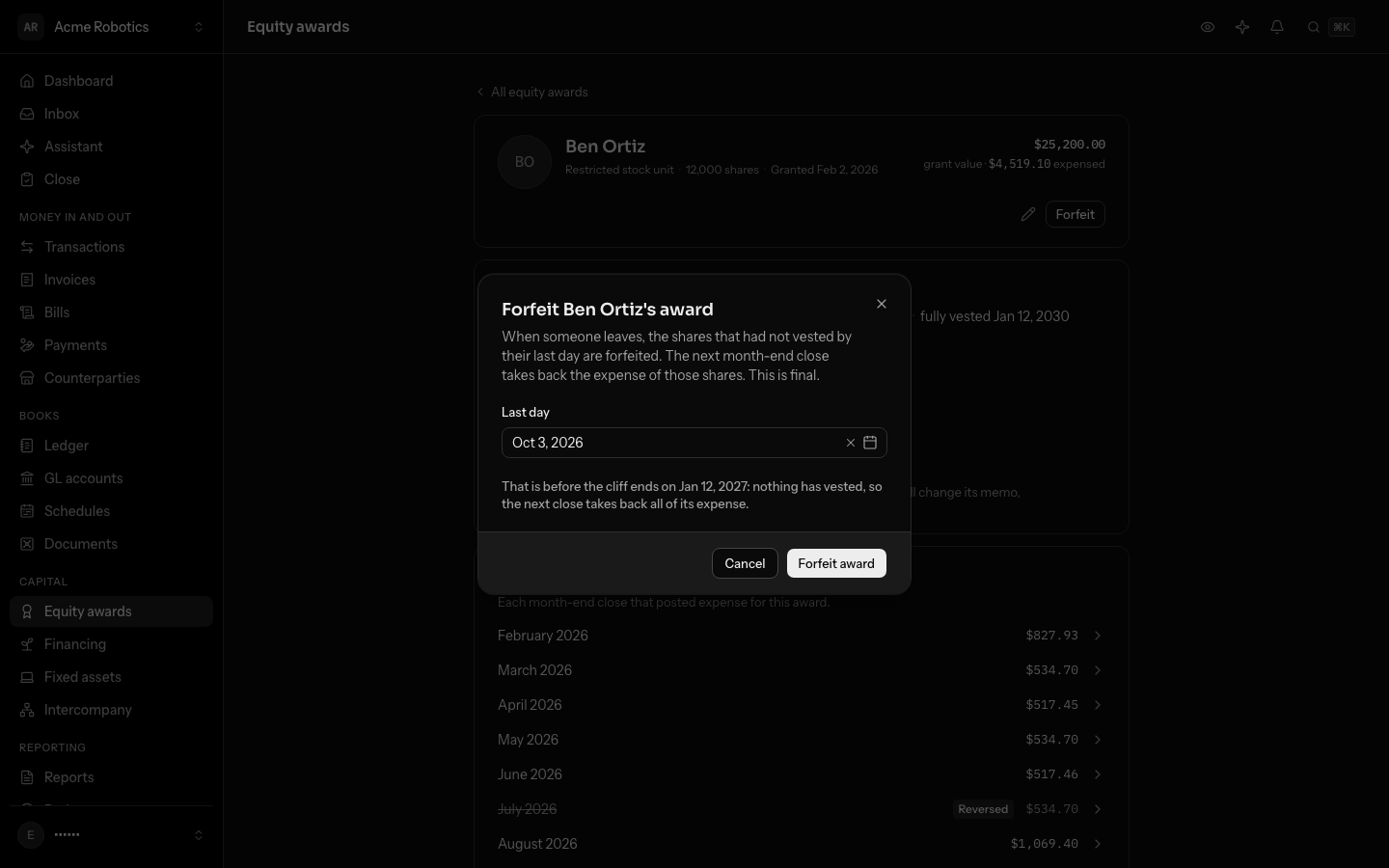
- Enter their Last day.
- Select Forfeit award.
The next close takes back the expense of the shares that had not vested by that day, as a credit to 6295. Before the cliff, nothing has vested, so all of the award's expense comes back. Forfeiting is final.
Read the monthly expense
Expense by month on the list shows every close's amount and its split by department. A month that took expense back, after a forfeiture, shows below zero. If you reverse a month's entry from the ledger, it is marked Reversed and the next close expenses that month again. A month closed a second time after something changed is marked Closed again.
Fix a mistake
- Change an award's terms where they are shown, as long as no close has expensed it: click its type, shares, grant date, vesting, cliff, fair value or department, enter the new value and press Enter. Change holder and Delete award are in the ⋯ menu.
- After a close has, its terms stay as granted, because the books carry its expense. You can still change its memo: click it under The award. To correct a term, forfeit it and record it again.
Who can do what
Anyone in the books can see the awards and the monthly expense. Recording, changing, deleting and forfeiting awards needs a role that can post to the books: owner, admin or accountant.
Do this through the API
Everything in this guide is also an API call, for scripts and agents. The reference lists each operation with its parameters and objects.
- Equity awardsOption, RSA and RSU grants: recorded with their vesting, expensed straight line by every close, and forfeited when the holder leaves.6 operations
- Stock-based compensation runsEach month's stock-based compensation as its close posted it, split by department, with the entry behind it.1 operation