Close and reports
Close the month
Work through what is in the way, reconcile every account, sign off the checklist and lock the month so its figures stop moving.
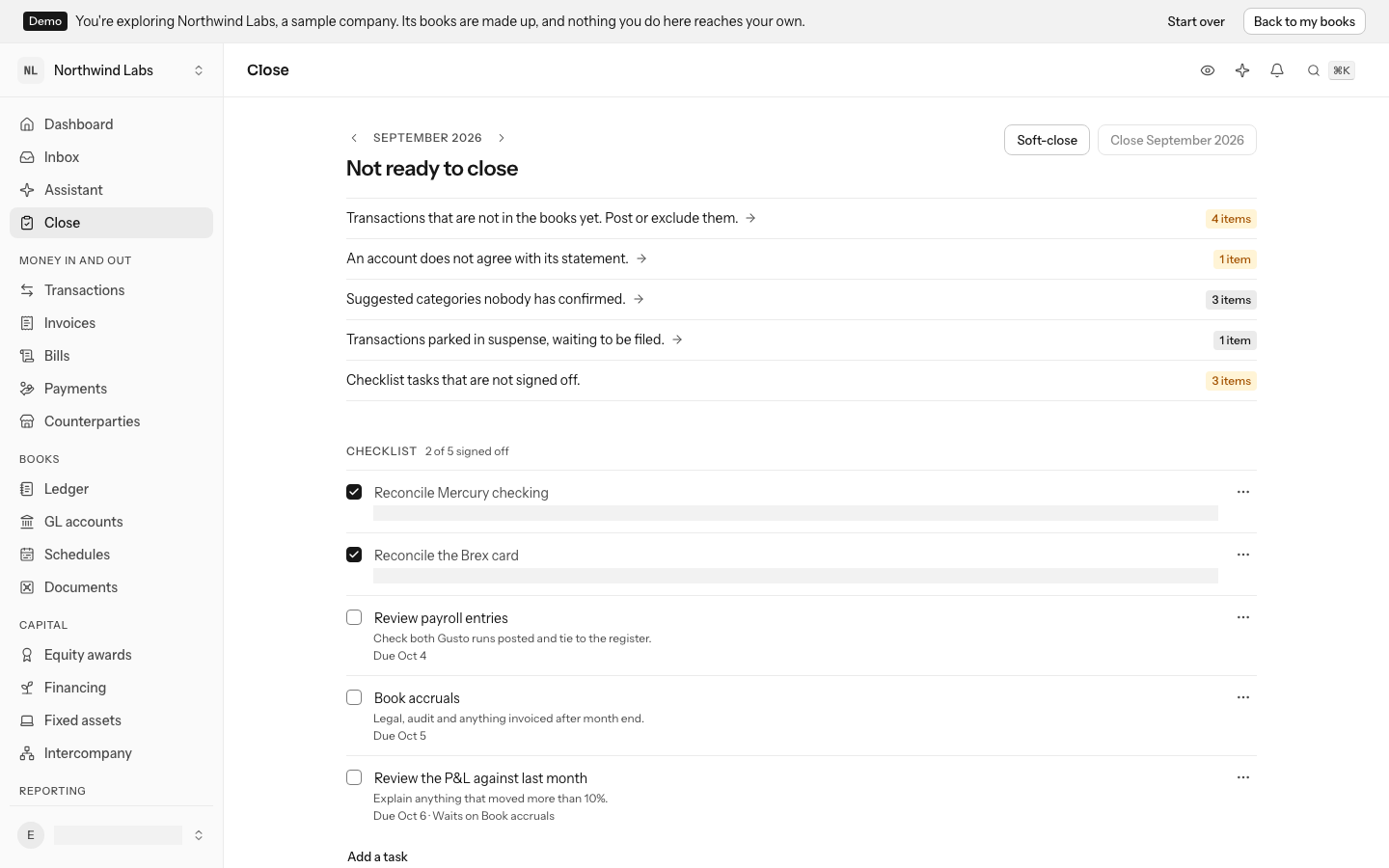
Closing a month locks it: once it is closed, nothing dated inside it can be added, changed or removed. The Close screen answers one question, whether this month can be closed, and lists exactly what stands in the way when it cannot.
Reopen takes a month in review or a closed month back to open. Reopening a closed one needs a reason, kept on record, and every later closed month stays closed.
Pick the month
The screen opens on the oldest month that has ended and is still open: months close in order, once they are over. Use the arrows beside the month name to move between months. Each month has its own address, so you can bookmark one or send it to your accountant, and the browser's Back button returns to the month you were on.
The heading tells you where the month stands:
| Heading | What it means |
|---|---|
| Ready to close | Nothing is in the way. |
| Not ready to close | The list under it says what is. |
| In review | The month is soft-closed (see below). |
| Closed | The month is locked. The date it closed and the trial balance at the close are shown under it. |
Owners, admins and accountants can soft-close, close, reopen, reconcile, resolve open items and sign off tasks. Members and viewers can see everything on the screen but cannot change it.
Clear what is in the way
When a month is not ready, the list right under the heading says what is in the way, each kind of blocker with a count: the month has not ended, an earlier month is still open, transactions not yet in the books or parked in suspense, unconfirmed suggestions, possible duplicates, a transfer with only one side, an account that disagrees with its statement, unsigned checklist tasks, account reviews not marked reviewed, or card spend with no receipt. Most transaction blockers are cleared on the transactions screen; see Review and file transactions.
Individual problems are listed under Open items, grouped by kind. Where one is about a transaction, its row names the transaction and opens it. Once you have dealt with one, select Mark done on its row and write What you did, or choose Not an issue if nothing needed doing. Your note is kept either way, so an auditor can tell a fix from a judgment call.
An open item can be given to someone who opens the books, so a queue you share with an accountant says whose each item is. Through the API, assign it to a member, list the items assigned to you, or list those nobody has taken. When someone stops opening the books, the items given to them go back to nobody.
Reconcile every account
Try 48,210.55, which agrees, or 47,960.55, which does not.
Reconciling compares what the ledger says an account holds with the bank or card statement. It is the only check that catches a transaction the ledger never received.
Under Reconciliation, each account is listed with the balance the ledger shows, in the column headed The ledger says, and its state: Never checked, Agreed through a date, or Out by an amount. A card under a card program shows Checked with the program's account, because one statement covers them all.
The account's name opens its page, with every comparison made of it. To reconcile an account by hand, select Reconcile on its row, enter the Closing balance on the statement for the last day of the month, and select Compare. A difference stays a blocker until you find the missing transaction.
Often you need not type anything: connected banks and cards report balances on every sync, uploaded statements keep their closing balance, and closing the month compares every account against the latest balance held. See Connect your banks, cards, payroll and revenue.
Find what a difference is made of
On the account's page, under a comparison that is out, select What could explain it. Two lists open side by side:
- Posted to it since the date it last agreed: the lines in the books for those dates, newest first. Each opens its journal entry.
- On this account, not in the books yet: transactions the bank has that you have not filed, with their total. Each opens the transaction.
A statement counts a charge the day the bank does; your books count it once it is filed. So the second list is the usual cause, and LedgerIt says when it adds up to the difference exactly: file those transactions and compare again. When nothing is waiting, the difference is in what was posted: an entry missing, entered twice, or for the wrong amount.
Check an account at any time, and see its history
You do not have to wait for the close. Open a bank or card account from GL accounts: its page has a Reconciliations section.
- Select Check against a statement, or press R.
- Enter the Statement date and the Closing balance on the statement, then select Compare.
- The comparison is added to the list: the date, the statement's balance, the ledger's, and Agrees or Out by the difference.
Every comparison stays in the list, newest first. A comparison that does not agree also appears in the inbox, and it clears when a later one for that account agrees. Comparisons a month's close made against a balance your bank reported are marked by the month's close.
Match a statement line by line
Comparing a closing balance tells you whether an account agrees. Matching tells you which lines do. When you upload a statement file for a bank or card account (see Review and file transactions), LedgerIt keeps the statement, and the account's page lists it under Statements with its dates, how many lines it has, and Lines waiting or Every line matched.
Select a statement to open it. On the statement lists what the bank printed; In the ledger, not yet matched lists the lines posted to the account within four days of the statement's dates that no statement line has claimed.
- Select Match to the ledger. LedgerIt matches every line that has exactly one candidate: through the transaction the line was imported as, by amount, several statement lines that are one ledger line, or one statement line that is several. It says how many it matched and how many are waiting.
- For a line left waiting because two ledger lines could be it, tick it, then tick the ledger line or lines it really is. Match by hand shows what each side adds up to and the Difference.
- When the difference is zero, optionally say Why these are the same money, and select Match these lines.
The Waiting, Matched and All tabs choose which statement lines to show. A matched line says how it was matched, and Undo the match in its ⋯ menu frees it and its ledger lines again; the match stays in the statement's history. A line with nothing in the ledger is usually a transaction you have not filed yet: it opens that transaction.
Forget this statement, in the ⋯ menu beside Match to the ledger, removes a file uploaded by mistake. The transactions it brought in stay in your books. A statement whose every line is matched cannot be forgotten.
Owners, admins and accountants match and undo; everyone else can read a statement.
Review the other balance-sheet accounts
A statement checks the bank and the cards. Every other asset and liability is checked against something else: receivables against the aging, payroll liabilities against the payroll register, prepaid expenses and deferred revenue against their schedules, a loan against the lender's statement, a clearing account against zero.
Under Account reviews, each of those accounts with a balance at the month's end is listed with the balance the ledger shows, under The ledger says, and where its review stands: Not reviewed yet, Waiting on its support, Differs from its support by an amount, or Reviewed by someone on a date. The heading counts how many are reviewed.
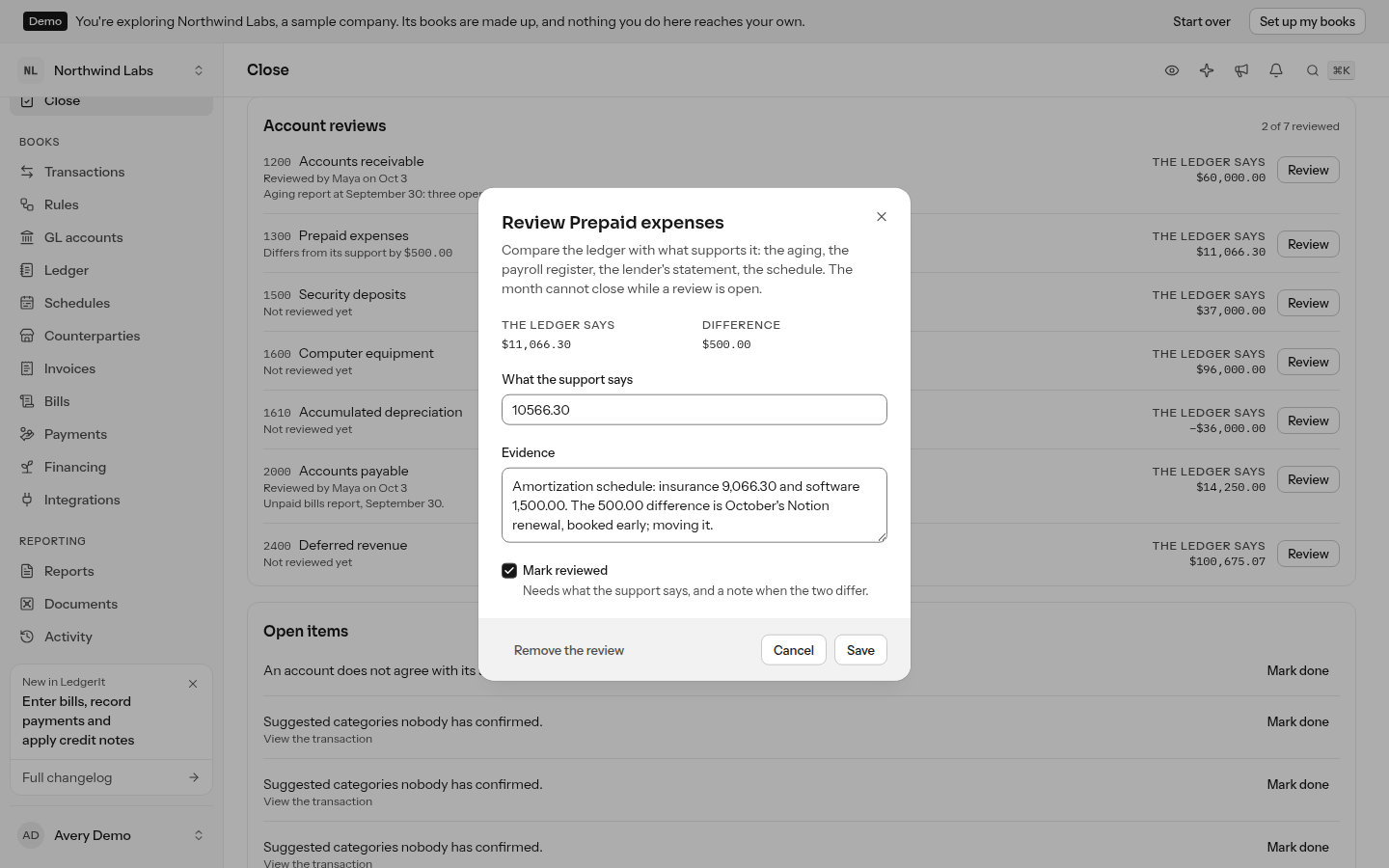
- Select Review on the account's row.
- Enter What the support says. The Difference from the ledger updates as you type.
- Under Evidence, say where the support is and what explains any difference.
- Tick Mark reviewed and select Save. The box stays disabled until the support's balance is entered, and while the two differ with no evidence written.
A review you save without marking it reviewed stays open, and an open review holds the close, like a task the close waits on. Remove the review takes the account out of the month's close.
Every save reads the ledger again. If something is posted to the account after you mark it reviewed, its row says Moved since it was reviewed: review it again with the new balance. A closed month keeps its reviews as they were. Reopening the month carries each review into its next close: still reviewed where the balance did not move, open again where it did.
Sign off the checklist
Not ready to close
The list under it says what is.
What is in the way
Checklist tasks that are not signed off.3 items
Checklist
Tick the tasks left. Close stays disabled until nothing is in the way.
The Checklist holds the work a month end takes that the books cannot check for themselves, such as booking accruals or sending the investor update. Every open month asks for every task, and a month cannot close until each task the close waits on is signed off.
- To start, select Add the usual five for a suggested set, or Add a task to write your own. Add a task opens an empty row at the end of the list: type the task and press Enter, and the next empty row opens. Press Escape when you are done.
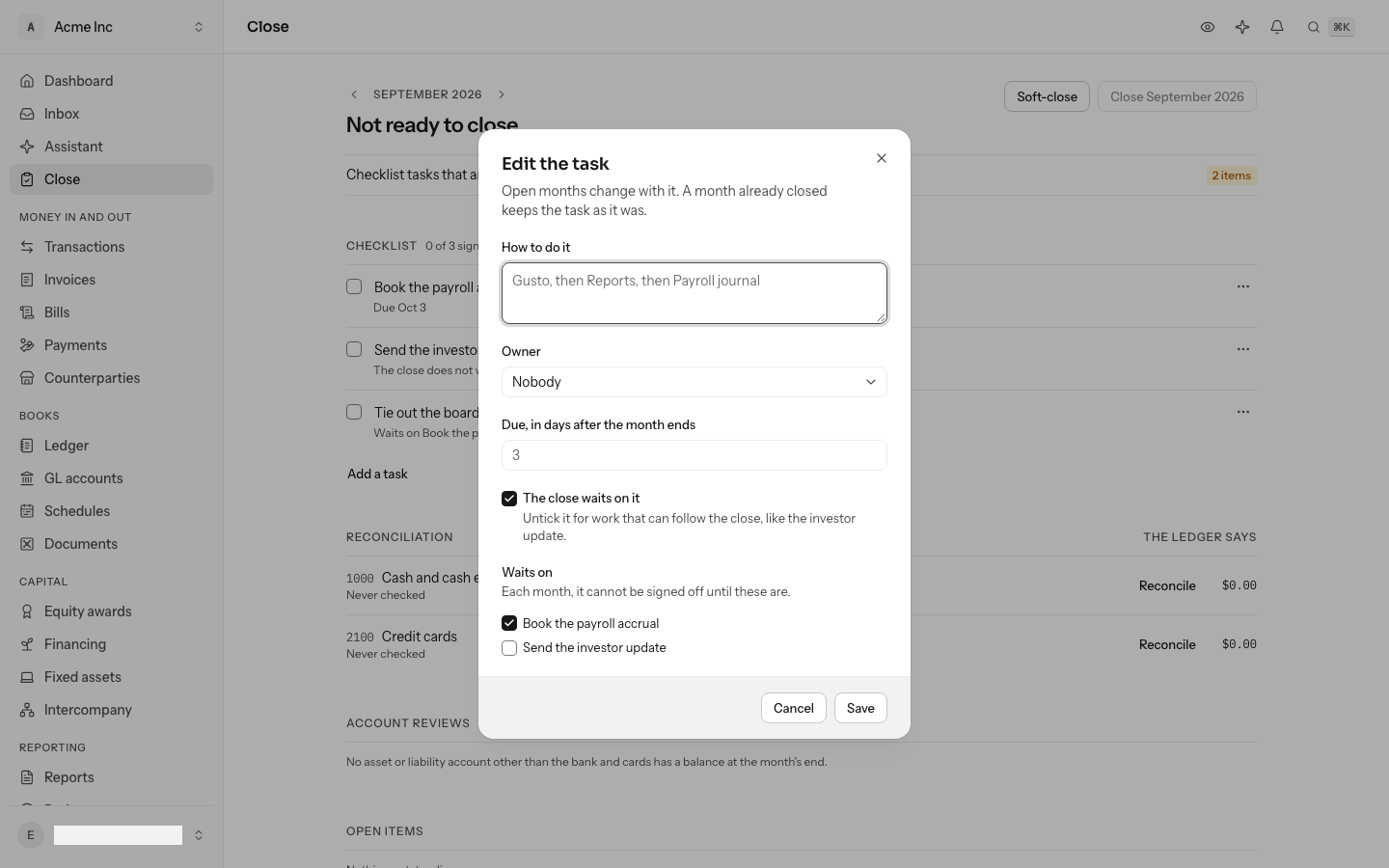
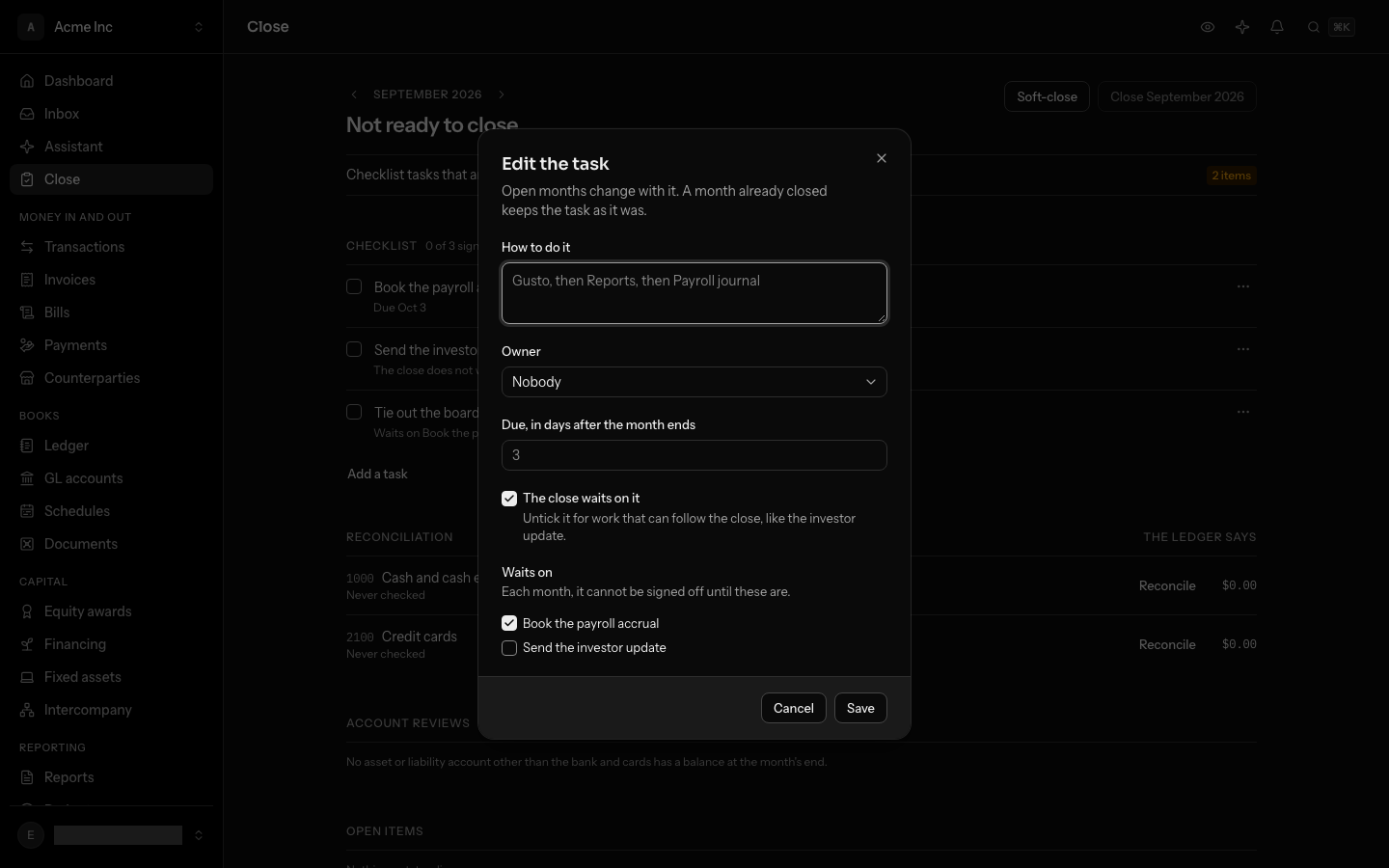
- A task can also have instructions (How to do it), an Owner, and a due date counted in days after the month ends: choose Edit in the ⋯ menu at the end of its row. A task past its due date is marked Overdue.
- The close waits on it is ticked for a new task. Untick it for work that can follow the close, such as the investor update: the row then says The close does not wait on it, and the month can close with it undone.
- A task can wait on others: under Waits on, tick the tasks it follows. Each month, its box stays disabled, with Waits on and their names under it, until they are signed off.
- To sign a task off, tick its box. The row records who signed it off and when. Untick it to undo the sign-off. A sign-off another signed-off task waits on cannot be undone until that one is.
- To rename a task, select its name and type. Enter, or clicking away, saves it; Escape puts the old name back. To change anything else, or to remove it, open the ⋯ menu at the end of its row and choose Edit or Remove. Any change reaches every month still open. A closed month keeps its tasks as they were when it closed.
Every close of a month is kept
Each close of a month is a close run: its tasks, who signed each off and when, what they wrote beside it, and the point in the books the close covered. Signing off the month's first task starts it. Closing the month keeps it as it stands. Reopening the month keeps that record and starts the month's next close with what was already signed off, and the checklist's heading then says Close 2 of this month. Through the API, close runs list every close of every month with their tasks.
Where a blocker is dealt with on another screen, its line is a link there. Transactions not yet in the books, parked in suspense or waiting on a suggestion open Transactions narrowed to that month. An earlier month still open opens the list of months. Anything else opens the inbox.
Soft-close while you review
A soft close puts the month In review. People can still post, correct and file transactions in it, but transactions from connected accounts stop filing themselves into the month until it is closed or reopened. Use it while you check an ended month, so a late sync does not change the figures under you. Select Soft-close to start, and Reopen to take the month out of review.
See what moved
Before you close, What moved lists the income and expense accounts whose month is far from usual, and says why. An account is listed when its month is more than half and more than $2,000 away from its average over the three months before, counting what the close will post. It appears with What closing posts, for the people who can close the month.
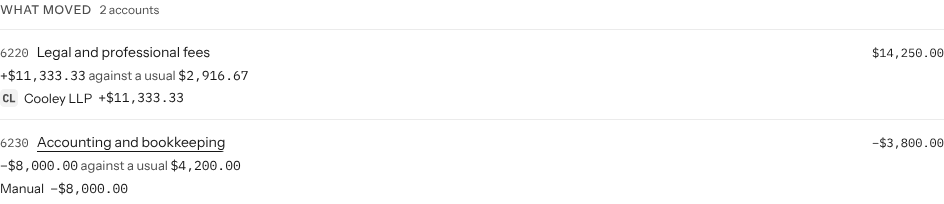
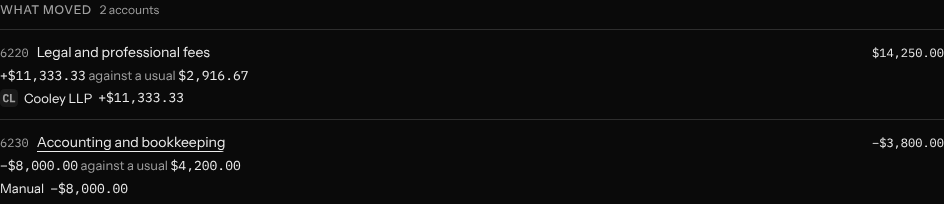
Each account shows its month, how far it is from its usual month, and up to three things that moved it, the largest first:
- A vendor or customer, with its logo: what was spent with or earned from them this month against their usual month. A payment spread over months and its monthly share count as one figure, as do an accrual and the charge that settles it.
- A schedule, such as depreciation, when no vendor is named on it. It opens the schedule.
- What posted the rest, such as Manual for entries typed in. A usual entry that did not come back shows here with a minus sign.
Read it before closing: a swing you did not expect is usually a transaction filed under the wrong account, a missing bill, or a schedule that started in the wrong month, and each is easier to fix while the month is open. The same check runs on expense accounts every day and raises an item in the Inbox with the same reasons.
Accrue the bills not in yet
A vendor whose bill was due this month and has not come leaves the month short of a cost it had. Bills not in yet lists them, between What moved and What closing posts, so you accrue them before you close. A vendor is listed when its bills keep a rhythm that makes one due this month and nothing from it counts for the month more than 5 days after its usual day:
- Every month: it billed in each of the three months before.
- Every quarter: its last three bills were three months apart, the last one three months ago.
- Every year: its last two bills were a year apart, the last one a year ago.
A bill dated within a week of the day it was due counts for the month it was due, even across a month's end, when that month has nothing of its own. A charge made on October 31st that the bank posts on November 2nd is October's, so a missing November bill is still asked about.
A vendor that sends bills is read by its bills, so paying last month's bill does not count as this month's. Its amount is its usual bill, and a vendor that bills every quarter or year says so beside its name, since those are the bills a close most often forgets.


Each row says the vendor's usual day and the expense account the accrual goes to, with its department when its charges agree on one. Select Accrue and the row joins What closing posts: the close books the cost in this month and holds it in Accrued liabilities (2200). When the vendor's charge arrives, it settles the accrual: one dated this month leaves the month with the charge alone, and one dated next month leaves next month only the difference.
To accrue a different amount, select the amount on the row, type the estimate and press Enter; Escape puts the usual month back. The row then shows its usual month beside your estimate, and Accrue uses yours. The estimate stays on the screen until you accrue it.
With two or more vendors to accrue, Accrue all at the top of the section accrues every one at once, each to its own account and department, and shows the total before you select it. If one vendor cannot be accrued, it stays on the list with the reason, and the others are accrued.
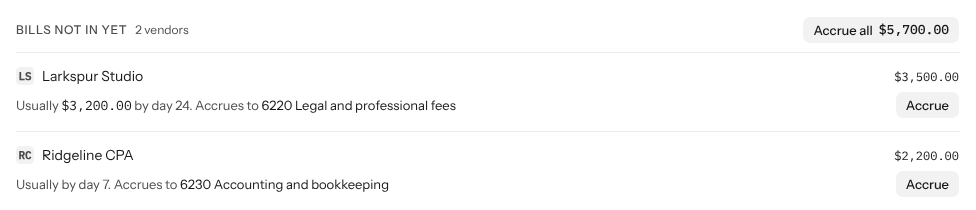
A vendor whose charges are not filed yet has no account to accrue to, so its row links to the Inbox, where you choose one; Accrue all leaves it out of the total. If the month owes nothing, dismiss the item in the Inbox and it leaves this list.
The same vendors are raised in the Inbox every day, for this month and, until it is closed, the month before. Agents and scripts read them on the close preview and accrue each by approving its item through the API.
See what closing posts
Before you close, What closing posts shows the entries the close will add to the month, so you approve figures you have read rather than a button. It appears once the month has ended and every earlier month is closed, for the people who can close it.
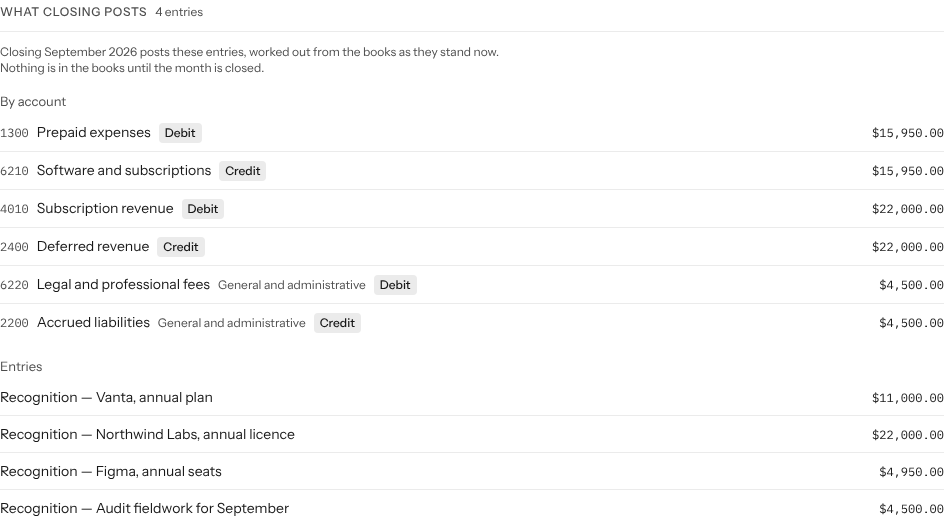
- By account nets every line by account and department: what the close moves on each, and whether it is a Debit or a Credit. A share and a release that cancel out on an account leave nothing there.
- Entries lists each entry the close will post, with its amount. One that is a schedule's share for the month opens that schedule; see Spread a payment over the months it pays for.
The entries are the month's share of every schedule (prepaids, deferred revenue, accruals and their releases, depreciation), interest on notes and venture debt, stock-based compensation and, in the last month of your fiscal year, the year-end entry. They are worked out by running the close and undoing it, so they are exactly what Close will post as the books stand. Nothing is written until you close. If something changes first, such as a new schedule, the list changes with it.
Agents and scripts can preview the same entries through the API.
Close the month
When the heading says Ready to close, select Close followed by the month's name, then Close the period to confirm. The button stays visible but disabled while something is still in the way.
Closing posts the month's share of every schedule (payments and receipts spread over months, and Stripe's annual plans), reconciles accounts, checks the trial balance and records it as it stood. If the month is the last of your fiscal year, closing it also closes the year: the year's income and expenses are carried into retained earnings, and the next year's income statement starts from zero. The confirmation tells you when that will happen.
The reports a close keeps
Closing a month keeps its Trial balance and Balance sheet as of the month's last day, and its Income statement and Cash flow for the month, read exactly as far as the close did. Once the month is closed, the Close screen lists them under Reports kept at close. Each opens its kept page, which produces the statement again from what was recorded and says whether it still matches.
The close also makes the month's board pack from the same reports. Open the board pack beside the list opens it; see Send the board pack.
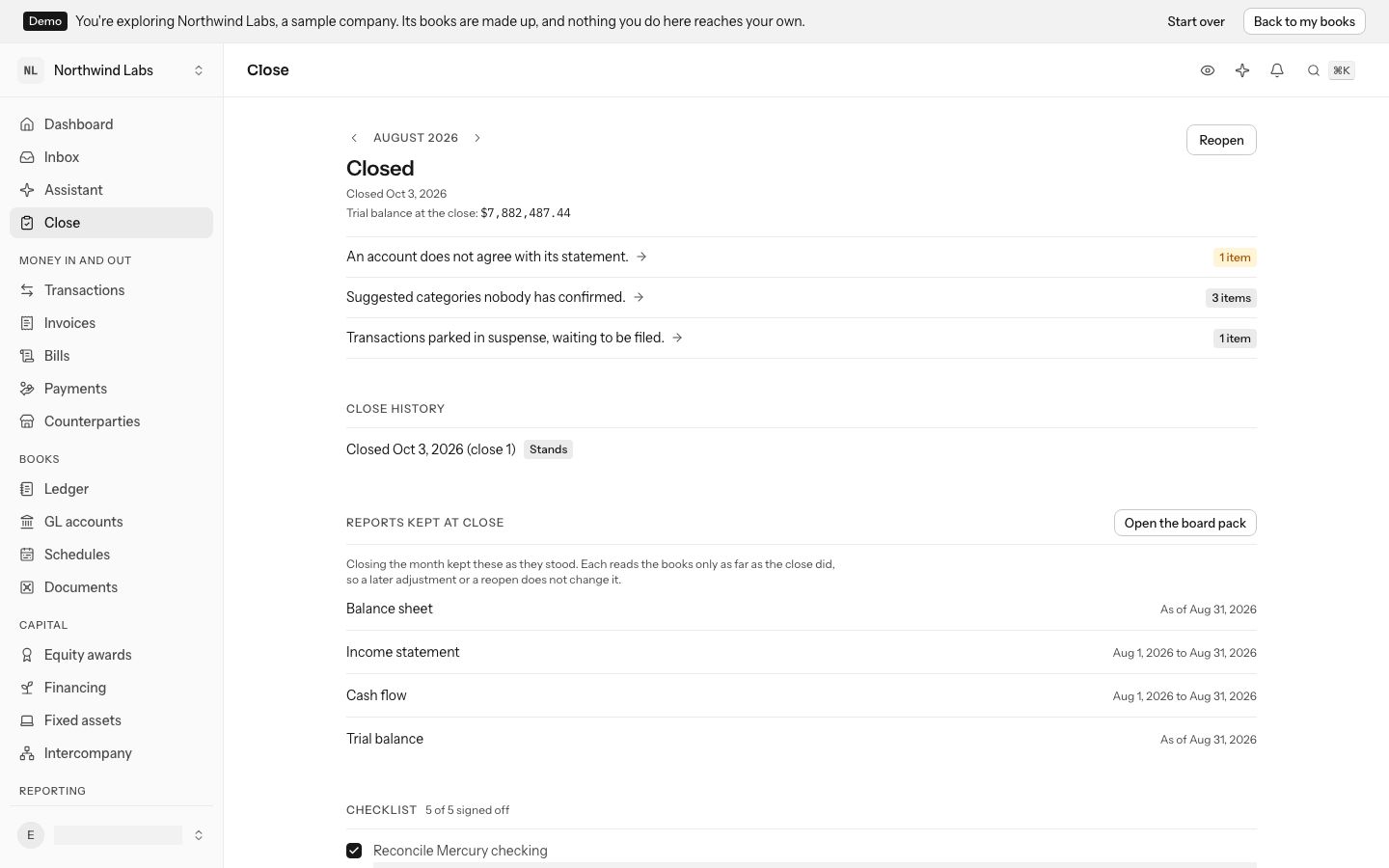
A forced close keeps them too. Reopening the month keeps them as well, so the figures the month first closed on can always be shown again. Closing it a second time keeps a new set from that close. Months closed before LedgerIt kept reports at close have none, but you can still keep one by hand; see Read and export reports. For such a month, Make the board pack keeps the reports from the close in force and makes its pack.
See how a month was closed before
Once a month has been closed, Close history lists every close of it: the date, which close it was, and Stands on the one in force. A month that was reopened shows when, and the reason that was given. A close made past blockers is marked Closed past blockers. Nothing in the history can be edited.
Reopen a closed month
A mistake found after a close belongs in its own month, not patched into a later one. Select Reopen, write Why (this is required), and select Reopen the period. The reason is kept on record with the close it undid, and every later closed month stays closed. Once corrected, close the month again. To correct a posted entry, reverse it rather than editing it; see Write and correct journal entries.
A closed month's statements are final; see Read and export reports.
Do this through the API
Everything in this guide is also an API call, for scripts and agents. The reference lists each operation with its parameters and objects.
- PeriodsThe months of the books: soft-close, close and reopen them.7 operations
- Close tasksThe checklist each month's close works through, and its sign-offs.7 operations
- Close runsEach close of each month: its tasks, who signed each off, and the sequence it closed at.3 operations
- Account reviewsEach balance-sheet account a month's close checks against its support, with the difference and the evidence.6 operations
- ExceptionsWhat blocks a month from closing, and how each one is resolved.7 operations
- ReconciliationsAn account's balance held against its statement.2 operations
- BooksThe books as one archive, restored into empty books with the same trial balance, and each month's share of work done unattended and how ready it is to close.6 operations