Bookkeeping
Bill customers with invoices
Write an invoice step by step, issue it onto your receivables, get paid by card or bank transfer, remind the customer, and void one issued by mistake.
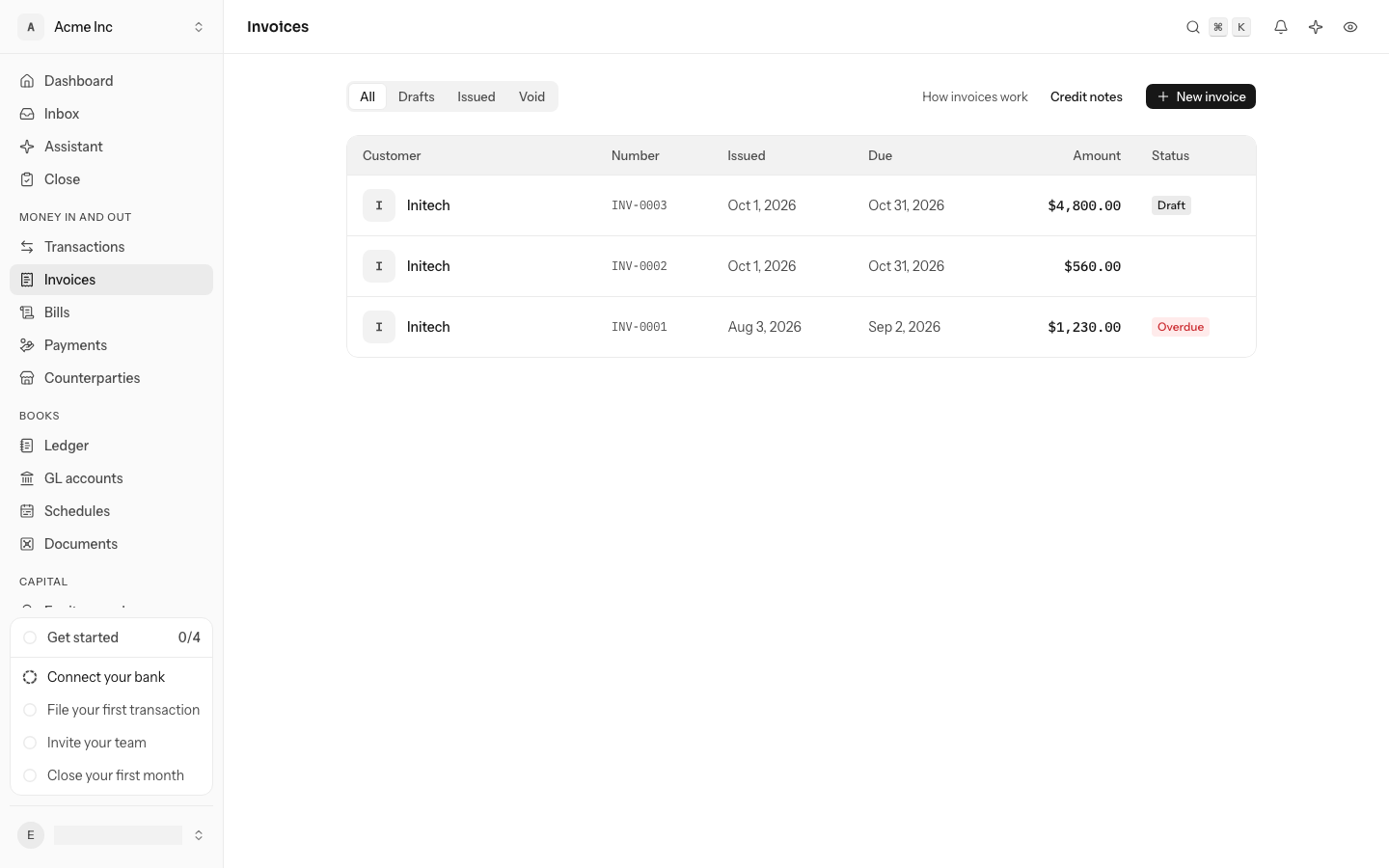
An invoice is what you bill a customer. While it is a draft it is not in your books, and you can change anything on it. Issuing it puts it in your books: what the customer owes goes onto Accounts receivable under their name, and the income goes to the accounts its lines name. From then on LedgerIt tracks what is still owed and how late it is. Open Invoices in the sidebar to see every invoice, newest first, with its number, when it was issued and is due, its amount and whether it is overdue or paid.
From issued
Write your first invoice
Select New invoice. The first time, LedgerIt says what to expect and walks you through it in 5 steps, with the invoice drawn beside the form as you fill it in. Learn about invoicing on that screen opens this guide.
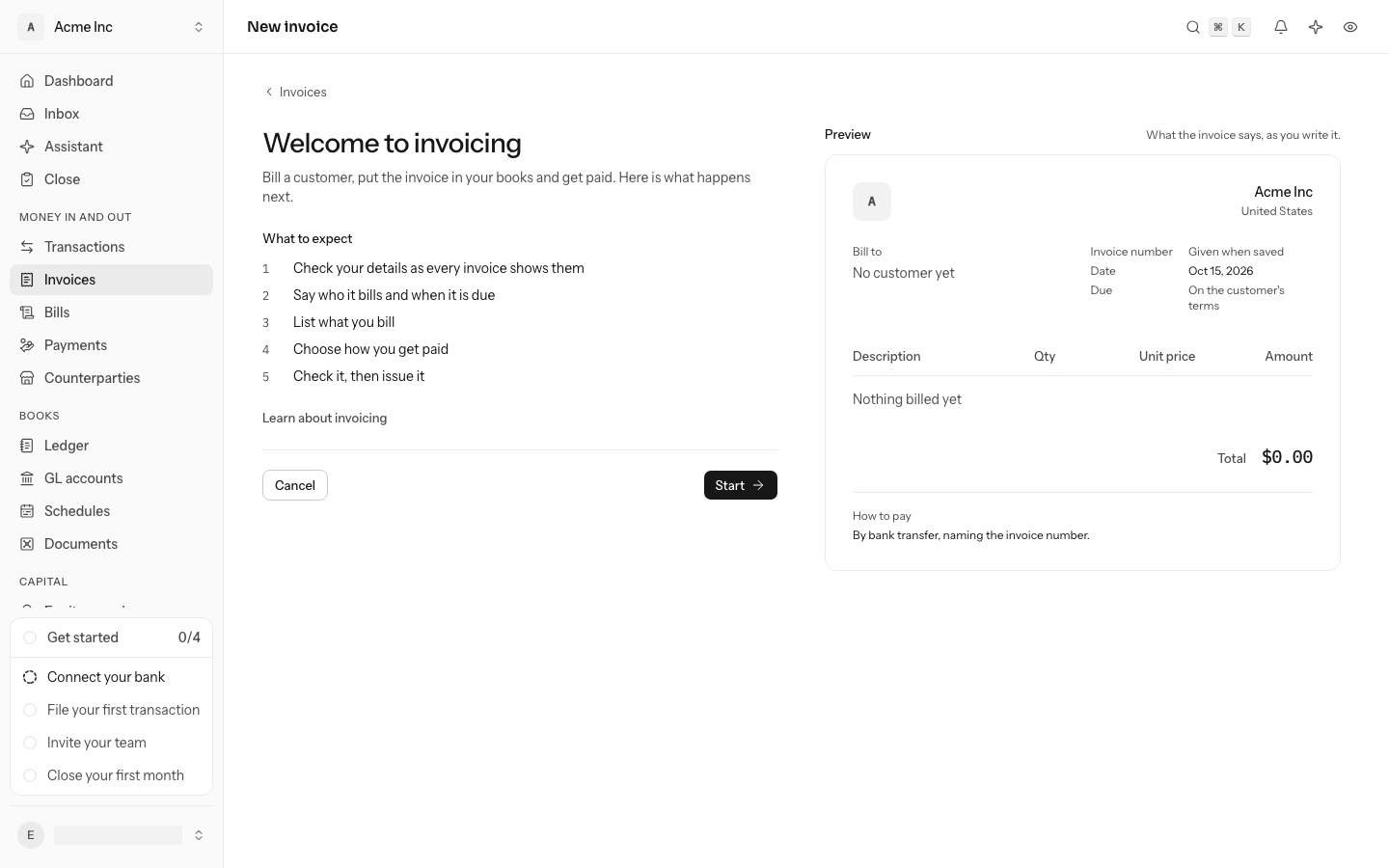
Select Start. The first step, First, your details, is what every invoice shows at the top: your logo, your company's name as the customer should read it, an email address and phone number, and your address. They come from your company profile, so an owner or admin can change them later under Settings → Company. Someone who may write invoices but not change the company sees them as they are.
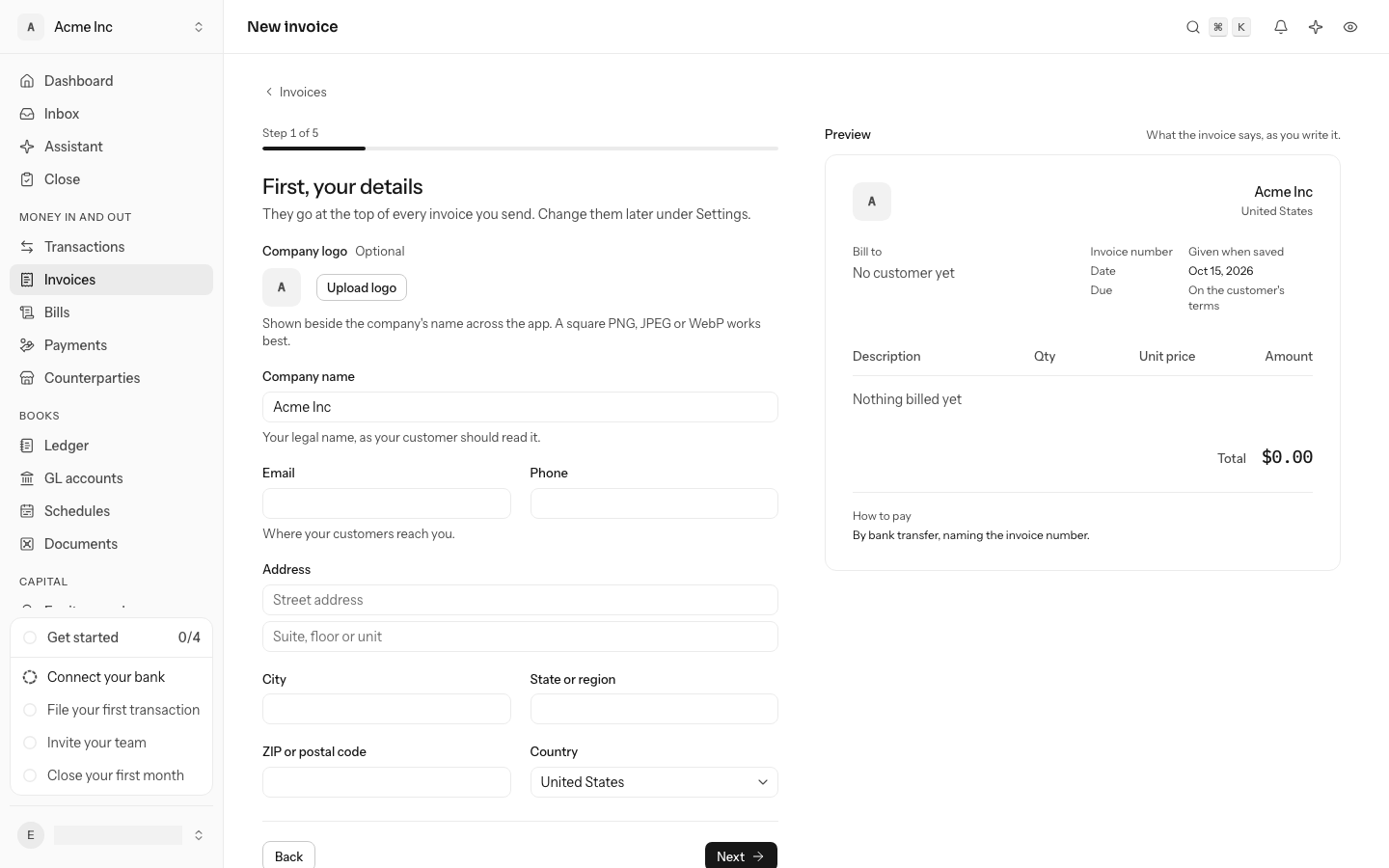
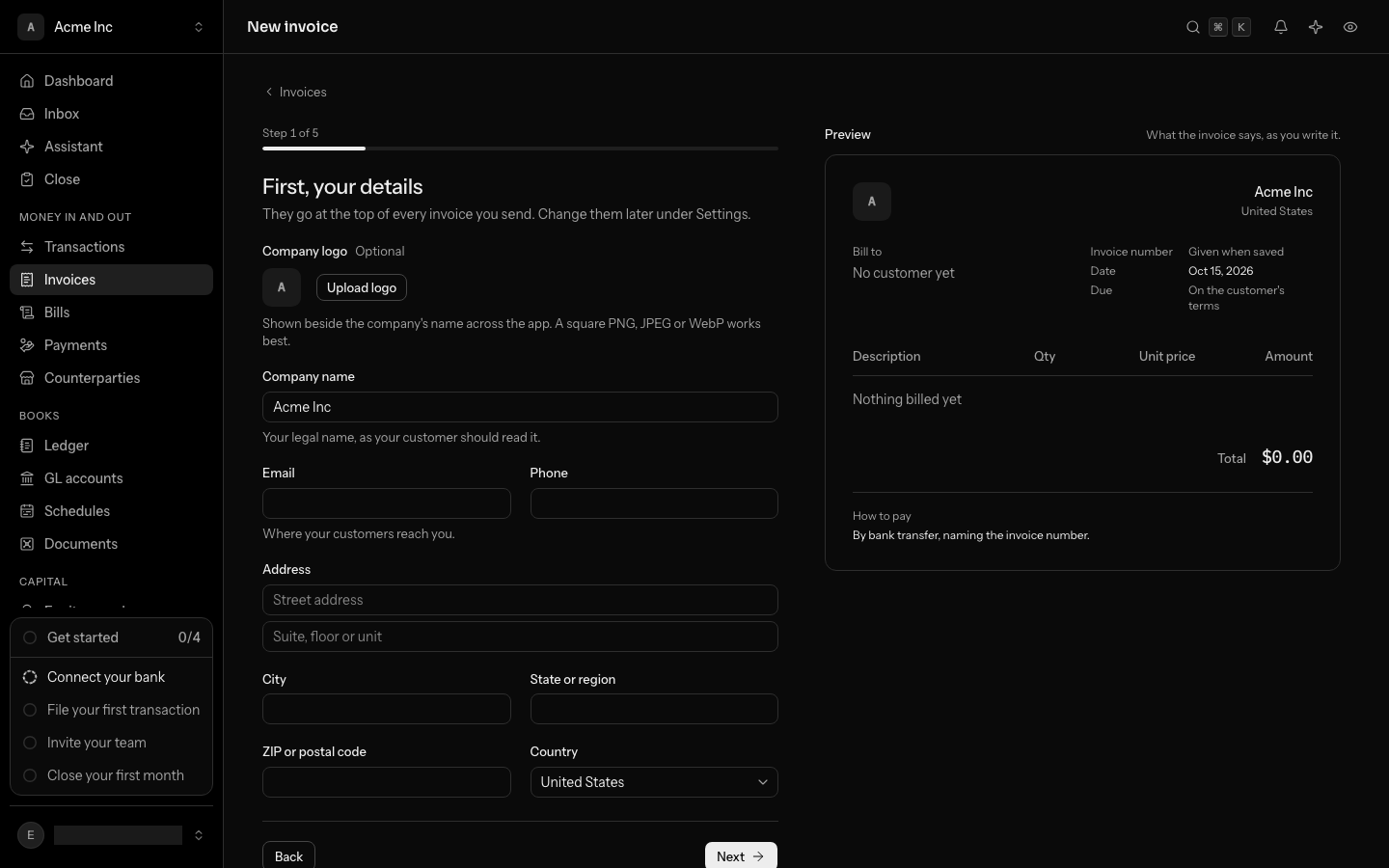
Select Next to save them and go on to the invoice itself. After your first invoice, New invoice starts here.
Write an invoice
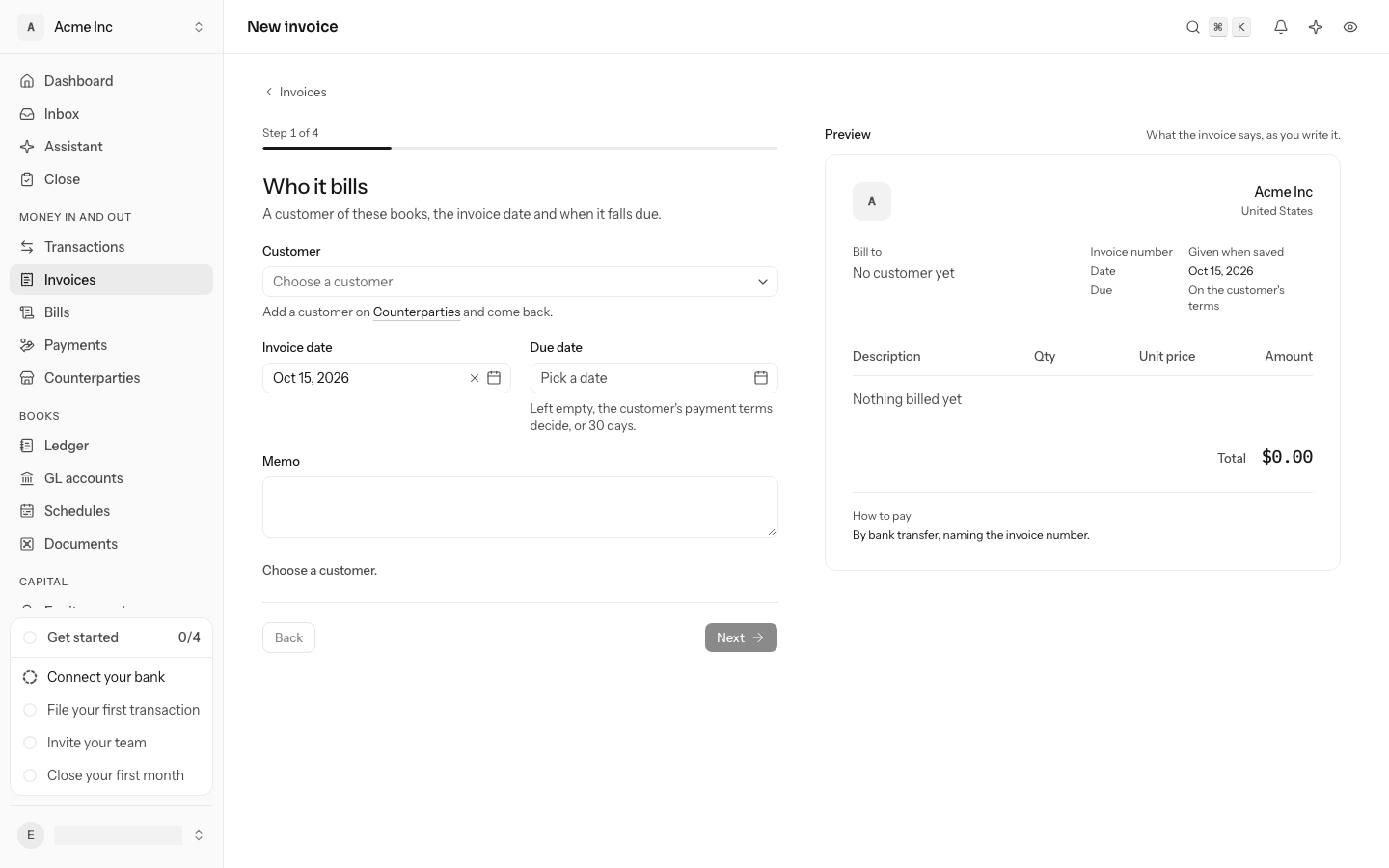
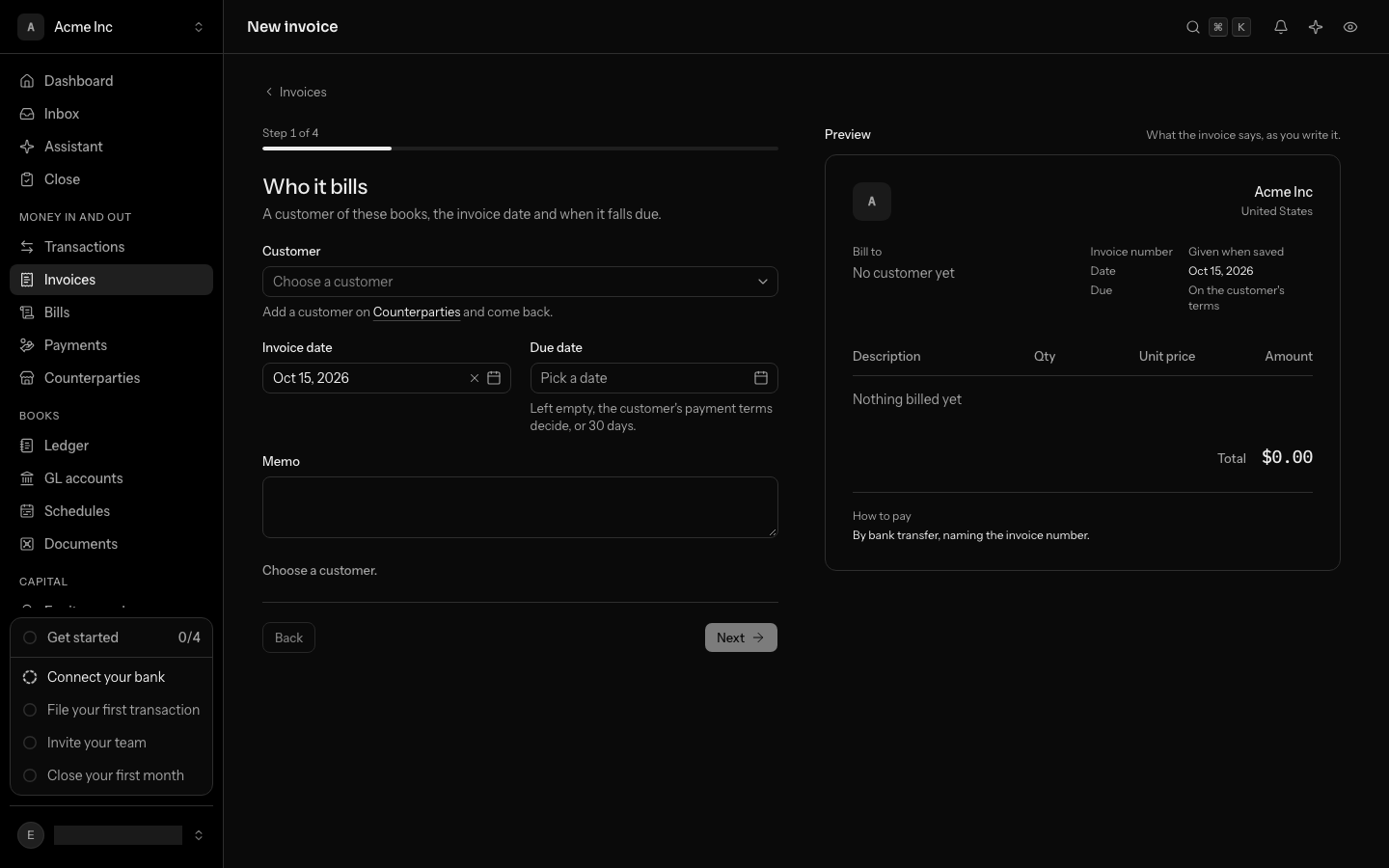
- Who it bills. Choose the customer, a counterparty of these books; add one on Counterparties first if they are not there yet. The invoice date is the day it is dated and, once issued, the day its entry posts. Leave the due date empty and the invoice falls due on the customer's payment terms from the invoice date, or 30 days after it when the customer has no terms. A memo goes at the foot of the invoice.
- What you bill. One line per thing billed: a description, a quantity, a unit price and the account the money is earned in, usually an income account like Subscription revenue, or Deferred revenue for a service you will deliver later. A negative unit price makes a discount line. Select Add a line for each thing you bill. The preview prices each line and the total as you type.
- Getting paid. Choose the payment link: none, so the customer pays by bank transfer; a card payment link, which LedgerIt makes in your own Stripe account once the invoice is issued (see Get paid through a payment link); or a link of your own from another provider. Turn on Email reminders to have the customer reminded around the due date (see Remind a customer).
- Check and issue. The last step shows the invoice to the customer for its total, with everything you chose. Select Issue invoice to put it in your books, or Save as draft to keep it as a draft and issue it from its page later. Either way the invoice opens on its own page.
Invoice date Mar 1, 2026 · Due Mar 31, 2026
- Platform subscription, March4010 Subscription revenue$4,000.00
- Extra seats4010 Subscription revenue$600.00
- Onboarding workshop4030 Services revenue$1,500.00
- Launch discount4090 Sales discounts and refunds−$500.00
What issuing will post
| Account | Debit | Credit |
|---|---|---|
| 1200Accounts receivableInitech | $5,600.00 | |
| 4010Subscription revenuePlatform subscription, March | $4,000.00 | |
| 4010Subscription revenueExtra seats | $600.00 | |
| 4030Services revenueOnboarding workshop | $1,500.00 | |
| 4090Sales discounts and refundsLaunch discount | $500.00 | |
| Balances | $6,100.00 | $6,100.00 |
A draft: nothing is in your books. Issuing puts $5,600.00 on Accounts receivable, owed by Initech, due Mar 31, 2026.
- Number: LedgerIt numbers invoices INV-0001, INV-0002 and so on, unless you give one through the API. Two invoices in the same books never share a number.
- Sales tax is not on invoices yet. Leave each line's tax at zero.
On a draft's page, its number, its dates and its memo are changed where they are shown: select one, change it, and press Enter or click away to save it, or Escape to keep it as it was. Edit draft (the pencil) opens the whole form, to change the customer or the lines. Delete draft, in the ⋯ menu, removes it.
Issue an invoice
An invoice is issued from the last step of writing it, or, for a draft, from its page: select Issue and confirm. Issuing posts one journal entry, dated the issue day, marked Invoice in the ledger: the total on Accounts receivable, naming the customer, against each line's account. The customer's name is kept on the invoice as it was issued, even if you rename them later.
What the customer owes ages from the invoice's due day, so the aging shows it as current until then and as late after. When a payment comes in and is applied to the invoice, what is still owed goes down. An invoice can take several payments, and one payment can be spread across several invoices. A payment that is not applied yet counts against the customer's total until it is.
The list marks an invoice Overdue once its due day has passed with something still owed, and Paid once nothing is. An invoice's page links to the entry it posted.
An issued invoice no longer changes. To correct one, void it and issue another.
Get paid through a payment link
A payment link is a page Stripe hosts where your customer pays the invoice by card. LedgerIt makes it in your own Stripe account, the one you connected on Integrations, so the money goes to you as any Stripe payment does.
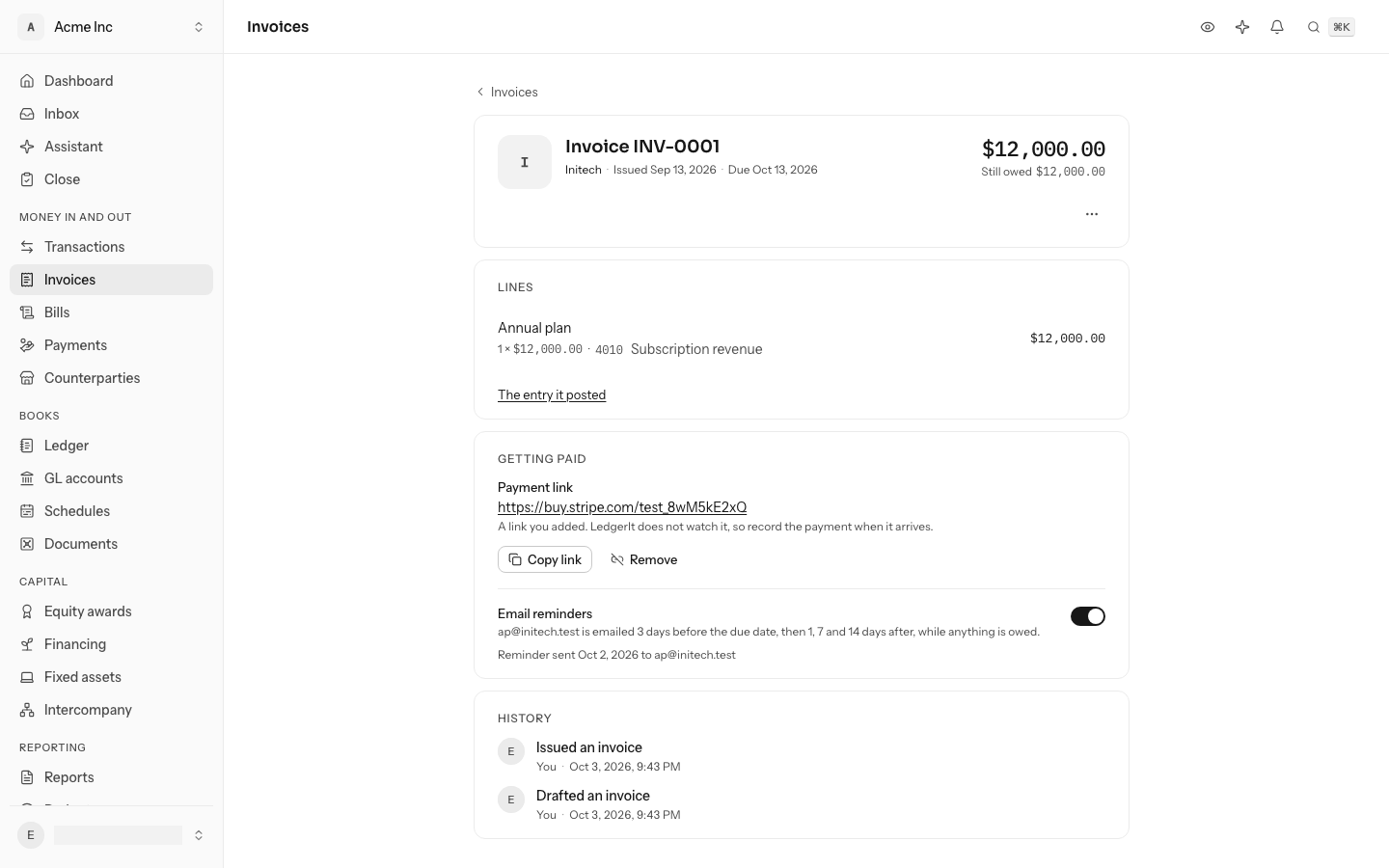
Choose A card payment link when you write the invoice and LedgerIt makes the link as soon as the invoice is issued. On an issued invoice's page, under Getting paid, Make payment link makes one later. The link asks for what is still owed that day, and takes one payment. Select Copy link to send it to your customer, or turn on reminders and it goes with each one.
When your customer pays, the next Stripe sync records the payment and applies it to the invoice, so it shows as Paid without you doing anything. The payment sits in Payment processor receivable with the rest of your Stripe balance until Stripe pays it out, and Stripe's fee is filed as a processing fee. The invoice already counted the income, so the payment is never counted as revenue a second time.
- Make a new link replaces the link, for example after part of the invoice was paid another way. The old link is turned off.
- Remove takes the link away and turns it off in Stripe.
- Voiding an invoice turns its link off too.
Your Stripe key needs to be allowed to write Products, Prices and Payment Links. A key that can only read keeps syncing, and LedgerIt tells you when it cannot make a link. Without a Stripe connection, Connect Stripe takes you to Integrations.
A link of your own, from another payment provider, given when you write the invoice or through the API, is shown on the invoice but not watched. Record that payment on Payments when it arrives.
Get paid by bank transfer
A customer who pays by wire or ACH pays into your bank, and the deposit arrives with your other transactions. Don't file it as income: the invoice already counted the sale. Settle the deposit against the invoice instead, from the transaction's page or in one click from the Inbox, which asks when the deposit names the invoice's number or matches its amount. A deposit that names the invoice's number and is exactly what is left on it is settled by LedgerIt, with nothing to click. See Settle an invoice or bill from the bank. The invoice then shows as Paid.
Record a payment on Payments only for money that reached an account LedgerIt does not sync. Recording one for a deposit your bank also sends would count the cash twice.
Remind a customer
Turn on Email reminders when you write the invoice, or under Getting paid on a draft or an issued invoice. LedgerIt then emails your customer, in your company's name:
- 3 days before the due date;
- 1, 7 and 14 days after it, while anything is still owed.
Each reminder says what is owed and when it was due, with the payment link when the invoice has one. Each goes once, and none goes once the invoice is paid or voided. Turned on after the due date, only the latest one is sent, not every one that was missed. Reminders go to the email address on the customer's page; a customer without one is not reminded. The reminders sent are listed under the switch, with the day and the address.
Void an invoice
On an issued invoice's page, open the ⋯ menu, select Void and confirm. Voiding reverses the invoice's entry, so it is no longer owed and its income comes back out. The invoice stays listed as void, with both entries in the ledger. An invoice with a payment applied to it cannot be voided: undo the payment first.
Credit a customer
A credit note gives a customer something back: a discount agreed after the fact, a refund for days they could not use the product. On the Invoices page, select Credit notes (on a phone, in the ⋯ menu) to see every credit note, newest first, with what is left to apply.
Select New credit note. It is written like an invoice: a customer, the day, and one or more lines, each off an income account such as Sales discounts and refunds. LedgerIt numbers credit notes CN-0001, CN-0002 and so on. Choose what it is for under Invoice it corrects:
- An invoice: the customer's issued invoices are listed with what is still owed on each. When the credit note is issued it is applied to that invoice at once, as far as the invoice is still owed, so the customer owes that much less.
- None, the customer keeps it as credit: it is applied to their invoices later. Until then it counts against their balance in the aging, like a payment not yet applied.
Save draft opens it on its own page, where its number, date and memo are changed in place, and Edit draft and Delete draft work as they do on an invoice. Select Issue and confirm to put it in your books: one journal entry, marked Credit note in the ledger.
On an issued credit note's page, Applied to lists the invoices it was applied to, each linked, and the page shows what is Left to apply. Select Apply to invoices to choose where what is left goes.
- $1,200.00
- $1,800.00
- Nothing left for it
Untick an invoice to send the credit on to the next one due.
The dialog shows what each invoice would take before you select Apply. The list marks a credit note Used once nothing is left.
A credit note issued by mistake is voided with Void in the ⋯ menu, which reverses its entry. One that is applied to an invoice cannot be voided until that application is undone.
Who can do what
Anyone in the books can read invoices and credit notes. Writing, issuing and voiding them, making a payment link and turning reminders on or off need a role that can post to the books: owner, admin or accountant.
Do this through the API
Everything in this guide is also an API call, for scripts and agents. The reference lists each operation with its parameters and objects.