Your company
Work with an accounting firm
Run an accounting practice in LedgerIt, or give your accountant's firm access to your books with its connect code.
An accounting firm keeps every client's books side by side from one sign-in. This guide covers both sides: the firm that keeps the books, and the company that lets the firm in.
How firm access works
A firm is a team. The access a company gives covers every company the client keeps in LedgerIt, a subsidiary added later included, but nobody from the firm is in the books until the firm assigns someone to that client.
Each assigned person gets the role the company gave the firm, shows up in the company's member list, and is recorded in the audit trail.
Start a firm
If you are not on a firm's team yet, open the firms page (/firms in LedgerIt) and enter a Firm name, then choose Create the firm. You become its owner. From then on the firm appears under Practice in the sidebar, as Clients.
If someone invited you to their firm, the invitation shows on the same page. Choose Accept to join or Decline.
Already on a firm? Choose Start another firm at the foot of its Team tab. The firms page lists Your firms; choose New firm, enter the Firm name and choose Create the firm.
Roles on a firm's team
| Role | What they can do |
|---|---|
| Owner | Everything, including deleting the firm |
| Admin | Every client, the team and the connect code |
| Staff | The clients they're assigned to |
Share your connect code
The Connect code shows at the top of the firm's pages. Choose Copy code and send it to the client. To replace it, admins and the owner open the ⋯ menu beside the code and choose New code, then Replace code. The old code stops working at once, and clients already connected stay connected.
Add a client yourself
Admins and the owner can add clients without waiting for a code.
- On Clients, choose Add client.
- Pick New books to set up books for a company that isn't on LedgerIt yet: enter the Company name and Currency. You own the new books until you hand them to the company.
- Or pick Books I manage to bring in books you are already an admin or owner of.
- Choose What your team may do: admin, accountant or viewer.
- Choose Add client.
Either way you are in the client's books on your own account, and you assign the rest of the team from the client list.
Read the client list
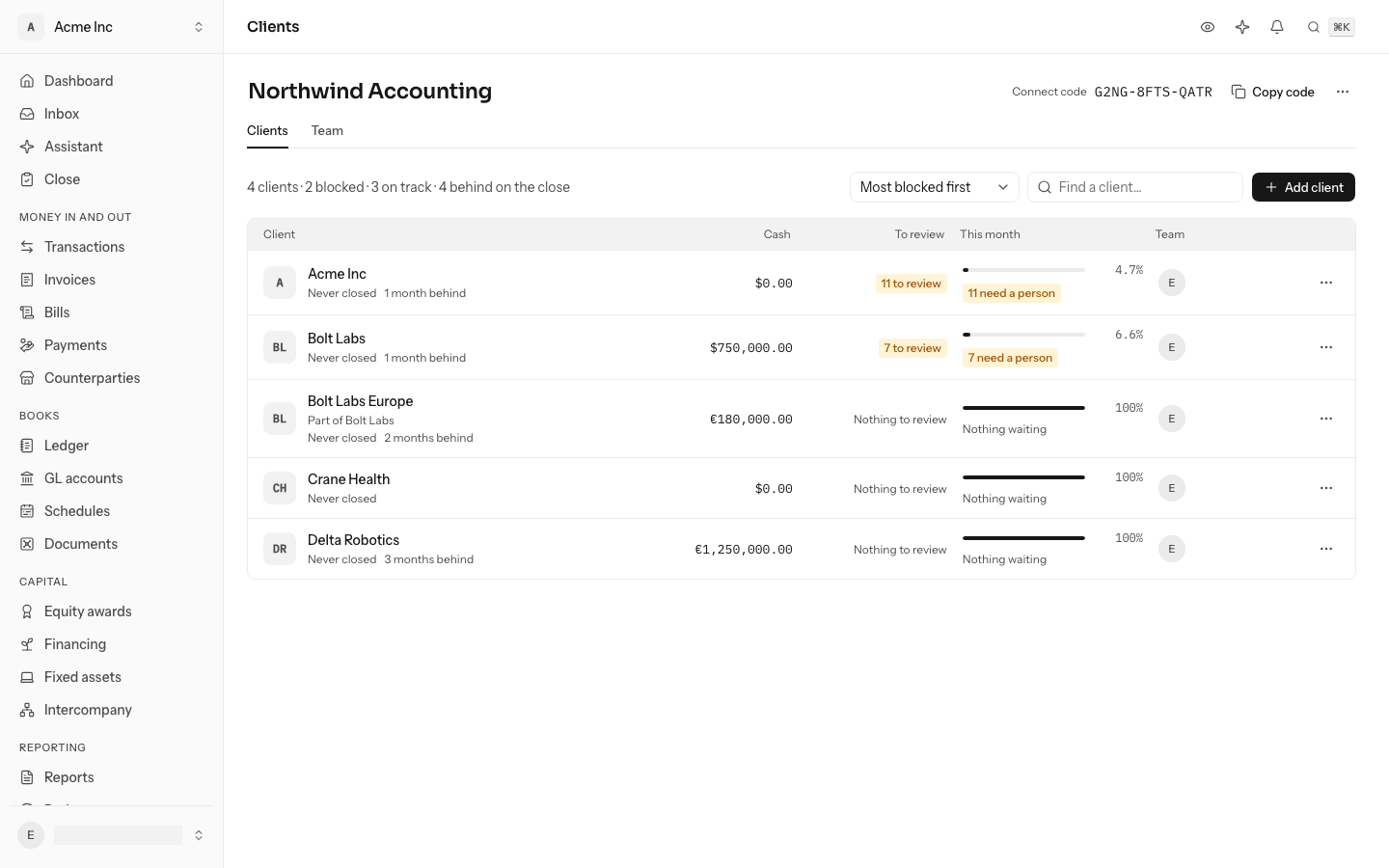
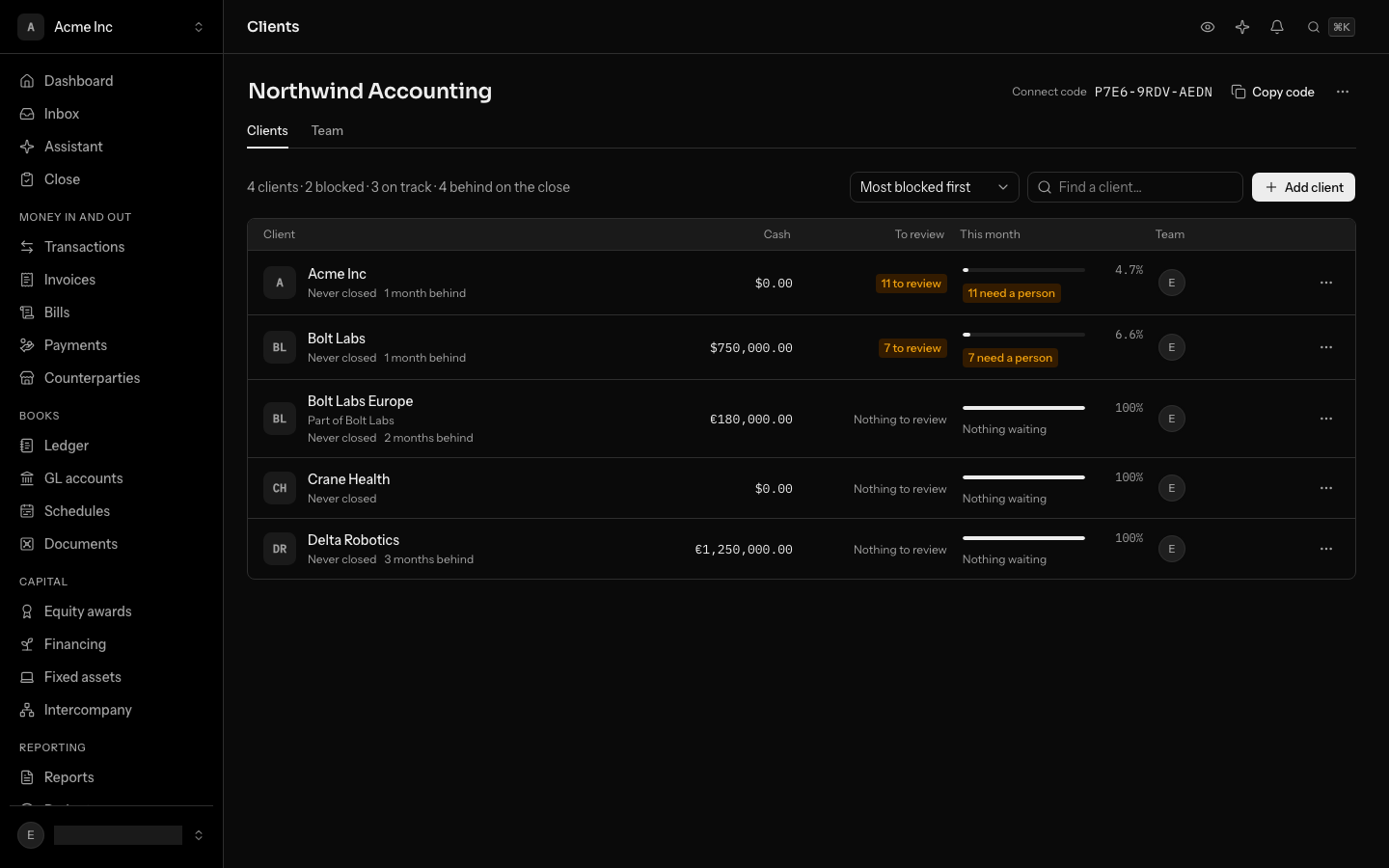
Clients shows every client an admin can see, or for staff, the clients they are assigned to. Each row is read from that client's own ledger:
| Column | What it shows |
|---|---|
| Client | The company, the last month closed and how many months behind it is |
| Cash | The bank and cash accounts' balance today |
| To review | Transactions waiting for a person to confirm their category |
| This month | How ready the current month is to close, as a bar and a percentage, and how many things wait on a person |
| Team | Who from the firm can open these books |
Use Find a client… to search. Choose Open books to switch into a client's books and work in them like any other member. Month-end close explains what "closed" means.
See which clients are blocked
The list starts with the client that has the most waiting on a person, then the least ready, so the top of the page is where to start. To read it alphabetically instead, change Most blocked first to By name.
The line above the list counts the clients:
- blocked: something in the books waits on a person, shown in the row as "3 need a person";
- on track: nothing waits on anyone, and the month has not ended yet;
- ready to close: the month could be closed now.
The percentage is the same one the client sees on Home: how much of the month's work is done. It is read from the client's books every hour, and again straight after anyone closes or reopens a month or signs off a checklist task, so a figure is at most an hour old. Opening a client's books shows what is left, area by area.
Assign your team to a client
- DKDana KimOwner
- PSPriya Shahvia Ledger & CoAccountant
Tick someone on the firm's team, or change what the firm may do.
Admins and the owner decide who works on each client.
- In the client's row, open its actions menu and choose Manage team.
- Tick the people who should work in these books, and untick anyone who shouldn't. Each change applies at once.
- Choose Done.
To give yourself access, choose Assign me in the row. Someone who is in the client's books on their own account is marked so, and isn't the firm's to remove.
A client with a subsidiary is listed once per company, each row read from that company's own ledger and marked Part of the client. Assigning someone, or removing the client, applies to all of them.
To stop keeping a client's books, choose Remove client. Everyone the firm let in loses access to every company of the client, and the books stay with the client.
Manage the firm's team
On the Team tab:
- Admins choose Invite, enter an Email and pick admin or staff. The person joins by signing in with that address. Invitations still waiting are listed under the members, under Invitations; to take one back, choose Revoke in its ⋯ menu.
- Admins can change a member's role, or Remove them from the ⋯ menu at the end of their row. Removing someone takes them out of every client's books the firm let them into.
- The owner can choose Make owner in another member's ⋯ menu, and stays on as an admin. Only the owner can Delete firm, at the foot of the tab, and confirms it once more: every client's books are handed back and everyone the firm let in loses access. The books themselves stay with the clients.
- Anyone except the owner can Leave the firm.
Admins rename the firm where its name is shown: click the name at the top of the firm's pages, type the new one and press Enter. Escape keeps the old name.
Give a firm access to your books
This is the company's side, in Settings, on the Team page under Accounting firm access. Admins and owners manage it.
- Choose Give a firm access.
- Enter the Connect code your accountant gave you.
- Choose how much the firm may do: Admin (everything except billing and ownership), Accountant (posts, reconciles and closes the books) or Viewer (reads everything, changes nothing). Accountant is the default.
- Choose Give access.
The access is for your whole organization: the firm can keep the books of every company you keep in LedgerIt, including one you add later. To change what the firm may do, pick a new role beside its name; everyone it let in gets the new role at once, in every company. To end it, open the ⋯ menu beside the firm and choose Remove access, and everyone from the firm loses access straight away. LedgerIt keeps a record of when you gave and took back access.
The firm's people appear under Members marked "via" the firm's name. You change their access here, not one by one. Settings and your team covers roles in more detail.