Connections
Connect BILL
Connect BILL (Bill.com) with your own sign-in and developer key, so its vendors, bills and payments reach the books and each payment is counted once.
BILL is in Beta in LedgerIt: it is built against the API BILL publishes and tested on sample data, and not yet proven against BILL's live API. Check the first bills and payments against BILL. You can connect it today.
You need a BILL account with Accounts Payable, a person there who can generate a developer key, and an owner, admin or accountant in LedgerIt. LedgerIt only reads from BILL. It never creates, approves or pays a bill there.
The short version
- In BILL, open the settings, choose Sync & Integrations, then Manage Developer Keys, and generate a developer key. Copy the key, and the organization ID at the bottom of that page.
- In LedgerIt, open Add connection at BILL.
- Enter the email and password you sign in to BILL with, the organization ID and the developer key, and select Connect BILL.
What you need from BILL
BILL's API has no key that stands for your company on its own. An app signs in as one of your users, with four things, as BILL's guide to going live describes:
| LedgerIt asks for | What it is | Where it comes from |
|---|---|---|
| Username | The email address you sign in to BILL with | Your BILL account |
| Password | That account's password | Your BILL account |
| Organization ID | BILL's id for your company. It starts with 008 | The bottom of Manage Developer Keys |
| Developer key | A key that names the integration | Generate developer key, on the same page |
The developer key is yours: any BILL account with Accounts Payable can generate one, after accepting BILL's developer terms of service. You do not need to be a BILL partner, and LedgerIt does not hold a key on your behalf.
Use a BILL user made for this, with a role that can view bills, vendors and payments and cannot pay. If that user cannot see your chart of accounts in BILL, everything else still syncs (see What comes in).
BILL also has sync tokens (Settings, Sync & Integrations, Tokens), which sign in the same way and cannot make payments. BILL documents them for customers of its app partners. If your account offers one, enter the token's name as Username and its value as Password. LedgerIt has not been tested with one against BILL itself.
Why LedgerIt cannot pay from your BILL account
- LedgerIt has no code that creates, changes, approves or pays anything in BILL. It signs in, reads four lists and signs out.
- BILL requires a second factor before a session may pay or change bank details. LedgerIt never completes that step, so BILL itself refuses a payment from its session.
- LedgerIt keeps no BILL session. It signs in at the start of each sync and signs out at the end.
Your password is stored encrypted, is never shown again and is never written to a log. A password is still a stronger thing to hand over than a read-only key, which is why a user with a view-only role is the right one to connect.
What comes in
Vendors become counterparties. LedgerIt finds the one you already have by BILL's own id for the vendor, then by its email address, then by its tax id, and only then by its name, so a vendor spelled differently in BILL is not added twice. A tax id BILL holds is added to a vendor that has none.
Bills become bills in LedgerIt, each tied to its bill in BILL, so syncing again never adds one twice. A bill your books already hold under the same vendor and number, entered by hand or read from an emailed invoice, is recognised as that bill.
- A bill arrives approved, and on your books, when BILL approved it or a payment has been made or scheduled for it there, and every line's account is known: the account the line is coded to in BILL when its number is one of your account codes, else the vendor's default account, else where that vendor's earlier bills went. Its page says Approved by LedgerIt and names BILL. To check one yourself, select Send back to draft; LedgerIt does not approve it again.
- Any other bill arrives as a draft: one still waiting for approval in BILL, or one whose lines LedgerIt could not place, which sit on Uncategorized expense for you to move. A draft waiting on BILL is approved by a later sync once BILL approves or pays it, unless you have changed it.
- A bill that BILL denied or archived, one in another currency than your books, and one dated before your books start are kept as BILL sent them and not added to your bills.
Payments are matched, not posted. A payment made through BILL leaves your bank as a debit your bank feed reports too, so LedgerIt never records the BILL payment as a second movement of cash. It finds the bank or card transaction for the same amount, within 7 days of the day BILL drew the money, that names BILL or the vendor, and settles that transaction against the bills the payment paid. The bill reads Paid, the cost is counted once and the cash leaves once. See Pay a bill from the bank.
Everything BILL sends is kept as it was sent, including fields LedgerIt does not use yet. Tax ids and bank account numbers inside it are encrypted.
The first sync reads every vendor, and the bills and payments changed in the last 400 days, or since the day your books start if that is later. After that, BILL syncs every 6 hours and reads what changed.
Connect it in LedgerIt
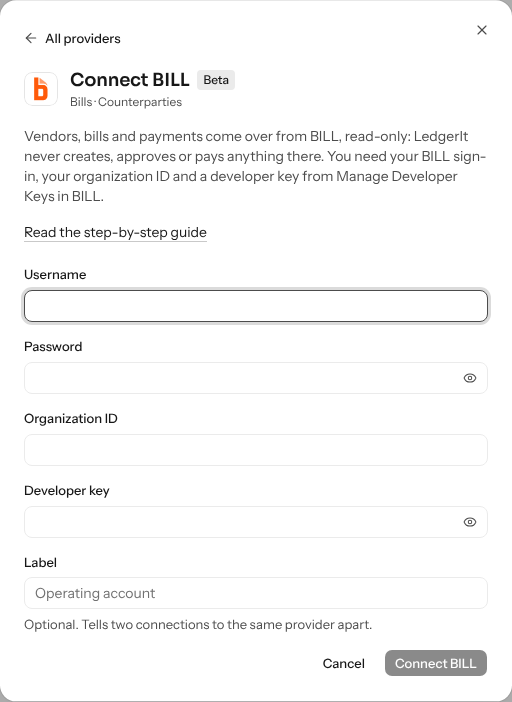
- Open Add connection at BILL. To click your way there, go to Integrations, select Add connection and, under Bills and payables, choose BILL.
- Fill in Username, Password, Organization ID and Developer key.
- Optionally, give the connection a Label.
- Select Connect BILL.
LedgerIt signs in to BILL once to check all four before saving anything, then encrypts them. One BILL organization feeds one set of books. The first sync starts from there: see Sync and check a connection.
Connect the bank or card your BILL payments are drawn from as well. Without it there is no transaction to match a payment to, and its bill stays owed in your books.
After a sync
A sync says how many bills it brought over, how many of them arrived approved, and how many payments were matched to their bank transactions or are still waiting. Anything not in your books as BILL has it is listed under Not mapped, so not in the books, with why:
| What it says | What to do |
|---|---|
| A draft, waiting to be approved or paid in BILL | Nothing. Approve it in BILL, or approve the draft in LedgerIt |
| A draft whose lines' accounts could not be told | Open the draft, move its lines off Uncategorized expense and approve it. Give the vendor a default account and its next bills place themselves |
| A draft the books refused to approve | Usually its month is closed. Reopen the month, or change the draft's date, and approve it |
| No bank or card transaction for its amount near its day yet | Wait for the bank to report it, or connect the bank the payment was drawn from |
| More than one transaction or payment fits | Open the transaction and settle it against the bill yourself |
| Its transaction was already filed by a person or a rule | Approve A payment for an open invoice or bill in the Inbox. Until you do, that transaction's expense and the bill's are both in your books |
| Paid from a BILL balance or card that no connected feed reports | Record it yourself: in Payments, select Record payment and apply it to the bill |
| A vendor credit was applied with it | LedgerIt does not hold vendor credits yet. Record the payment yourself for what was paid; what the credit covered stays owed on the bill until you correct the bill |
| Voided or cancelled in BILL | Nothing, unless its transaction was already settled: then send that transaction back to review |
What it does not do yet
- Bills and payments in a currency other than your books' are not brought over.
- Vendor credits are not brought over.
- A payment BILL voids after LedgerIt matched it is reported, and not undone.
- BILL's Spend & Expense cards and its receivables are not read.
If something goes wrong
| What you see | What it means | What to do |
|---|---|---|
| BILL rejected that sign-in when connecting | The email, password, organization ID or developer key is wrong, or they belong to BILL's sandbox | Check each one. The message under it is BILL's own |
| Last sync failed | The password was changed, the developer key was removed, or BILL could not be reached | Read the Last error. Select Reconnect and enter the four again |
| Every bill arrives as a draft on Uncategorized expense | The user cannot read BILL's chart of accounts, or its account numbers are not your account codes | Set each vendor's default account in LedgerIt, or code bills in BILL to account numbers that match |
Reconnecting under the same label replaces what was stored rather than adding a second connection, and everything already in the books stays.
Disconnect BILL
- Open BILL from Integrations.
- On the connection's row, open the ⋯ menu and select Disconnect, then confirm.
LedgerIt destroys its copy of your sign-in and developer key. There is no session to end at BILL, because none is kept between syncs. The bills, vendors and settled transactions stay in your books. The developer key is yours: to retire it, remove it under Manage Developer Keys in BILL, and change the BILL user's password if it was used nowhere else.