Your company
Work with the assistant
Ask the assistant about any figure in your books, or ask it to make a change. It reads on its own; every change waits for you to allow it.
The assistant is a conversation inside LedgerIt that can read anything in your books and propose any change you could make yourself. Use it to answer a question without hunting through screens, or to describe a change in plain words and let it work out the steps. It never changes anything until you say so.
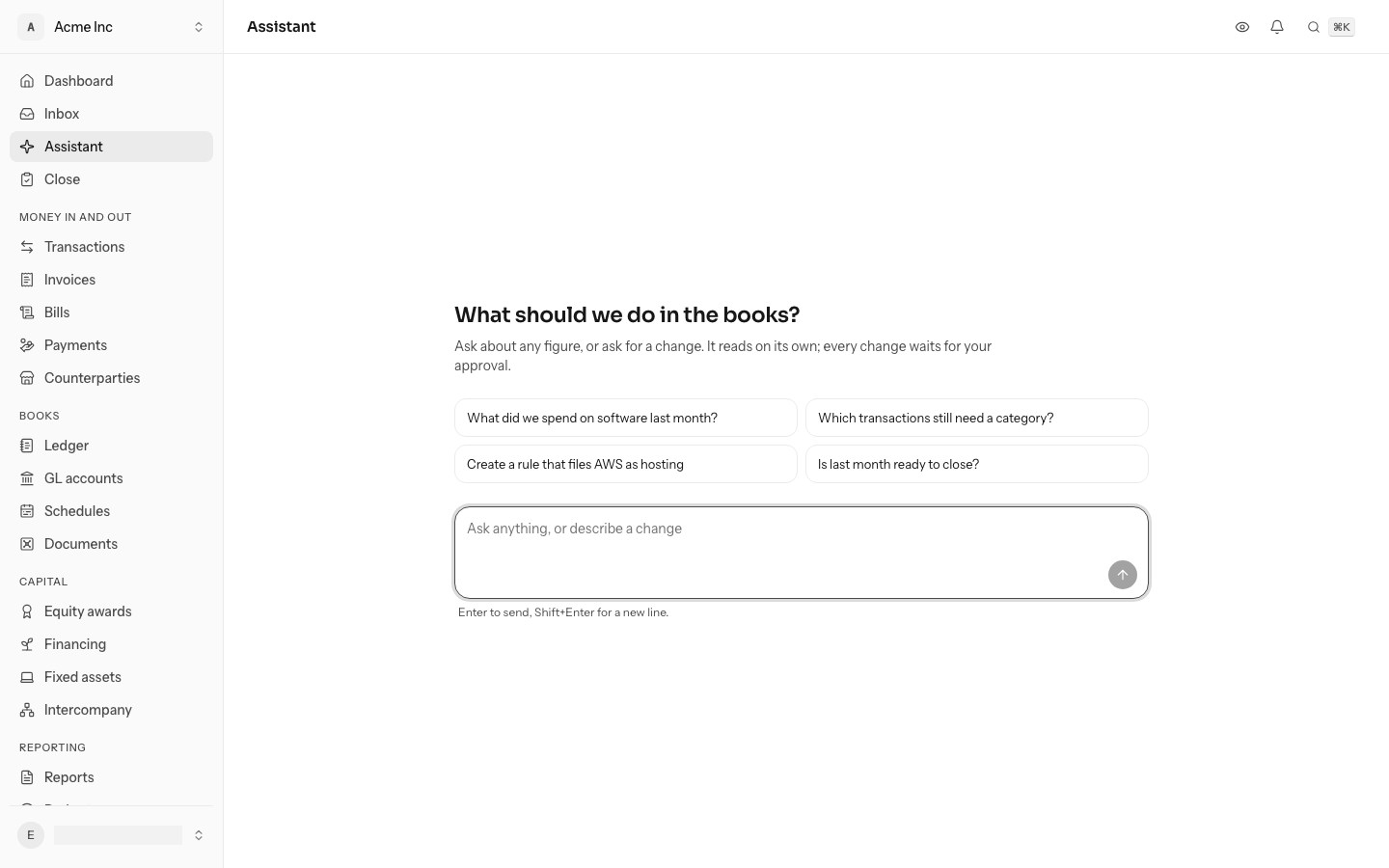
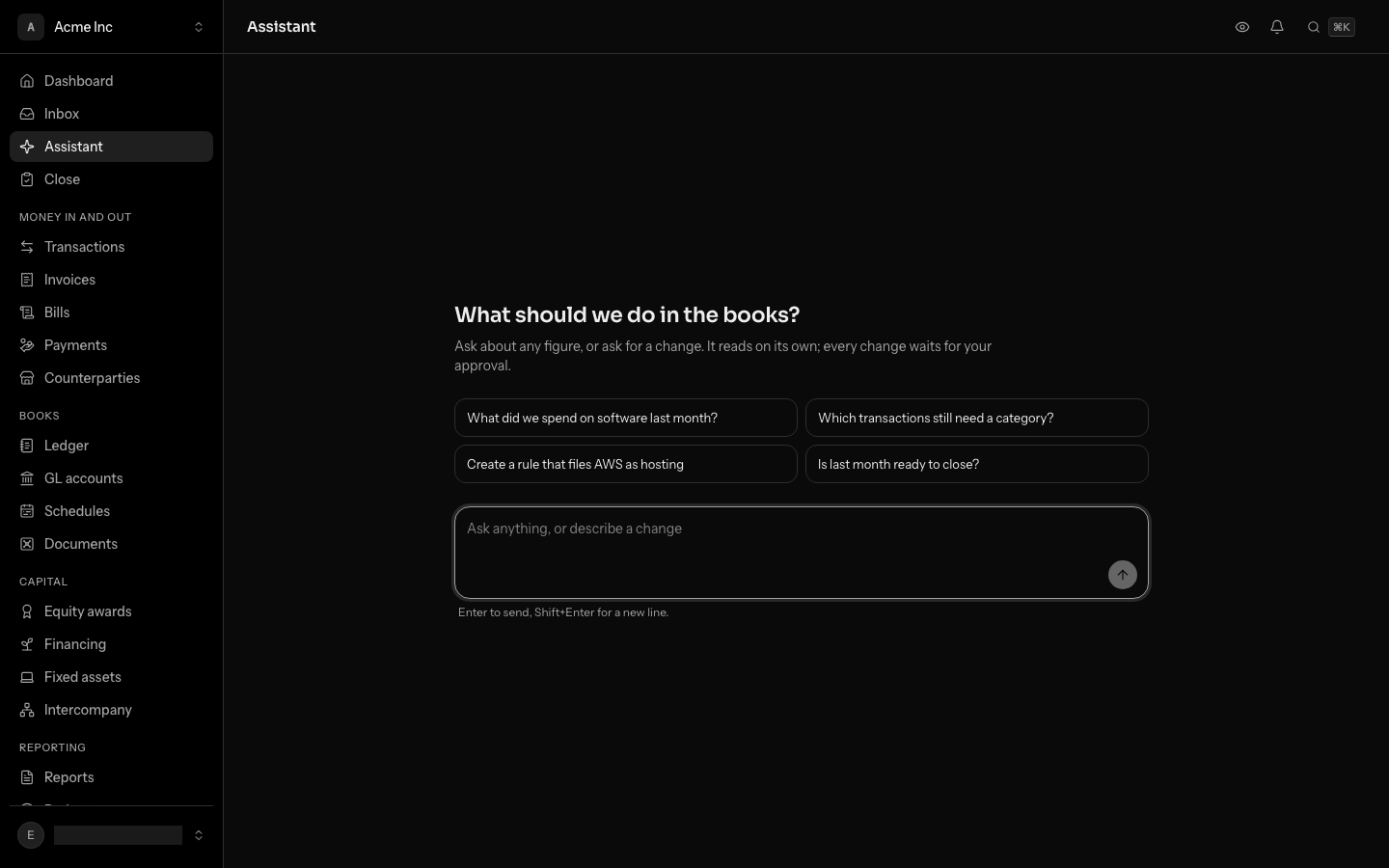
Ask a question
Open Assistant in the sidebar. Select one of the suggestions, or type your own message in the box and press Enter. Shift+Enter starts a new line.
While it works, the assistant shows short notes on what it is doing, and each step it takes appears as a row. Results it found, such as a transaction, a GL account, a rule, a month's close status or the records a search matched, appear as cards with a link to the page where that record lives. Open any other step with Show details to see what came back laid out as a list or a set of figures, with each record it names linked to its page. Under that, Request and response shows the exact request and the response as the API sent it.
The assistant keeps working if you close the tab, lock your phone or lose your connection. Open the conversation again, from any tab, and it shows the answer as far as it has got, still writing. To stop it part-way, select Stop. Anything already done is recorded above.
Ask about what is on screen
You do not have to leave a screen to ask about it. Select Ask the assistant (the star in the top bar), or press ⌘J (Ctrl J on Windows), and the assistant opens beside the page. On a phone, open the sidebar with the menu button at the top left and select Ask about this screen, just above your name, or search for Ask the assistant.
On a wide screen (1,536 pixels across or more) it is a column at the side, and the page stays in use: you can scroll it, open a row or file a transaction while the assistant answers, and the column follows you to the record you open. On a narrower screen, or when a preview is open, it covers the page until you close it.
- Open a transaction, a journal entry, a GL account, a counterparty or a month's close. The line above the box reads About this journal entry, or whichever record you are on.
- Ask in your own words, such as "Why was this booked here?". The assistant is told which record you mean, so you never paste an id.
- On Transactions, tick the rows you want first. The line reads About 2 selected transactions, and "categorize these" means those rows.
The assistant is told which record or rows you are looking at, never what they say: it reads the record itself before answering. A message keeps the line it was sent with, as a link back to the record.
Select Open in full to carry the conversation over to the Assistant screen, or the pencil to start a new one. Press ⌘J again to close the panel; the conversation is still there when you reopen it.
A conversation started on a record's page is kept as being about that record. Open the assistant on the same transaction, entry, GL account, counterparty, rule, document or month again and it lists what you asked about it before, under You asked about this before: select one to carry on from where it stopped. Only your own conversations are listed.
How reads and changes differ
The assistant works through the same API the LedgerIt app uses, with your own access. Reading does not change anything, so it runs as soon as the assistant needs it. Filing a transaction, creating a rule, posting an entry or signing off a close task would change the books, so each one stops and asks first.
It can never do more than you can. If your role does not allow a change, the assistant gets the same refusal you would, and explains it. A viewer, for example, can ask questions but cannot approve a change into the books. See Settings and your team for what each role may do.
Allow or deny a change
Create a rule that files AWS as hosting
The assistant wants to make a change
Create the rule AWS is hosting and infrastructure
{
  "name": "AWS is hosting and infrastructure",
  "pattern": "AWS",
  "match_on": "description",
  "match_type": "contains",
  "category_account_id": "gla_01k6jx3m9t3w6y8a0c2e4g6j8m"
}
Files under GL account 5010 Hosting and infrastructureIt read on its own. Now it waits: choose Allow, Deny, or Deny and say why.
When the assistant wants to make a change, a card titled The assistant wants to make a change shows what the change is for, the exact request that will run, and a link to the record it touches so you can look before deciding. Then:
- Allow runs that exact request, with your access.
- Deny declines it.
- Deny and say why lets you write what it should do instead, for example "File it under design tools instead". The assistant reads your note and tries again.
When it proposes several changes together, the card says Change 1 of 3, and you decide each in turn. Allow all followed by the count allows the rest of that set at once. The assistant carries on only once every change in the set has an answer.
There is no setting to allow changes automatically from now on. Each change is approved by a person, every time.
If you send a new message while changes are waiting, those changes are declined. That is the quickest way to change course: type what you want instead.
Send a note when LedgerIt falls short
When a conversation ends and LedgerIt notices that it made something harder than it should be, such as a task it could not do or one you had to do the long way, a card appears under the conversation with a note already written for the product team: a title, what happened, what you expected and what it cost you.
- Read the note. Select any line to change its words; press Enter or click away to keep the change.
- Select Send to the product team to send it, with your email address so we can reply. You are shown a reference code.
- Select Not now to put it away. The same suggestion is not shown to you again.
Nothing is sent unless you select Send, and nothing else from the conversation goes with the note. Whether or not you send it, LedgerIt keeps its own generic observation of what it could not do, without your figures or names, so the product team learns from it. To stop that as well, turn off Product insights in Settings under Your data; see Settings and your team.
What it will not do
Some things belong to you, not to a conversation, so the assistant cannot do them:
- Connect a provider with a key, or sign in to one. Credentials should never sit in a transcript. See Connect your banks, cards, payroll and revenue.
- Type transactions in directly. Transactions come from your bank, card, payroll or revenue source, or from a statement you upload.
- Upload statements, export reports, or open document links. Do those from their own screens.
- Transfer ownership of the books, leave the books, or send invitations.
It also treats whatever it reads in your data, such as a bank description or a counterparty's name, as information, never as instructions.
Manage your conversations
Your conversations are listed under Conversations, at the side, once you have a first one. Select New conversation to start another.
- Only you see your conversations. Other people in the same books do not.
- To rename a conversation, choose Rename in its actions menu, or double-click the title of the one that is open, then type the new title and press Enter. Escape keeps the old title.
- Delete, in the same menu, removes the transcript. Changes the assistant made stay in the books and on the audit trail, with who approved them and when.
- A conversation marked Needs approval has a change waiting for you. One marked Working is still running.
- The assistant keeps working if you move to another screen. A dot beside Assistant in the sidebar shows it is still going.
On one of your own messages, Ask again sends it again and Edit lets you change it. Sending an edit replaces that message and everything after it in the conversation. Changes already made in the books are not undone by this; to correct one, see Write and correct journal entries.
Under an answer, Copy copies it, and Good answer or Bad answer tells us how it did.
Good things to ask
- "Which transactions still need a category?"
- "Create a rule that files AWS as hosting." See Automate filing with rules.
- "What is our runway?"
- "Is last month ready to close, and what is in the way?" See Close the month.
- "Why did operating expenses go up last month?" See Read and export reports.