Bookkeeping
Depreciate equipment and sell it
Register the laptops, servers and furniture the company owns, let every close depreciate them, and take one off the books when it is sold or thrown away.
A laptop the company buys is not an expense the day it is paid for. It is an asset that wears out over the years it is used, so its cost reaches the P&L a month at a time, as depreciation. Fixed assets keeps the list of that equipment, and every month-end close posts each one's depreciation for you.
Find your way around
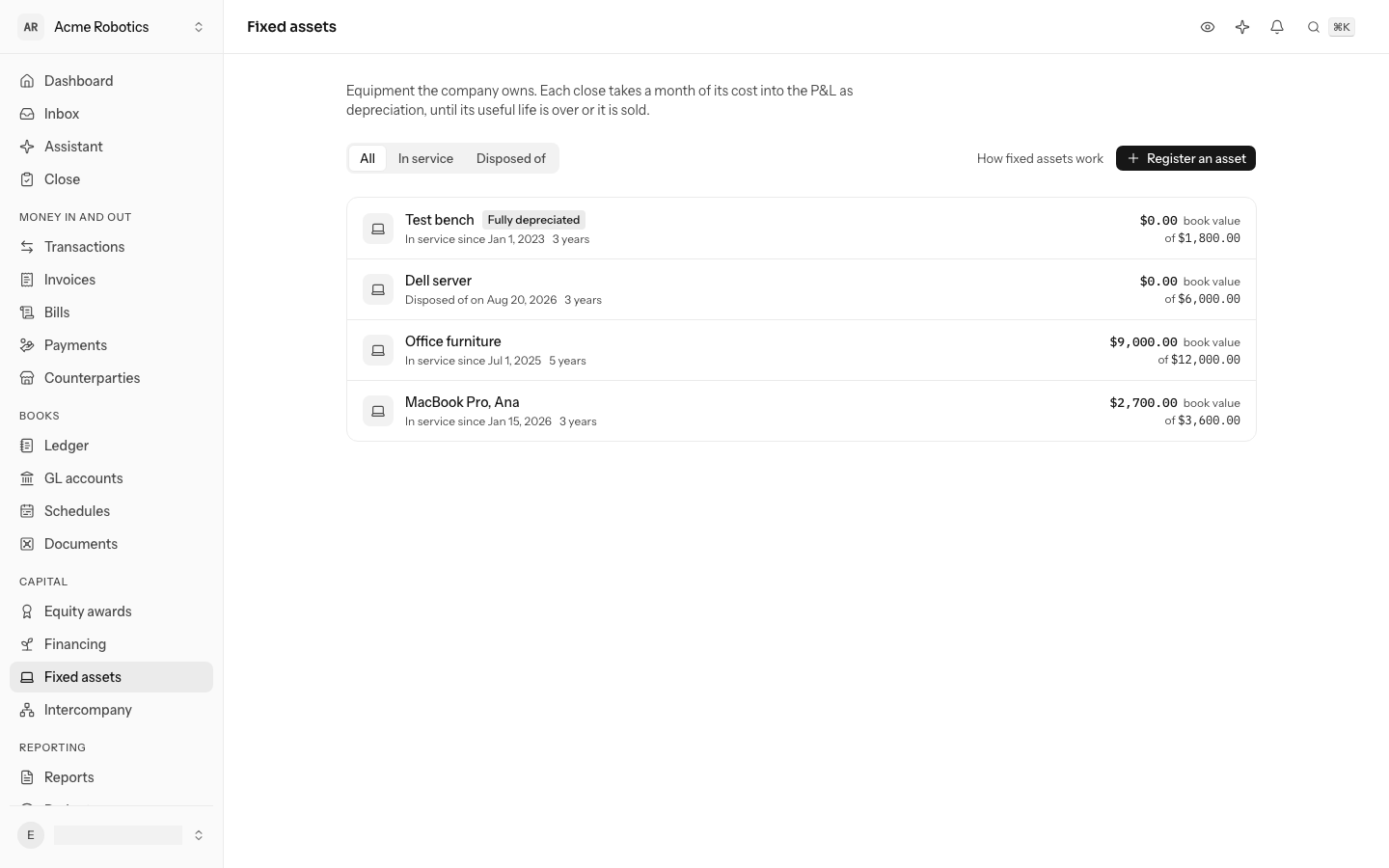
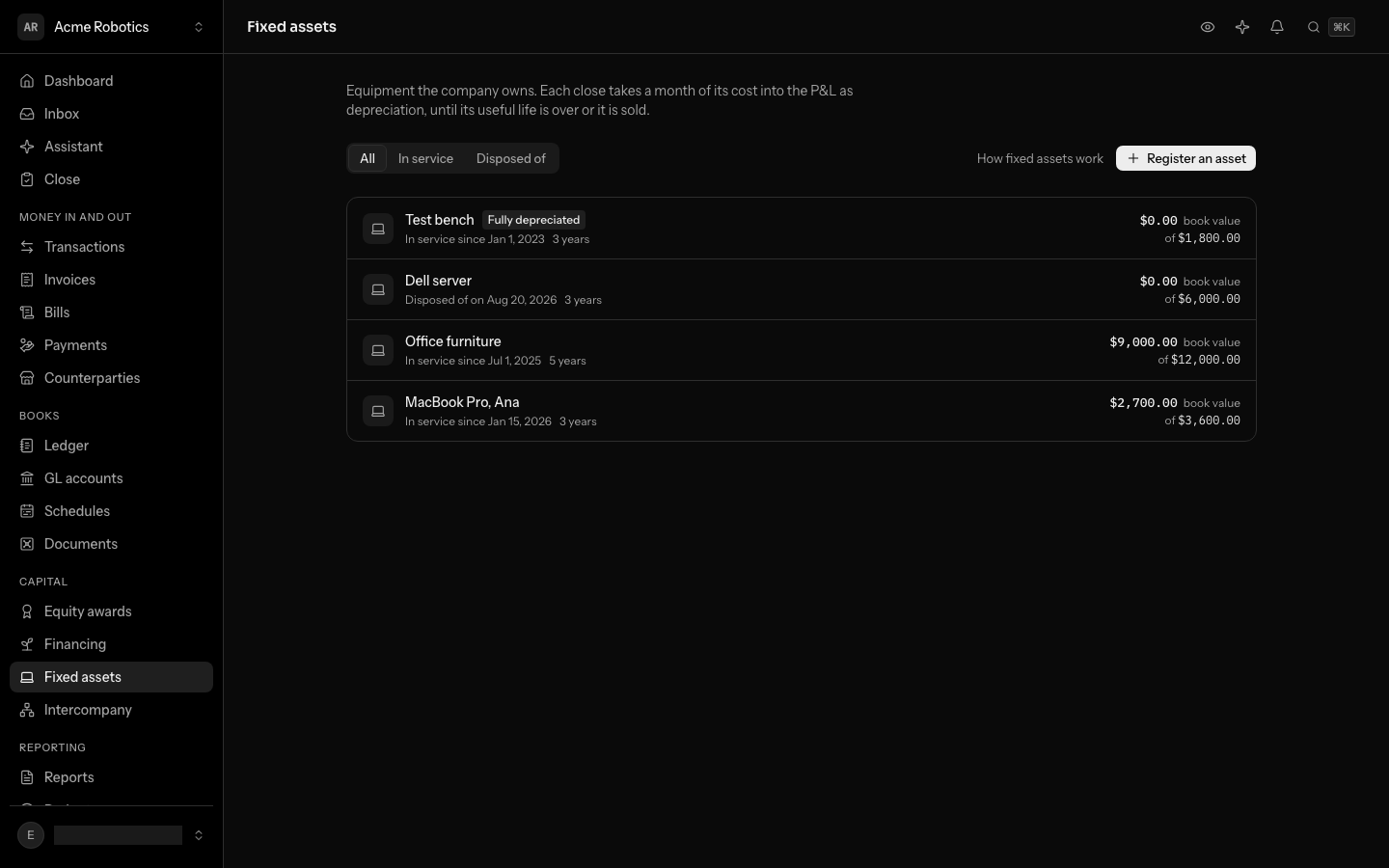
Fixed assets is on the left rail, under Capital; from the keyboard, press G then X. It lists every asset with the day it went into service, its useful life and its book value: what it cost less the depreciation taken so far. Show narrows the list to In service or Disposed of. An asset whose life is over says Fully depreciated.
Capitalize a purchase
The quickest way in is from the transaction that bought it. A laptop on the card is not office supplies, so don't file it to an expense: open the transaction and select Capitalize as a fixed asset in the ⋯ menu, or press ⇧C.
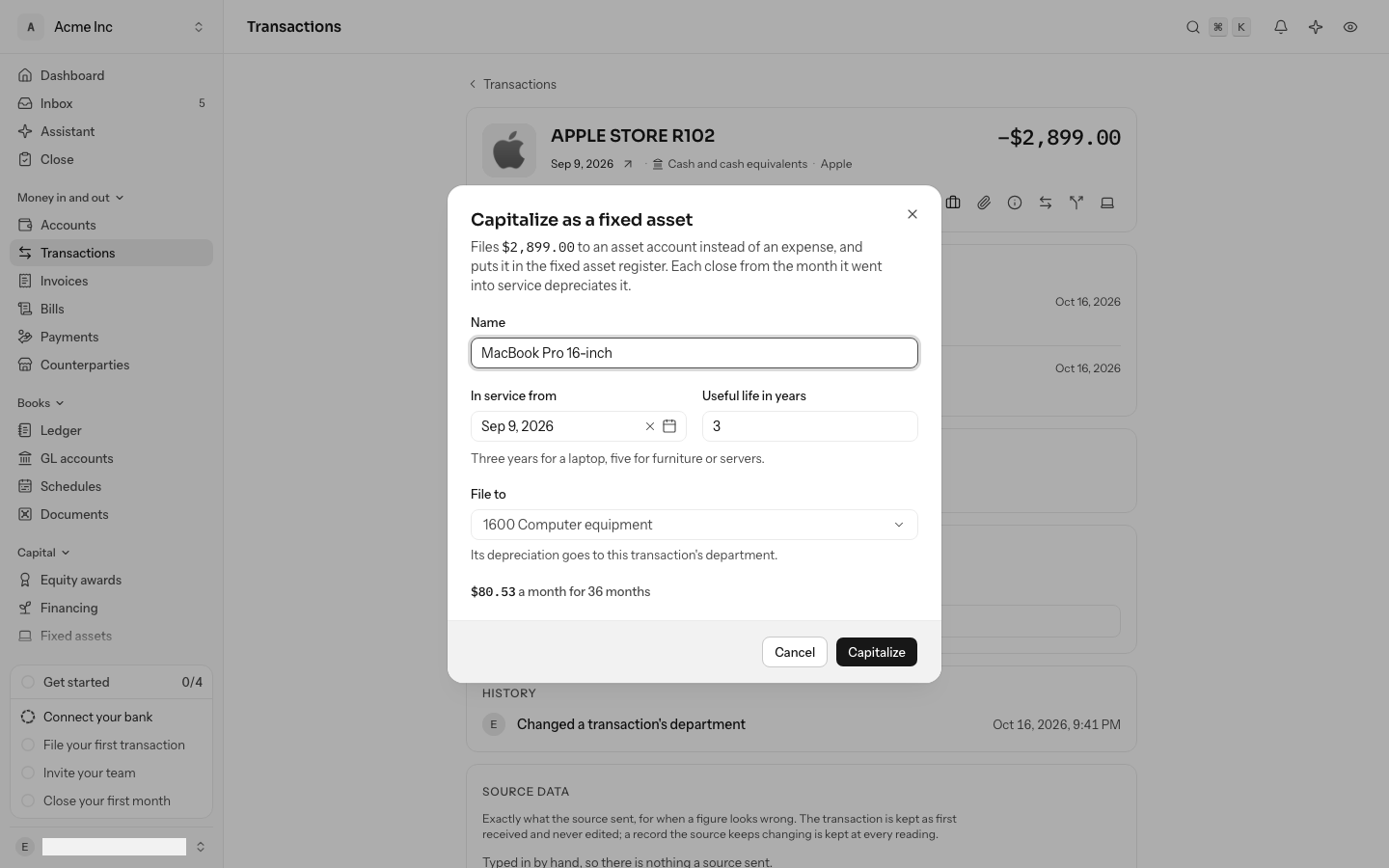
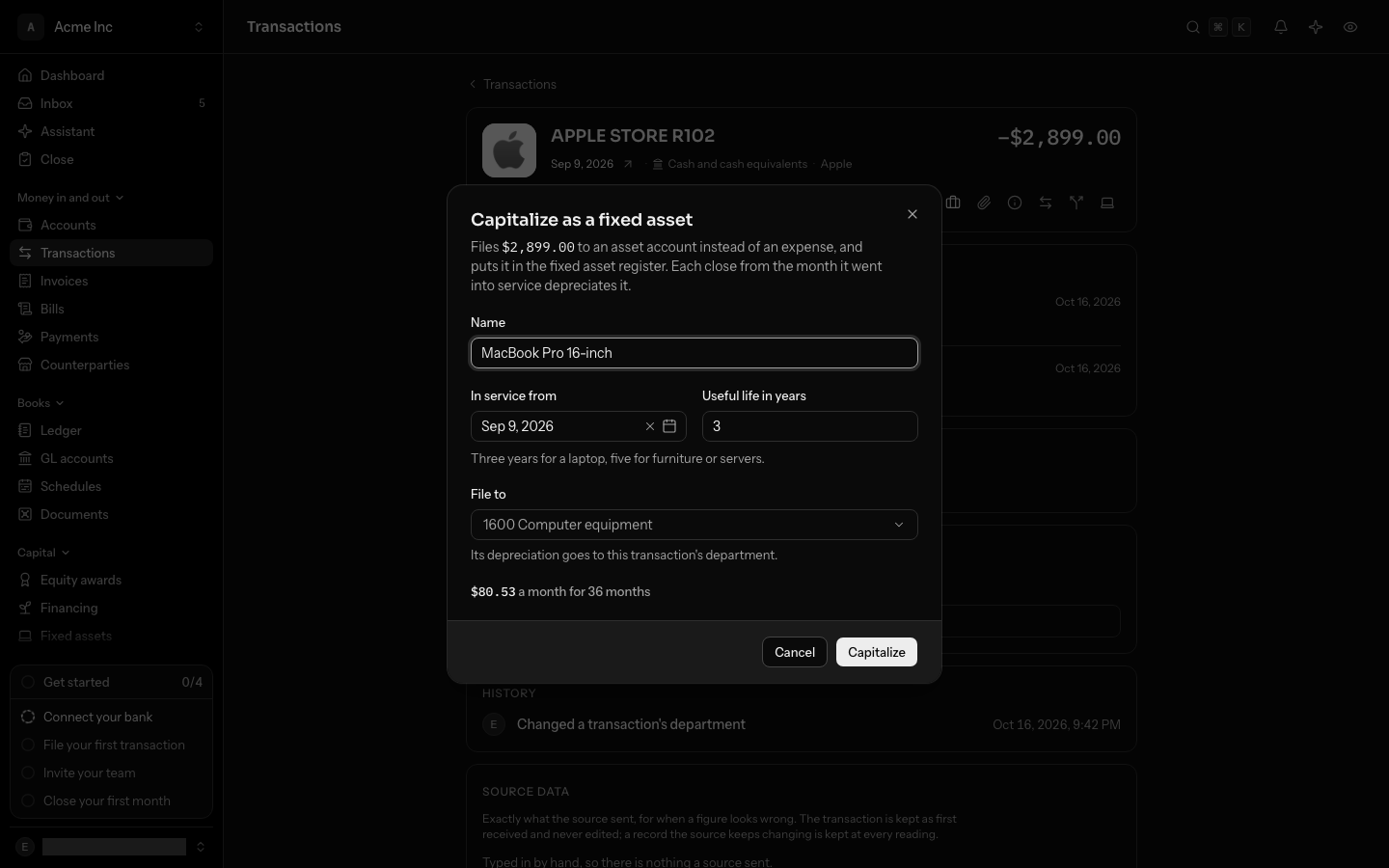
- Check the Name. LedgerIt starts from the transaction's description.
- Check the day it was In service from. It starts as the transaction's date.
- Enter its Useful life in years. Three, a laptop's, is filled in.
- Pick the account to File to. LedgerIt suggests 1600 Computer equipment.
- Select Capitalize. The dialog shows the monthly amount first: a $2,899.00 laptop over 3 years is $80.53 a month for 36 months.
In one step the transaction is filed to 1600 and posted, and the laptop is in the register. The cash never touches an expense account, so there is nothing to move out of one later. The asset's depreciation carries the transaction's department, so name the department on the transaction first (see Name its department): a Research and development laptop then shows its $80.53 a month in Research and development's spend.
The transaction's page then says Capitalized as the asset, with a link to it, and the asset's page links back under Bought with. Only money spent can be capitalized, not a fee, a refund or money in.
While the asset is in the register, the transaction stays filed to 1600: filing it elsewhere, splitting it, spreading it or reversing its entry is refused. Delete the asset first if it was capitalized by mistake (see below).
Register an asset
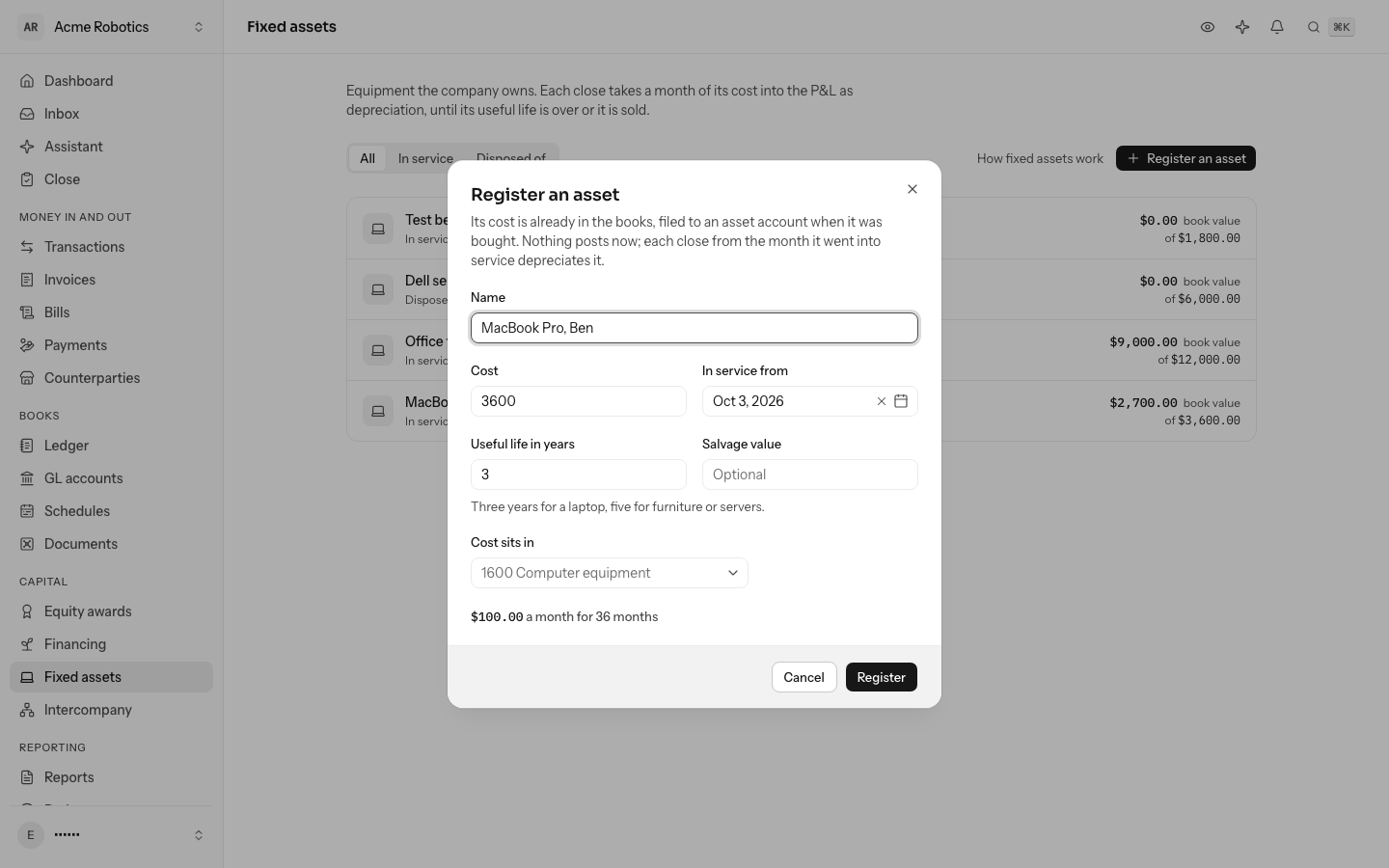
Use this for equipment whose cost is already in your books, in an asset account such as 1600 Computer equipment: an opening balance, or a purchase a rule filed there. Registering the asset tells LedgerIt how to spread that cost.
- Select Register an asset.
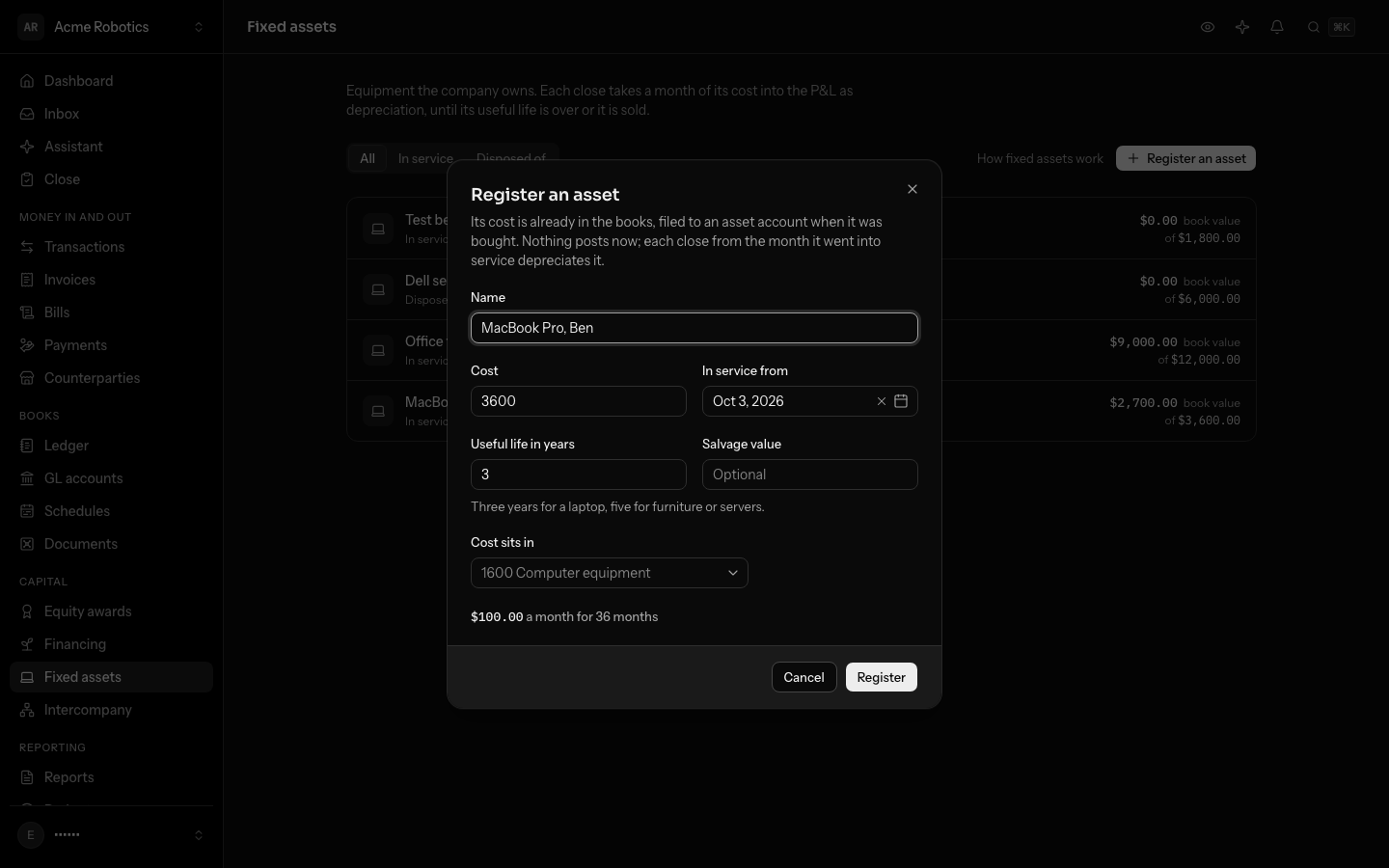
- Give it a Name, its Cost and the day it was In service from.
- Enter its Useful life in years: three for a laptop, five for furniture or servers is common. Add a Salvage value if you expect to sell it for something at the end; only cost less salvage is depreciated.
- Pick the account its Cost sits in. LedgerIt suggests 1600.
- Select Register. The dialog shows the monthly amount before you do: a $3,600.00 laptop over 3 years is $100.00 a month for 36 months.
Nothing is posted when you register. The asset depreciates straight line, the same amount each month, and a cent left by rounding is evened out over the months rather than piled on the last one.
How each close depreciates it
When you close a month, LedgerIt posts that month's depreciation for every asset in service: one entry dated the last day of the month, debiting 6290 Depreciation and amortization and crediting 1610 Accumulated depreciation. The cost stays in 1600, and the accumulated depreciation beside it brings the asset down to its book value on the balance sheet.
- The month it went into service counts as a full month, whatever the day.
- An asset registered late is caught up: the next close posts every month since it went into service in one entry. Closed months are never reopened for it.
- After its last month, it is Fully depreciated and stays listed at its salvage value until you dispose of it.
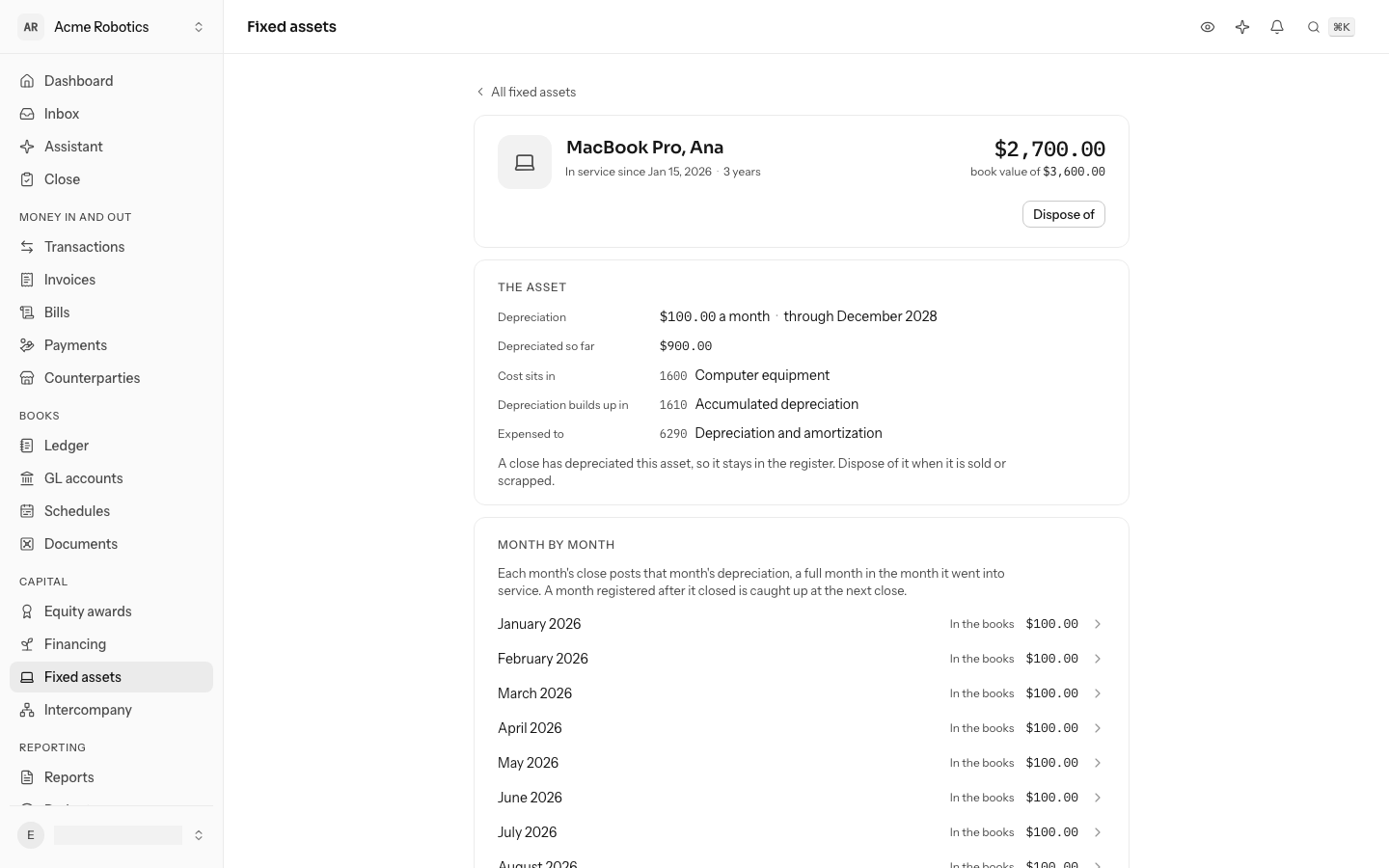
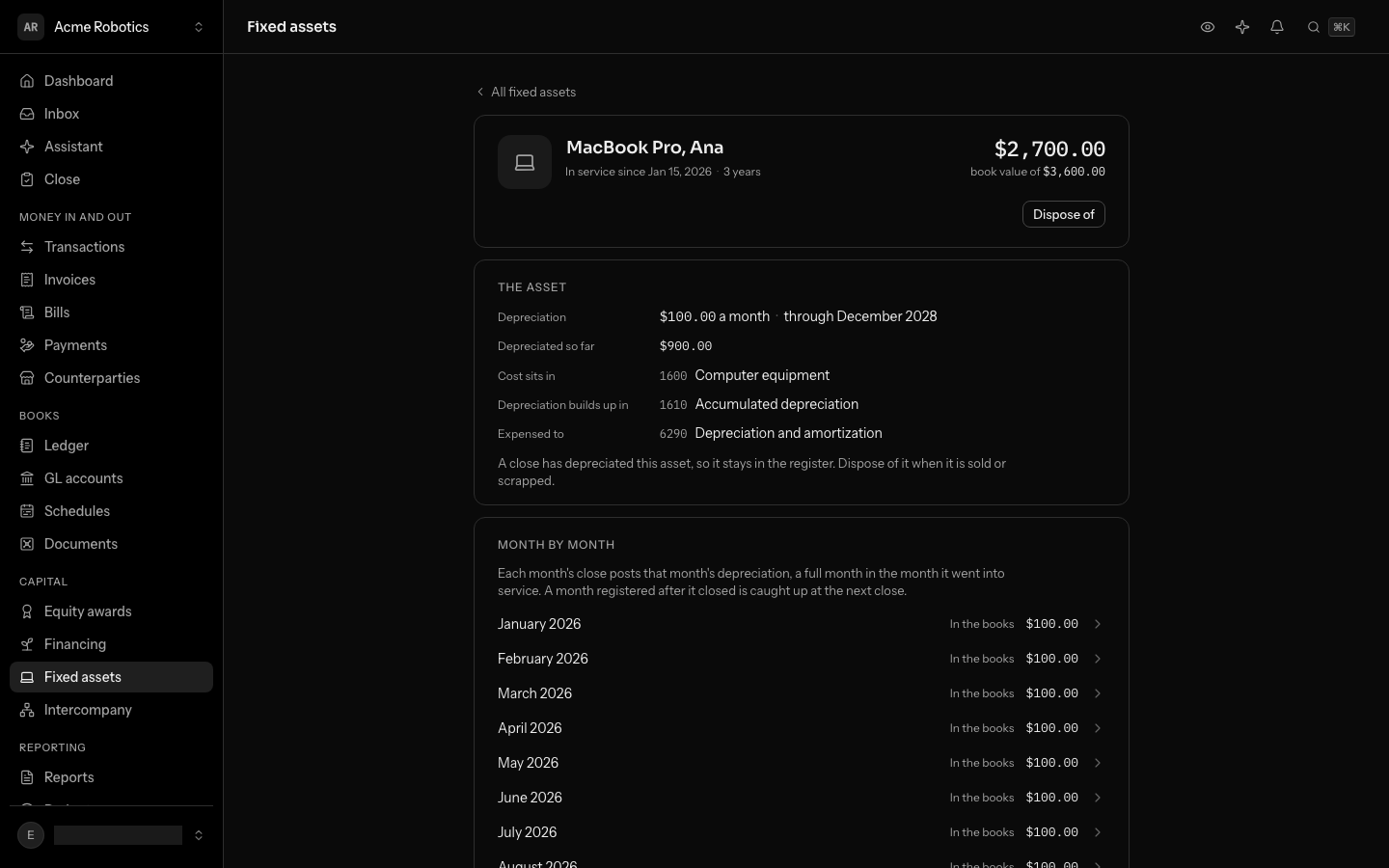
Open an asset to see its terms, the three accounts it uses and Month by month: every month of its life, the ones already In the books with a link to their entry and the ones To come.
Sell it or throw it away
When an asset leaves the company, open it and select Dispose of.
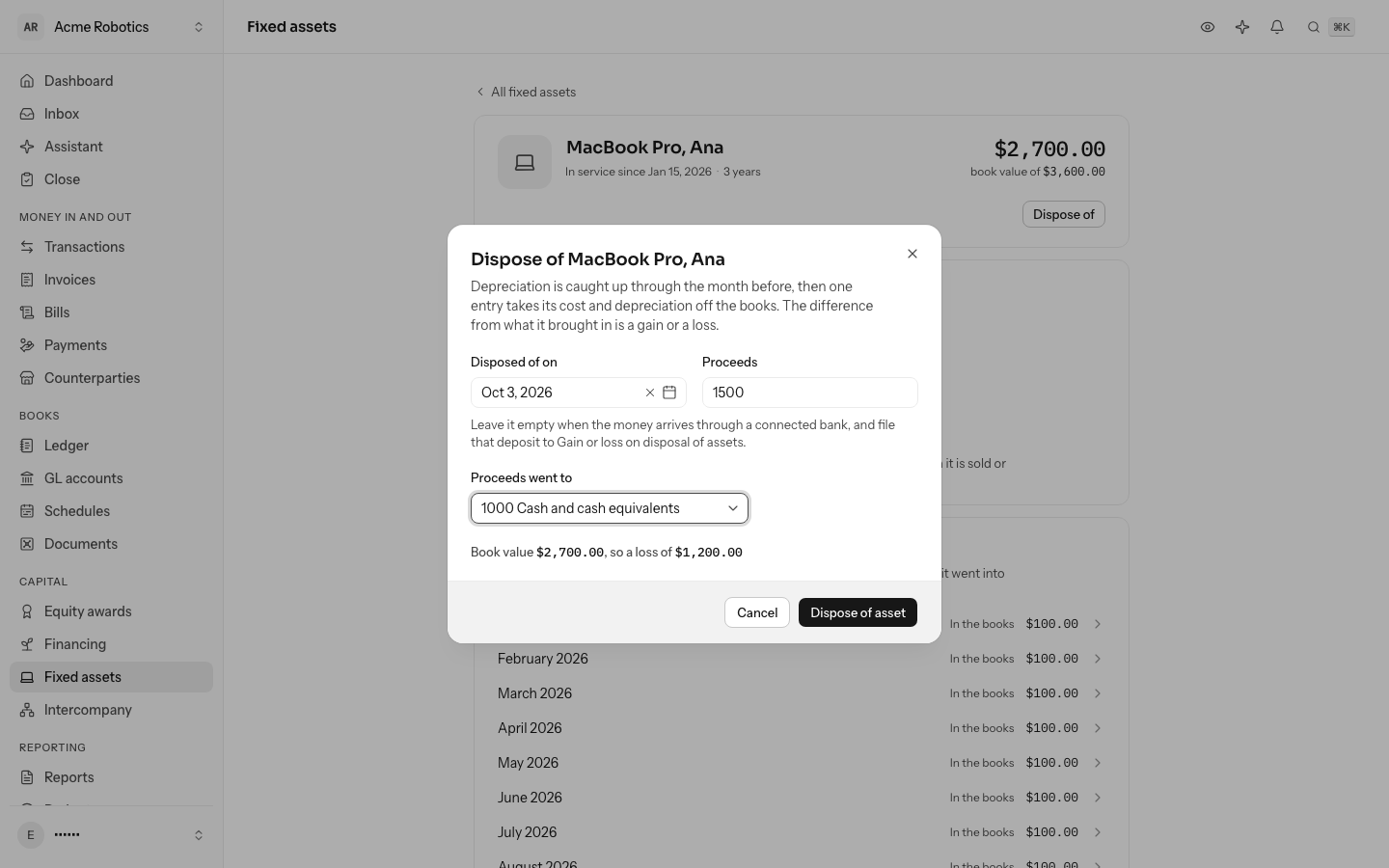
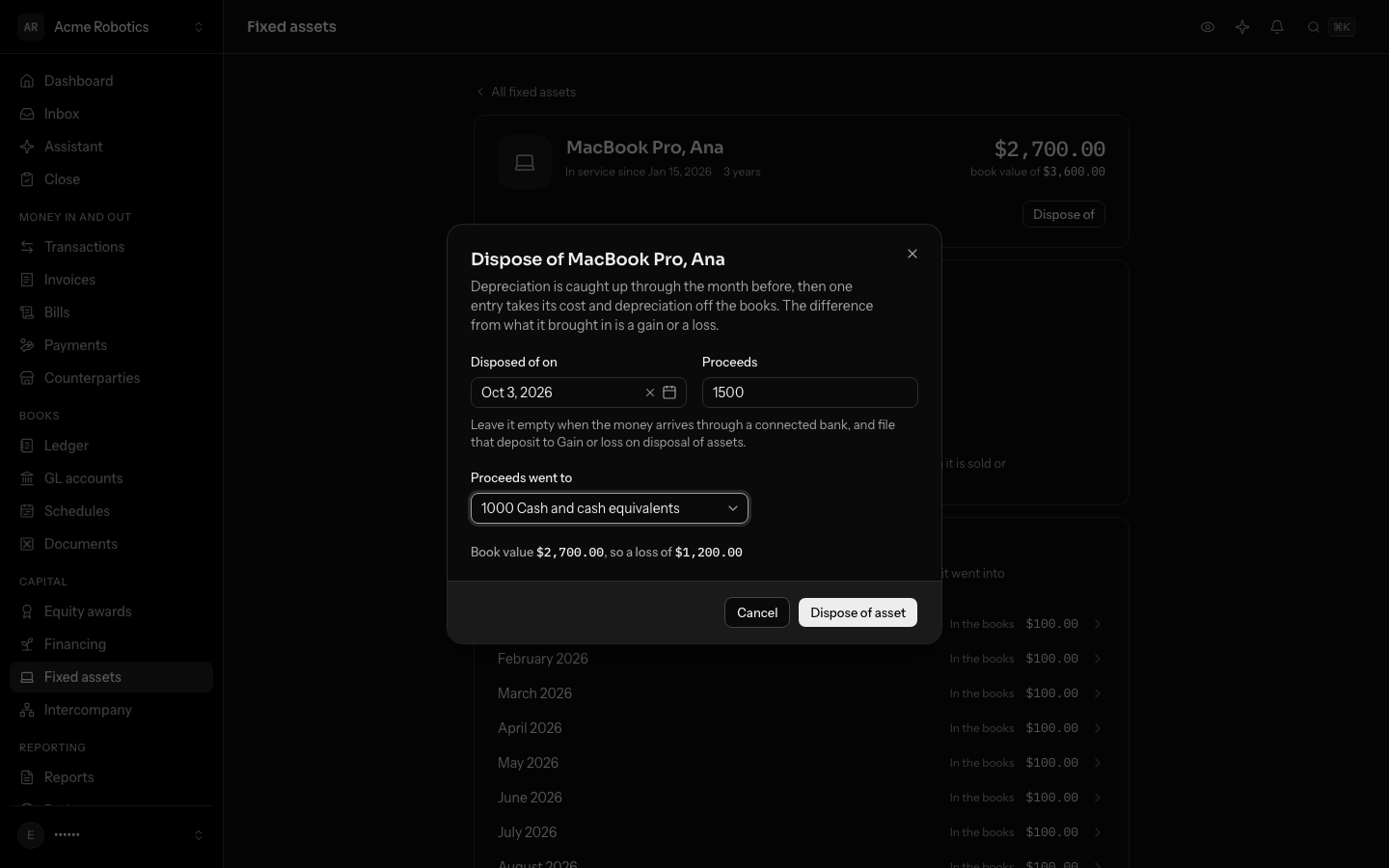
- Enter the day it was Disposed of.
- Enter the Proceeds, what the buyer paid, or 0 if it was thrown away, and the account the Proceeds went to.
- Select Dispose of asset.
LedgerIt first posts any depreciation still owed up to the month before; the month it leaves takes none. Then one entry takes it off the books: the cost out of 1600, its accumulated depreciation out of 1610, the proceeds into the account you picked, and the difference to 7500 Gain or loss on disposal of assets. A laptop that cost $3,600.00, with $900.00 depreciated, sold for $1,500.00, is a loss of $1,200.00.
If the money arrives through a connected bank, leave the proceeds empty, and file that deposit to 7500 when it comes in. The gain then shows once, with the bank line that proves it.
Dispose of an asset before you close the month it leaves in. Once a close has depreciated that month, LedgerIt refuses a disposal dated in it.
Fix a mistake
- Rename an asset at any time: click its name at the top of its page, type the new one and press Enter. Escape keeps the old name. Its Memo changes the same way, among its facts.
- Delete asset, in the ⋯ menu on its page, removes one registered by mistake, as long as no close has depreciated it yet. After that it stays in the register, because the books carry its depreciation; dispose of it instead. Deleting a capitalized asset leaves its transaction filed to 1600; file it to the right account from the transaction's page.
- Undo a disposal by reversing its entry: Open the entry from the asset's page and reverse it in the ledger. The asset is back in service, and the next close posts the months it missed.
- A month's depreciation can be reversed like any entry, but not for an asset already disposed of: reverse the disposal first.
Who can do what
Anyone in the books can see the register. Capitalizing, registering, renaming, deleting and disposing of assets needs a role that can post to the books: owner, admin or accountant.
Do this through the API
Everything in this guide is also an API call, for scripts and agents. The reference lists each operation with its parameters and objects.