Your company
Connect your banks, cards, payroll and revenue
Connect Mercury, Brex, Stripe, Gusto and more, or upload a statement, so transactions flow into the books and syncs keep them current.
Integrations are where your books get their transactions. Connect a bank, card program, payroll provider or revenue source once, and LedgerIt reads from it on a schedule. For anything else, upload a statement file.
Owners, admins and accountants can add connections and run syncs. Members and viewers can see what is connected.
What you can connect
Select Add connection to see every provider, grouped under Revenue, Banks and cards, Payroll, Accounting software you are moving from, Cap table and financings, Receipts from your mailbox and Notifications. Each one carries a status word, printed as it is:
- Live talks to the provider's own API.
- Fixture is mapped and tested against sample data, but not yet against the live API.
- Planned is not built. It is listed so you know it is coming, but cannot be connected.
| Provider | Kind | Status | How you connect |
|---|---|---|---|
| Mercury | Bank | Live | A read-only API token |
| Brex | Cash account and cards | Live | Sign in to Brex, or a read-only user token |
| Stripe | Revenue | Live | A restricted API key that reads. To make payment links on invoices, it also writes Products, Prices and Payment Links |
| Gusto | Payroll | Live | Sign in to Gusto |
| Clerky | SAFEs, as drafts | Live | Sign in to Clerky |
| File upload | Any bank or card | Live | A CSV or OFX statement |
| Plaid | Any other bank or card | Fixture | Sign in at your bank |
| Deel | Payroll | Fixture | An organization token |
| Ramp | Cards | Fixture | A client ID and client secret |
| QuickBooks Online | The books you are moving from | Fixture | Sign in to QuickBooks |
| Slack | Where notices are sent | Fixture | Add the LedgerIt app to your workspace |
| Gmail | Receipts from your mailbox | Live | Sign in with Google |
| Outlook | Receipts from your mailbox | Live | Sign in with Microsoft |
| Rippling | Payroll | Planned | Not available yet |
When you choose a provider, it lists what it brings beyond transactions: Balances (used to reconcile automatically at the close), Receipts, Counterparties, and for Stripe, Revenue schedules, so revenue is recognised over the period it is earned rather than on the day it was paid.
QuickBooks Online does not sync. It is read when you start a migration from it (see Switch from QuickBooks).
Clerky brings each SAFE it issued over as a draft for you to check and issue. Nothing it brings posts by itself (see Import SAFEs from Clerky).
Slack does not sync either. Nothing comes in from it: it is where members' notices can go (see Send notices to Slack).
Gmail and Outlook do not sync. LedgerIt searches a connected mailbox only for the receipts of charges that have none, and keeps only those emails (see Find receipts in your mailbox).
LedgerIt only ever reads from your providers. It never moves money.
Connect with a key
- Select Add connection and choose the provider.
- Read the note under the provider's name. It says where to find the key and which read-only access it needs.
- Paste the key or token into the fields shown.
- Optionally, give the connection a Label, such as "Operating account".
- Select Connect followed by the provider's name.
LedgerIt checks the key with the provider before it saves anything, so a connection only shows as connected once the provider has accepted it. Keys are encrypted as soon as they arrive and are never shown again.
Connect by signing in
For Gusto, QuickBooks Online and Clerky, and for Brex where sign-in is offered, select Connect with followed by the provider's name. You are sent to the provider to approve read-only access, then brought back to LedgerIt while the connection finishes. If you decline at the provider, or the approval link expires, nothing is connected and you can start again from Integrations.
Send notices to Slack
Connect your company's Slack workspace once, and each member can choose to get their notices there as a direct message from the LedgerIt app.
- Select Add connection, then Slack under Notifications.
- Select Connect with Slack, pick the workspace, and select Allow. The app asks to send messages and to find people by email. It reads no channel and no message.
- Back in LedgerIt, each member ticks Slack for the kinds they want under Settings, Notifications (see Choose what notifications you get).
A member is found in the workspace by the email they sign in to LedgerIt with. Someone whose Slack account uses another address gets nothing in Slack. If the app is removed from the workspace, the connection shows as failing and nothing more is sent until you connect it again.
Connect any other bank through Plaid
For a bank with no direct connection, choose Plaid and select Sign in at your bank. Plaid opens over the page: pick your bank and sign in there. Plaid holds the bank login on LedgerIt's behalf, and LedgerIt never sees your bank password. Checking, savings and credit card accounts are added; loans and investments are not.
Some banks, such as Chase, Wells Fargo and Bank of America, send you to their own site to approve access. When the bank sends you back, LedgerIt opens Plaid again to finish, then returns you to the page you started from. Finish in the same browser you started in. If you come back in another browser, or after opening another company's books, nothing is connected and you can start again from Integrations.
When a bank asks you to sign in again, its connection shows Sign in again. Select it and sign in at the bank. The connection, its accounts and its history stay as they are.
Connect more than one account at the same provider
You can connect a provider more than once. Open the provider's actions menu (the three dots on its row) and select Add another connection. Give each one a different Label, so they are added beside each other rather than over each other.
Accounts found in your transactions
LedgerIt reads the transactions it already has for the names of other accounts you use. A Stripe payout landing in your bank means you take payments through Stripe. A Gusto debit leaving it means you run payroll on Gusto. Each one it finds is listed once under Found in your transactions at the top of Integrations, with how many lines named it, since when, and what moved in or out through it.
What counts depends on the kind of account. For a revenue platform such as Stripe or PayPal, only money coming in counts, so a card purchase from a shop that happens to use Stripe is not mistaken for your own Stripe account. For payroll, only money going out counts. A provider's own transactions never count towards itself.
- Select Connect and the name, such as Connect Stripe, to connect it. Once it is connected, it leaves the list.
- When LedgerIt cannot connect to it yet, select Upload statement instead.
- If it is not yours, open the row's actions menu and select Not ours. It is not suggested again. Show dismissed lists the ones you set aside, and Suggest again brings one back.
Every sync and every statement upload is checked as it comes in, and all your transactions from the last year are checked again once a day. If you disconnect the only connection to an account, it is suggested again.
Upload a statement
For a bank or card with no connection, or when a connection is down, upload its statement:
- Select Add connection, then File upload. Later, Upload a statement is also in the File upload row's menu.
- Pick the account the statement belongs to, and choose a CSV or OFX file.
- Check the preview. It shows the money in and out, which rows are already in the books, and the first rows as LedgerIt read them. If the column names are not recognised, say which column holds the date, description and amount, and check the date format.
- On a card account, turn on Purchases are shown as positive amounts if your export shows spending as positive figures.
- Select Import.
Nothing is written until you select Import, and a file with even one row that cannot be read is refused whole rather than half imported. If the file carries a closing balance, it is kept for reconciling at the close.
Sync and check a connection
- Mercury
- Brex
- Stripe
- Gusto




- 42NewCategorized in the background after the sync
- 9Already in the booksRecognized and left alone
- 3Need reviewWaiting for a person in your review queue
- 1Not mapped, so not in the booksA gap in your figures until it is dealt with
Integrations lists each connected provider on one row: how many connections it has, when it last synced, and the total of the GL accounts its connections feed. Select the row to open the provider's own page. It lists each connection by the GL account it feeds, with that account's balance (select one to open the account), and its Sync history: each sync, what it brought in, how long it took and, for one that failed, Failed and why.
- Connections sync automatically every 6 hours. File uploads do not, because there is nothing to fetch.
- Select the sync icon on a provider's row to fetch new transactions now. When the provider has more than one connection, pick which one from the list it opens. On the provider's page, the sync icon on a connection syncs that one, and Sync every connection syncs them all. When it finishes, you see what it did: how many transactions were new, how many were already in the books, how many need review, balances recorded, transfers matched and receipts attached.
- Anything the provider sent that LedgerIt could not map is listed as Not mapped, so not in the books. Each one is a gap in your figures until it is dealt with.
- Under each connection, LedgerIt says how it is doing: how far behind its target it is when it is late, the date by which you must sign in at the bank again when the bank has set one, and how far back its history reaches (History from …, or 12 months of history in once it is all there).
- New transactions are categorized in the background after a sync, then appear in your review queue; see Review and file transactions and Automate filing with rules.
Pause a connection
- Keeps its sign-in
- Skipped by the scheduled sync
- Resume reads on from where it stopped, so nothing is missed
- Gives up its access and destroys the credentials
- Never syncs again
- To use the provider again, connect it again
Either way, everything it brought in stays in your books, with its sync history.
Pause a connection when you want nothing new from it for a while.
- Open the provider from Integrations.
- On the connection's row, open the ⋯ menu and select Pause.
The connection is marked Paused and its sync icon is not offered. Select Resume in the same menu to let it run again.
Pausing and resuming are recorded in Activity. A connection the provider has revoked cannot be paused or resumed; connect it again instead.
Disconnect a connection
Disconnect a connection when you no longer want LedgerIt to reach that bank or service at all.
- Open the provider from Integrations.
- On the connection's row, open the ⋯ menu and select Disconnect, then confirm.
LedgerIt gives up its access and destroys the credentials it holds:
- Where you connected by signing in (Gusto, QuickBooks Online, Clerky, Slack, Brex, a bank through Plaid, or a Gmail or Outlook mailbox), the provider withdraws the access it gave LedgerIt. Microsoft keeps listing the app in your account until you remove it there (see Disconnect a mailbox).
- Where you pasted a key (Stripe, Mercury, Ramp, Deel, or a Brex user token), LedgerIt destroys its copy. The key itself is yours: revoke it at the provider to retire it.
The connection is marked Access revoked and nothing syncs it again. Everything it brought in stays in your books, with its sync history. To use the provider again, connect it again. If the provider cannot be reached, nothing changes and LedgerIt says so: try again.
To stop a connection for a while and keep its sign-in, pause it instead.
Change which GL account a bank account or card posts to
The first time a connection syncs, each bank account and card it holds is given a GL account of its own. To post one somewhere else:
- Open the provider from Integrations.
- Under Accounts and where they post, find the bank account or card. Each shows what the provider calls it and the balance the provider last reported.
- Choose the GL account. A bank account is offered your open asset accounts, and a card your open liability accounts.
- Say which rows it applies to:
- Every row from the next sync on, whatever its date.
- Rows dated from a day, then pick the day under From. A row dated earlier that arrives late, such as a correction from the bank, still posts to the GL account it had before.
- Select Change.
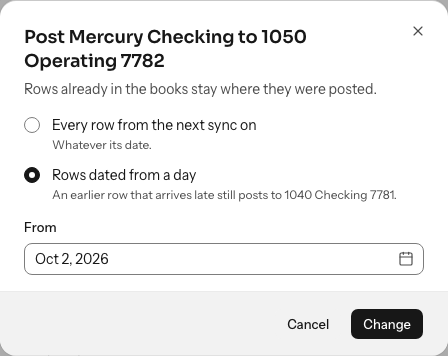
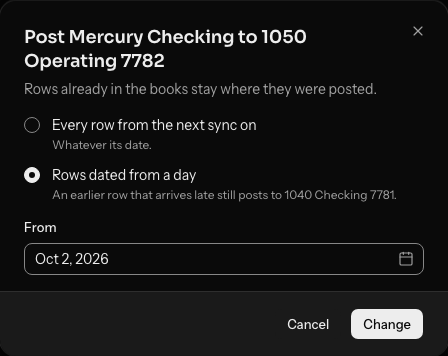
What is already in your books stays on the GL account it was posted to; to move those, refile or reverse them. A locked month keeps its GL account: a day in one is refused, and so is a change for every row once an earlier change starts in a locked month, so pick a day after it or reopen the month first. When an account has posted to more than one GL account, each earlier one shows under it with the day it ended. The change is recorded in Activity.
One login that holds several companies
A bank login can hold the accounts of more than one company you keep in LedgerIt, such as a parent company and its subsidiary. One connection then feeds each company's own books.
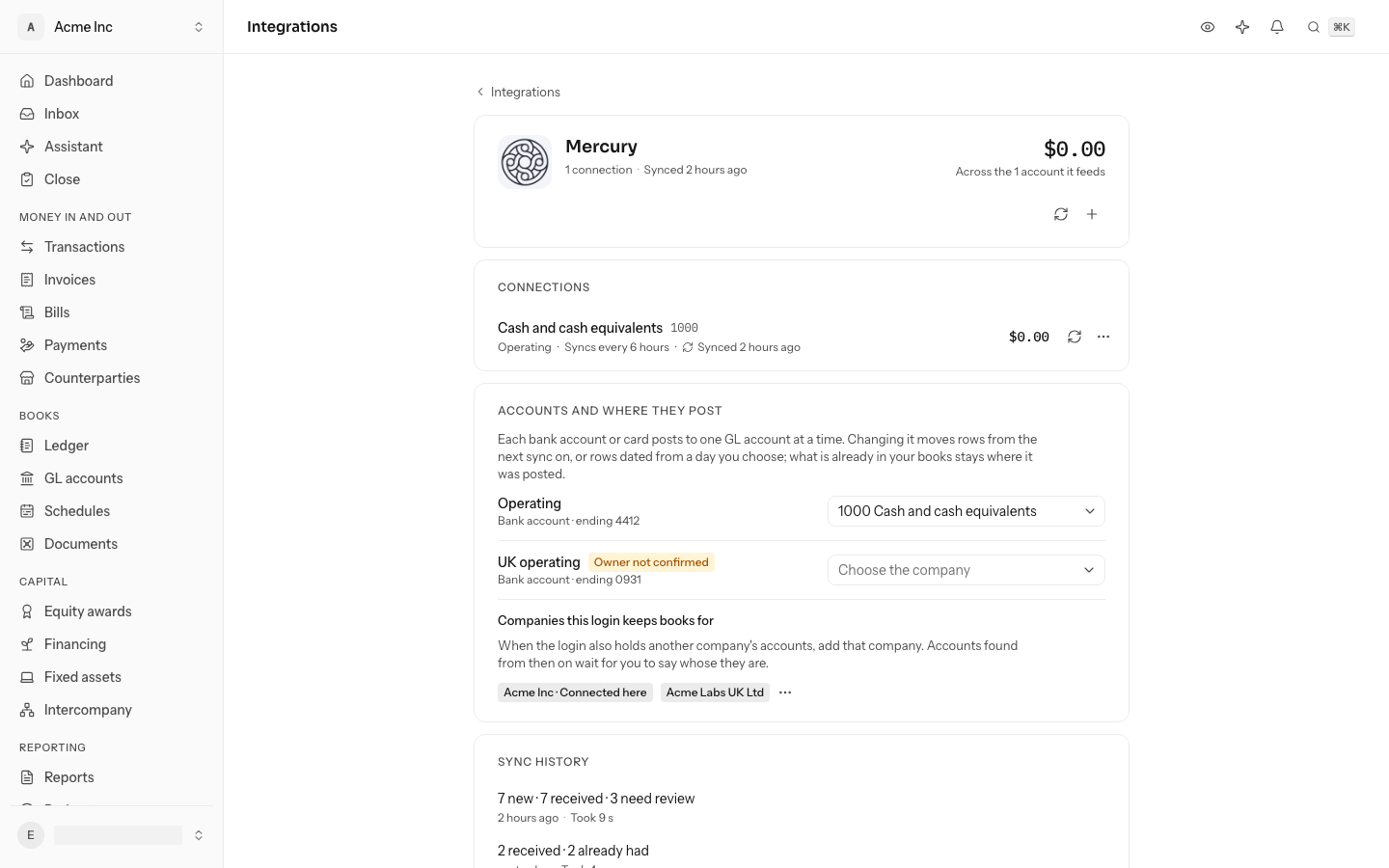
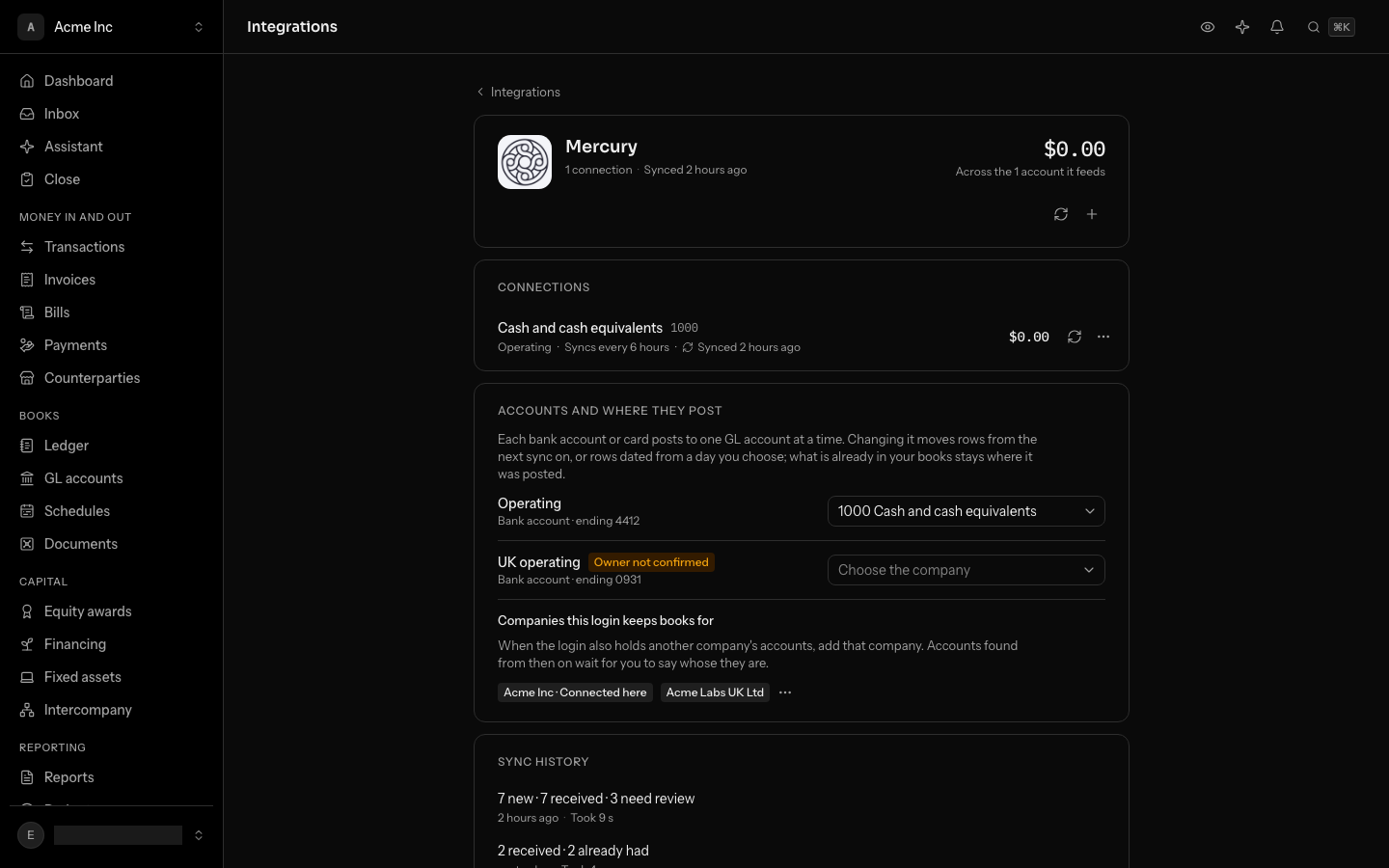
- Connect the bank in the company you sign in from, as usual.
- Open the provider from Integrations. Under Companies this login keeps books for, choose Add a company and pick the other company. You need to be able to post in both.
- At the next sync, each new account the login holds is marked Owner not confirmed. Nothing is read from it yet.
- Pick the company the account belongs to. Its history arrives with the next sync, in that company's books, on a GL account of its own there.
To stop offering a company its accounts, select the × beside its name. A company that accounts of the login already belong to stays.
An account's company is chosen once: what it has already posted stays where it was posted. Accounts that belong to another company show whose books they feed, and you change where they post from that company. Only companies of your own organization can be added: see Keep several companies.
Fix a connection that needs attention

Last sync failed. Read the last error, then select Reconnect on the connection and sign in again. Sync waits in its ⋯ menu. It also leads your dashboard until it is fixed.
A connection that needs you puts a badge on its provider's row. When only signing in again mends it, the row shows Reconnect in place of the sync icon (with more than one such connection, pick which), and on the provider's page the connection and the header show it too:
| Badge | What to do |
|---|---|
| Last sync failed | Read the Last error under the connection, then select Reconnect and sign in again. To try the sync once more first, choose Sync from the connection's ⋯ menu. |
| No credentials on file | Select Reconnect on the connection and connect again. |
| Access revoked | Someone disconnected it on purpose. To bring it back, choose Reconnect from the connection's ⋯ menu and connect again. |
| Paused | The connection is not syncing on the schedule. |
| Behind | It has not synced successfully within its target: 24 hours for a bank, card or payroll, 1 hour for Stripe. Select the sync icon; if it fails, the badge becomes Last sync failed. |
| Sign in again soon | The bank's permission runs out within a week. Select Reconnect on the connection and sign in at the bank before the date shown. |
| Can't read your team | The card program syncs, but may not tell LedgerIt who each cardholder is. Select Reconnect Brex (or Reconnect Ramp) and allow reading users; see below. |
A connection that is failing, behind or needs a sign-in also leads your dashboard until it is fixed; see Read your dashboard.
Reconnecting under the same label replaces the old credentials rather than adding a second connection.
Let a card program name its cardholders
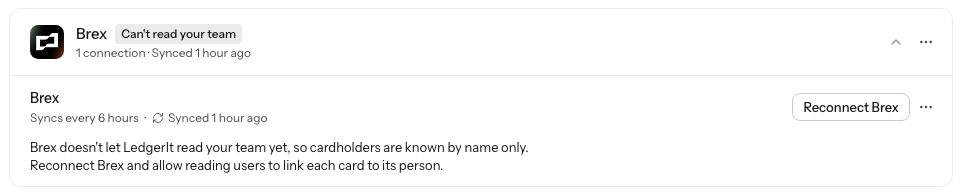
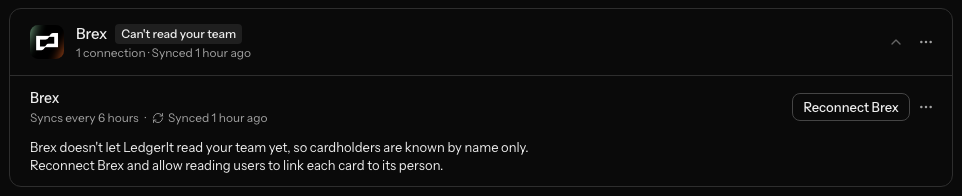
Brex and Ramp name the person behind each charge, and LedgerIt reads their email address from the card program's directory, so a missing receipt reaches the right person. A Brex connection made before October 2026, or a Ramp app without the users:read scope, may not read it. It still syncs; the connection shows Can't read your team, and your dashboard asks you to reconnect.
- Select Reconnect Brex on the connection. For Ramp, first give your Ramp app the
users:readscope, then select Reconnect Ramp and enter its client ID and secret again. - The next sync reads the cardholders, and the badge goes away.
An agent sees the same through the API: people_unreadable_since on a connection.
Connected balances feed the reconciliation at the close; see Close the month.
Do this through the API
Everything in this guide is also an API call, for scripts and agents. The reference lists each operation with its parameters and objects.
- ConnectionsEach provider the books are connected to, read only: whether it syncs, when it last did, what went wrong, and whether it may read the provider's people.2 operations
- Bank accounts and cardsEach bank account and card a connection reads, and the GL account it posts to by date, remapped from a date.6 operations
- Detected sourcesThe accounts the books' own transactions name and the books do not read yet, such as a Stripe payout or a Gusto debit, with the lines that named them.4 operations