Bookkeeping
Find receipts in your mailbox
Connect a Gmail or Outlook mailbox, and LedgerIt searches it for the receipts of charges that have none, keeping only those emails.
Most receipts arrive by email: a SaaS invoice, a flight, a hotel folio, a ride. Connect the mailbox they arrive in, and LedgerIt looks there for the receipt of each charge that still needs one, so nobody has to forward it.
Connect a mailbox
An owner or admin connects a mailbox for the books. It can be a shared one, such as the address your SaaS bills go to, or anyone's own.
- Go to Integrations and select Add connection.
- Under Receipts from your mailbox, select Gmail or Outlook.
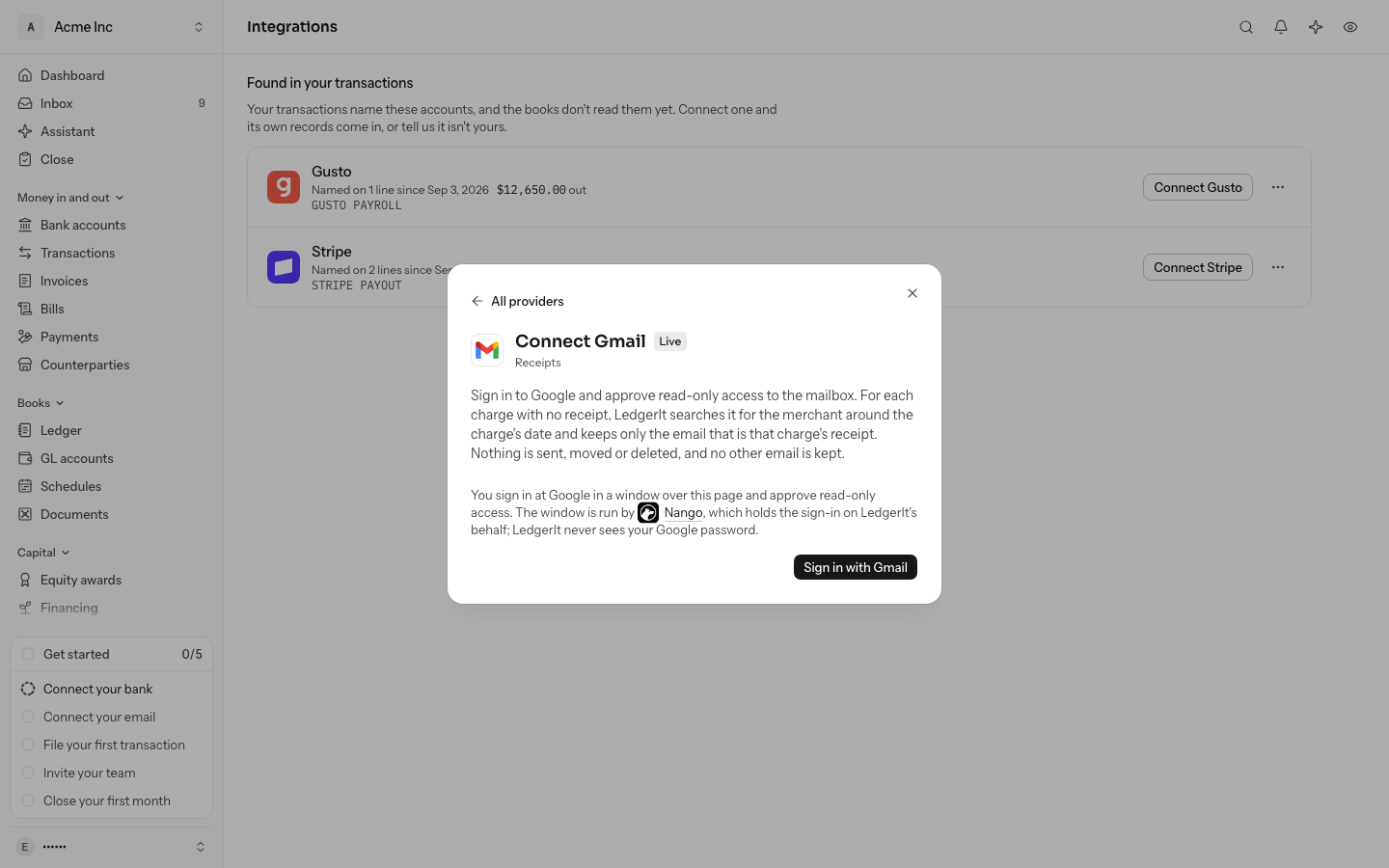
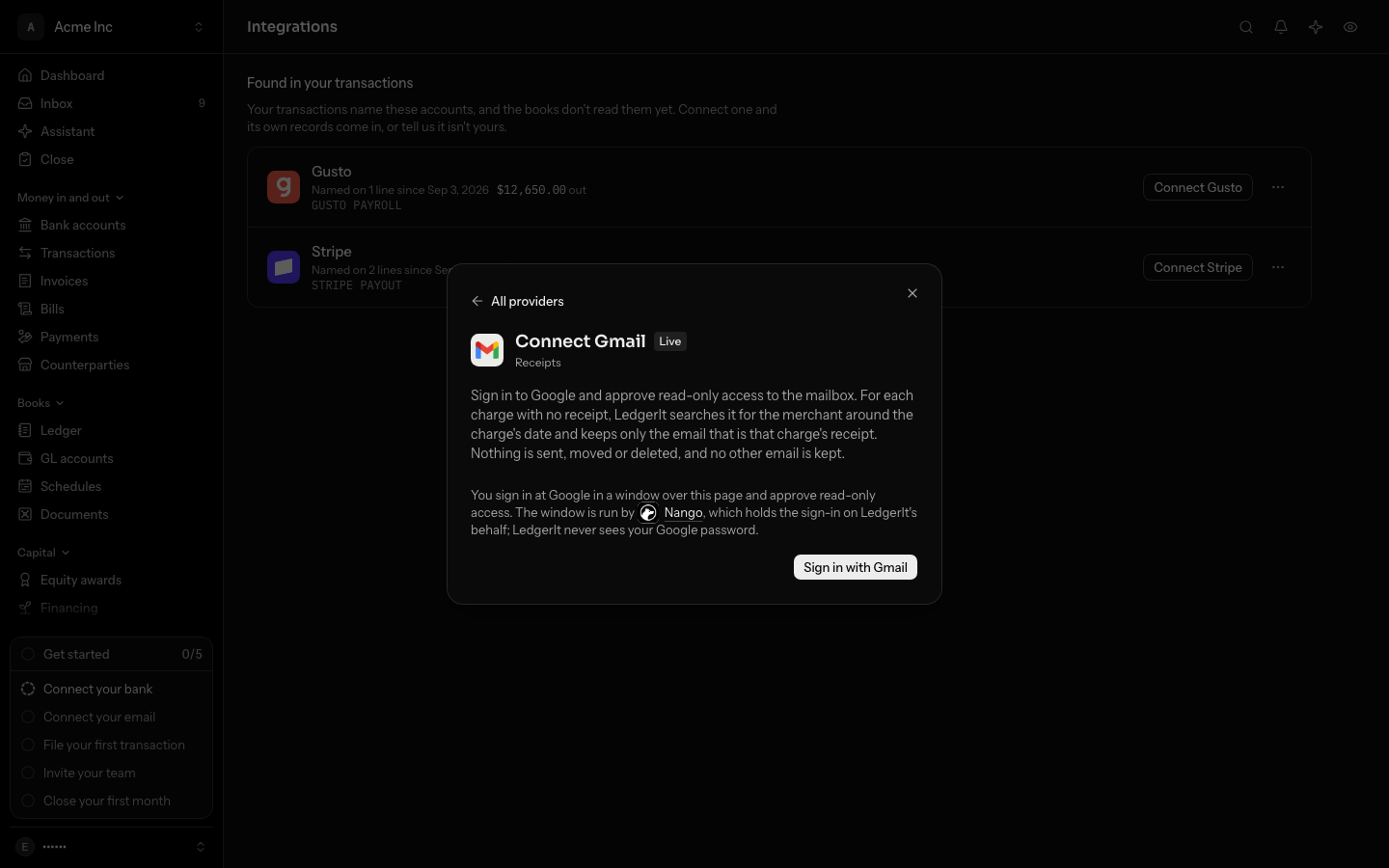
- Select Sign in with Gmail (or Outlook). A window opens over the page, run by Nango, the service that handles the sign-in for LedgerIt and holds it afterwards; the dialog names it, with its mark, before the button. Sign in at Google or Microsoft there and approve read-only access. LedgerIt never sees your password.
The mailbox is connected under its address, and the first search starts at once. Connect more than one mailbox if receipts arrive in several.
What LedgerIt searches for, and what it keeps
LedgerIt does not read your mailbox. It searches it, one charge at a time, for the charges in Card spend with no receipt (see Work the inbox):
- It searches for the merchant: by the vendor's email domain when your books know it, otherwise by the merchant's name as the card statement gives it. It looks from 3 days before the charge to 7 days after.
- It opens at most 3 of the emails it finds. An email that shows neither the charge's amount nor a PDF or photo from the merchant is set aside without being read further.
- The receipt is the email's PDF or photo, or, when nothing is attached, the text of the email. LedgerIt reads it like any receipt and attaches it to the charge when its total, currency and date agree.
- An email that turns out not to be the receipt is set aside. Nothing of it is kept, and it is not opened for that charge again.
A charge is searched for up to 3 times, a day apart, because a receipt can arrive a few days after the charge.
When a mailbox is searched
- When you connect it. The first search starts at once.
- When charges arrive. Each time a bank or card sync brings charges, every mailbox of the books is searched for their receipts straight away, since the receipt is usually in the inbox by then. A charge that lands while a search is running is searched before that search ends.
- Every six hours, for anything the searches above missed.
- When you ask. Select Search now (the magnifying glass) on the Gmail or Outlook row under Integrations. With more than one mailbox connected, pick which one to search. Charges searched for within the last day wait for the next search.
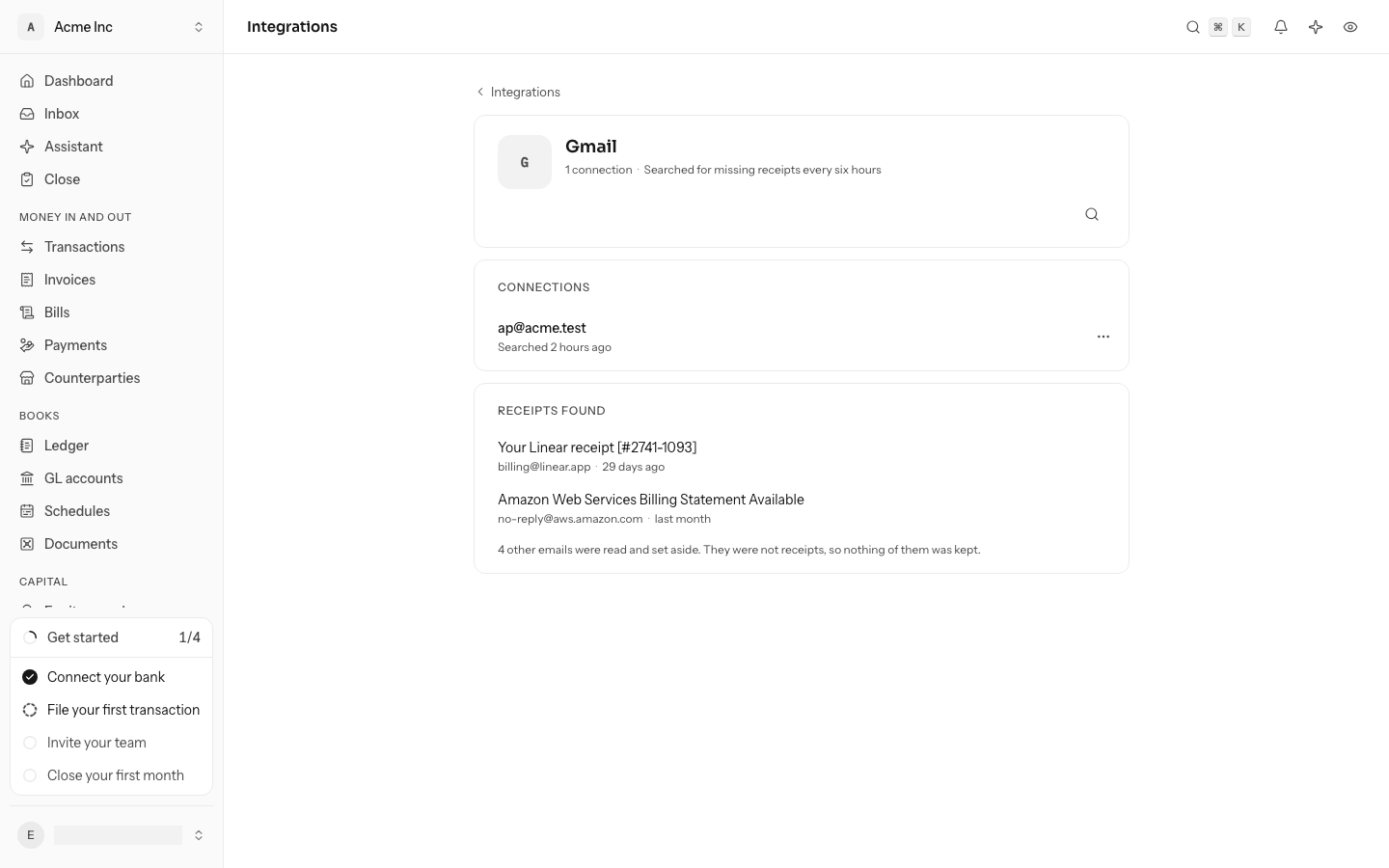
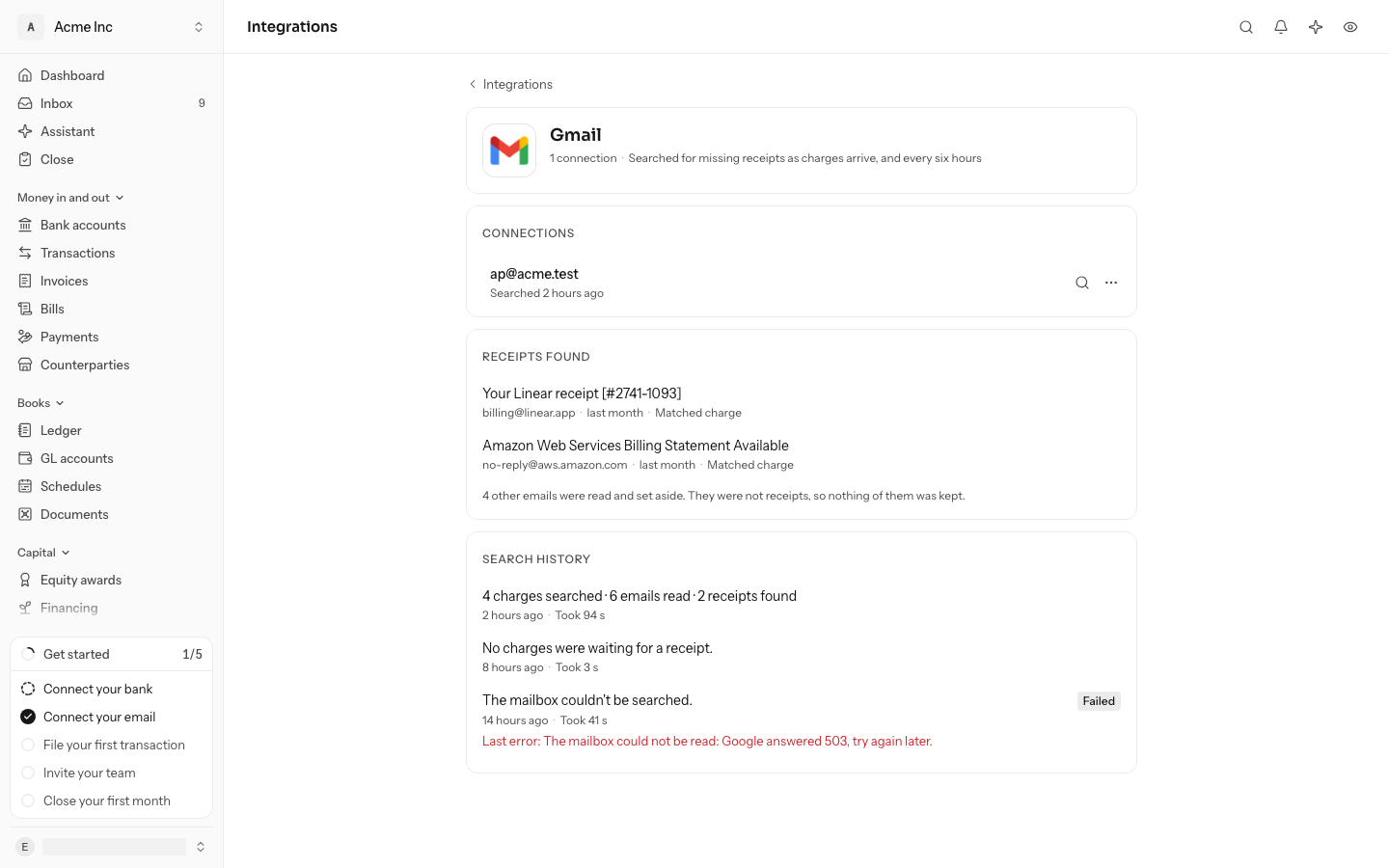
While a search runs, the mailbox's row says Searching…. When it ends, the row says when it last searched, such as Searched 2 minutes ago. Point at that to see the exact time.
What LedgerIt keeps is the receipt, shown in Documents as Found in your mailbox, and the email it came in. Of the emails set aside, it keeps only how many there were.
See what a search found
-
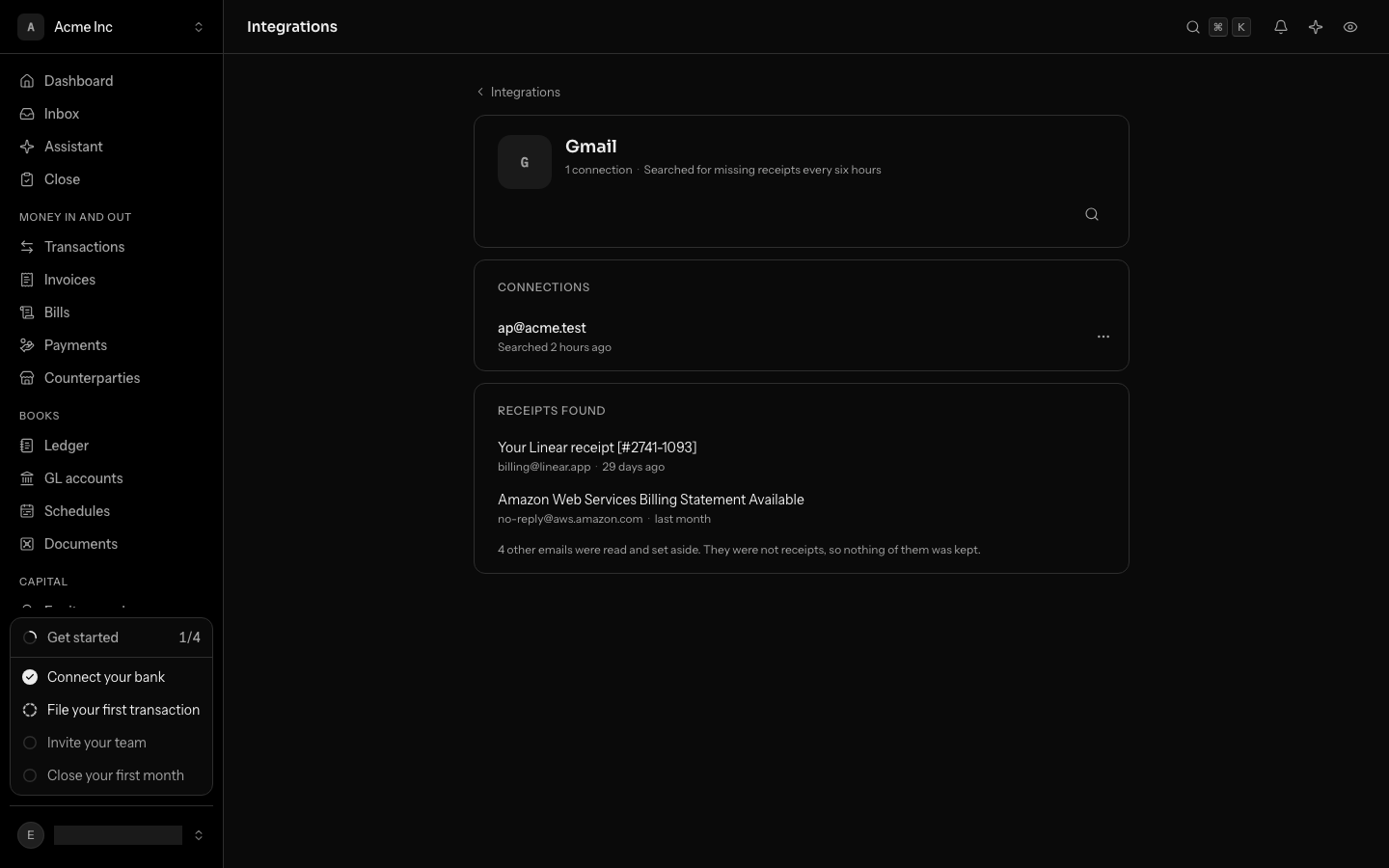
Go to Integrations and open Gmail (or Outlook).
-
Receipts found lists each receipt, newest first, with who sent it and when. Select one to open it in Documents, where the receipt itself is shown: the PDF page by page, or the photo.
-
Search history lists every search, newest first:
- when it ran and how long it took;
- how many charges it searched for, emails it read and receipts it found;
- No charges were waiting for a receipt when there was nothing to look for.
A search that failed says Failed and why, such as a sign-in that has lapsed or the mailbox provider not answering. One that failed for every charge marks the mailbox as failing, and it is searched again at the next search.
Search for one transaction's receipt
When a transaction has no receipt and you know it came by email, look for it from the transaction itself, whether or not it is in Card spend with no receipt.
- Open the transaction and select the paperclip (or press D).
- Select Search Gmail (or Search Outlook; Search your email with more than one mailbox connected).
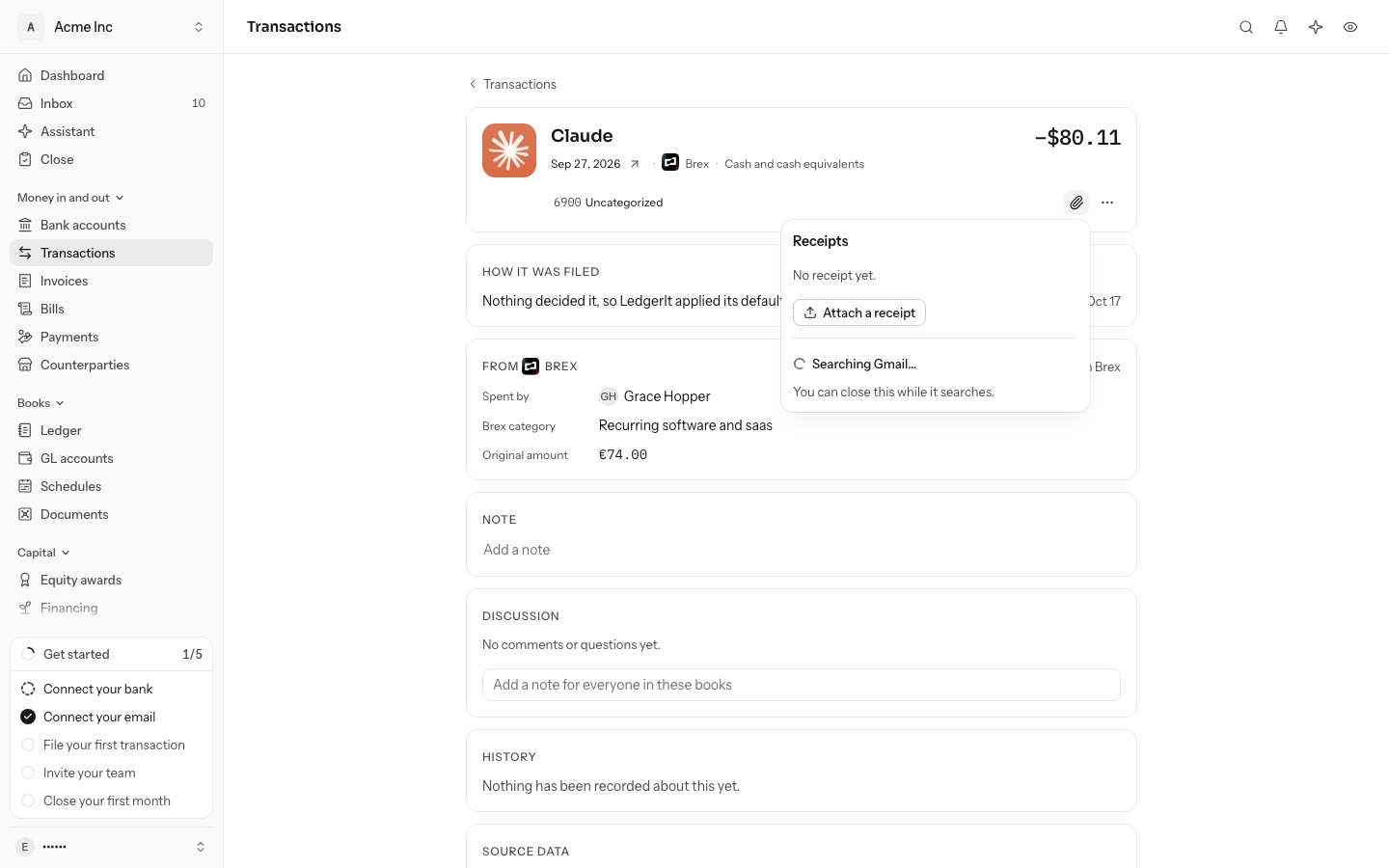
The search runs in the background, the same way as above, in each mailbox in turn until one has the receipt. You can close the panel and go on working: when the receipt is found it is attached to the transaction and a message says so. If none of the emails is the receipt, the panel says nothing was found.
The button shows only to people who can attach receipts, and only once a mailbox is connected and not paused.
Pause or disconnect a mailbox
Pause a mailbox from the ⋯ menu on its row to stop it being searched for a while (see Pause a connection).
Disconnect a mailbox
On the mailbox's row, open the ⋯ menu and select Disconnect, then confirm. LedgerIt gives up its access: Google withdraws the access it gave, and LedgerIt deletes the sign-in it held. Microsoft keeps the app in your account's list until you remove it at myapps.microsoft.com.
The receipts the mailbox found stay in your books: they are the evidence behind those charges now.
Do this through the API
Everything in this guide is also an API call, for scripts and agents. The reference lists each operation with its parameters and objects.
- MailboxesA connected Gmail or Outlook mailbox, searched now for the receipts of charges that have none.2 operations
- Mailbox messagesThe emails a mailbox search read, and whether each became a charge's receipt.2 operations
- Receipt searchesOne transaction's receipt, looked for in every connected mailbox, and how far the search got.2 operations