Close and reports
Plan a budget and compare it with actuals
Plan the year month by month for each account and department, keep versions and scenarios, and see each month how the books compare with the plan.
A budget is the year you plan, written down month by month: what each income account brings in and what each expense account and department spends. Budgets keeps those plans, in versions and scenarios, and Budget vs. actual reads each one beside your books, so the board deck's variance table is one click away instead of a spreadsheet.
Find your way around
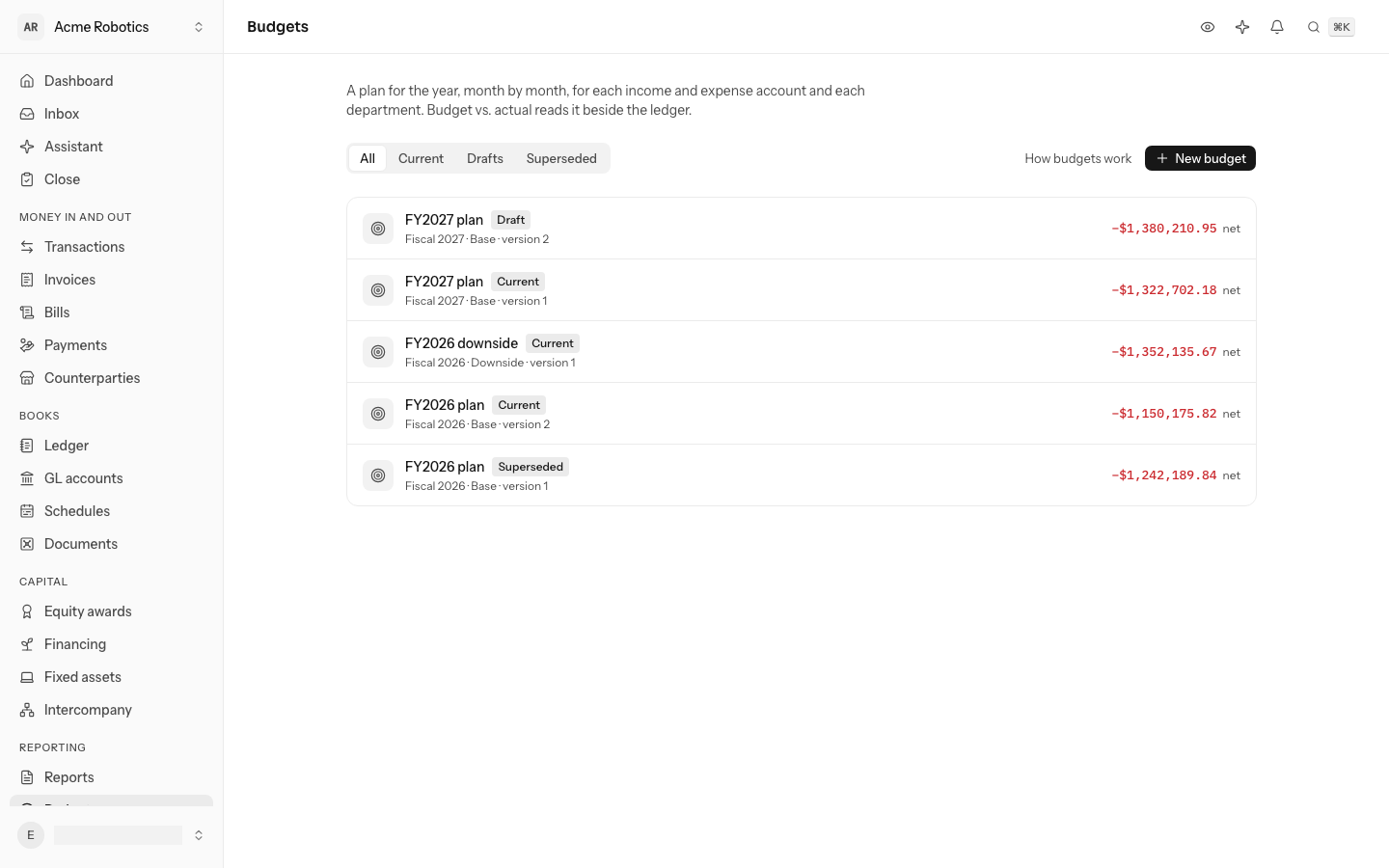
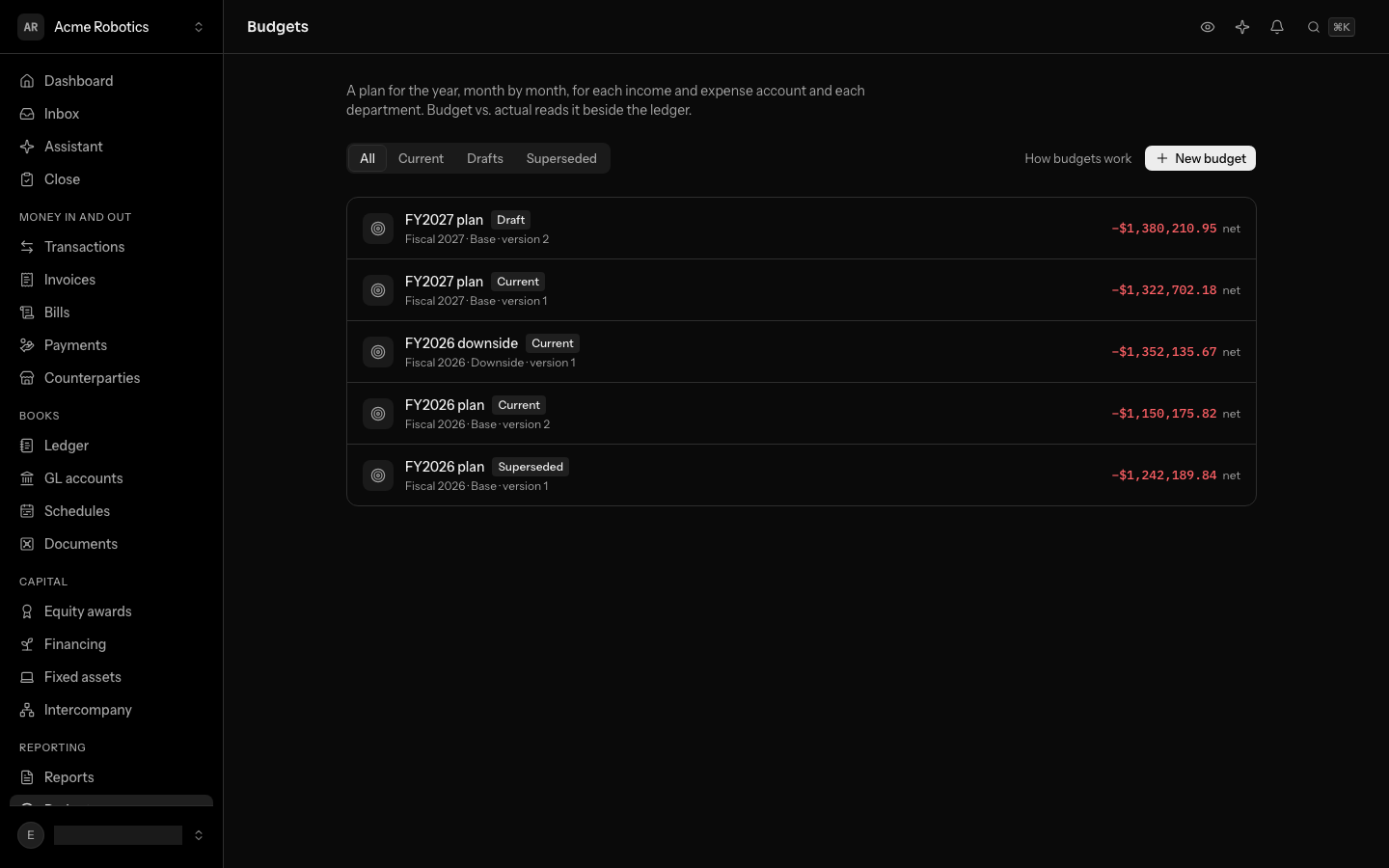
Budgets is on the left rail, under Reporting; from the keyboard, press G then J. It lists every budget with its fiscal year, scenario and version, and the net income it plans. Show narrows the list to Current, Drafts or Superseded.
Start a budget
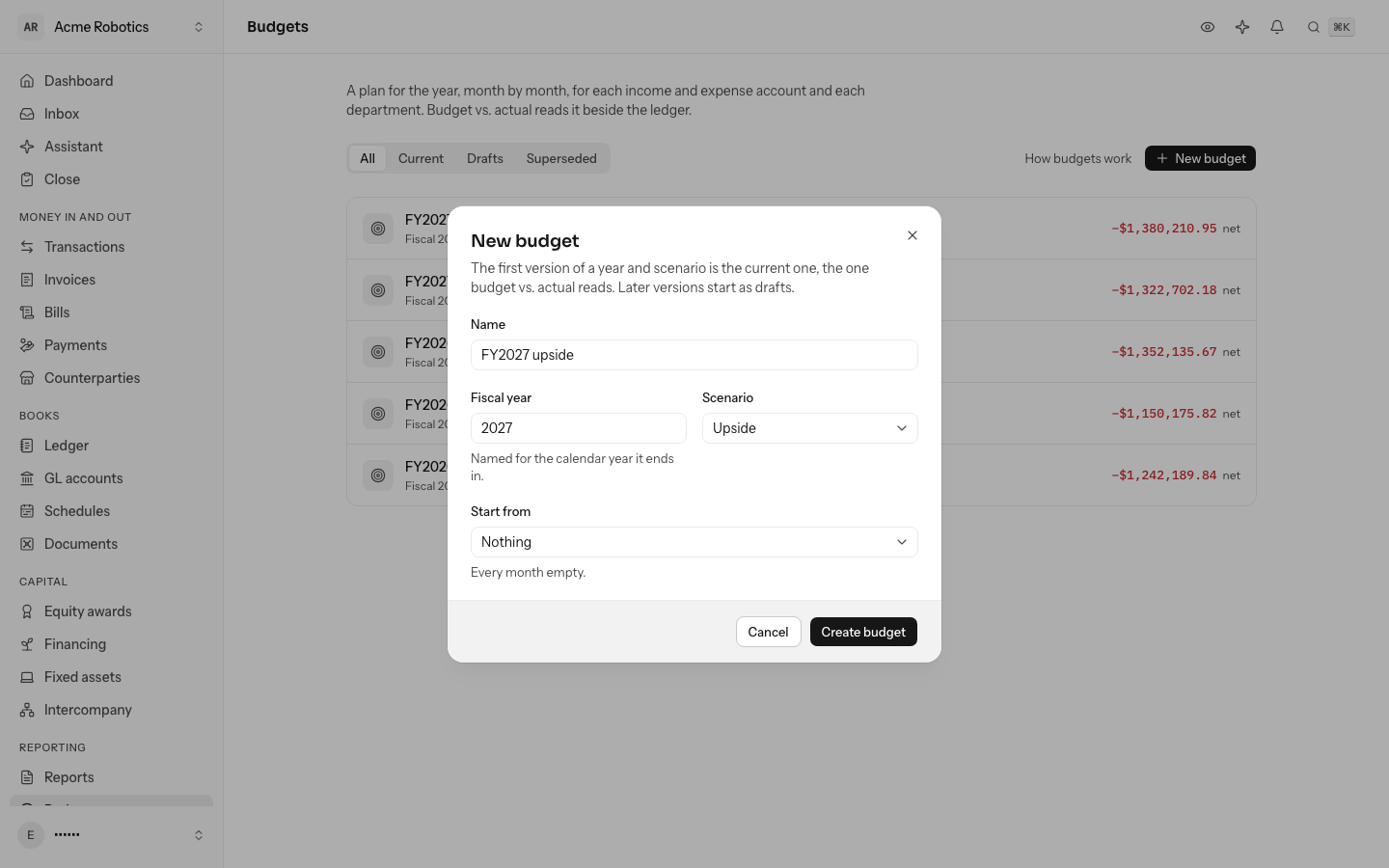
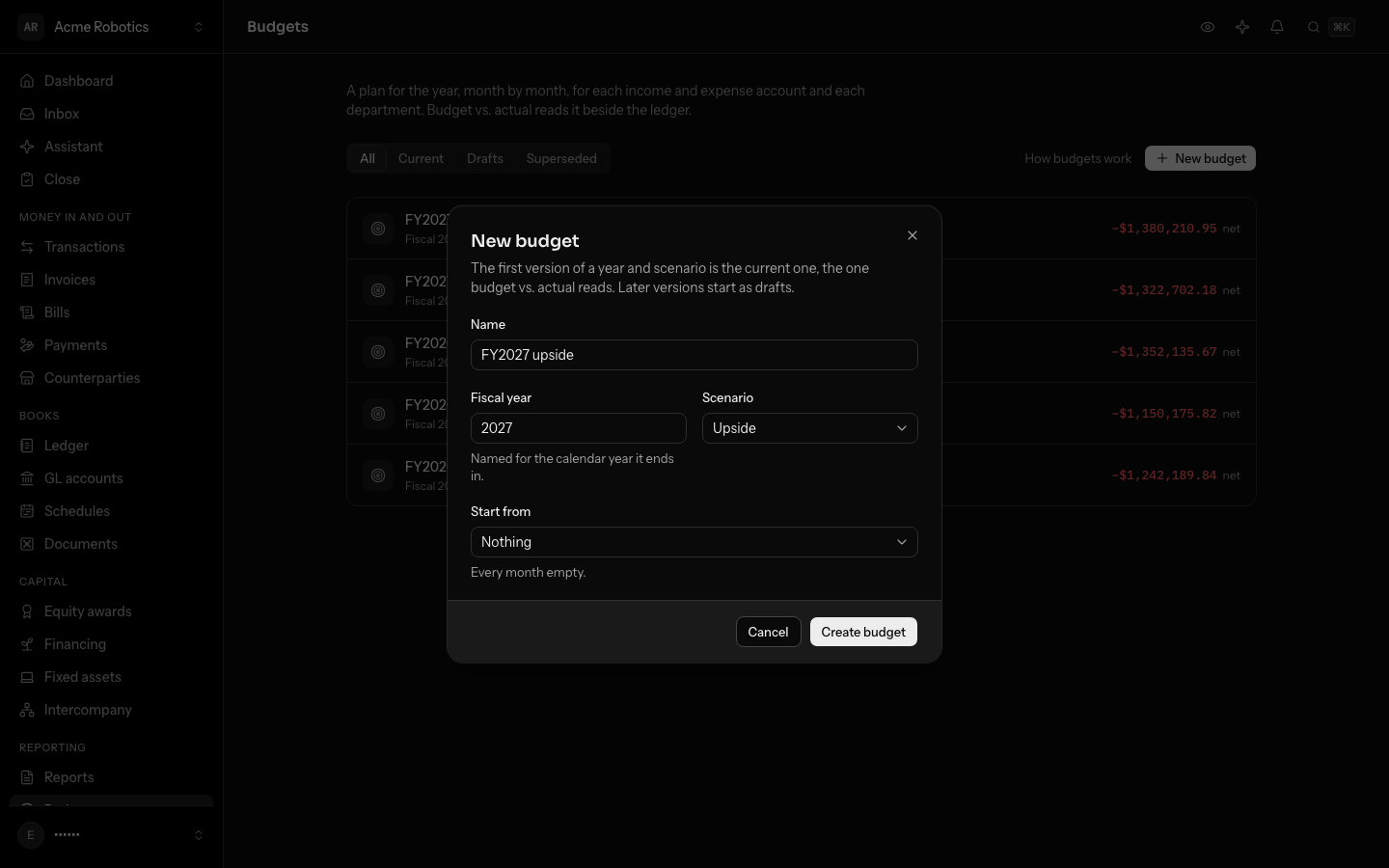
- Select New budget.
- Give it a Name and the Fiscal year it plans. A fiscal year is named for the calendar year it ends in, as in the rest of LedgerIt.
- Pick a Scenario: Base is the plan you run the company on; Upside and Downside sit beside it.
- Choose what to Start from: Nothing, Another budget (its months moved to this year), or Last year's actuals (each account's actual for the same month a year earlier).
- Select Create budget.
The first budget of a year and scenario is Current: the one Budget vs. actual reads. Later versions start as drafts.
Plan month by month
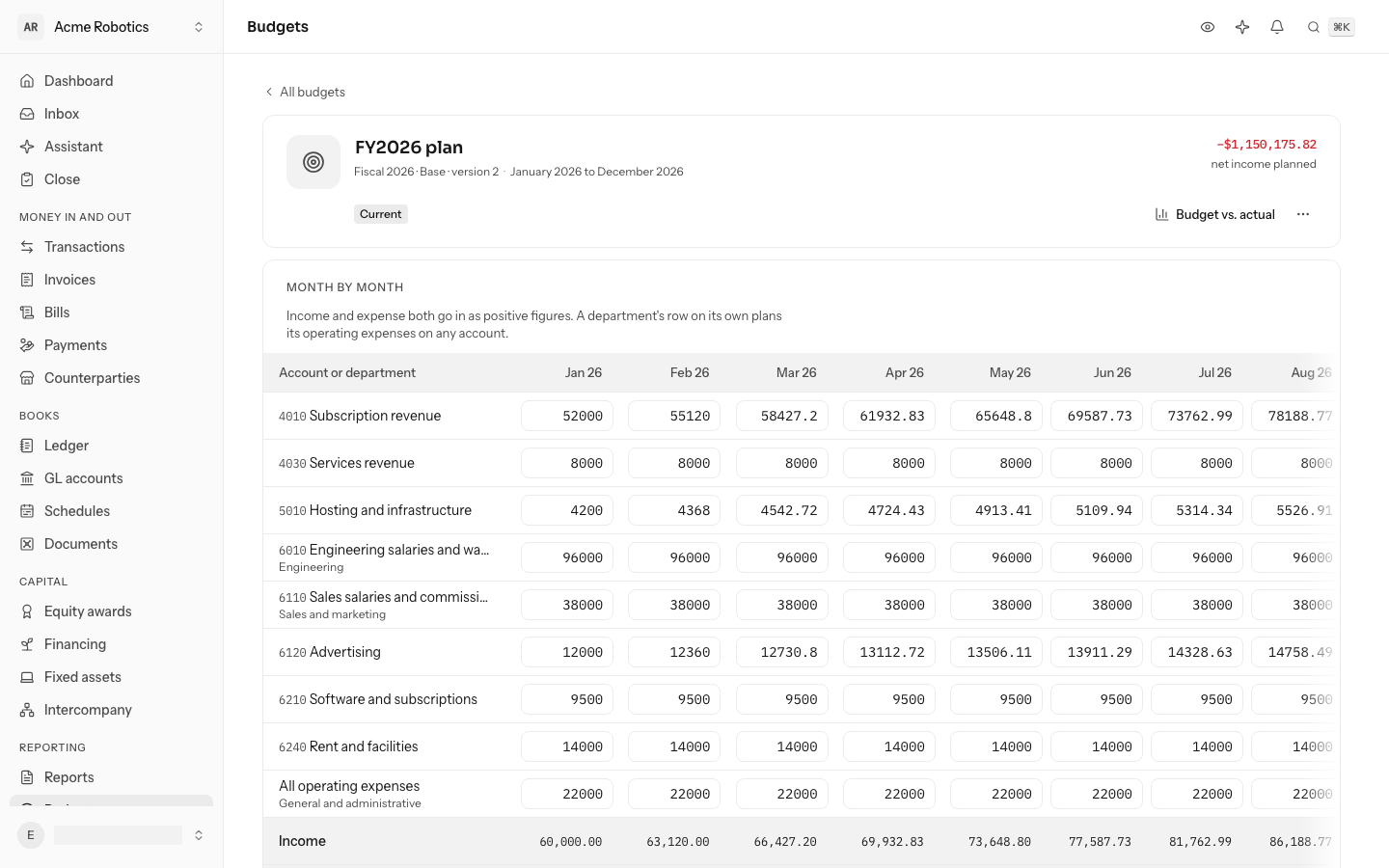
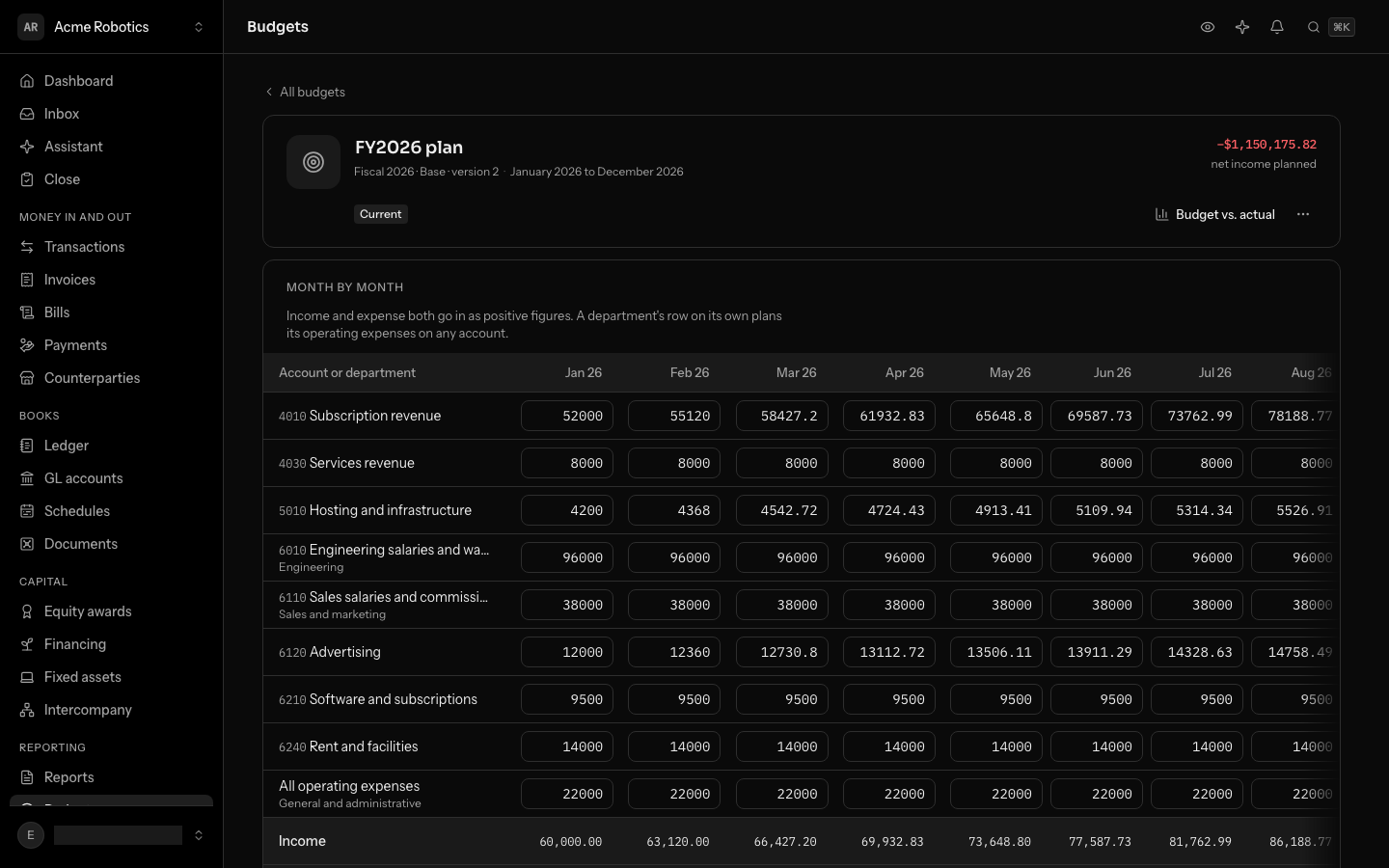
Open a budget to see its grid: a row for each account, and for an account split by department, a row for each department. Type each month's figure. Income and expense both go in as positive figures, the way the P&L reads them. The totals under the grid show income, expense and net income for each month and the year.
- Add a row below the grid: pick an income or expense account, and a Department to plan just that department's part of it. A department on its own, with no account, plans everything that department spends.
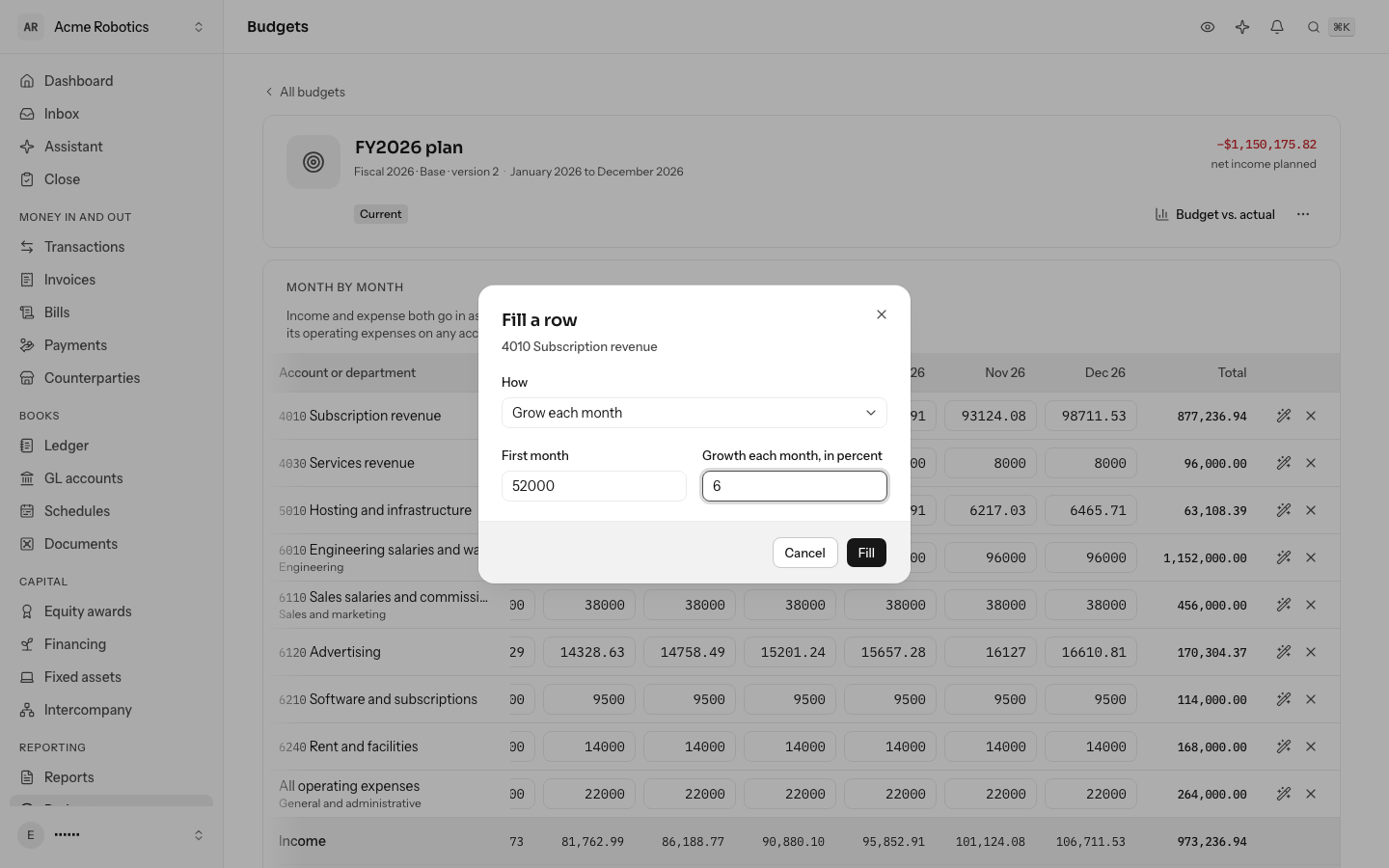
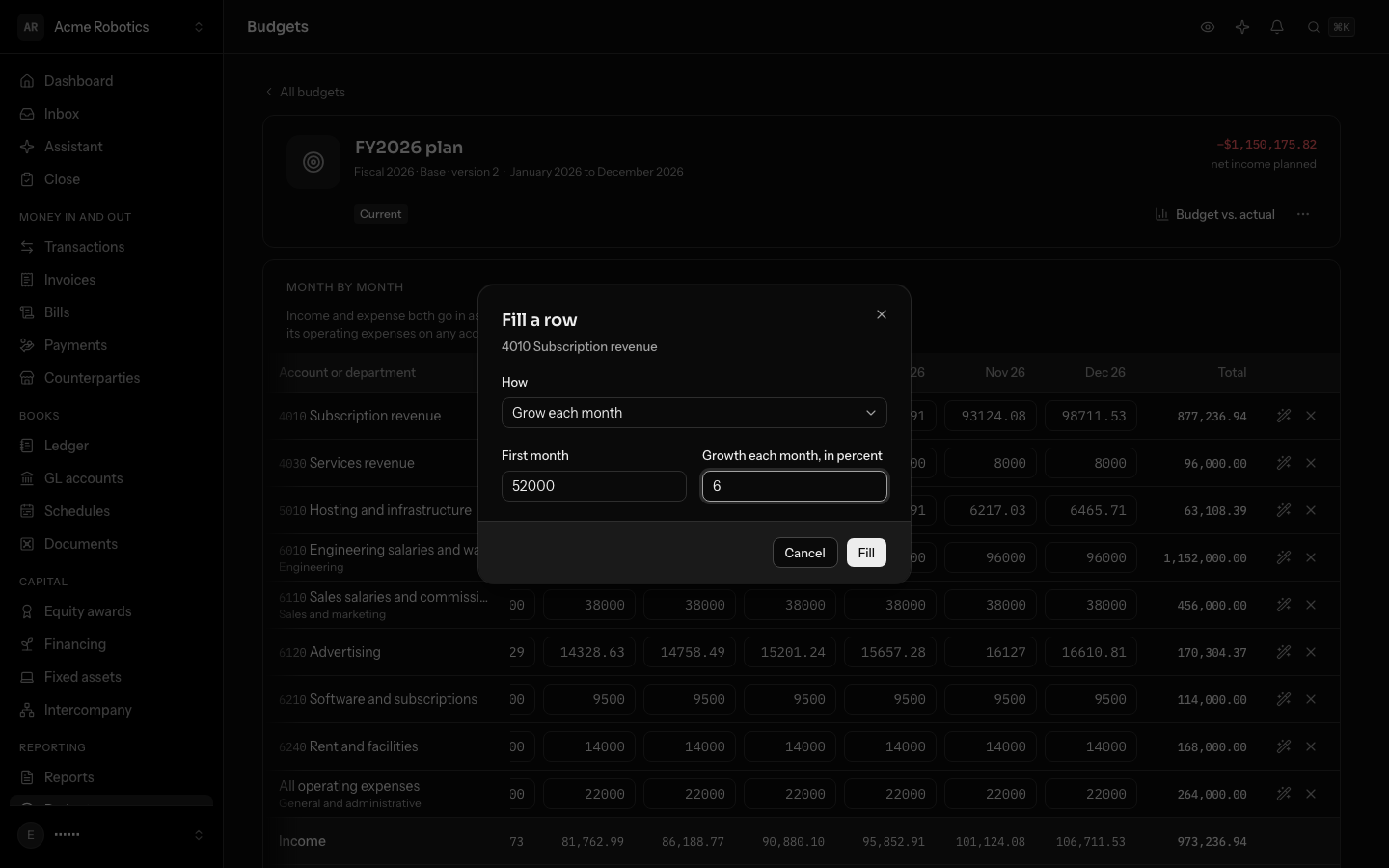
- Fill row fills a row in one go: the same each month, a total for the year spread evenly, or a first month growing by a percentage each month after.
- Save keeps the whole grid. If someone else saved the budget since you opened it, LedgerIt says so instead of overwriting their months; reload to see them.
Keep versions and scenarios
Plans change. New version, in the ⋯ menu on a budget's page, copies a budget into a draft of the same year and scenario, numbered one higher. When the draft is ready, Make current: it becomes the plan Budget vs. actual reads, and the version it replaces is Superseded. A superseded version never changes again, so a figure you showed the board stays as you showed it.
A draft or a superseded version can be deleted from the same menu. The current one stays until another is made current.
To rename a budget, click its name at the top of its page, type the new one and press Enter. Escape keeps the old name. Its memo, under the name, changes the same way. A superseded version keeps the name and memo it had.
Compare with actuals
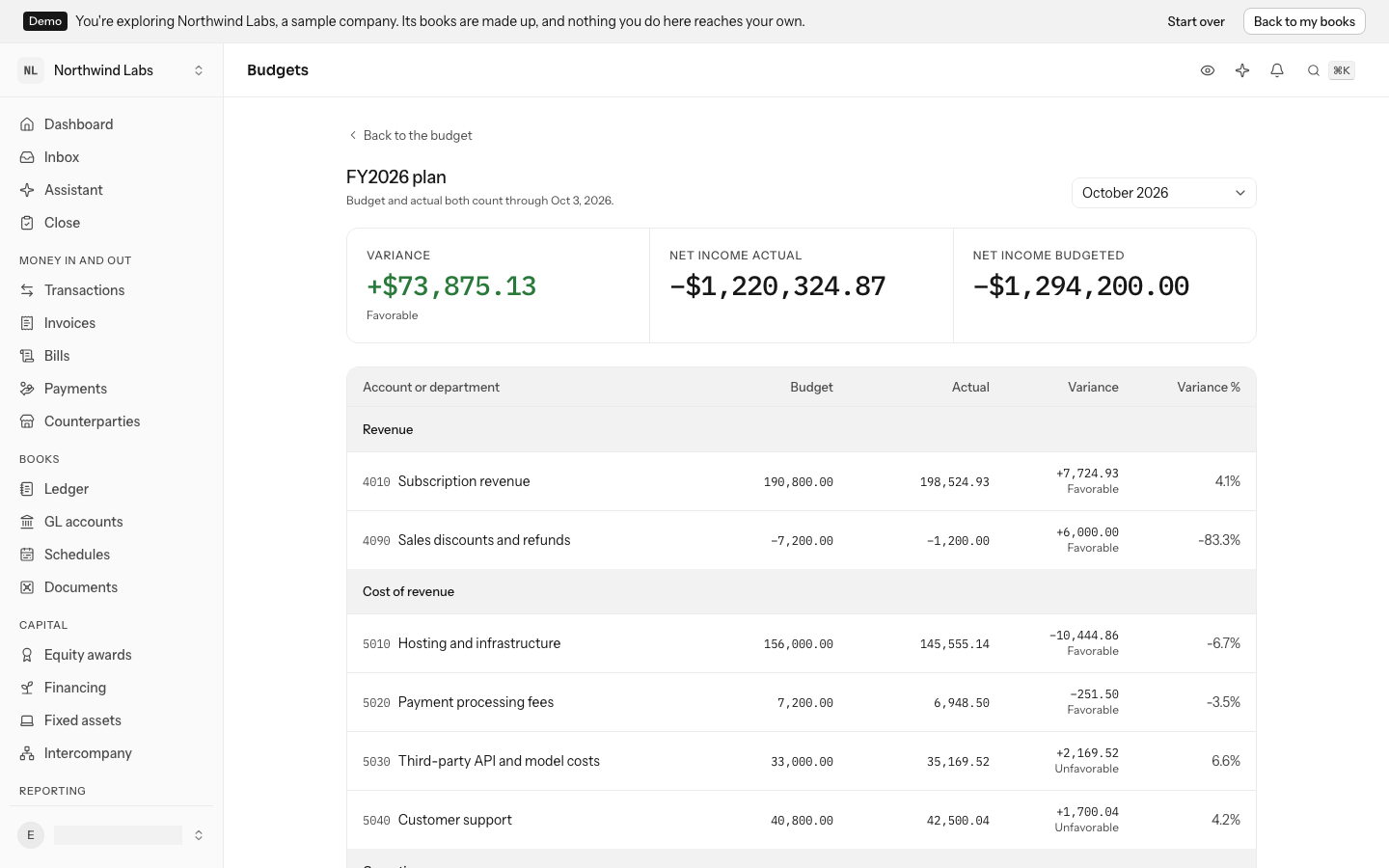
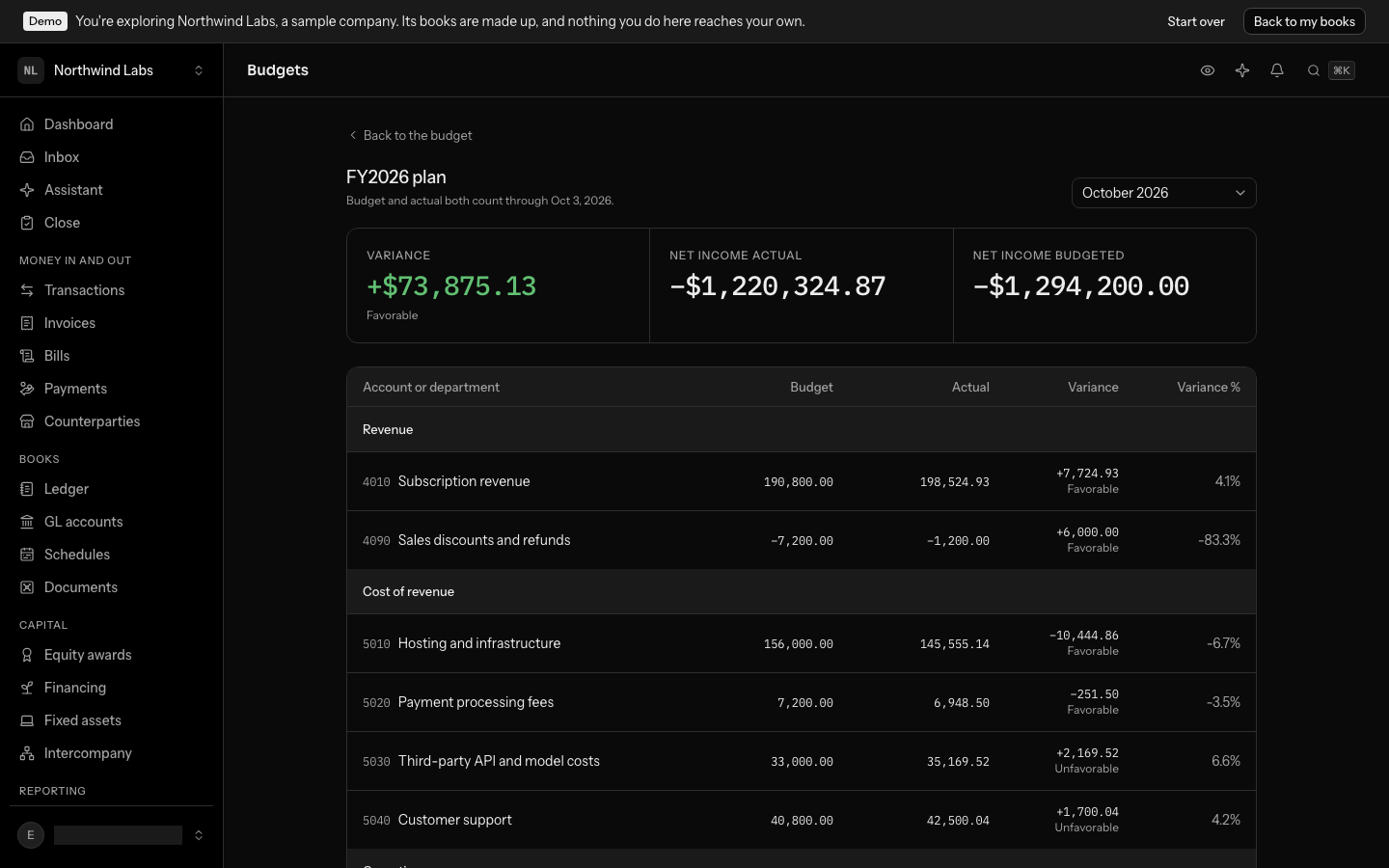
Select Budget vs. actual on a budget's page. The net variance comes first, with Favorable or Unfavorable under it, beside the net actual and the net budget it comes from. Below, each account reads its budget, its actual from the ledger, the variance and the variance as a percentage, through the month you pick in the corner, today's by default. A month still to come counts neither side, so a plan is never under budget for a month that has not happened.
Every variance says Favorable or Unfavorable in words: income above budget and expense below it are favorable. Accounts with actuals but no budget are listed too, so nothing spent outside the plan goes unseen. Departments budgeted on their own are compared below the totals, against their operating expenses on any account. On a phone, each row shows the account, its variance and the percentage; the budget and actual columns are on a wider screen.
Actuals come from the ledger as it stands, closing entries left out as on the income statement. Nothing about the comparison is stored, so it always matches your reports.
Do this through the API
Everything in this guide is also an API call, for scripts and agents. The reference lists each operation with its parameters and objects.