Bookkeeping
See your bank accounts and cards
Every bank account and card the books read, grouped by bank with their balances, in the order you drag them into.
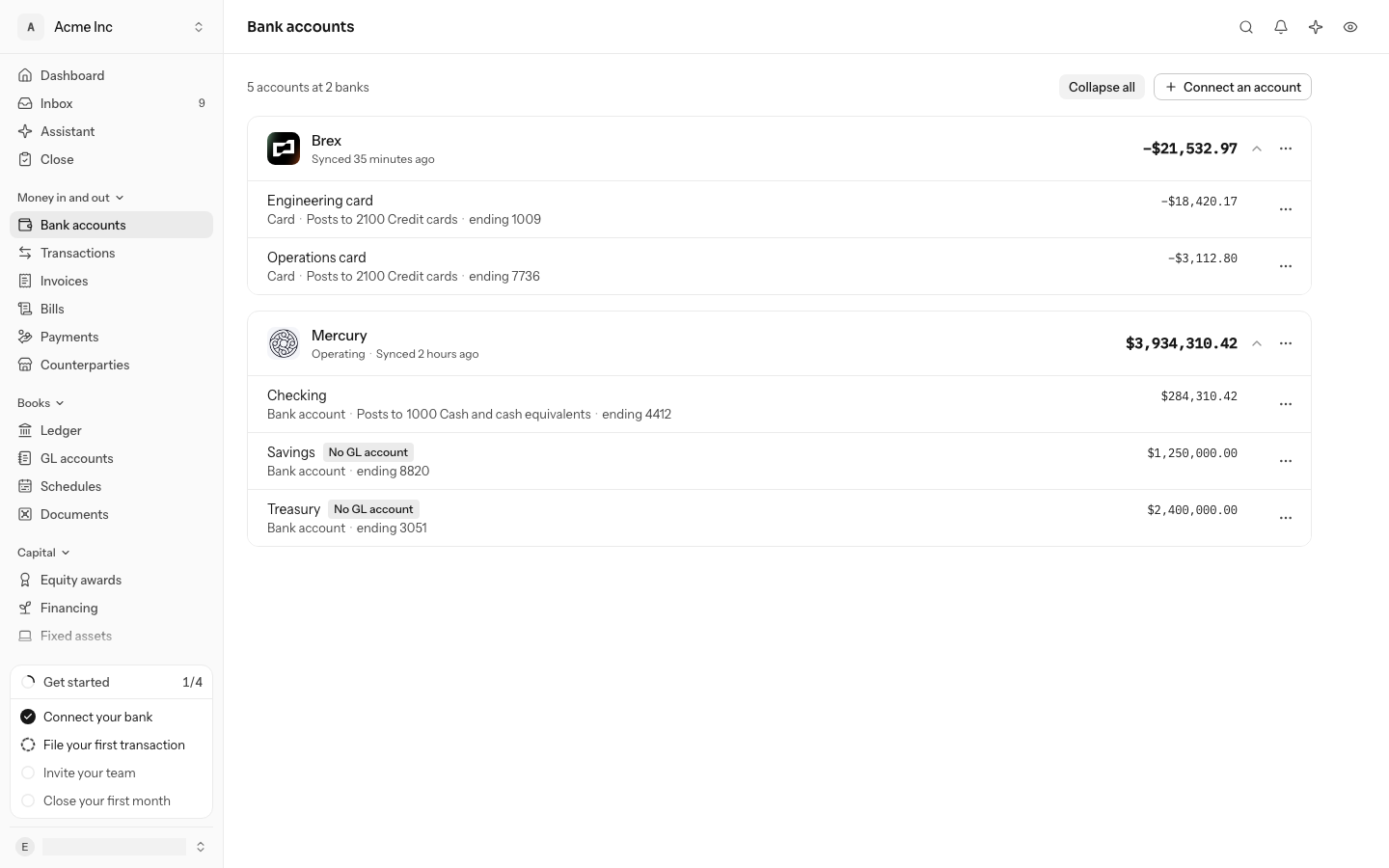
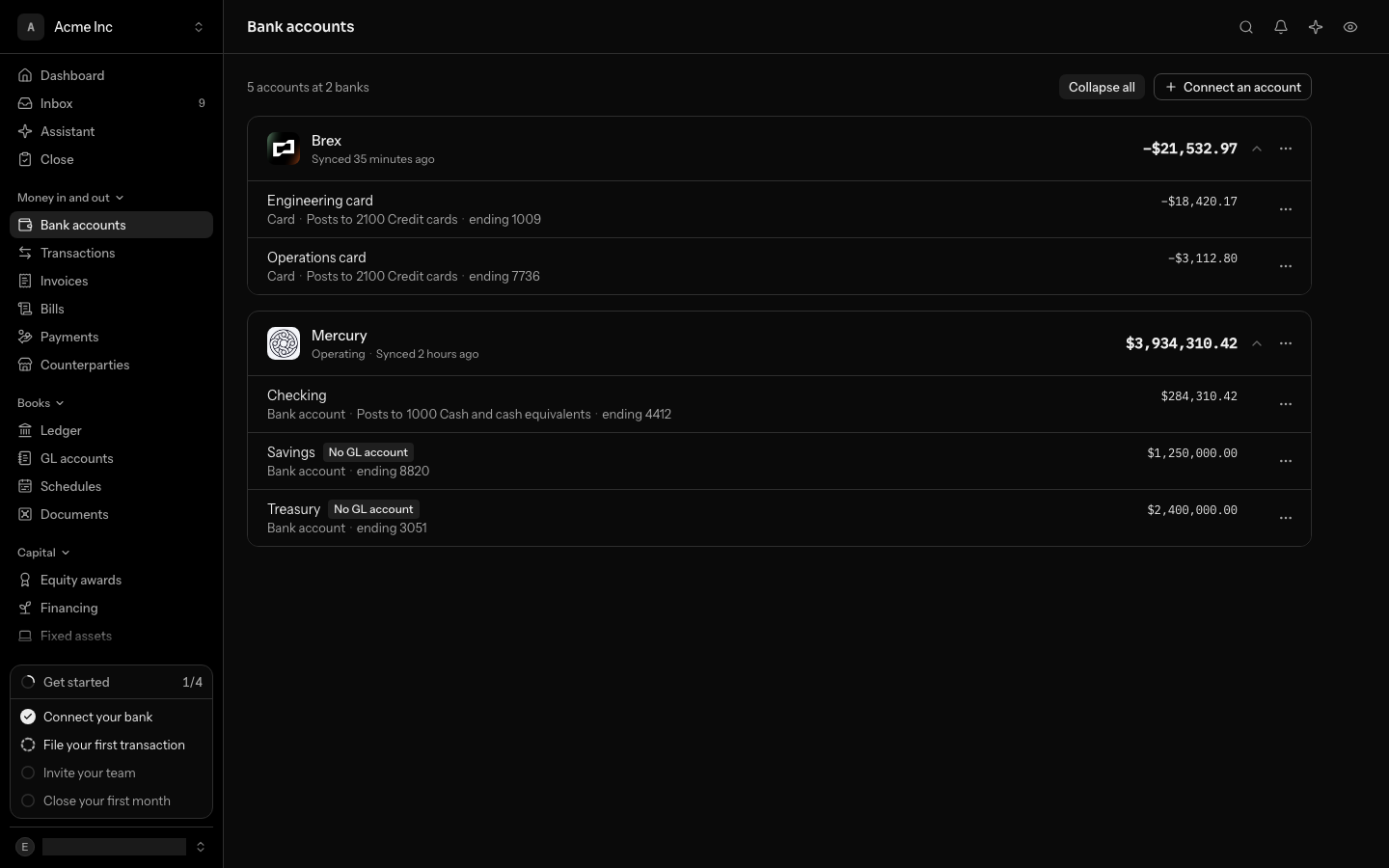
Bank accounts is where you get to your bank accounts and cards quickly. Each bank or card program you connected is a card, with its accounts inside it and the balance each one last reported.
Anyone with access to the books can read this page. Putting it in order and hiding accounts needs the owner, admin or accountant role. The order and what is hidden are kept for everyone who opens these books.
Open an account
Each bank opens folded, showing how many accounts it holds, when it last synced and what its accounts hold between them. Select the bank's row to unfold it; LedgerIt remembers which banks you left open on this device. Expand all and Collapse all at the top open or fold every bank at once.
A bank account is not a GL account. Each row is the account as the bank reports it: its name, its kind, its last digits and the balance the bank last gave. Under the name, Posts to names the GL account its transactions land in; select it to open that GL account, with its balance and every entry behind it. An account that moved to another GL account also says which one it Posted to before, and from which day it stopped. An account that does not post to a GL account yet shows No GL account.
Select an account's name, or the bank's, to open its provider's page, where you choose the GL account it posts to (see Connect your banks, cards, payroll and revenue). From the ⋯ menu beside a bank, Sync now pulls what is new from it.
Put banks and accounts in order
Rest the pointer on a bank and a grip appears beside it. Drag the grip up or down; a line shows where it will land. Accounts move the same way, with the grip at the start of their row, within their own bank.
With the keyboard, move focus to a grip and press the up or down arrow to move it one place. Escape cancels a drag.
A bank you connect later arrives at the bottom, below the ones you placed.
Hide an account
From the ⋯ menu on an account's row, select Hide. It folds away under a row at the bottom of its bank, such as Show 1 hidden account, and stops counting in the bank's total on this page. Select that row to see hidden accounts again, and Show on an account's ⋯ menu to bring it back.
Hiding is only about this page. A hidden account still syncs, posts to the books and counts in every balance and report.
Do it from the API
Agents and scripts read and set the same order, and hide and show accounts, through the public API. See External accounts.
Do this through the API
Everything in this guide is also an API call, for scripts and agents. The reference lists each operation with its parameters and objects.