Close and reports
Read and export reports
Read the four financial statements for any period, see who owes you and whom you owe by how late, and export as CSV or PDF.
The Reports screen holds your four financial statements and the two aging reports, built straight from the ledger. Use it to see where the money is, what the company earned and spent, and why cash moved, and to export the figures for your board, investors or tax preparer.
Everyone with access to the books can read and export reports, viewers included.
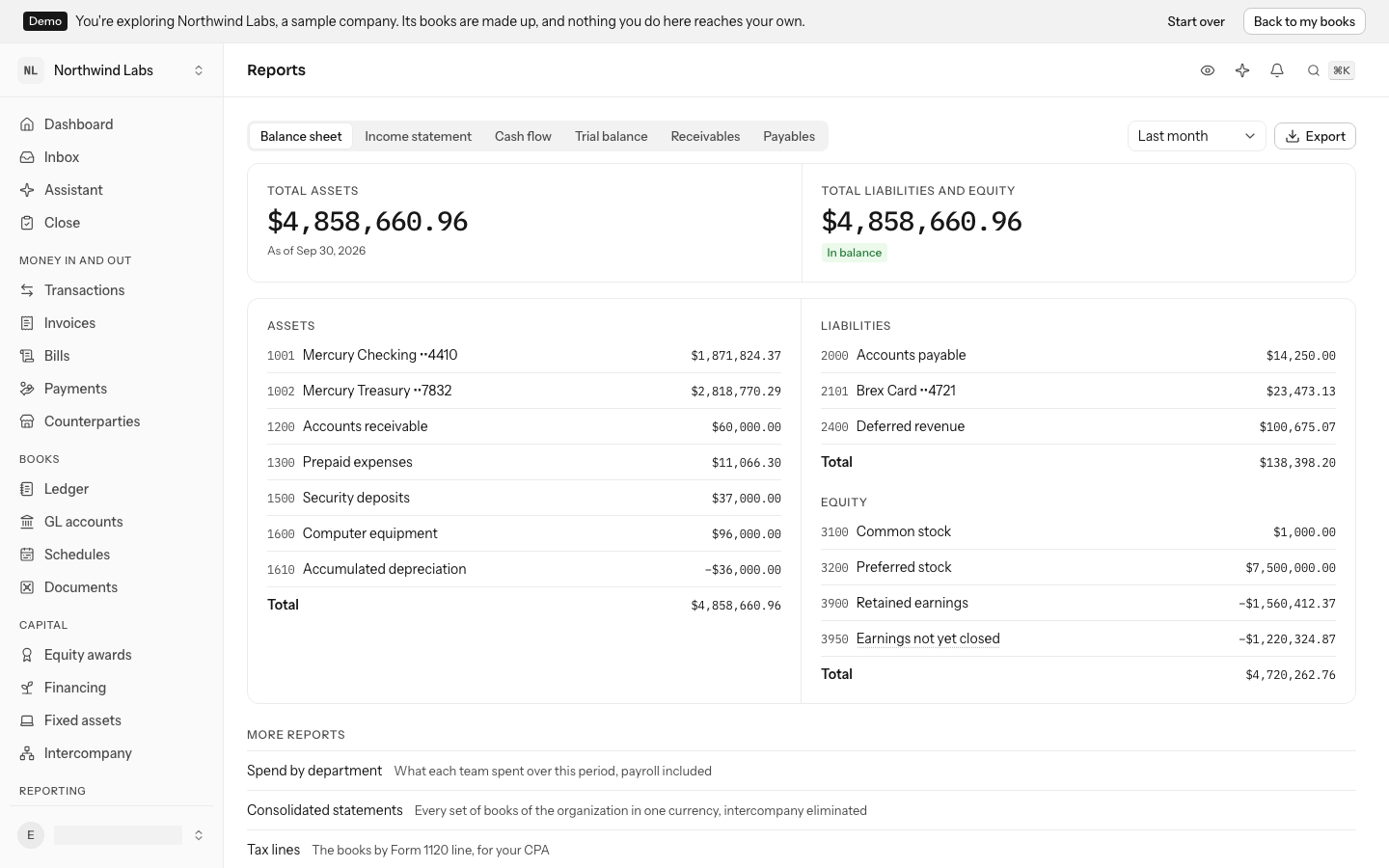
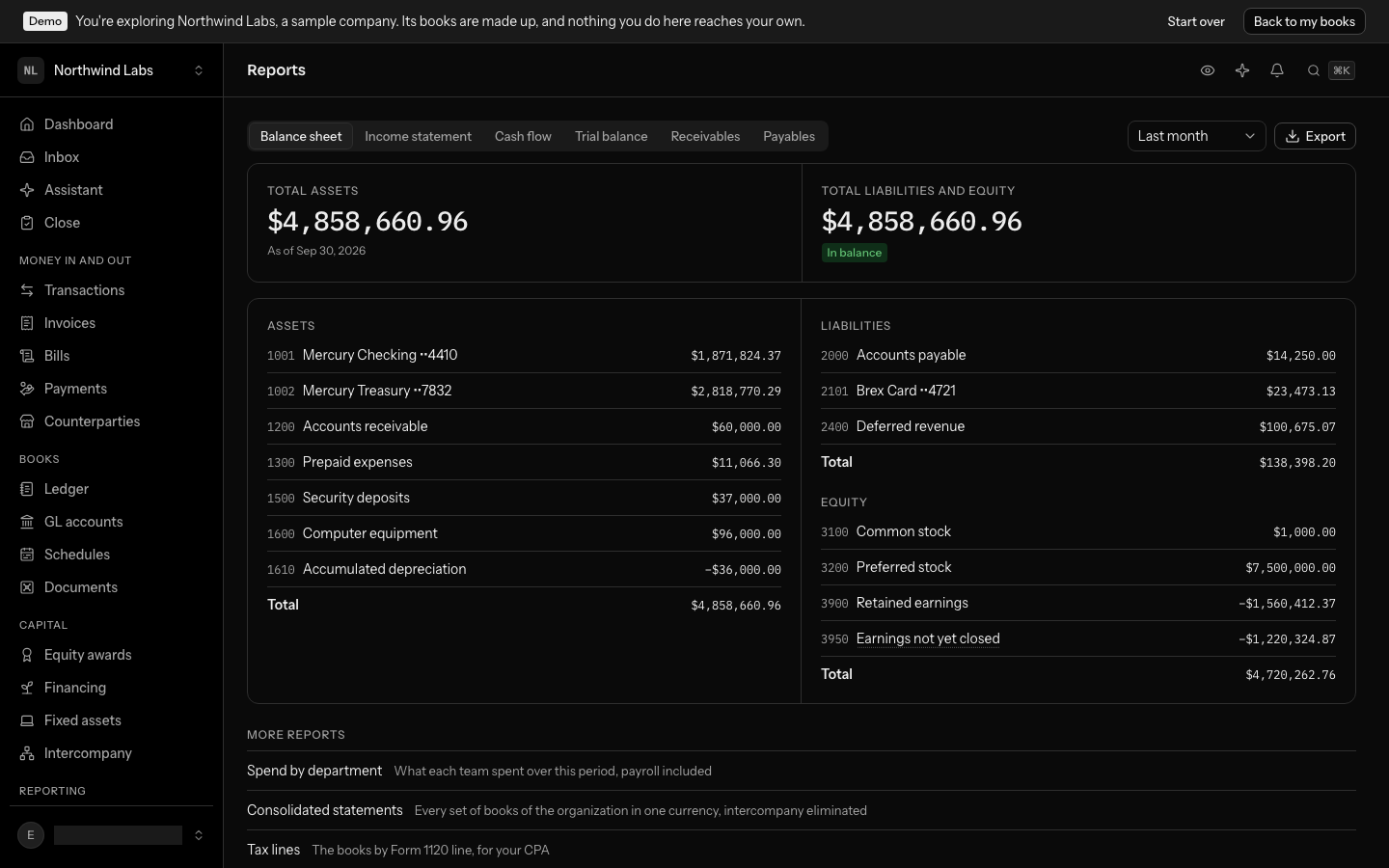
Choose a statement
The tabs across the top switch between the four statements and the two aging reports. On a phone, the same six are in the Statement menu at the top:
| Statement | What it tells you |
|---|---|
| Balance sheet | What the company owns (assets), what it owes (liabilities), and what is left for its owners (equity), on one day. |
| Income statement | What the company earned and spent over a period, down to net income. |
| Cash flow | Why the cash balance moved over a period, split into operating, investing and financing activities. |
| Trial balance | Every account's debit or credit balance on one day. It proves the ledger adds up. |
| Receivables | What each customer owes you on one day, by how late it is. |
| Payables | What you owe each vendor on one day, by how late it is. |
From the keyboard, 1 to 6 switch between them in the order of the tabs: the balance sheet, the income statement, the cash flow statement, the trial balance, receivables and payables.
Income statement
- Revenue
- $12,000.00
- Operating expenses
- $3,000.00
- Net income
- $9,000.00
Cash flow
- Net income
- $9,000.00
- Operating activities
- $9,000.00
- Investing activities
- $0.00
- Financing activities
- $0.00
- Net change in cash
- $9,000.00
- Cash at the start
- $100,000.00
- Cash at the end
- $109,000.00
Balance sheet
- Cash and cash equivalents
- $109,000.00
- Computer equipment
- $0.00
- Total assets
- $109,000.00
- SAFE notes
- $0.00
- Common stock
- $100,000.00
- Earnings not yet closed
- $9,000.00
- Total liabilities and equity
- $109,000.00
- Net income is the balance sheet’s earnings not yet closed, and where cash flow starts.
- Cash at the end is the cash on the balance sheet.
Total assets $109,000.00 equal total liabilities and equity $109,000.00.
Every amount is shown exactly, to the cent, with nothing rounded for display, so each figure can be tied back to the ledger. Select an account's name on any statement to open that account and see the lines behind its figure.
Choose the period
The Report period menu beside the tabs applies to every statement on the page, so you pick the period once and read the whole set for it. The choices are:
- This month (the default) and Last month
- This quarter and Last quarter, which are calendar quarters
- Year to date and Last year, which follow your fiscal year rather than the calendar year
- Custom dates, where you pick a From and To date
With Custom dates selected on the balance sheet, the trial balance, receivables or payables, you pick a single As of date instead of a range.
Read the balance sheet
The two totals come first: Total assets and Total liabilities and equity, side by side. They must be equal, and the balance check under the second says so (In balance). Below them, assets sit on one side and liabilities and equity on the other, each group with its own total.
Under equity you may see Earnings not yet closed. It is what income and expenses have added up to so far this fiscal year. When you close the last month of the fiscal year, that amount is carried into retained earnings and the line starts again from zero. See Close the month.
Read the income statement
The income statement runs from Revenue through Cost of revenue to Gross profit (with the Gross margin as a percentage), then Operating expenses to Operating income, then other income and expenses to Net income. Gross profit and operating income get their own rows because they are the two subtotals most board conversations are about.
Costs are shown as positive figures under headings that say they are costs.
Read the cash flow statement
The cash flow statement starts from net income and explains the difference between profit and the change in your bank balance. It shows the net cash from each of the three sections, the Net change in cash, and Cash at the start and Cash at the end of the period.
LedgerIt computes the three sections and the actual movement in your cash accounts separately, and checks that they agree. If they ever did not, the statement would say so. That should not be possible, so please tell us if you see it.
Read the trial balance
The trial balance lists every account with its code, its debit or credit balance, and the totals of each column. Total debits always equal total credits, because the ledger refuses any entry that does not balance. The balance check above the table shows In balance.
See who owes you, and whom you owe
Receivables lists each customer with something outstanding on the day, and Payables each vendor you owe. Every row splits its total by how late the money is, counted from each invoice's or bill's due day.
- Not yet due
- 1–30 days late
- 31–60 days late$4,800.00
- 61–90 days late
- Over 90 days late
On that day, the invoice sits under 31–60 days late.
A payment you have recorded and not yet applied counts against its customer or vendor under Not yet due.
The last row totals every band. Ties to the ledger above the table confirms that the total equals Accounts receivable (or Accounts payable) in the ledger, counting the lines that name a counterparty.
Select a customer's or vendor's name to open their page. Open items there lists each invoice, bill or unapplied payment behind the figure, with its due day or how many days late it is, and each one opens its journal entry. See What each customer owes.
On a phone each customer or vendor is one row with its total, and the bands that hold money are listed beneath it.
Export on an aging tab saves the aging for the day on screen as a CSV or a PDF: one row per customer or vendor, a column per band of lateness, and the total. The PDF also says whether the total ties to the ledger.
See what each department spent
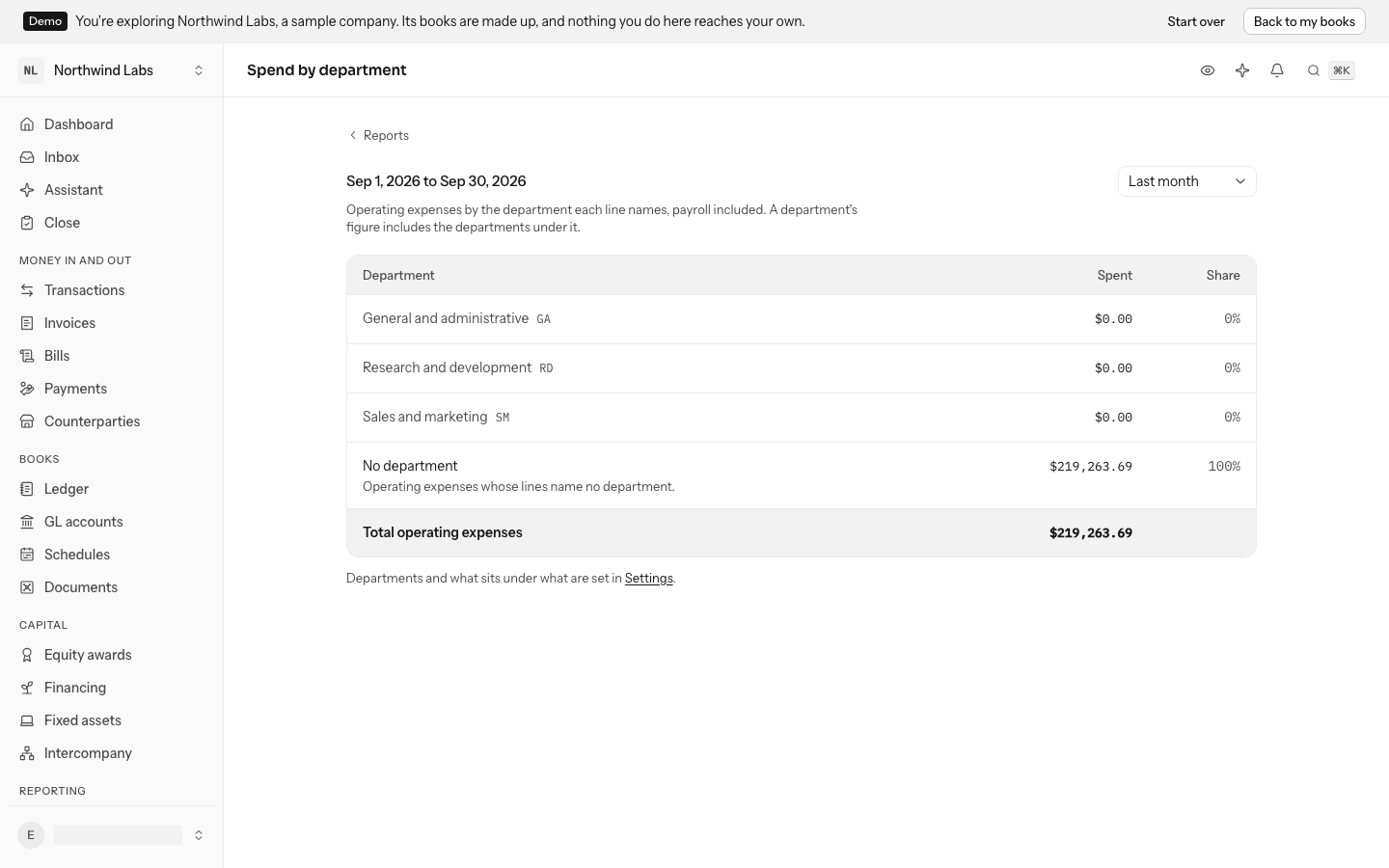
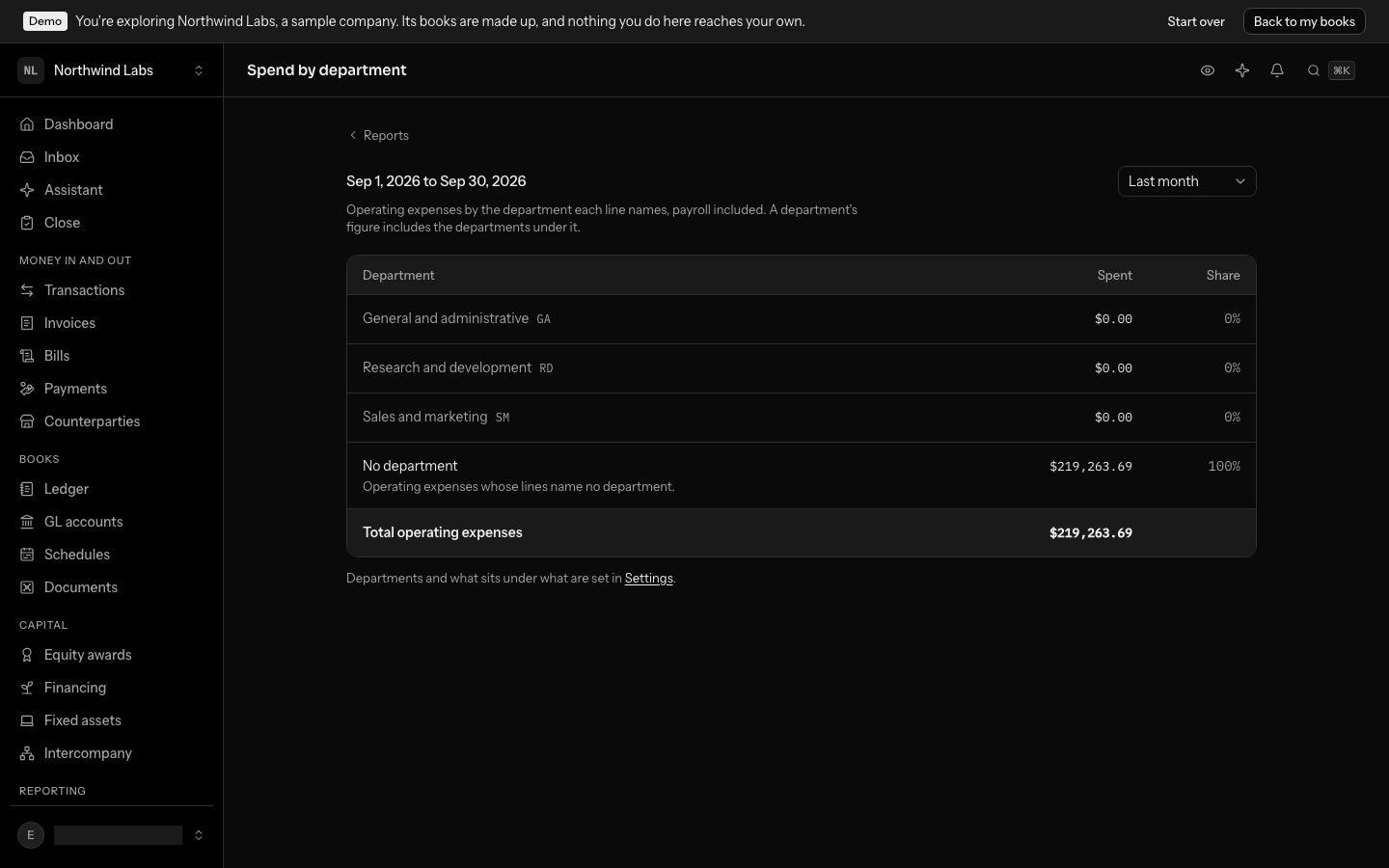
Under More reports, below the statement, Spend by department opens operating expenses for the period on screen, payroll included, by the department each line names. Change the period there with the same control, and Reports leads back on it.
When your organization keeps more than one set of books, Consolidated statements, also under the statements, reads them all as one group in the currency of the books you are in, with what the companies owe each other eliminated. Read your group's consolidated statements explains it.
- Every department is listed, spent or not, each under the one it sits in. A department's figure includes the departments under it, and says how much of it is its own.
- Share is the department's part of all operating expenses in the period.
- Payroll names its department by itself. Each person's wages and employer taxes go to the department your payroll provider files them under, when your books have a department of that name or code (a team like Platform, wherever it sits); otherwise to Research and development, Sales and marketing, or General and administrative by what the person does. Support wages are cost of revenue and name none.
- No department is what was spent on lines that name none. Name a department on the transactions behind them, or make it required on the account, and it moves to its team. See Dimensions.
- Total operating expenses is the same figure the income statement shows for the period.
Departments, and which sits under which, are set in Settings under Dimensions.
Open what is behind a figure
Every account named on a statement is a link, and it opens that account's activity for the statement's own period:
- On the income statement or the cash flow statement, select an account. Its page opens on the same dates, so the lines listed are the ones that add up to the figure you came from.
- On the balance sheet or the trial balance, the account opens on everything up to the statement's date, from the start of that year, with its opening balance above.
- Select a line to open the journal entry that posted it, and from the entry, the transaction it came from.
The statement and the period you chose are part of the page's address. The browser's Back button returns to the same statement for the same period, and you can bookmark or share the address. On the account's page, Show this year leaves the report's dates.
Ask about a statement
Select Ask the assistant (the star at the top of the page; on a phone, Ask about this screen in the sidebar, above your name), or press ⌘J (Ctrl J on Windows). The assistant is told which statement you are reading and its dates, so "why did cash go down?" is answered for the period on screen without you naming it.
Export a report
- Open the statement you want and choose the period.
- Select Export.
- Under the statement's name, choose CSV for a spreadsheet or PDF to print or send.
The same menu has a second group, General ledger, which exports every account's lines for the period, also as CSV or PDF. That is usually what an auditor or tax preparer asks for.
Exports are built from the same statement the screen shows, for the period on screen, so the file and the screen cannot disagree about a figure.
Reports for a closed month
A statement covering an open month can change as transactions are filed or corrected. Once a month is closed, nothing dated in it can change, so its statements are final. Close the month before you send figures that people will rely on. See Close the month.
If a statement says Nothing posted in this period, so there is nothing to report, there are no entries in the window you picked yet. Check that your accounts are connected and your transactions are filed; see Review and file transactions.
Keep a report exactly as it stood
A board deck, a lender's covenant or an investor update needs the figures it was sent with, even after a late correction or a reopened month. Keep the report when you send it, and you can produce the same report again later, figure for figure.
Keeping a report records what you asked for (which report, which day or window) and how far the books had been posted at that moment. Asking for it again reads the books only that far: an adjustment posted afterwards, or a month reopened since, does not change it. Each kept report also carries a fingerprint of what it said, and producing it again says whether the fingerprint still matches.
To keep one, open the Balance sheet, the Income statement, the Cash flow or the Trial balance for the period you are sending and select Export, then Keep this report. The notice that follows links to it.
Kept reports, under More reports on the Reports screen, lists everything kept, newest first, with its period, when it was kept and the start of its fingerprint. Opening one produces it again from what was recorded and shows the statement as it stood. Says what it said when kept confirms that the figures match the fingerprint taken at the time. The line under its name gives how far the books had been posted, the close that kept it when one did, the whole fingerprint, and a link to the same report as the books stand now, so you can see what has changed since.
Closing a month also keeps its trial balance, balance sheet, income statement and cash flow statement for you, and the figures of its board pack (Send the board pack). Those show Kept at close in the list, and their page links to the close that kept them; see Close the month.
Ask why a kept figure is what it is
On a kept report, select Ask why. The assistant opens with the question already written, naming the report; edit it to name the figure you mean, such as "software spend" or "cash", and send it. The answer lists the journal entries that make up the figure, read only as far as the books had been posted when the report was kept, so they add up to the figure on the page even after later corrections. Each entry, transaction and receipt it names is a link. Asking changes nothing in the books.
The aging reports cannot be kept yet. Developers can keep and read reports through the API as report_runs; see the API reference. Anyone in the books can keep a report, a viewer included. A kept report cannot be changed or deleted; it goes only with the books.
Hand the year to your CPA by tax line
A C corporation files Form 1120. Every GL account reports on one line of it: page 1 for income and expense, Schedule L for the balance sheet, and Schedule M-1 for the income tax your books expensed. LedgerIt starts each account on a line from the standard chart: cash on Schedule L line 1, software on line 26 (other deductions), salaries on line 13. An account you added takes the catch-all line for its type until you choose another. Your CPA can move any account to the line they file it on; a balance-sheet account can only go on Schedule L.
The books by tax line add up a fiscal year: the year's income and expense on page 1, leaving the year-end close out, and Schedule L at the start and the end of the year, with the year's result in retained earnings. Each line lists the accounts in it. Schedule L says whether it balances, and the export carries that check too. Download it as CSV or PDF for the fiscal year that ends in a given year.
To read them, open Reports and select Tax lines under the statements.
- By tax line is the report. Choose the Fiscal year by the year it ends in. The three figures at the top are Income per books, Total assets and Total liabilities and equity, with In balance when Schedule L's two sides agree. Below, each part of the return lists its lines, and under each line the GL accounts in it; an account's name opens that account. Schedule L shows each line at the Start of year and the End of year. Export downloads the year as CSV or PDF.
- By GL account is the mapping. Every account you can post to is listed with its type and its Tax line. To move one, choose another line from its menu: a balance-sheet account is offered Schedule L's lines, an income or expense account the others. The account is marked Chosen, and Back to default returns it to the line LedgerIt started it on.
Owners, admins and accountants can change an account's line. Everyone with access to the books can read both views and export.
Find who needs a 1099
Each January, a US company files a 1099-NEC or 1099-MISC for every contractor it paid enough the year before. 1099s, at the foot of Reports, shows the vendors you have marked 1099-eligible and what the books paid each of them in a calendar year.
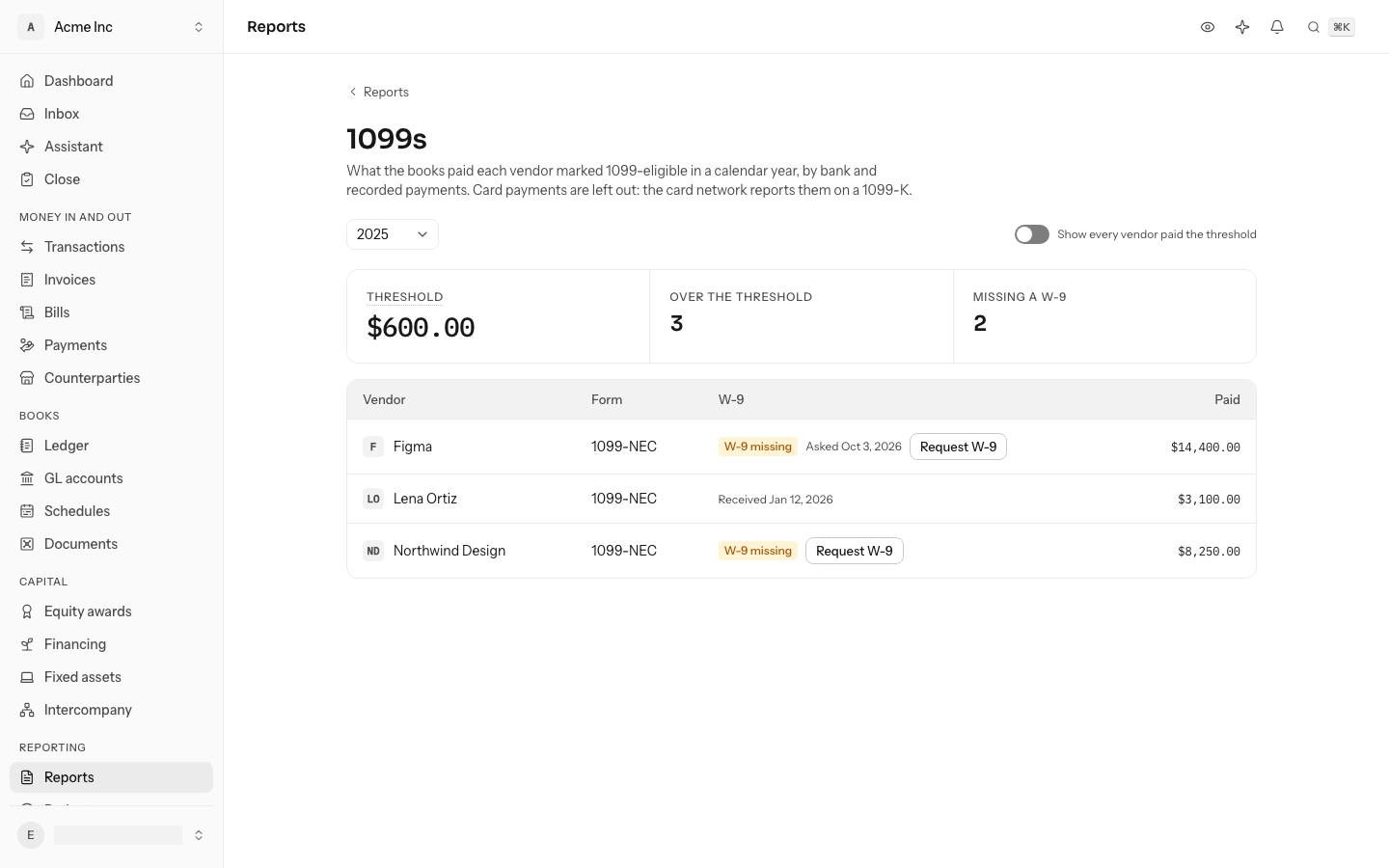
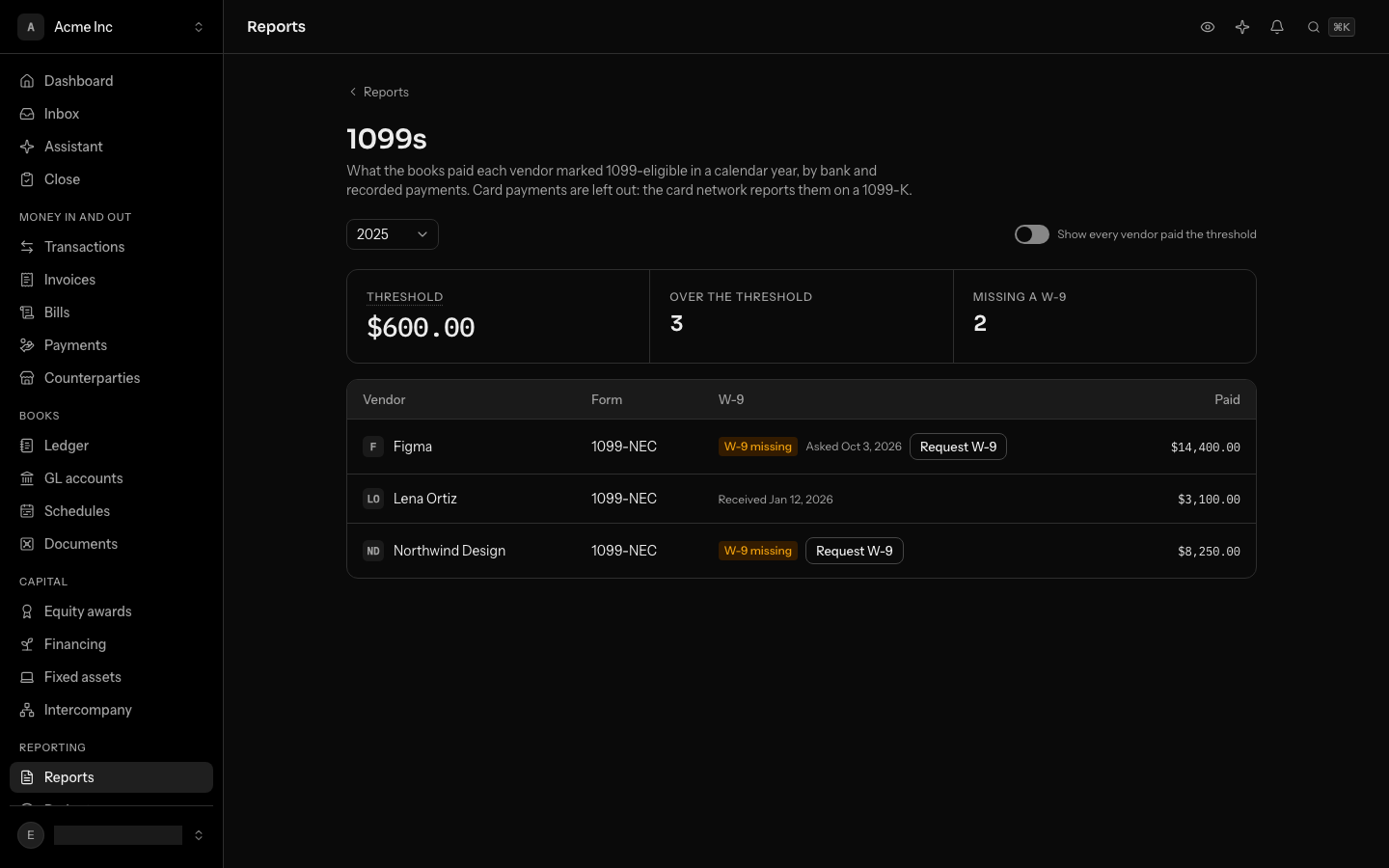
- Mark the contractors first. On a counterparty's page, select the badges under their name and tick Vendor, then under About turn on Paid on a 1099 and choose the Form. See Counterparties.
- Open Reports and select 1099s. It opens on last year, the year you file for. Choose another under Year.
- Read the three figures at the top. Threshold is the year's filing threshold: $600 through 2025, $2,000 from 2026. Over the threshold counts the vendors paid that much or more. Missing a W-9 counts the ones over it with no W-9 recorded.
- Collect a W-9 from every vendor flagged W-9 missing: select Request W-9 beside them (see below). If one reached you some other way, open their page and, under About, set W-9 received to the day it came in.
Ask a vendor for their W-9
Request W-9 emails the vendor a link to fill in their W-9 online. Anyone who can enter bills can send one: owners, admins and accountants.
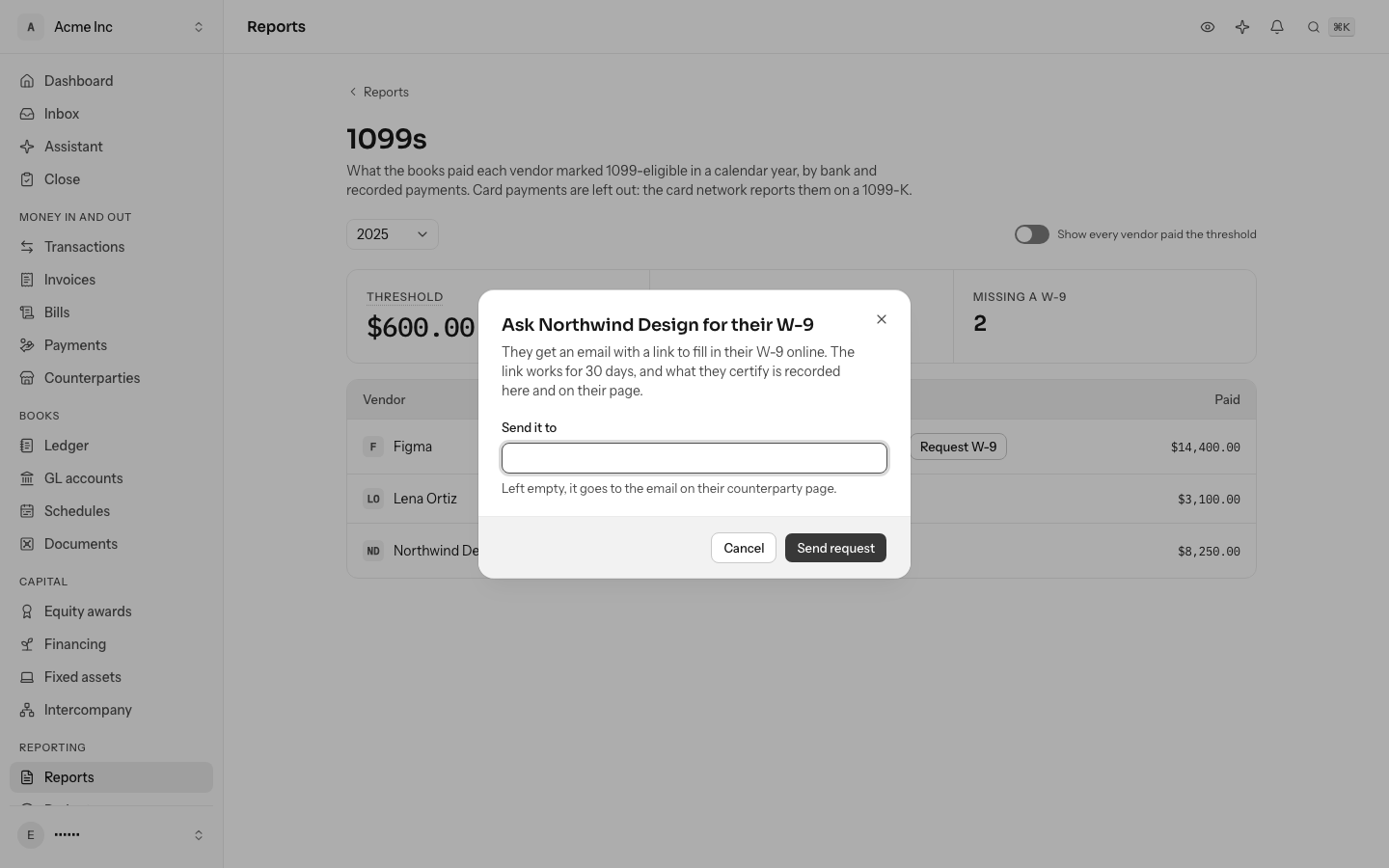
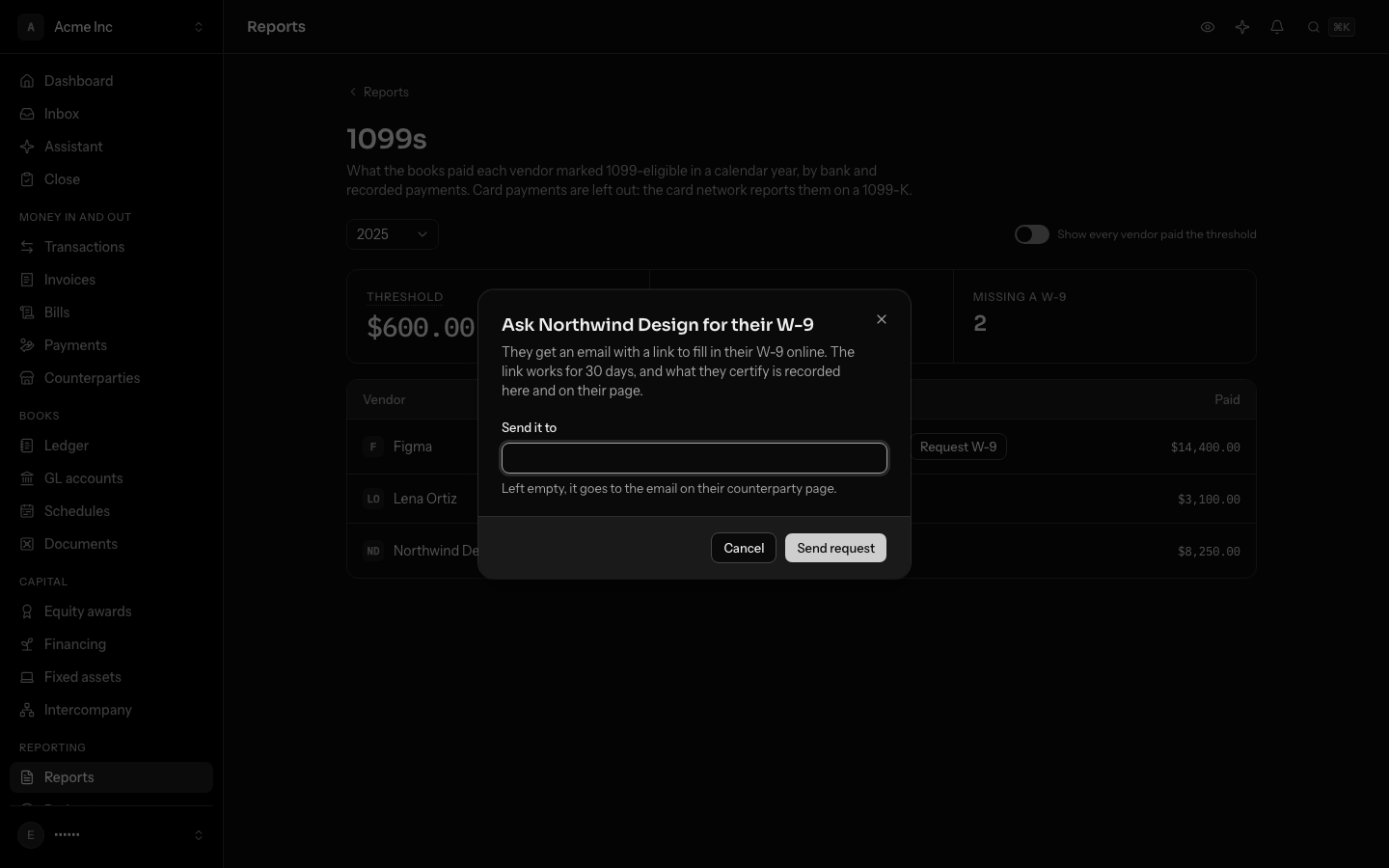
- Select Request W-9 beside the vendor on 1099s.
- Under Send it to, type the address to send it to, or leave it empty to use the email on their counterparty page.
- Select Send request. The row then says when you asked.
The link works for 30 days, for one W-9. Asking again sends a new link, and the old one stops working.
The vendor opens the link and sees a short form with their name, business name, tax classification, taxpayer identification number and address. They sign it by typing their name under the IRS certification. They need no LedgerIt account.
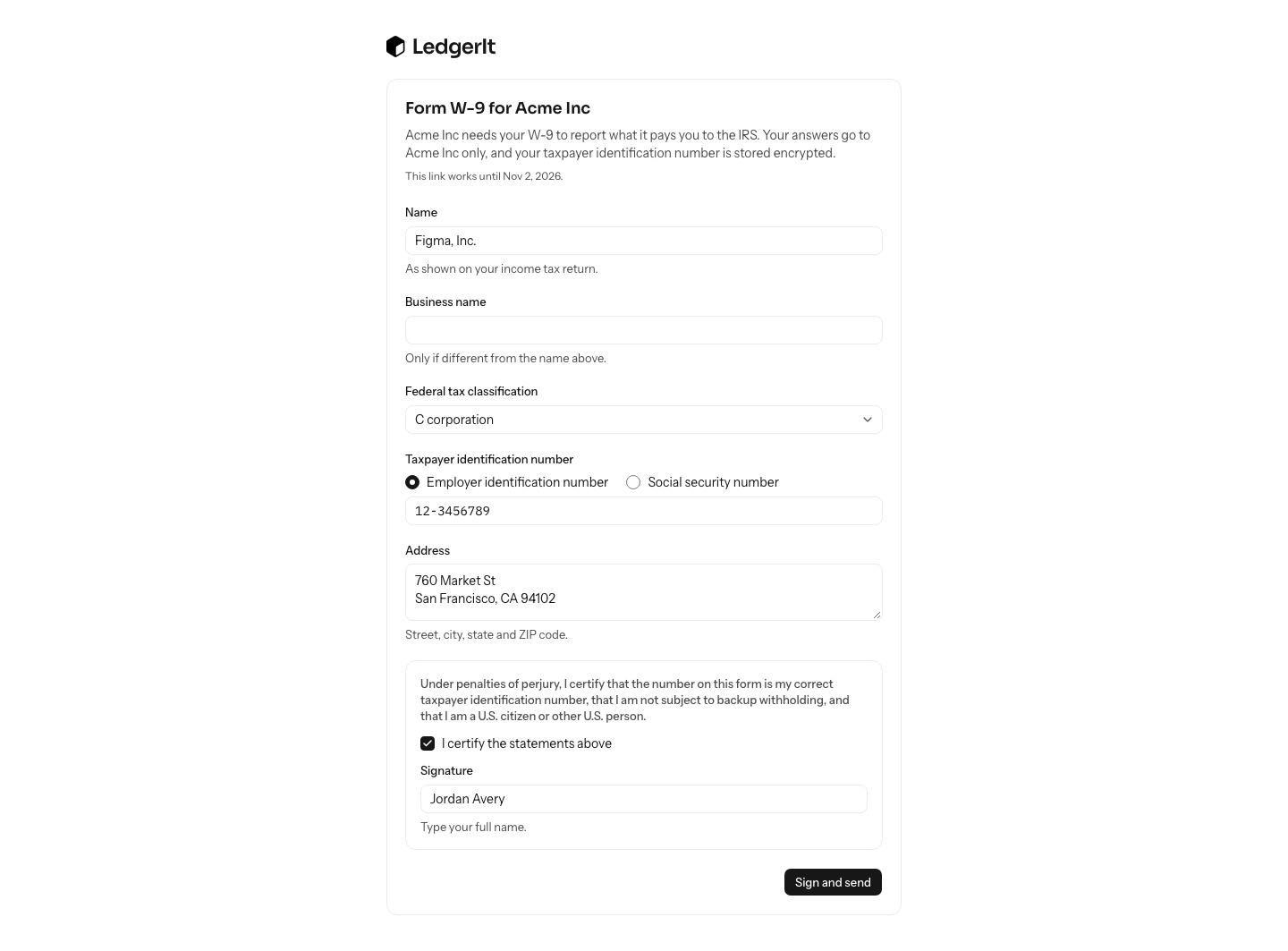
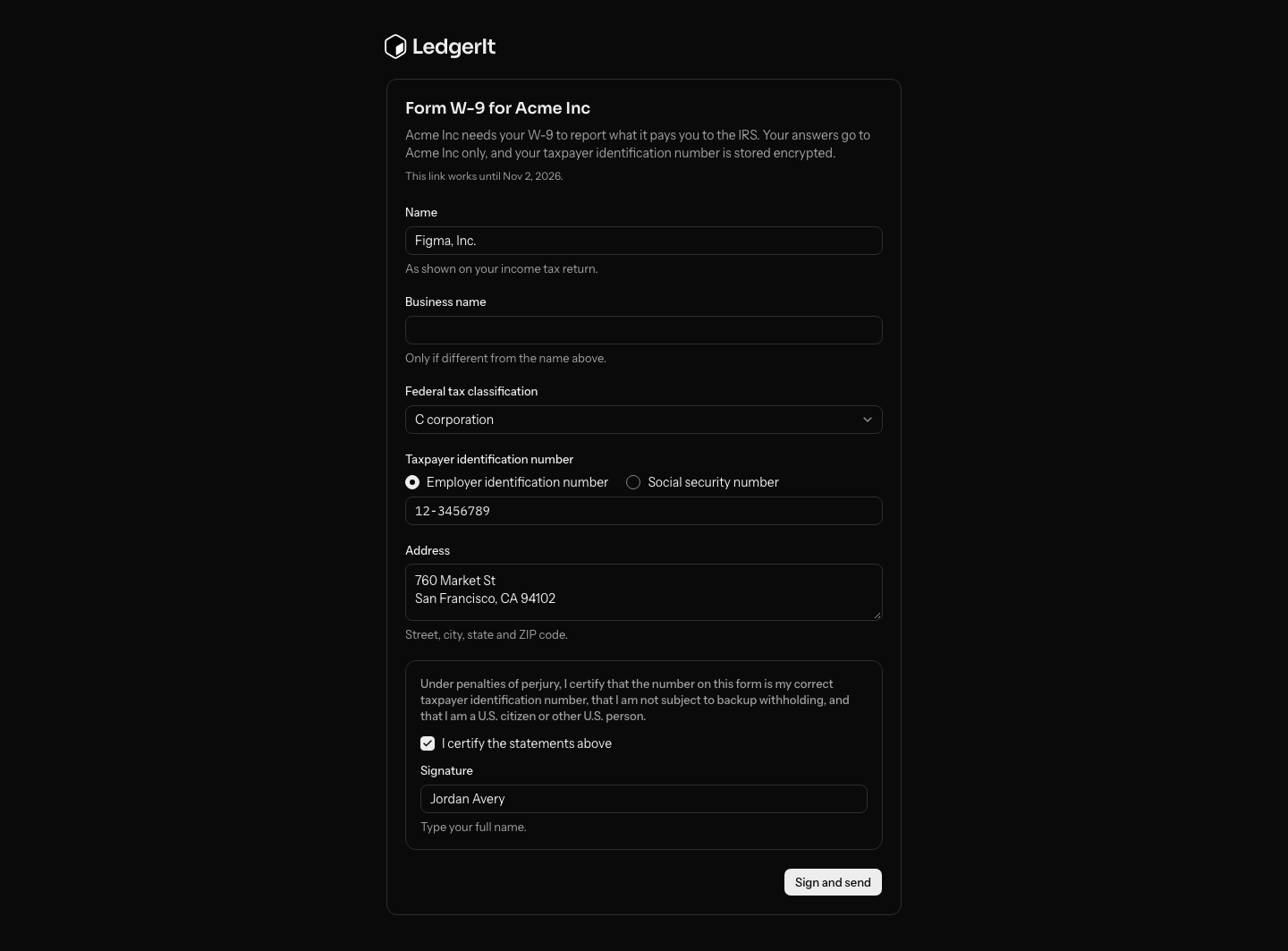
When they sign, the W-9 is recorded on the vendor: W-9 received is set to that day, and Missing a W-9 stops counting them. Their taxpayer identification number is stored encrypted. Owners, admins and accountants see it whole through the API, and everyone else sees only its last four digits. What they certified (name, classification, address and signature) is kept with the request.
What counts as paid: money out to the vendor from a bank account, and payments recorded against them, less any refunds they sent back. Card payments are left out, because the card network reports those on a 1099-K. Transactions you excluded from the books do not count either.
Turn on Show every vendor paid the threshold to see the vendors you have not marked who were paid enough. Any of them who is a contractor needs marking.
Do this through the API
Everything in this guide is also an API call, for scripts and agents. The reference lists each operation with its parameters and objects.
- ReportsThe financial statements, burn and runway, and spend by department.12 operations
- Report runsReports kept as they stood, produced again figure for figure after later corrections and reopened months.4 operations
- Tax linesThe Form 1120 line each GL account reports on, for the CPA's export.2 operations
- W-9 requestsW-9s asked of vendors by email, and what each vendor certified when they completed theirs.4 operations