Get started
Switch from QuickBooks
Move your books in from QuickBooks, Xero or a spreadsheet as of a cutover day, map each old account to one of yours, and tie out every figure to the cent.
A migration moves your books into LedgerIt from QuickBooks, Xero or a file, as of a cutover day: the last day the old books cover. LedgerIt carries on from the day after. A migration is finished when it ties out, which means every account in LedgerIt holds what it held in the old books on the cutover day, to the cent, or the difference has a written reason.
A migration brings in one of two things. Opening balances are what every account held on the cutover day, with your open invoices and bills. Full history is every entry of the old books up to the cutover day, entry for entry. Migrations live under Ledger, in the ⋯ menu beside New entry: Switch from QuickBooks, whichever ledger you are leaving.
- One entry, on the balance sheet only
- Open invoices and bills, on their customers and vendors
- Income and expense carried into Retained earnings
- Each marked From the old books
- Earlier fiscal years closed into Retained earnings
- Today through the API only
A migration is one or the other, never both.
Start from QuickBooks Online itself
Connect QuickBooks Online under Integrations: sign in to QuickBooks and approve read access to the company. Then, on the migrations page, Start from QuickBooks Online reads the four reports below straight from the company. Choose the cutover day and select Read and start. Every report is read as of that day, and the migration that starts is the same one the exports would start. If more than one company is connected, choose it under Company.
If QuickBooks says the sign-in is no longer valid, connect it again under Integrations and start again.
What you need from QuickBooks
Up to four reports, all under Reports in QuickBooks Online, each exported to CSV:
- Trial Balance, with the date set to the cutover day. This is the one LedgerIt cannot do without: every account and its balance.
- Account List. Optional, and worth it: it says what kind of account each one is and its number, so more accounts find their place on their own.
- A/R Aging Detail and A/P Aging Detail, as of the cutover day. Optional: every invoice your customers still owe and every bill you still owe, with its due date. Without them, receivables and payables come in as one balance each.
Pick a cutover day at the end of a month. Year end is simplest.
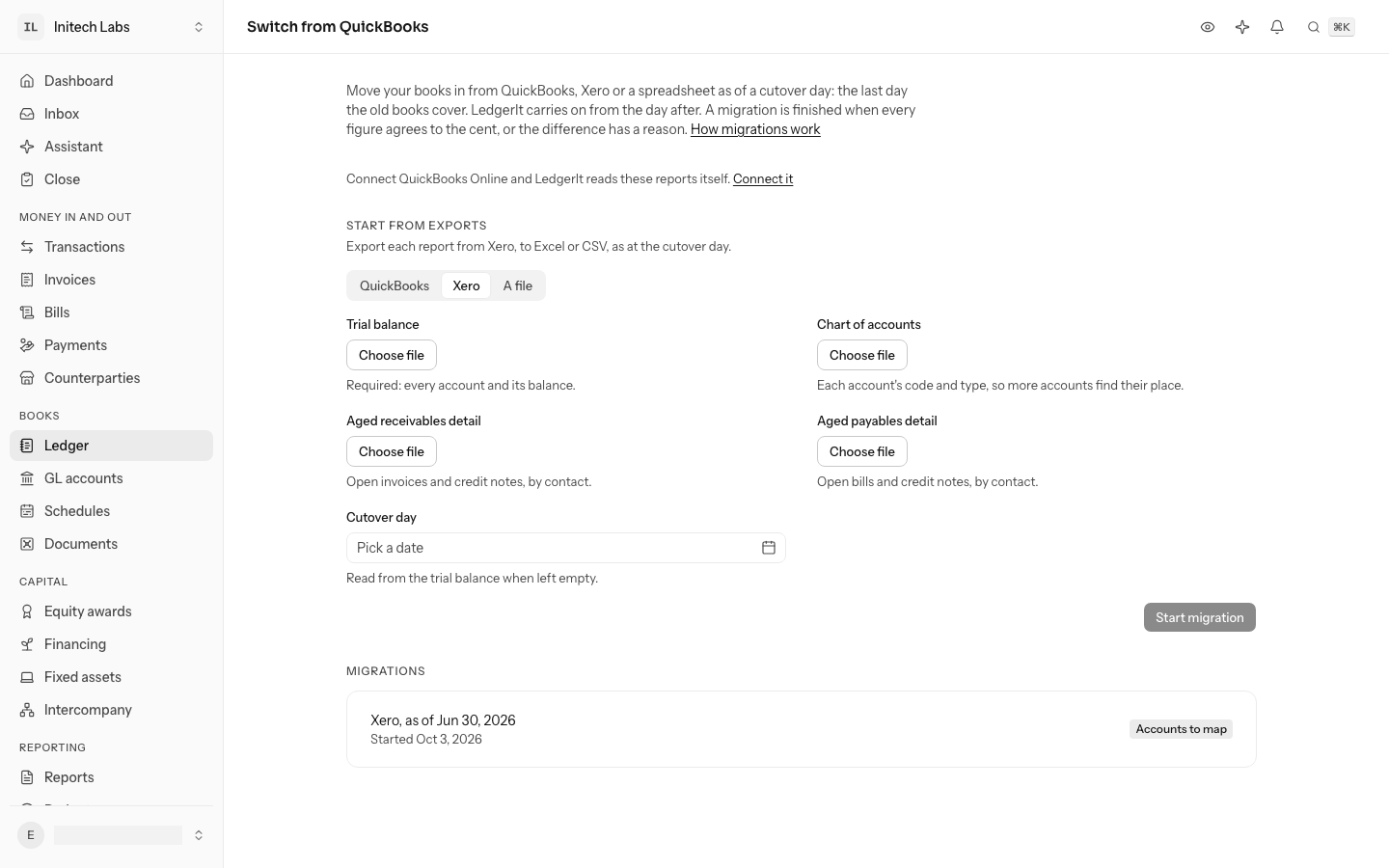
Under Start from exports, choose QuickBooks, choose the files and select Start migration. LedgerIt reads the cutover day from the trial balance's "As of" line; when the report has none, give the day yourself.
What you need from Xero
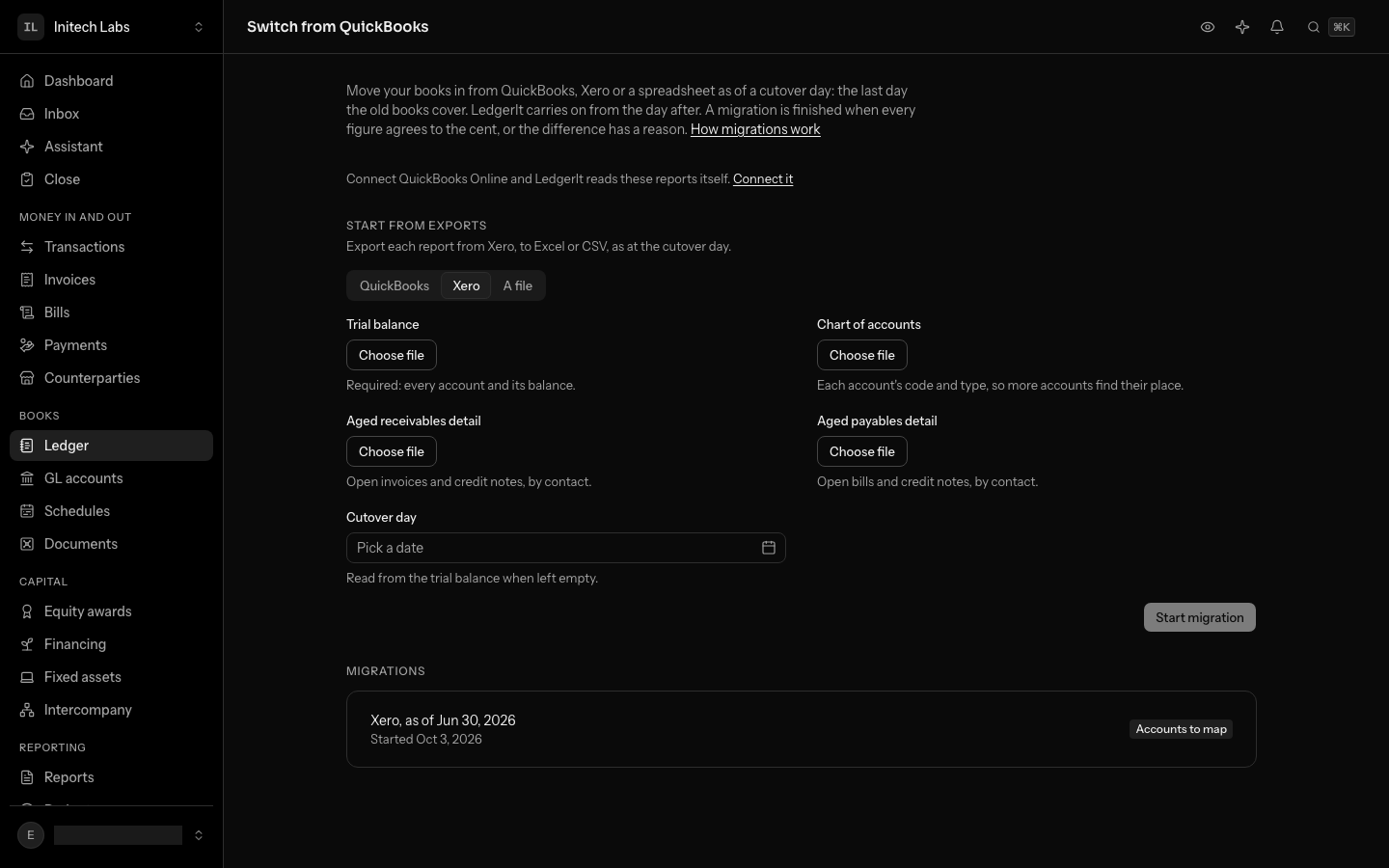
The same four reports, each exported from Xero to Excel or CSV:
- Trial Balance, under Reports, with the date set to the cutover day. The one LedgerIt cannot do without. Where the report has year-to-date columns, LedgerIt reads those.
- Chart of accounts, under Accounting, then Chart of accounts, then Export. Optional: each account's code and type, so more accounts find their place on their own.
- Aged Receivables Detail and Aged Payables Detail, under Reports, as at the cutover day. Optional: every invoice, bill and credit note still open, under its contact, with its due date.
Under Start from exports, choose Xero, choose the files and select Start migration. LedgerIt reads the cutover day from the trial balance's "As at" line. Everything after that works as it does for QuickBooks: an old account is named as Xero names it, its code is its number, and each contact becomes a customer or vendor.
What you need from anywhere else
Books kept in a spreadsheet, or in a ledger LedgerIt does not read, come in through two files of LedgerIt's own shape, each CSV or Excel. Copy the templates below into a spreadsheet, replace the rows with your own and save each as CSV.
The trial balance is required: one row per account, with what it held on the cutover day.
account,number,type,debit,credit,cash
Operating account,1000,asset,150000.00,,yes
Accounts receivable,1200,asset,12000.00,,
Accounts payable,2000,liability,,4000.00,
Common stock,3100,equity,,200000.00,
Retained earnings,3900,equity,41500.00,,
Subscription revenue,4010,income,,30000.00,
Refunds,4090,income,500.00,,
Software,6210,expense,30000.00,,- account is the account's name, once per account. debit and credit hold its balance; a single balance column works instead, positive for a debit and negative for a credit.
- number, type and cash are optional. type is asset, liability, equity, income or expense, and an account is only matched to one of yours of the same type. Write yes under cash for a bank or cash account, so it is tied out on its own.
The open items are optional: every invoice, bill and credit still open on the cutover day.
account,party,number,issued_on,due_on,amount
Accounts receivable,Acme Corp,INV-1001,2026-05-12,2026-06-11,8000.00
Accounts receivable,Acme Corp,INV-1007,2026-06-03,2026-07-03,2500.00
Accounts receivable,Acme Corp,CN-12,2026-06-20,,-500.00
Accounts receivable,Globex,INV-1004,2026-05-28,2026-06-27,2000.00
Accounts payable,Figma,BILL-88,2026-06-15,2026-07-15,4000.00- account is the receivable or payable the item sits on, by its name or number in the trial balance. party is the customer or vendor. amount is what is left to pay, negative for a credit.
- number, issued_on and due_on are optional. Write days as 2026-06-30.
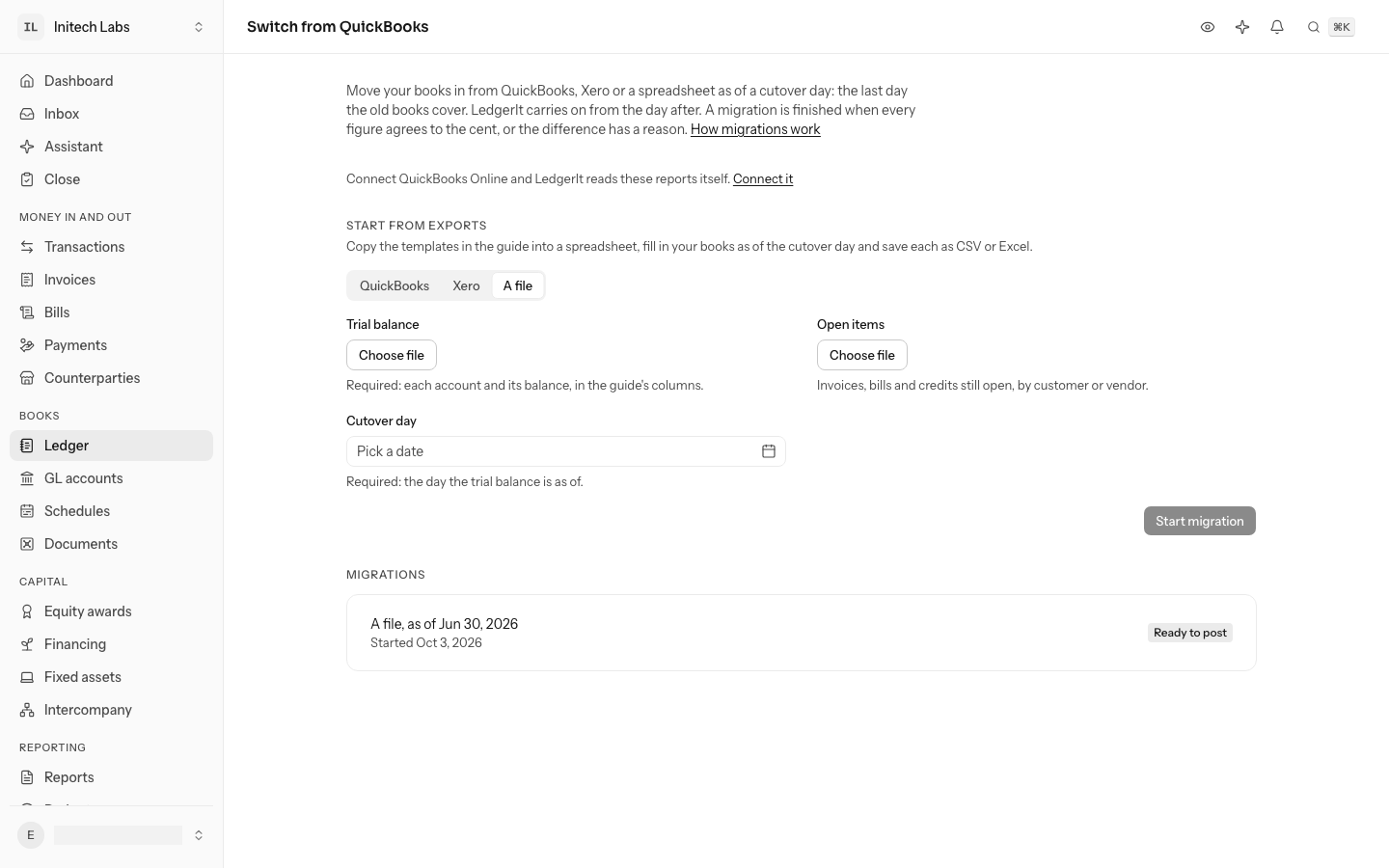
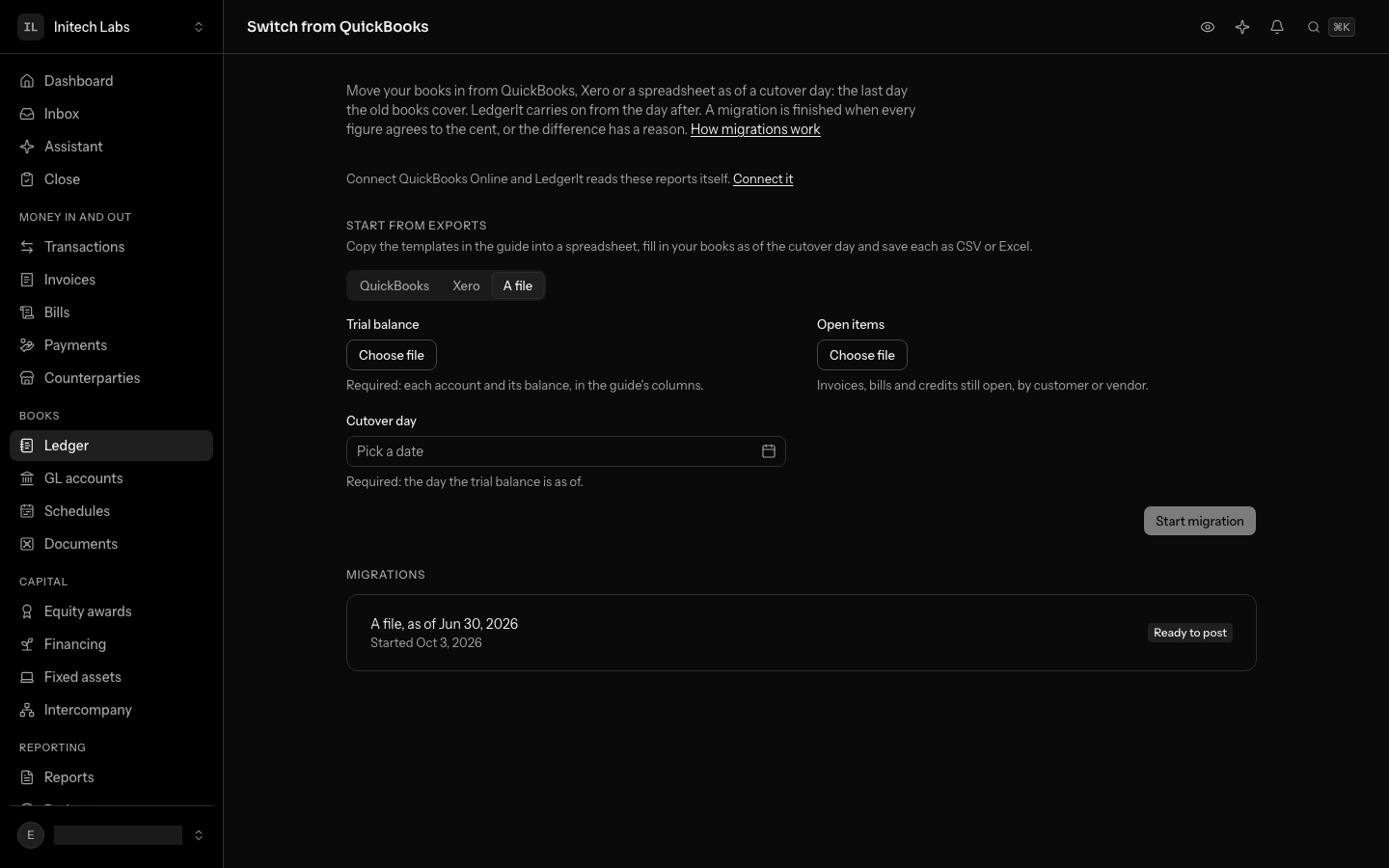
Under Start from exports, choose A file, choose the files, give the cutover day and select Start migration. A file that does not fit the shape is refused with the row that does not.
Start a migration
AbandonedBefore posting, Abandon gives a migration up. It stays listed.
A new migration looks at each old account and finds its place in your chart of accounts: first by account number, then by name. It only matches an account of the same kind, so a bank account never lands in an expense. An account with a balance that finds no place stays unmapped, and the migration waits as a draft.
| In QuickBooks | Balance | In LedgerIt |
|---|---|---|
| Accounts Payable (A/P)Liability | $31,750.00 | Needs a place |
| Brex cardLiability | $18,350.00 | Needs a place |
| SalesIncome | $520,000.00 | Needs a place |
| Software:FigmaExpense | $5,400.00 | Needs a place |
| 1000 CheckingAsset | $812,400.00 | 1000 Cash and cash equivalentsMatched by number |
| Accounts ReceivableAsset | $46,200.00 | 1200 Accounts receivableMatched by name |
| Prepaid ExpensesAsset | $12,000.00 | 1300 Prepaid expensesMatched by name |
| 6240 RentExpense | $48,000.00 | 6240 Rent and facilitiesMatched by number |
Choose an account for each one marked Needs a place.
Map what was not matched
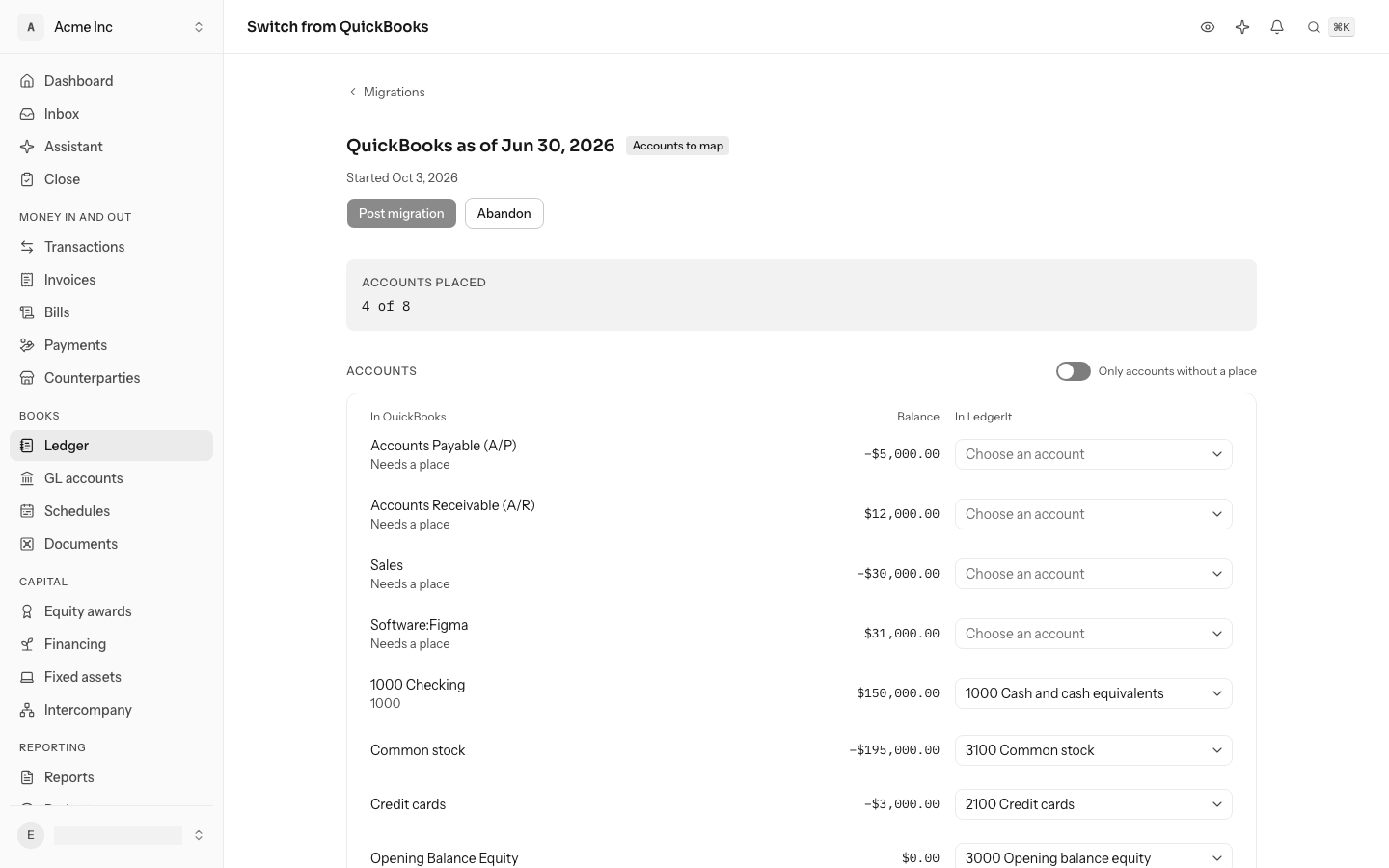
Each old account is listed under Accounts, with the ones that still need a place first. Choose an account of yours for each one marked Needs a place. An old account can also be moved to a different account until the migration is posted. Accounts that group others and take no postings, like Revenue, cannot be chosen. Once every account with a balance has a place, the migration is mapped.
Customers and vendors are matched the same way: each one in the aging becomes the counterparty of the same name. One with no match reads Added when posted: it is added as a customer or a vendor when the migration is posted. To use a counterparty you already have under a different name, choose it under Customers and vendors.
Post and tie out
Select Post migration once the migration is ready to post. Posting enters the trial balance as your opening balances, as of the cutover day, and compares the two books account by account:
- Trial balance: every account's balance on the cutover day, in the old books and in LedgerIt.
- Cash by account: each bank and cash account on its own.
- AR aging and AP aging, when you sent the aging reports: each customer's and vendor's total, and Accounts Receivable and Accounts Payable as a whole against what their open invoices and bills add up to.
Each open invoice and bill comes in on its customer or vendor and falls due on the day the old books say, so the aging in LedgerIt starts out where they left off. A balance in Accounts Receivable that no invoice explains, like a journal entry that names no customer, shows as a difference on the receivable as a whole until it has a reason.
- Cash by account1000 CheckingQuickBooksLedgerItDifference$812,400.00$812,400.00Ties
- Trial balancePrepaid ExpensesQuickBooksLedgerItDifference$12,000.00$12,000.00Ties
- Trial balanceSalesQuickBooksLedgerItDifference$520,000.00$0.00$520,000.00
Written by LedgerItCarried into Retained earnings, as a year-end close carries it.
- AR agingEach customer's open invoicesQuickBooksLedgerItDifference$44,950.00$44,950.00Ties
- AR agingAccounts Receivable, as a wholeQuickBooksLedgerItDifference$46,200.00$44,950.00$1,250.00
One difference has no reason. Try , then Save reason.
Opening balances sit on the balance sheet only. Income and expense up to the cutover day are carried into Retained earnings, the way a year-end close carries them, and LedgerIt writes that reason beside those differences for you. Any other difference is listed until someone types its reason beside it and selects Save reason. When every figure agrees or is explained, the migration is tied out.
A posted migration cannot be posted again or remapped. To correct it, change the opening balances on the ledger. A migration that has not been posted can be abandoned with Abandon; it stays listed.
Bring in full history
Full history moves every entry of the old books into LedgerIt, so reports and account pages go back as far as your books do. Today it runs through the API: a script or an agent sends the accounts, the trial balance on the cutover day and every entry up to it.
Each entry comes in as it was, marked From the old books on the ledger. A line on Accounts Receivable or Accounts Payable has to name its customer or vendor. QuickBooks sometimes allows one that does not, and LedgerIt refuses that entry by name, so it can be fixed in the old books first. Each fiscal year before the cutover day's is closed into Retained earnings, as a year-end close would close it, so the trial balance on the cutover day reads like QuickBooks' own. The tie-out then compares the trial balance, cash, and Accounts Receivable and Accounts Payable against the customer and vendor lines behind them.
A migration is one or the other, never both, and full history cannot sit beside opening balances.
Who can do what
Anyone in the books can read a migration and its tie-out. Starting, mapping, posting, explaining and abandoning need a role that can post to the books: owner, admin or accountant. One set of books takes one migration.
Do this through the API
Everything in this guide is also an API call, for scripts and agents. The reference lists each operation with its parameters and objects.