Bookkeeping
Automate filing with rules
Write rules that file transactions as they arrive, see the ones LedgerIt learned, and set how much the model may file without a person.
Rules file transactions before anyone has to look at them. Use the Rules screen to see every rule your books file by, write new ones, and change, pause or delete the ones you have.
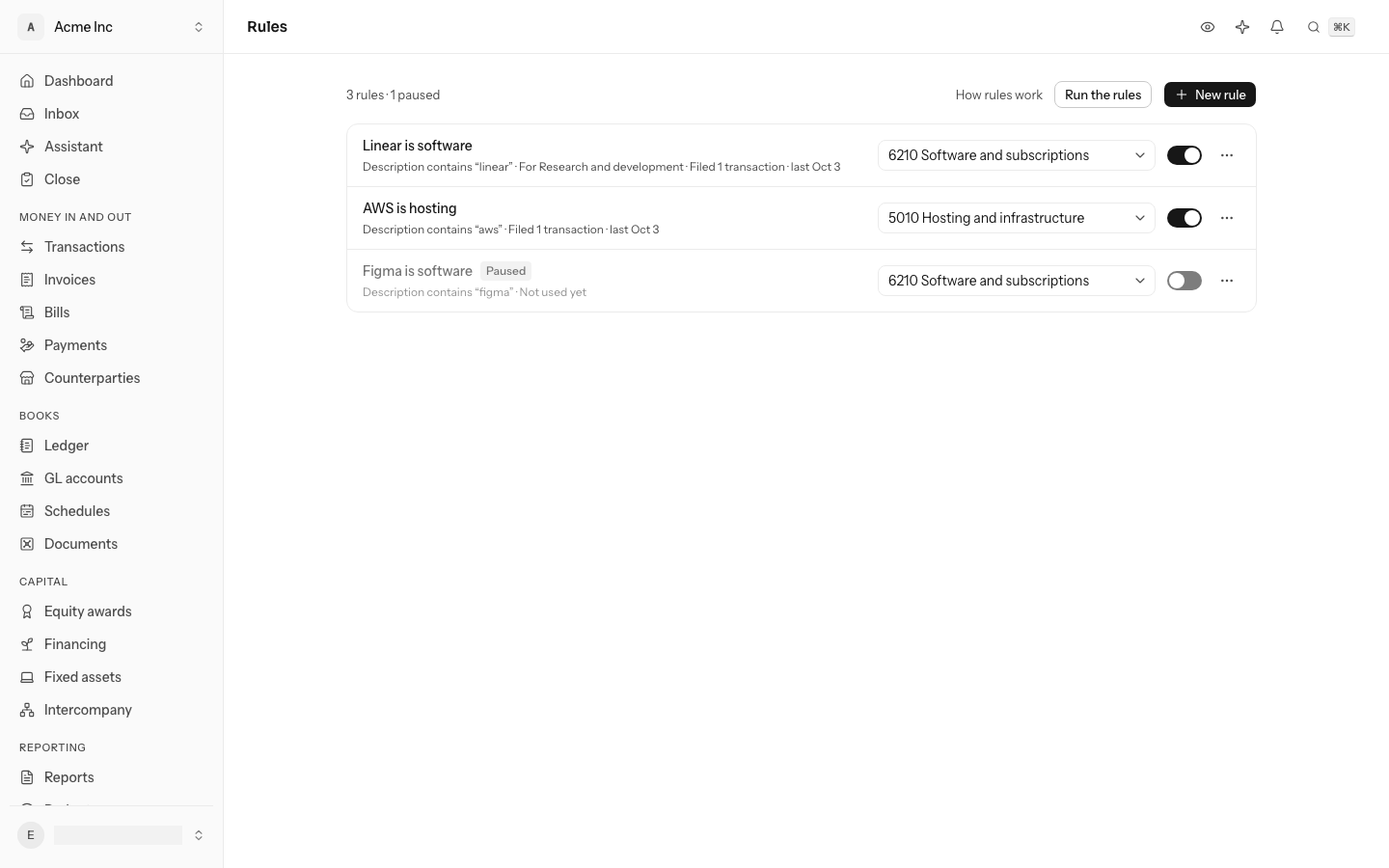
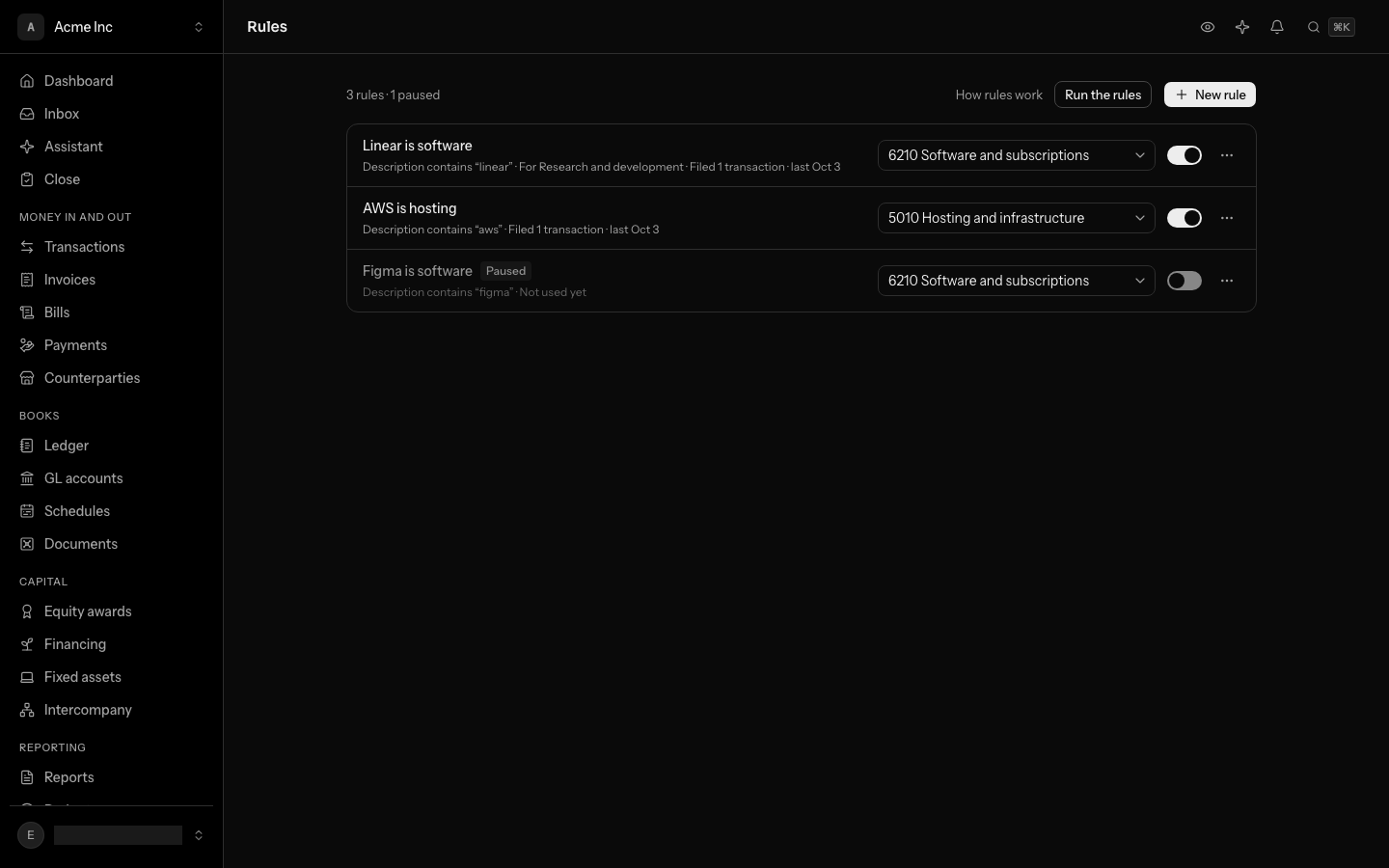
Anyone with access to the books can see the rules. Writing, changing, pausing and deleting them needs the owner, admin or accountant role.
How LedgerIt decides what a transaction is
- Step 1Your rulesInstant, and the same every time.A rule matches: filed to its GL account, at any amount.No rule matches, on to step 2
- Step 2The modelProposes a GL account and says how sure it is.Posts only within your limits. Otherwise it waits, marked Suggested.Nothing proposed, on to step 3
- Step 3SuspenseA holding account that keeps cash right.Parked until a person files it.
- A rule that matches also gives the transaction the rule's department, if it names one. Rules apply at any amount, because you wrote them and can read them.
- The model's proposal posts on its own only if it clears every limit described below. Otherwise it waits in the review queue with the proposal filled in, marked Suggested.
- Suspense is a holding account that keeps your cash figures right while the transaction waits for a person.
When more than one rule matches
Compared asamazon web services aws.amazon.co
- Amazon is office suppliesAlso matchesDescription contains “amazon”Files to 6280 Office supplies
- AWS is hostingFiles itDescription contains “amazon web services”Files to 5010 Hosting and infrastructure
- Linear is softwareDescription starts with “linear”Files to 6210 Software and subscriptions
- Coffee is mealsDescription contains “blue bottle” · up to $100.00Files to 6270 Travel and meals
- Figma is softwarePausedDescription contains “figma”Files to 6210 Software and subscriptions
2 rules match. AWS is hosting is the more specific, so it files the transaction to 5010 Hosting and infrastructure.
Rules are not tried in the order they are listed. Every rule that is on is checked, and when several match, the most specific one files the transaction: a longer text to match, a rule narrowed to an account or an amount range, or is exactly rather than contains. Between two rules that are equally specific, the older one wins. So a broad rule such as "amazon" and a narrow one such as "amazon web services" can live side by side. A rule given a priority through the API outranks specificity; rules made in LedgerIt all share the same one.
Read the rules list
Each rule shows:
- its name, with Learned if LedgerIt wrote it, From an answer if someone's answer to a question wrote it, and Paused if it is switched off;
- one line under the name, its parts joined by dots:
- what it matches, for example Description contains "aws", plus any bank or card account, amount range, memo words or paper it is narrowed to;
- the department it gives, for example For Research and development, when it names one;
- how often it has worked, for example Filed 14 transactions · last Sep 12, or Not used yet;
- the GL account it Files to.
Rules that are on and used most come first. The line above the list counts your rules, and how many are learned and paused.
Write a rule
- Choose New rule.
- Under When, pick the Field to look at:
- Description — the description shown in LedgerIt;
- Bank line — the line exactly as the bank printed it;
- Counterparty — who the money went to or came from.
- Pick How to compare: contains, is exactly or starts with.
- Enter the Text to match. Capitals, card processor prefixes such as "SQ *" and trailing reference numbers are ignored.
- As you type, the box under the text says what the rule would catch: Matches 2 of the newest 40 transactions, with the newest of them listed. If it lists something that does not belong, the text is too broad. If the text could never match, such as one that is only a card processor prefix, the box says why.
- Under File to, choose the GL account.
- Optionally, under Department, choose whose spend it is. Each transaction the rule files is given that department, so spend by department counts it without anyone naming it. If your books slice by more than department, the field is called Dimensions and has a picker for each.
- Optionally, under Narrow it down, limit the rule to one bank or card account (Only on) or to an amount range (Amount from, Amount up to). The amount is the transaction's size, whichever way the money moved. Every condition must hold for the rule to file a transaction.
- Optionally give it a Name. It defaults to the text to match.
- Choose Create rule.
The preview looks at your newest 2,000 transactions and files nothing. The rule files matching transactions from then on; the ones listed in the preview stay where they are. A rule that matches exactly what another rule already matches is refused; change that rule instead.
You can also write a rule from a transaction you filed: choose Always file here in its row menu. See Review and file transactions.
Run the rules over what is waiting
A new rule does not go back over transactions that are already waiting for review. To apply your rules to those, choose Run the rules above the list (on a phone, in the ⋯ menu). LedgerIt reports how many a rule filed and how many are left for a person. No model is asked, so a run costs nothing and can be repeated. What a rule files this way is categorized, not posted: review it on Transactions.
The line under the introduction also shows how often people agreed with the model's suggestions, once somebody has judged one.
Rules LedgerIt learns
When people file the same merchant to the same GL account three times, and never to any other, LedgerIt writes a rule for it so nobody is asked a fourth time. It is marked Learned.
LedgerIt learns only from decisions people made, never from a merchant filed two different ways. You can change, pause or delete a learned rule like any other.
A learned rule learns the department too. Once three of the merchant's transactions filed where the rule files are given the same department, and none another, the rule gives it to every transaction it files from then on. A merchant whose spend goes to several departments teaches none, and a department you chose for a rule yourself is never replaced.
Rules from an answer
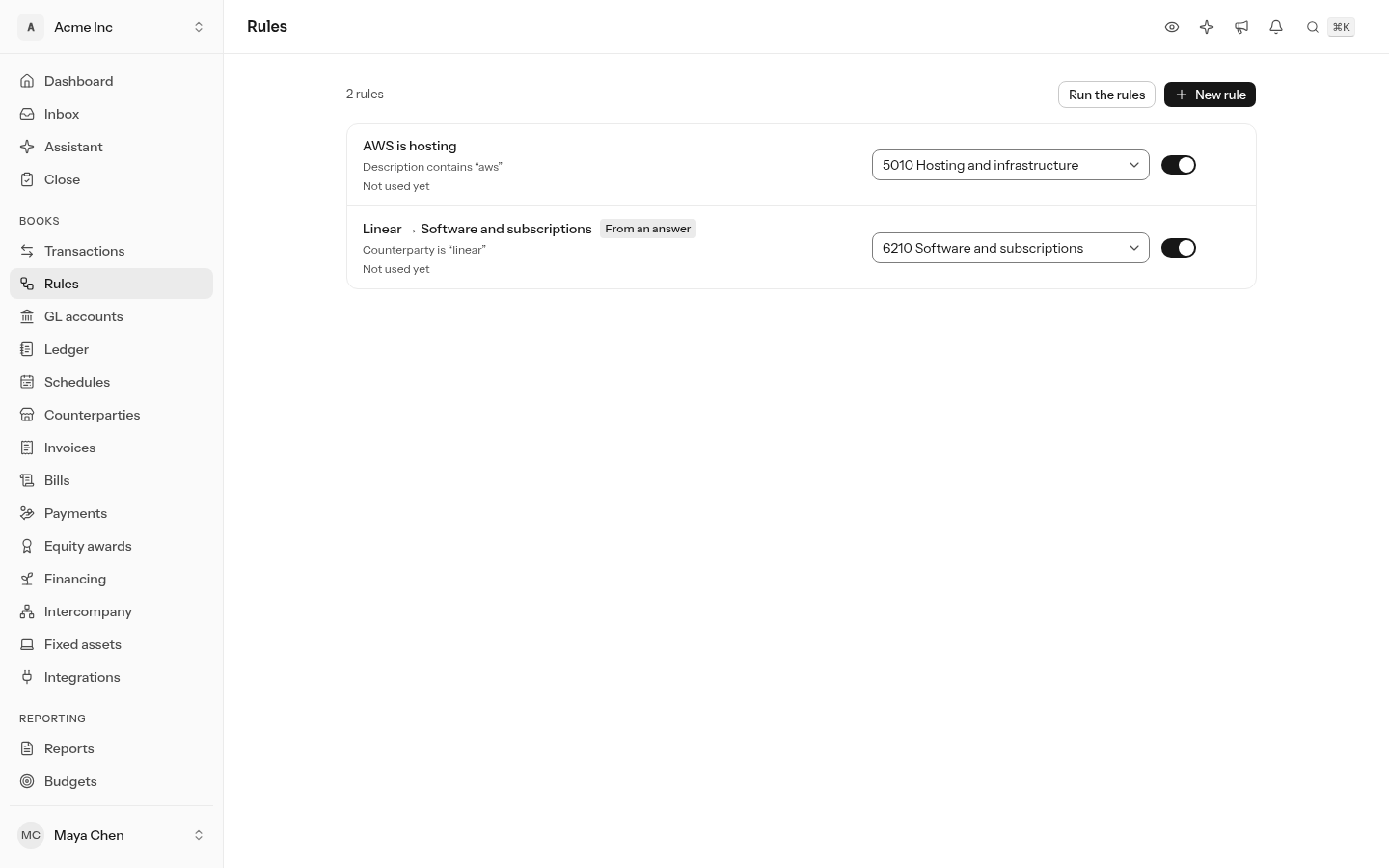
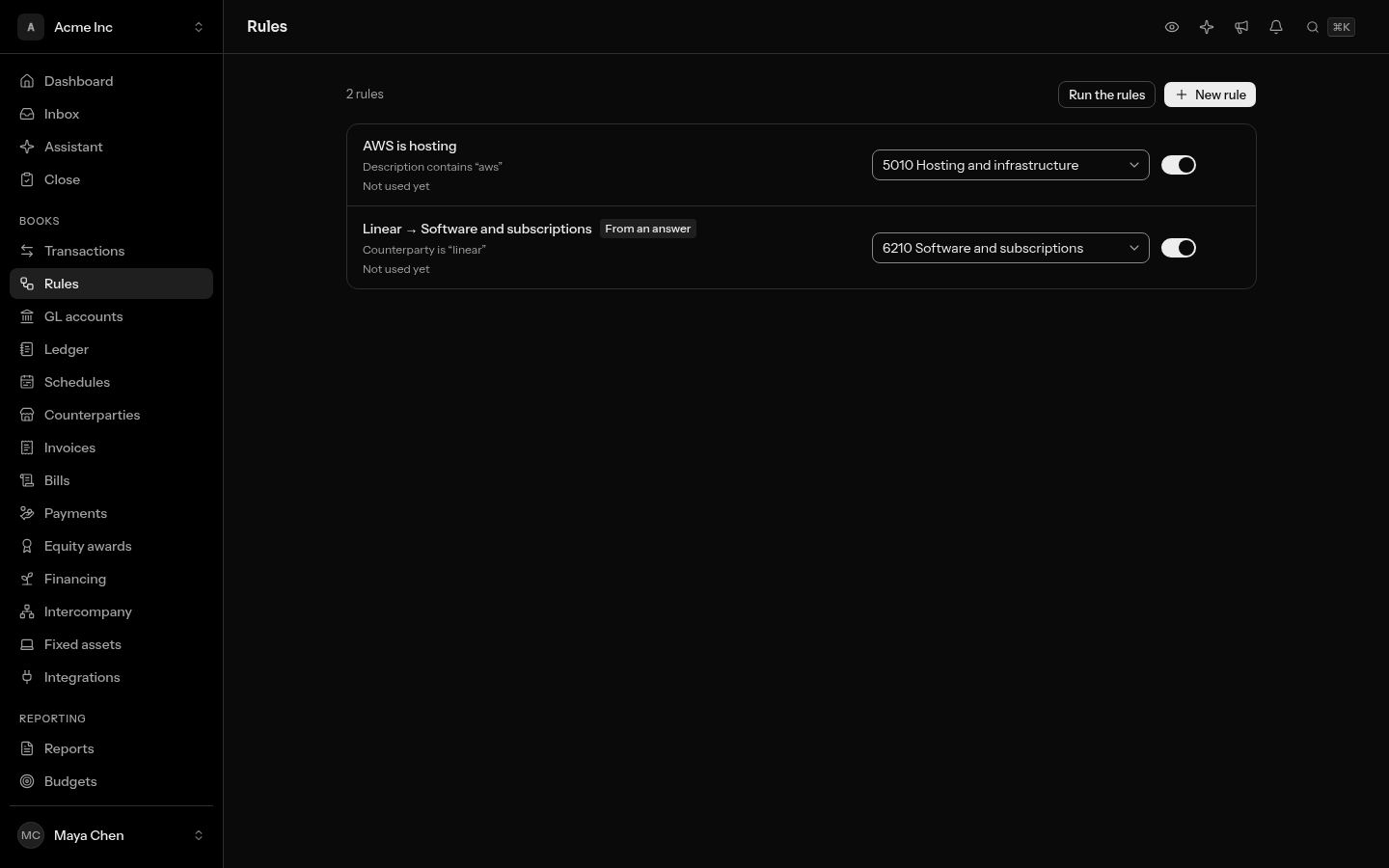
When someone answers a question about a transaction and ticks Do this every time, their answer becomes a rule, so the same question is never asked twice. See Answer a question, and file it every time.
The rule is as narrow as the case it came from: the transaction's counterparty, exactly, on money moving the same way. It is marked From an answer; select the mark to open the transaction whose discussion holds the question. Deleting the question leaves the rule in place.
Through the API, an answer's rule, or any rule, can also be narrowed to:
- memo words: the description or the bank's line must contain them, so "aws" catches AWS charges from Amazon and not the bookshop;
- paper: an invoice or a receipt attached to the transaction, or none at all.
A question about a transaction nobody has filed is checked against your rules first. If one covers it, the rule files it and the question is never sent. The books' autonomy figures count those, month by month, as questions removed by your rules.
See what a rule filed
Select a rule's name to open its page, or select the rule's name where a transaction says The rule … matched under How it was filed.
The page shows what the rule matches, the GL account it files to, the department it gives, and What it filed: every transaction whose filing the rule decided and that still stands. A transaction a person has filed again since is no longer listed, because the rule's decision no longer stands on it. Select a transaction to open it.
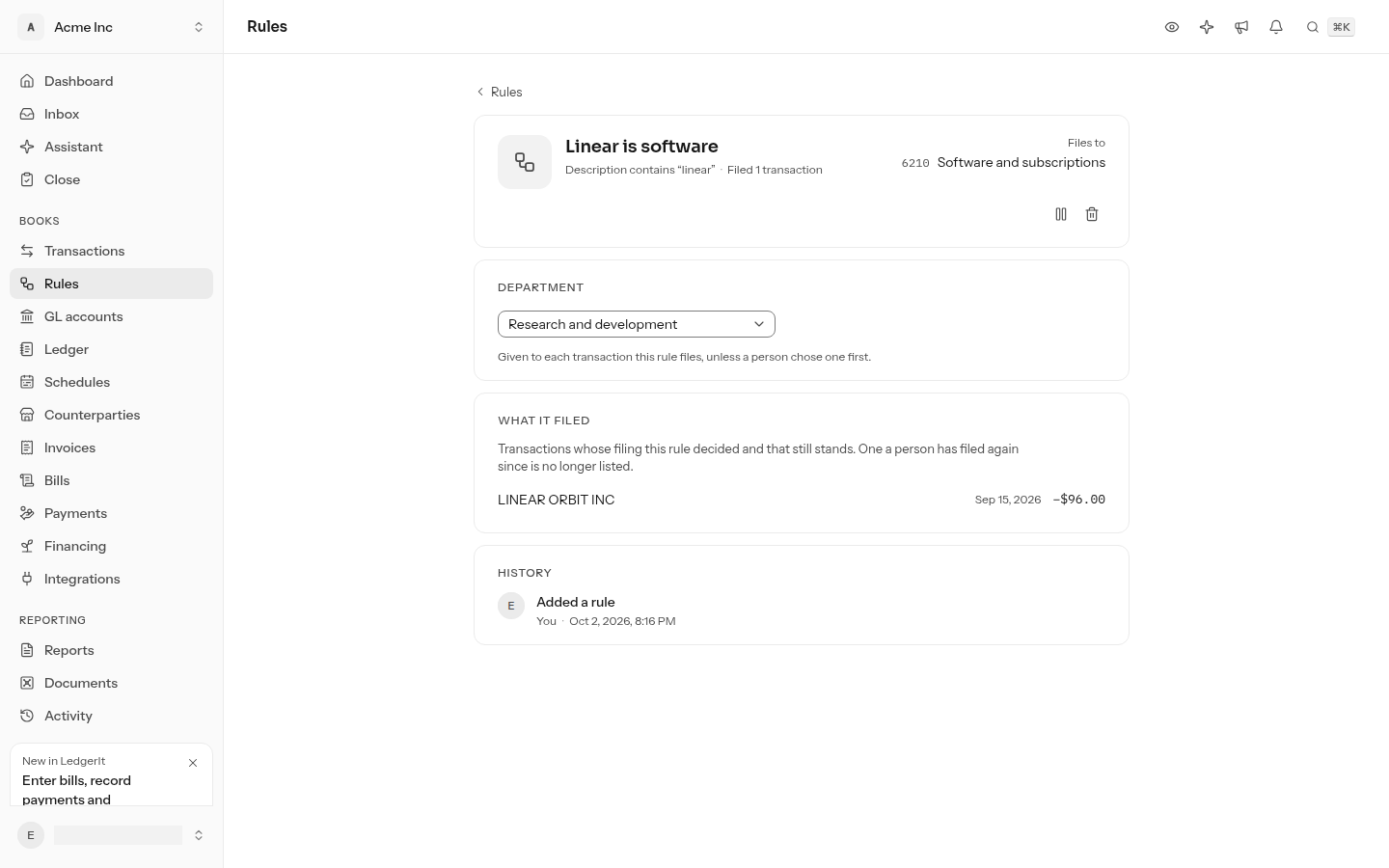
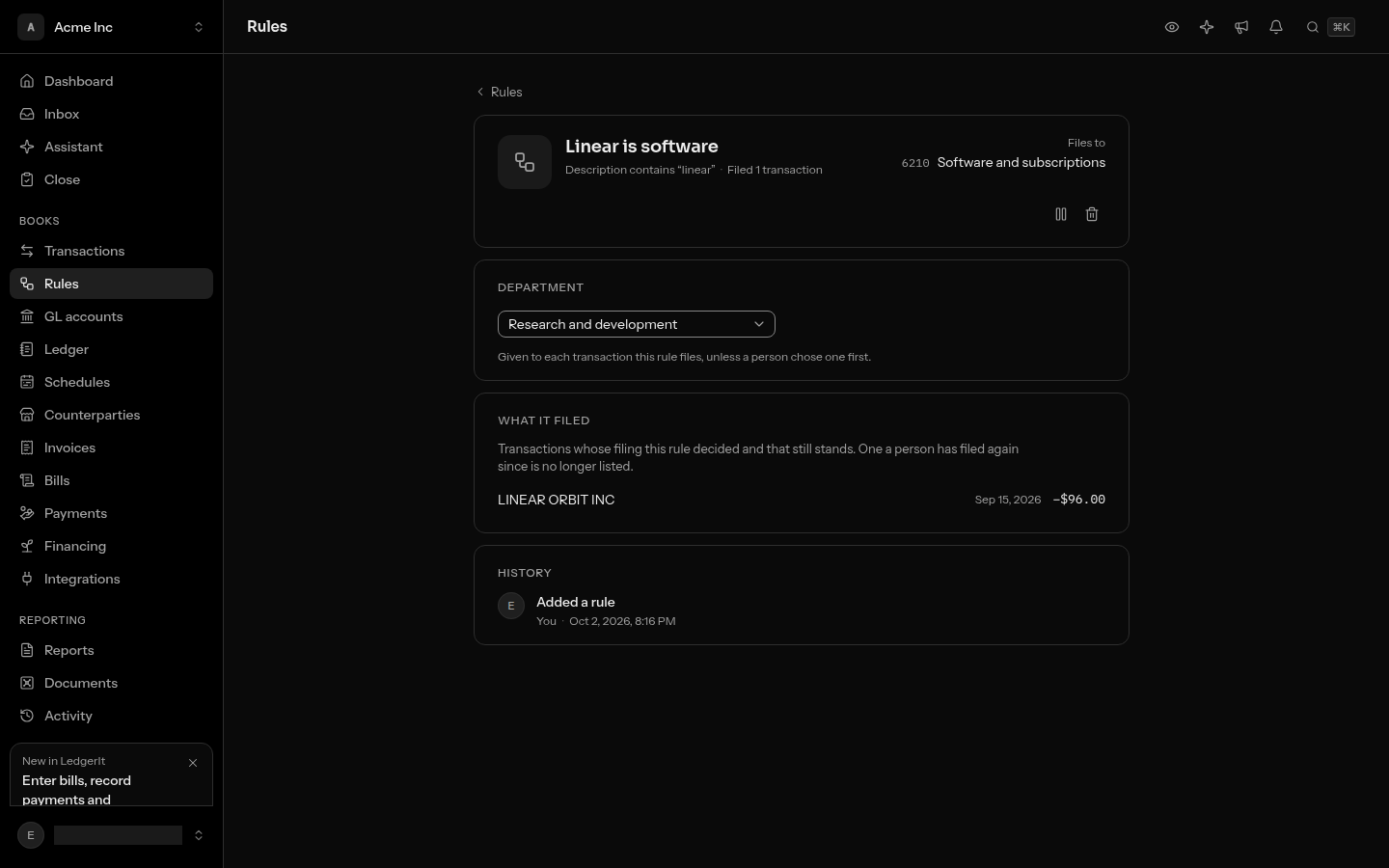
Use this before changing a rule. If the list holds something that does not belong, the pattern is too broad.
You can change the rule, pause it with its switch or delete it from the same page, and History shows who added and changed it.
Give a rule's department to what it already filed
A rule names a department only for the transactions it files from then on. When you give a rule a department later, or a learned rule learns one, what it filed before has none, and spend by department undercounts it. The rule's page offers to fix that:
- Open the rule. Under its department, a note says how many transactions it filed are not named, for example 23 transactions it filed are not named Research and development.
- Choose Name them, then Name them again to confirm.
Each transaction takes the rule's department, and any other value the rule names, only where it names none of that kind yet: a department someone chose on a transaction stays. A transaction already in the books is reversed and posted again with it, so the change is on the record and in each transaction's History.
Some are left as they are, and the note lists them:
- In locked months. Naming them would change a month you closed. Reopen the month first if they should be included.
- Spread over months. Its schedule takes each month's share out with the department the transaction had; delete the schedule first to change it.
If a GL account now requires a value the rule does not give, such as a project, those transactions are left too, and a message says how many. Up to 200 are named at a time; with more, the note stays with the count still to name, and you choose Name them again. Agents can do the same through the API.
Change, pause or delete a rule
- Change where it files — pick a new GL account in the rule's picker.
- Change its name or what it matches — open the rule and select its name, or a value under Matching: the field to look at, how to compare, the text to match, the memo words, the account it is narrowed to (Only on) or the amounts. Type or pick the new value; Enter or leaving the field saves it, and Escape puts the old one back. Clear the memo words, the account or an amount to stop narrowing by it.
- Change its department — open the rule and pick another under Department, or None to stop giving one. A department someone already chose on a transaction always stays: the rule only fills in what is not named.
- Pause it — turn its switch off. A paused rule files nothing and is never learned back. Turn the switch on to use it again.
- Delete it — open the ⋯ menu at the end of the rule's row, choose Delete, then Delete rule.
In every case, transactions the rule already filed stay where they are. They are in the books, and changing a rule is not a reason to rewrite them. To move one, correct it with a journal entry. The one exception you choose yourself is the department: see Give a rule's department to what it already filed.
Set how much the model may file on its own
- Confidence neededMet: 94% is at least 90%90%
- Always review aboveMet: Not above it$2,500.00
- For someone new, review aboveNot met: A first payment above it$1,000.00
Your rules are not held to these limits: a rule files at any amount.
The model's limits live in Settings, under Automation. They apply only to the model; your rules always apply. Three limits must all be met before the model's proposal posts without a person:
| Setting | Default | What you can set |
|---|---|---|
| Confidence needed | 90% | Between 80% and 99% |
| Always review above | $2,500 | Up to $25,000 |
| For someone new, review above | $1,000 | Up to $1,000, and no higher than the amount above |
- Confidence needed is how sure the model must be.
- Always review above sends any transaction over this amount to a person, however sure the model is.
- For someone new, review above applies to a first payment to or from a counterparty the books have never posted. That is where a confident model is most often wrong.
Confidence needed and Always review above also bound the vendor bills LedgerIt approves itself when they arrive by email: see Bills LedgerIt approves itself.
The model is only ever offered your income and expense accounts, so it never files to a balance sheet account such as a bank account or a loan. A transaction the model files on its own is still marked Suggested until a person confirms it.
Choose Save to apply your limits, or Restore defaults to go back. Only an owner or admin can change them; everyone else sees them read-only. Every change is kept: Earlier limits, under the form, lists each setting the limits have had, newest first, with who changed it and when. Every decision the model made names the version it was judged by.
Your GL accounts are described in Chart of accounts.
Do this through the API
Everything in this guide is also an API call, for scripts and agents. The reference lists each operation with its parameters and objects.