Bookkeeping
Write and correct journal entries
Read the general ledger, post an entry by hand, correct one with a reversal, and enter the opening balances your books start from.
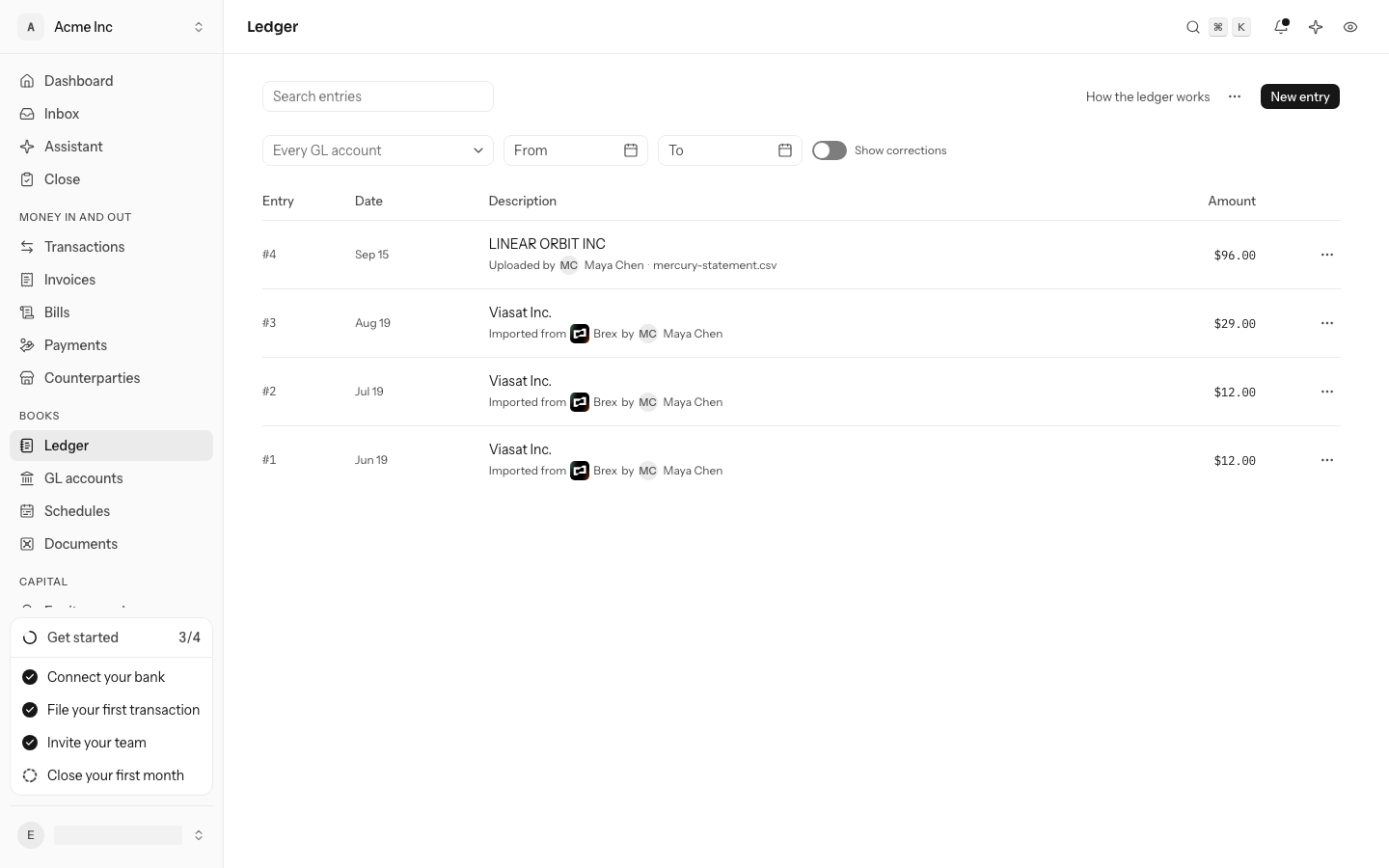
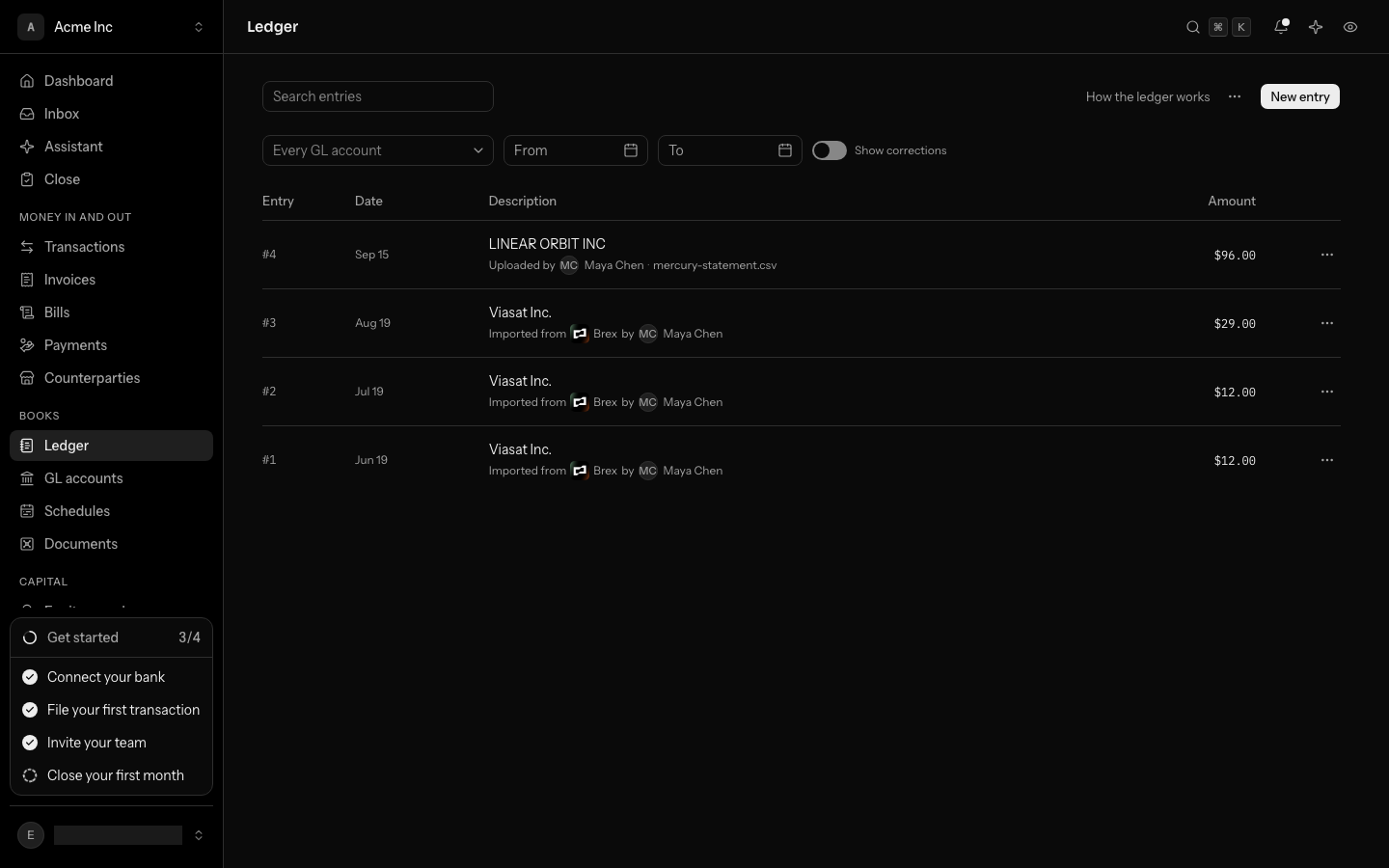
The Ledger is every journal entry in your books, with its debits and credits in full. Most entries arrive on their own when transactions are filed. You write one by hand for what no feed sees: an accrual, a reclass or the balances your books start from.
How a journal entry works
- Total
- $4,500.00
- $4,000.00
- Difference
- Debits over by$500.00
Debits and credits differ, so Post the entry waits.
Every entry has a date, a description and at least two lines. Each line puts an amount on one GL account as a debit or a credit, and debits must equal credits: money always comes from somewhere and goes somewhere.
Once posted, an entry is never edited or deleted. A mistake is corrected by a reversal: a mirror entry with every debit and credit swapped, so the two net to nothing. Both stay in the books, so anyone can see what was recorded and why it changed.
Read the ledger
- Open Ledger. Entries are listed newest first, 100 at a time; Load more shows the rest.
- A line under the description says where the entry came from: Manual, Opening balance, Period close, Reversal or Scheduled. An imported entry names its source instead: Imported from a connection, with its logo, when a sync brought it in (and by the member, when a member brought the connection's rows in through the API), or Uploaded by the member who uploaded the statement, with the file's name. Select either to open the connection or the member.
- Select a description to expand the entry's lines: each GL account, the counterparty when the line names one, Debit or Credit, and the amount. The entry's memo shows below the lines.
- By default the ledger shows what stands today. Turn on Show corrections, beside the filters (on a phone, under Filter), to add the entries marked Reversed and the reversals that undid them. An entry posted by an edit says which entry it replaces.
Find an entry
Above the list (on a phone, the search stays in sight and the rest are under Filter):
- Search entries finds entries whose description or memo contains what you type.
- Every GL account narrows the list to entries with a line on the account you pick.
- From and To narrow it to a range of dates.
They combine, and Clear filters removes them all. The GL account and the dates are part of the page's address, so a reload or a shared link shows the same entries. If you know an entry's number, the command palette (⌘K) finds it from any screen.
Open an entry
Every entry has its own page. Select its number in the ledger (#12), or the description of a line in a GL account's activity.
The page shows the entry's lines, debits first, and three things the list cannot:
- Where it came from: the transaction it was posted from, as a link to that transaction, or the entry it reverses or replaces. An entry written by hand says so.
- Receipts and invoices: what is attached to the transaction it was posted from. Select one to open it. The section is left out when there is none; attach a receipt on the transaction's page.
- What followed: the entry that reversed it, and the entry an edit posted in its place. An entry nobody has corrected reads Nothing. This entry stands as posted.
The page ends with History: who posted the entry and when, and who reversed or edited it. See See who changed what.
The line under the description names the month the entry is in; select it to open that month's close. From a transaction, The journal entry it posted under In the books opens the same page.
On an entry's page, press E to edit it and V to reverse it. See Work from the keyboard.
Post an entry by hand
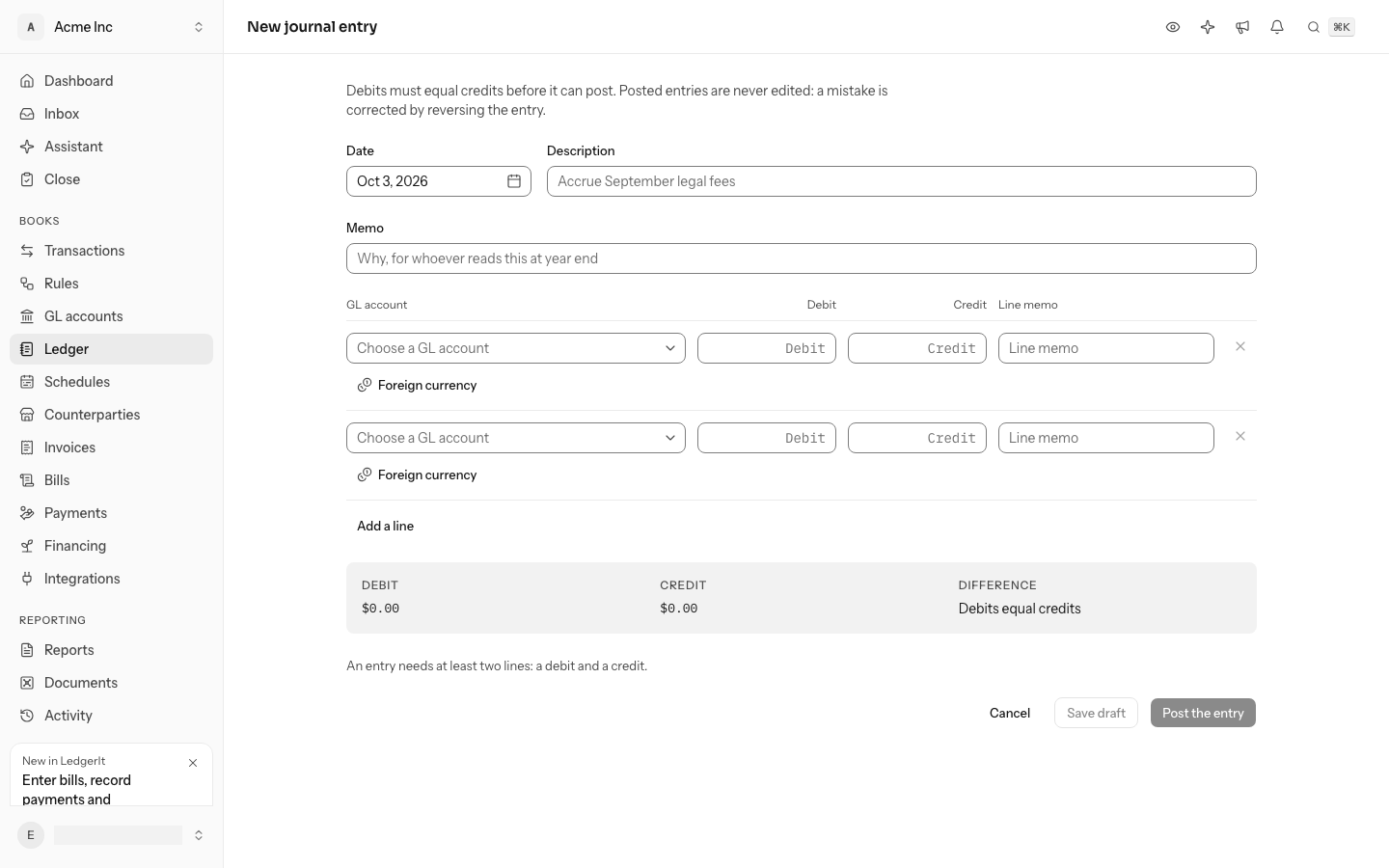
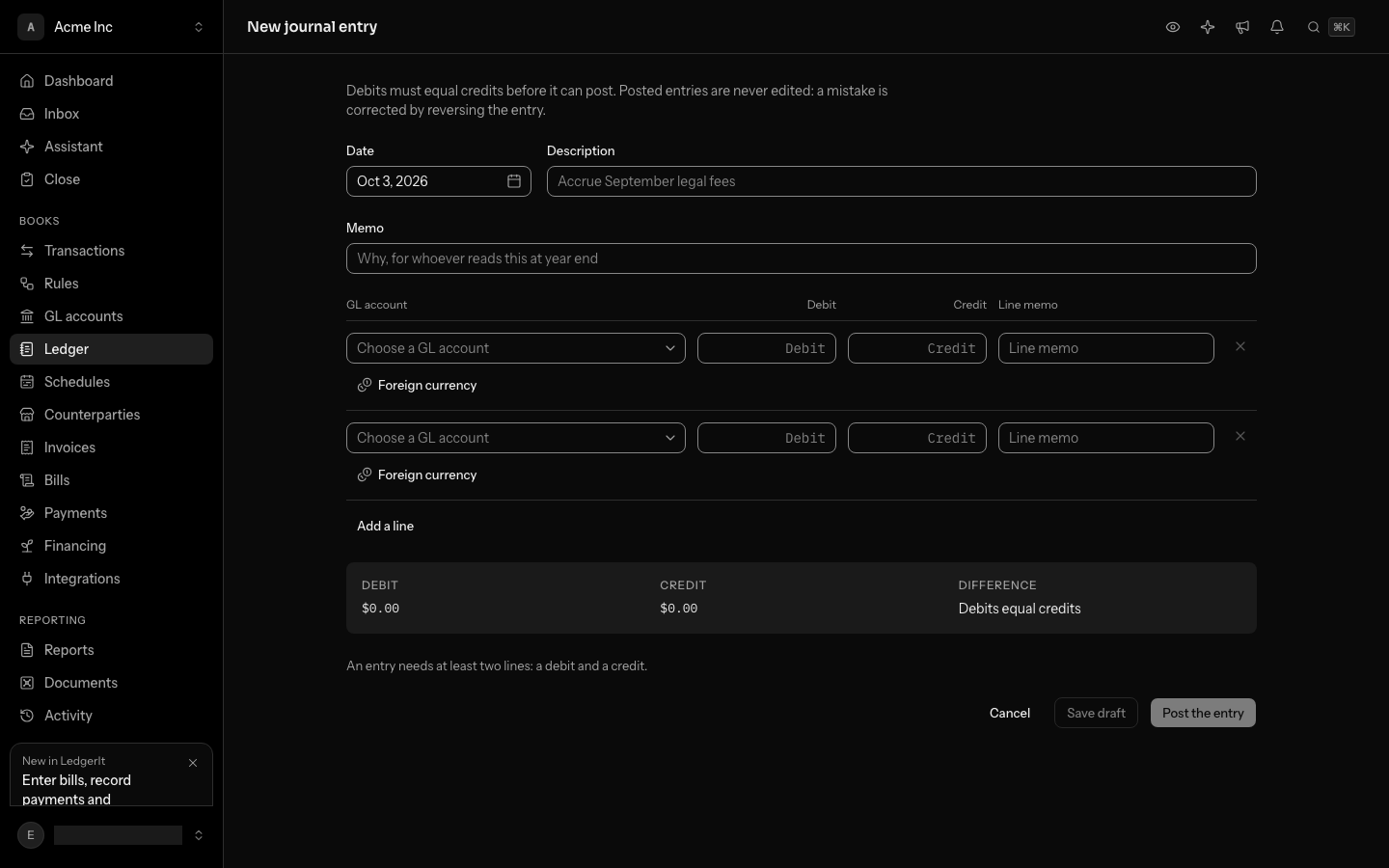
- On the ledger, select New entry.
- Choose the Date and write a Description, such as "Accrue September legal fees". The Memo is optional: why, for whoever reads this at year end.
- On each line, choose a GL account and type an amount under Debit or Credit, never both. Select Add a line for more than two.
- Select Post the entry. The button waits until Difference reads Debits equal credits and every line is complete.
Subtotal accounts are not offered, since nothing posts to them. A line on Accounts receivable or Accounts payable asks for a Party, the customer or vendor it is with, because those accounts track who owes what. See Read your chart of accounts.
A line on an income or expense account also offers one box per dimension of your books, named for it: Department, and any you added in Settings. Choose the value the line belongs to, or leave it empty. A line on any other account offers a dimension only when that account requires it. When an account requires a dimension, the box is marked until you choose a value, and Post the entry waits for it. See Dimensions.
A line that moved in another currency says so: select Foreign currency on the line and enter the currency, the amount in it and the rate. The line's amount must be that amount at that rate, and the form offers it. See Record a line in another currency.
You cannot post into a month that is closed. A month that is soft-closed for review still takes entries written by people. See Close the month.
Edit an entry
- Debit6220 Legal and professional fees
- $4,500.00
- Credit2200 Accrued liabilities
- $4,500.00
- Debit2200 Accrued liabilities
- $4,500.00
- Credit6220 Legal and professional fees
- $4,500.00
- Debit6220 Legal and professional fees
- $4,800.00
- Credit2200 Accrued liabilities
- $4,800.00
#12 and #13 net to nothing, so what stands is #14. Show corrections lists all three.
An edit is a reversal and a replacement, posted together.
- On the entry's row, open the ⋯ menu and select Edit. The form opens with the entry's lines filled in.
- Change what was wrong.
- Under Why, say what you corrected. The reason is kept with the correction.
- Select Post the correction.
The original is reversed and the correction posted in its place, both in the original's month, which has to be open. Show corrections shows all three entries.
Edit appears only on a manual entry that has not been reversed. An entry that came from a bank or card transaction is changed by filing the transaction again. See Review and file transactions.
Reverse an entry
Reverse an entry when it should not be in the books at all.
- On the entry's row, open the ⋯ menu and select Reverse.
- Under Why, give the reason, for example "Filed against the wrong vendor".
- Select Post the reversal.
The reversal is dated on the original's date, so it lands in the month it corrects. If that month is closed, reopen it first, or reverse through the API with a date in an open month. Reversing an entry that came from a transaction sends that transaction back to Needs review. A reversed entry, a reversal and a period close entry cannot be reversed.
Enter opening balances
Opening balances are what each balance-sheet account held at the end of the day before your books begin.
- On the ledger, open the ⋯ menu beside New entry and select Opening balances.
- Set Balances as of. It starts on the last day of the previous month.
- Type each balance as your last balance sheet shows it: cash held, card balances owed, investment received. Use a negative number only for the unusual side, such as an overdrawn bank account. Leave an account blank for zero.
- Check the totals. Opening balance equity shows the amount that makes the entry balance. Once you have entered your equity accounts it should read Assets equal liabilities and equity.
- Select Save opening balances.
The balances post as one entry against Opening balance equity. Saving again reverses that entry and posts the new one, so what was entered before stays on record. Saving with every field blank clears them. Opening balances sit on balance-sheet accounts only, and the month they land in must be open.
Opening balances and the entries they summarize never both count. Once opening balances stand as of a day, an entry dated on or before that day is refused: change the opening balances instead. Opening balances are refused on or after the first entry already in your books, unless that entry was reversed. Saving them also moves the day your books start to the day after, so connected accounts bring in nothing the balances already hold.
Drafts
Post the entry moves a draft into the books. From there, Reverse is the only way to take it back out, and both entries stay on record.
A draft is an entry being written. It may be unbalanced, and it is not in the books until someone posts it. Use one when you are missing a figure, or when your role can prepare an entry but not post it.
- On New journal entry, fill in what you have. A draft needs only a date and a description.
- Select Save draft. The Ledger lists it under Drafts, marked Ready to post or Not balanced yet.
- Select the draft to open it. Change anything and select Save draft again, or complete it and select Post the entry. Posting saves what is on screen first, so what you see is what posts.
- To throw it away, open it and select Discard draft. It was never in the books, so nothing is reversed.
If someone else changed the draft while you had it open, saving is refused rather than overwriting their work. Reload the page to start from their version. A draft keeps the department, or any other dimension, a line names, and posts it with the line. A dimension an account requires can be left for later in a draft; it is asked for when the draft posts. The assistant and the API write drafts too, and they appear in the same list.
Discuss an entry
An entry's page has a Discussion, the same as a transaction's: comments for everyone in the books, and questions asked of one person, who is told and answers there. Use it for the entries no bank feed explains: an accrual, a reclass, a correction. See Discuss a transaction for how comments and questions work.
A notification about a comment or a question on an entry opens that entry.
Who can do what
Everyone with access to the books can read the ledger. Posting, editing, reversing and setting opening balances take the owner, admin or accountant role. A member can start and change their own drafts but not post them; a viewer only reads.
Do this through the API
Everything in this guide is also an API call, for scripts and agents. The reference lists each operation with its parameters and objects.