Get started
Read your dashboard
Only what is left this month, each part once and a link to where it is done, then cash, burn, runway, MRR, the bills coming due and net assets.
The dashboard answers two questions when you open LedgerIt: is there anything for you to do, and is the company fine. It opens on this month, then shows seven figures and one chart, and ends with a line that says whether the books can be trusted right now.
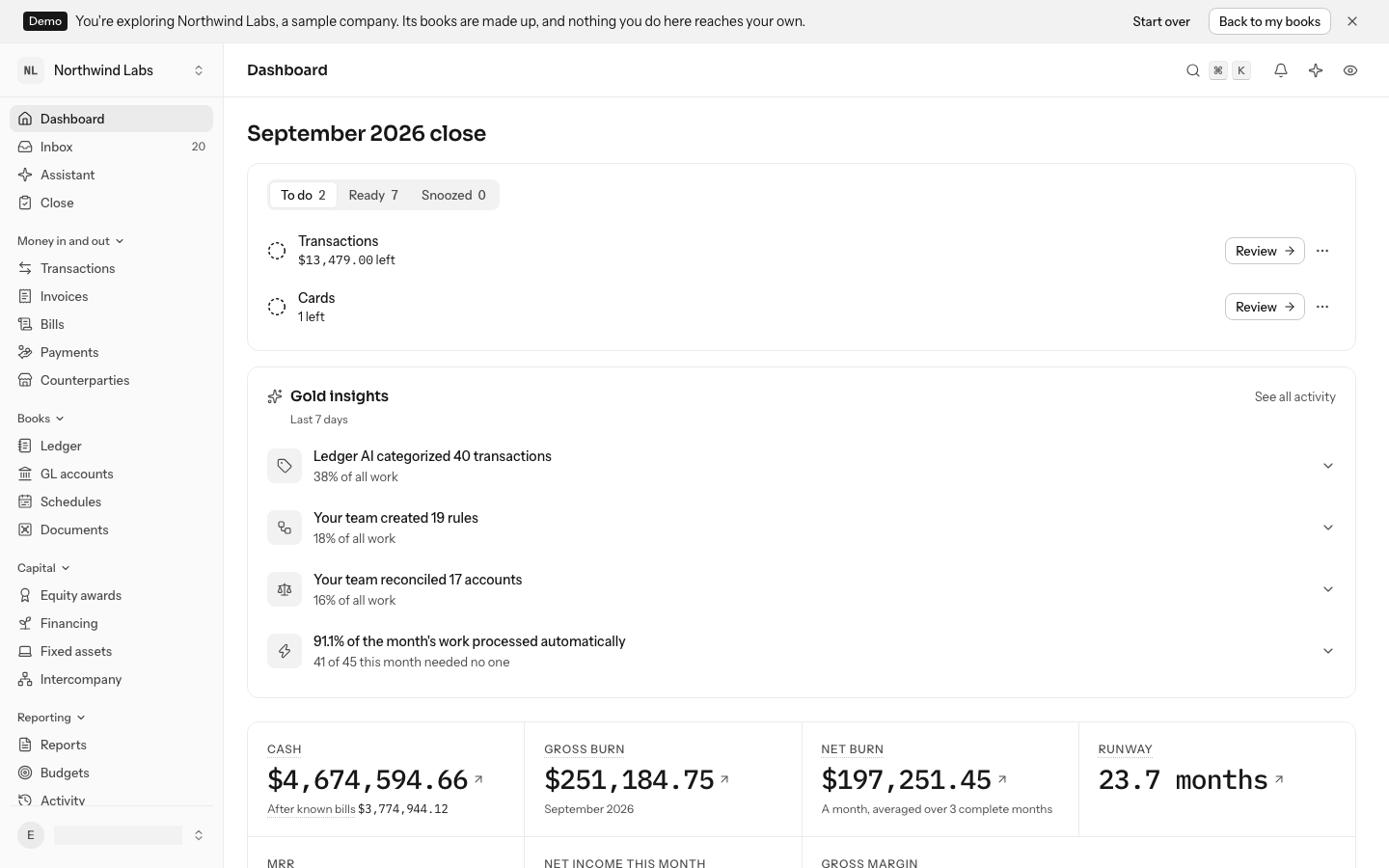
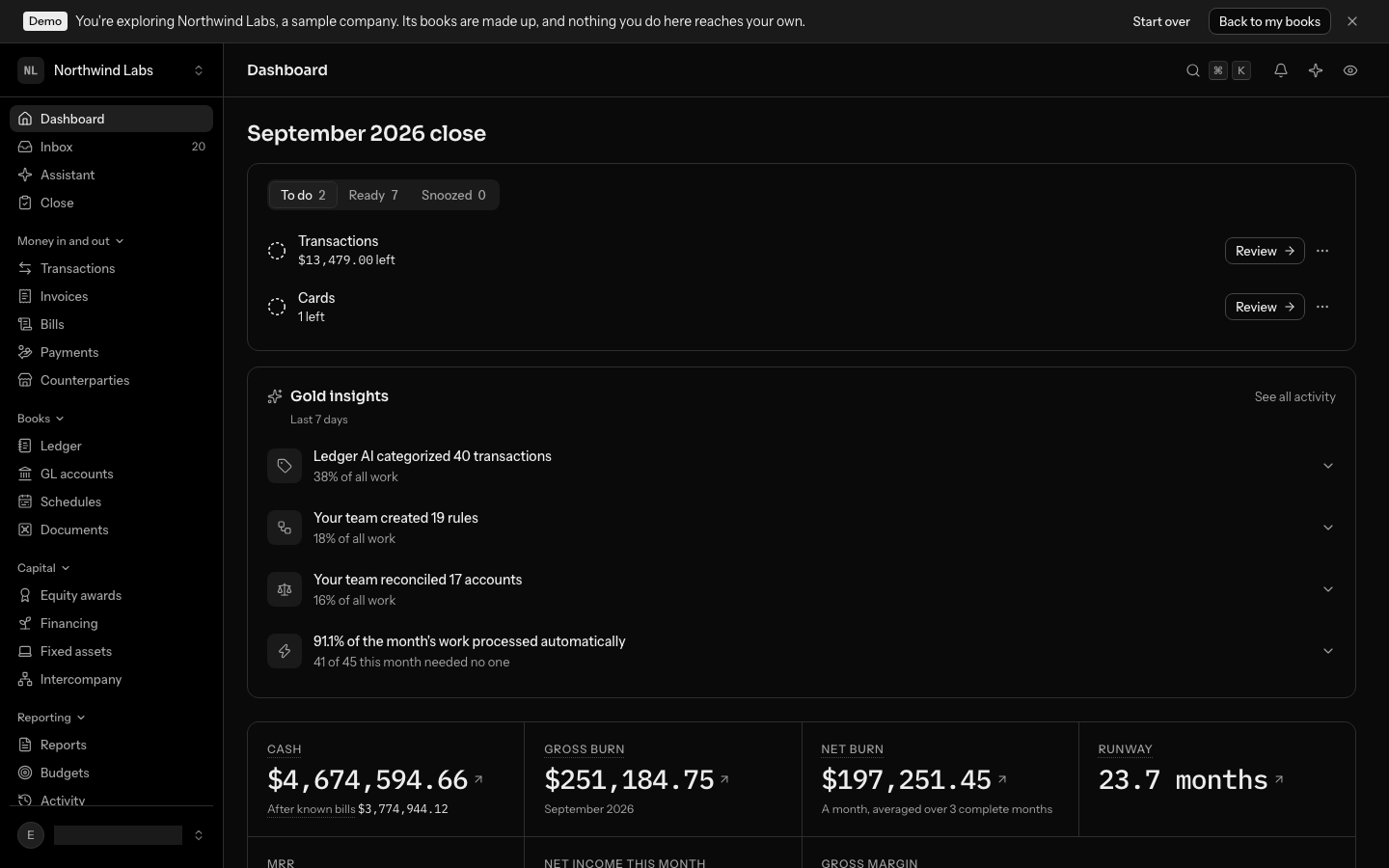
Everyone with access to the books can see the dashboard, including members and viewers.
This month
The top of the dashboard is the month being closed, by name, and only what is still left in it. It is the same month Close opens on: the oldest month that has ended and is not locked yet, a soft-closed one included. Early in October, until September is locked, the heading reads September 2026 close. Once it is locked, the dashboard moves on to the current month, such as October 2026. Select the heading to open that month's close.
What is left
Under the heading, the To do card holds what is left, as a checklist, headed by its tabs: To do, Ready and Snoozed, each with its count. Each part of the month that still has work in it is one row: an open circle, its name, and under the name what is left and who it waits on. What is left is money when there is a sum, such as $2,193.00 left under Receipts, and a count otherwise, such as 1 left under Questions. Each thing is said once, here, and the row is how you get to it. The card shows five rows at first; select Show all for the rest.
- left means it is yours to do. These rows have a darker circle and a Review button; the others say View.
- with your accountant means your reviewer handles it, such as Transactions 11 with your accountant.
- waiting on others means every item was asked of someone outside the books, such as receipts asked of the person who swiped the card.
The amounts include work still open from earlier months, which also has to be done before this one closes. Receipts that were brought in but have no transaction yet are a row of their own, Receipts to match, with, for example, 2 need a transaction, since no part of the month counts them.
Select a row's name, or its button, to go where its work is done:
| Part | Where it opens |
|---|---|
| Transactions | The review queue in Transactions; the Inbox when all that is left is items about transactions already filed, such as a suspected duplicate |
| Bank accounts and Cards | This month's close, where accounts are reconciled and open items are listed |
| Payroll | The Inbox, showing only payroll runs not in the books yet; Integrations when all that is left is the payroll connection |
| Revenue | The Inbox, showing only Stripe transaction types with no GL account yet; Integrations when all that is left is the Stripe connection |
| Invoices and bills | Bills, where vendors' bills wait to be entered |
| Schedules | Schedules |
| Receipts | The Inbox, showing only card spend with no receipt |
| Questions | The oldest open question waiting on you, on the transaction or entry it is about; the Inbox when none is |
A part that opens the Inbox opens it narrowed to that kind of item, on the tab where those items wait: Needs you when any waits on you (an accountant's item escalated to you counts), With your accountant when they are with your accountant, and Waiting on others when every one was asked of the cardholder who swiped the card. The tab follows the items, not the part: Payroll can be yours because Gusto needs you to sign in again while the run it did not post is with your accountant, and it opens on With your accountant, where that run is. A failing payroll or Stripe connection is also its own alert above the month, with Fix the connection.
A question waits on the person it was asked of. If you are an owner or admin, the business's questions wait on you too: those asked of an owner or admin, and those asked of someone who no longer has access to the books, which nobody else will answer. A question asked of someone who has left can be closed but not answered.
Snooze a row
A row you cannot get to now can wait. Select ⋯ at the end of the row (More for Transactions, for example) and choose Snooze for a day or Dismiss. A message confirms it, with Undo if you change your mind.


Rows you put away wait on the card's third tab, Snoozed, which shows how many there are. Each says how it was put away:
- Snoozed until tomorrow comes back on the To do tab a day later, or sooner if more is left in it.
- Dismissed until more is left comes back only once more is left in it than when you dismissed it, such as a new transaction to review.
To bring one back before then, select its ⋯ and choose Bring back. A row put away is put away for that month only, and is remembered on this device, for these books. When everything left is snoozed, the To do tab says Nothing else to do for now.
Areas ready
Parts that are done ask nothing of you, so they wait on the card's second tab, Ready, between To do and Snoozed; its count is how many are done. Select Ready to see them, each with a check and its name, and select one to look at it. Select To do to go back. The count leaves out the parts the company does not use (no payroll provider, no payroll). A part is ready when nothing in it waits on anyone; it is the same work the close checks before it lets you lock the month.
When every part is ready, the card says Nothing left to do this month.
Gold insights
Under it, the Gold insights card, kept apart from what is left to do, sums up the work done in the books over the past week, LedgerIt's first, then your team's: one row per kind of work, for example Ledger AI categorized 312 transactions and Your team reconciled 4 accounts. Under the title, Last 7 days says which days it covers; under each row, a quieter line says how much of all the work in them it was, such as 38% of all work. Select a row to open, under it, the records it counts. Select See all activity, in the card's corner, for the feed of every piece of it, with who did what, as See who did the accounting work explains. When nothing was done in the books that week, the card is not shown.
The last row says how much of this month's work LedgerIt finished without a person, such as 94.6% of the month's work processed automatically, with 318 of 336 this month needed no one under it: transactions filed by the model or by your rules, receipts matched, transfers paired. It appears once LedgerIt has processed something this month, and the share rises as it learns from you. Each transaction you or your accountant file teaches it how to file the next one from the same vendor.
If the state of your books cannot be loaded, the dashboard says so with Retry. The figures below still load.
What blocks the books
Some things sit above the month, because your books are wrong, or late, until someone acts. The dashboard says nothing about them when there are none. Each is a card with the one action that fixes it:
- 1 connection is failing (or more). A bank, card or other connection stopped syncing, so new transactions are not reaching your books. Select Fix the connection to open it.
- September 2026 close is overdue, naming the month. A month is still open and a checklist task is past its due day. Select Open the close to finish it. When the dashboard is already about that month, this card is not shown: the month below says what is left to close it.
With more than one, they come as a stack: one card at a time, with the edges of the next ones beneath it, and 1/3 with the arrows to move through them at the bottom of the card, beside its action. The stack moves on to the next card every few seconds, and stops while you point at it or move through it with the keyboard, once you have moved it yourself, and when your device asks for reduced motion. Use those arrows, the arrow keys or a swipe to move through it.
To put a card away, select the X in its corner (Alert options) and choose Snooze for a day or Dismiss. A message confirms it, with Undo if you change your mind. A snoozed card comes back the next day, or sooner if it gets worse. A dismissed one comes back only if it gets worse, such as a second connection failing, or if it changes into something else. What you put away is remembered on this device, for these books.
Everything else that needs someone this month is a row in the To do card. If the month cannot be loaded, the dashboard lists it instead, each a link: open questions waiting on you, transactions to review, receipts waiting for their transaction, and open items in the inbox.
Check that the ledger balances
At the foot of the dashboard, a check mark and The ledger is in balance. In double-entry bookkeeping, every amount recorded on one side has a matching amount on the other, so the two sides of the ledger always add up to the same total. Every other figure on the page depends on that.
If the ledger is out of balance, the line moves to the top, above the figures, and reads The ledger is out of balance by an amount. The figures below it should not be relied on until that is fixed. Your accountant can find the cause from the trial balance in Reports.
See the bills coming due
Under the figures, Upcoming bills lists what the company is about to pay its vendors over the next 90 days, soonest first, and its first line adds it up, such as $24,360.00 due in the next 90 days: $900.00 on bills in, $23,460.00 expected. Runway divides cash by an average month, and a quarterly insurance premium or a yearly audit fee is in that average only in the month it lands. This list names those bills before they do.
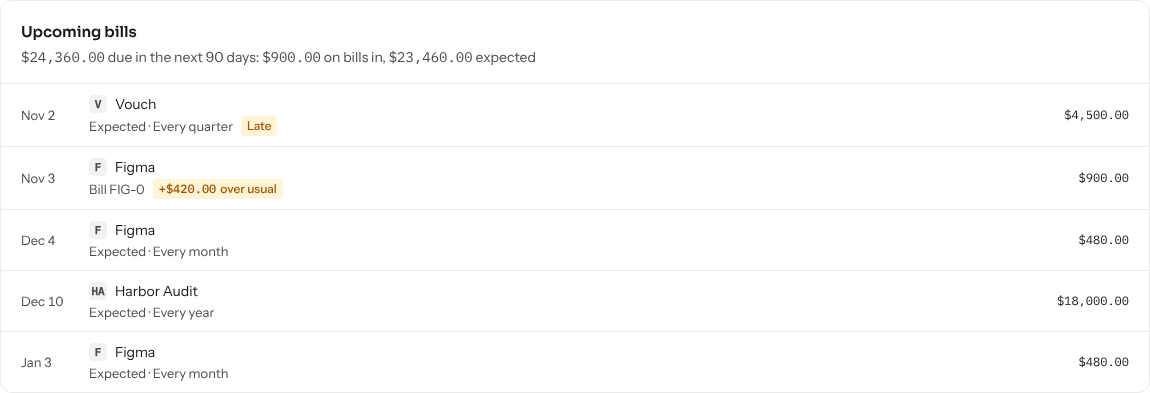
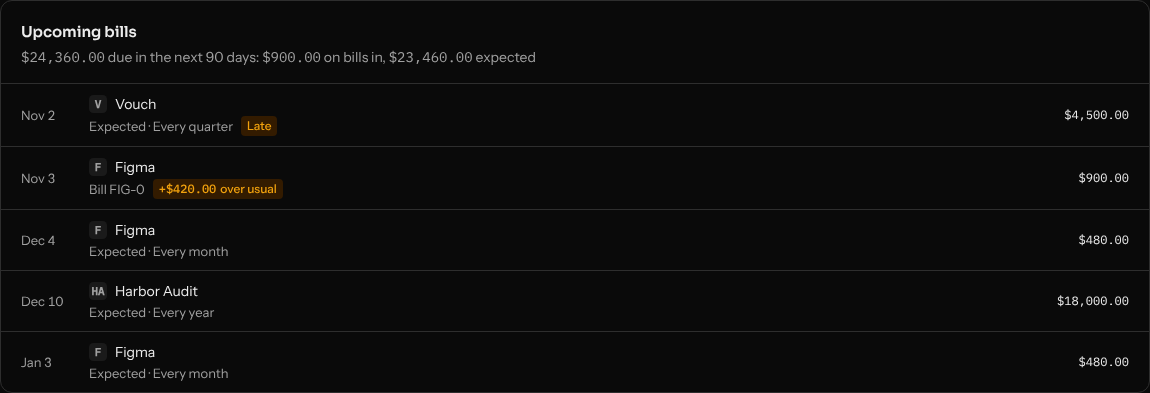
Each row is one bill, on the day its money is due, with the vendor's mark and name. Select the vendor to open its page.
- Bill and its number is a bill you have entered or forwarded, on its due date, for what is still owed on it. Part paid, only the rest is listed. Draft bill is one not approved yet. Select it to open the bill.
- Expected, with Every month, Every quarter or Every year, is a bill the vendor's rhythm says is coming, at what its bill usually comes to. A vendor that sends bills is listed on the day you would pay it: the day its bill usually lands plus its payment terms (net 30 when it has none). A vendor that charges a card is listed on the day the charge usually lands. LedgerIt learns the rhythm from the vendor's last bills or charges, as the vendor's page shows under Next bill. Once that bill comes in, it is listed as a bill instead, never twice.
- Overdue marks a bill past its due date and not paid yet. Late marks an expected bill whose usual day has passed without it. A vendor that has missed two bills in a row is not counted on.
- A bill that comes to a quarter more than the vendor usually bills, or more, says by how much, such as +$420.00 over usual. Point at it to see the usual amount. It is worth a look before it is paid.
Only the first six rows show; select Show all for the rest. With nothing due in the next 90 days, the list is not shown. Bills in another currency than the books' are left out. If the list cannot be loaded, it says so with Retry, and the figures above stay as they are.
Read net assets
Net assets is total assets less total liabilities: roughly, what the company is worth on its own books. It equals equity plus earnings not yet closed.
- The figure shows how much it moved over the period you picked, with Up or Down beside the change.
- Pick a range with 3M, 6M, 1Y or All. All starts on the day the books begin.
- Drag across the chart to measure the change between two dates.
- Below the chart, Assets and Liabilities show what each side is made of. Leave a part out of the bar to see the rest more clearly, and put it back from the same control.
- Choose Hide amounts to keep the figures off screen, for example when you share your screen. Choose Show amounts to bring them back. The eye at the top of every screen does the same. On a phone, Hide amounts is a switch in the sidebar, just above your name, and while amounts are hidden the crossed-out eye stays at the top of the screen: select it to show them again.
Understand the seven figures
| Figure | What it means |
|---|---|
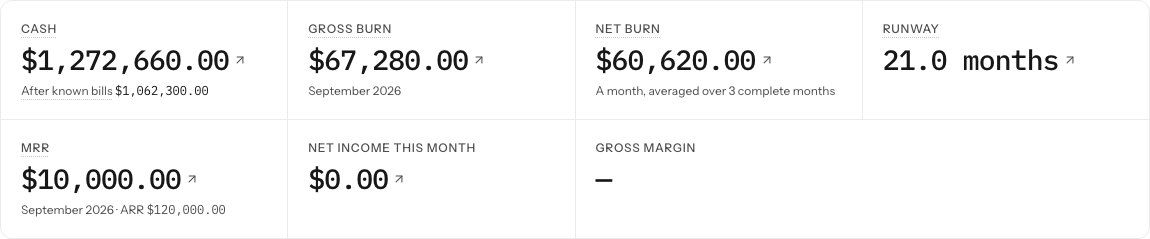
| Cash | The balance of every GL account the books treat as cash, today, with what is left after the bills and payroll due in the next 90 days under it. |
| Gross burn | Operating cash that left in the last complete month, before anything that came in. |
| Net burn | Operating cash out less operating cash in, as a monthly average over recent complete months. Money raised, equipment bought and transfers between your own accounts are not burn. |
| Runway | Cash today divided by the average net burn, in months. |
| MRR | Subscription revenue recognized in the last complete month, with ARR (twelve times MRR) under it. An annual plan counts a twelfth of itself each month. |
| Net income this month | Income less expenses for the current month, with its sign. |
| Gross margin | Revenue less cost of revenue, as a share of revenue. |
Cash after known bills
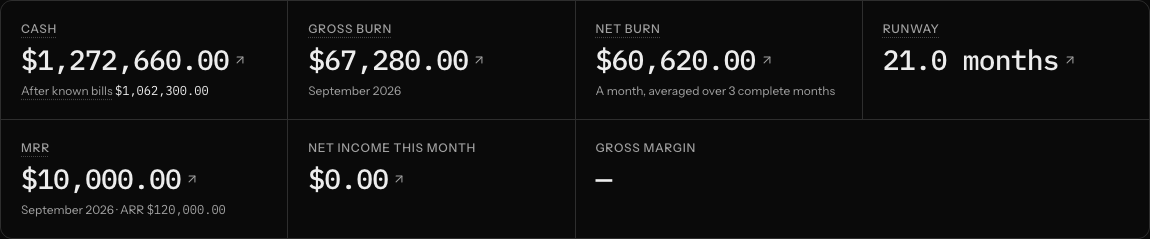
Under Cash, a quieter line reads After known bills, such as After known bills $1,062,300.00: your cash less what the books already know is about to go out in the next 90 days. Runway divides cash by an average month, so the yearly renewal and the next three months of payroll are in it only as an average. This line takes them out of the cash you already watch.
- Bills are the same bills Upcoming bills lists over the same 90 days: what is still owed on the bills you have entered, and the bills your vendors' rhythms say are coming, late ones included.
- Payroll is each payroll provider's next pay days, at the rhythm of its last two runs (every two weeks, every month), each costing what its last run took out of the bank. It is an estimate from the last run, and the line says so. A provider with no run in the last 60 days is taken to have stopped and is left out.
Point at After known bills to see the split and the day it runs to, such as Less $12,400.00 of bills and $38,000.00 of payroll due by Jan 13, 2027, payroll estimated from the last run. Select the amount to jump to Upcoming bills further down the page. With nothing known to be due, the line is not shown.
Cash itself is read at the same point in the books as the other figures. The bills and payroll are read as the books stand when the page loads.
- Cash
- $2,400,000.00
- Gross burn
- $210,000.00
Cash out, before anything that came in
- Net burn
- $165,000.00
Cash out less cash in
- Runway
- 14.5 months
Cash divided by net burn
Move cash in above cash out to see Not burning. Turn on the raise to see what money raised changes.
Some figures cannot be calculated yet, and the dashboard says why instead of showing a misleading zero:
- Not enough history yet under net burn and runway means the books do not have a complete month to average.
- Not burning under runway means cash coming in covers cash going out.
- A dash (—) for gross margin means there is no revenue yet. 0% would claim something the books do not show.
Open what a figure is made of
Each figure is a link, marked with a small arrow. Select it to open the statement it was read from, over the dates it covers:
- Cash opens the balance sheet.
- Gross burn opens the cash flow statement for the last complete month. Net burn and Runway open it for the months the average is over.
- MRR opens the income statement for the last complete month. Net income this month and Gross margin open it for this month.
On a statement, each amount opens the GL account behind it, and each line there opens its journal entry: see Reports. A figure the books cannot give yet (a dash) has nothing to open.
Work through what is left
Each row of the To do card opens where its own work is done. The month's name opens its close, which lists everything standing between you and a closed month.
- To clear the transaction queue, see Review and file transactions.
- To close the month, see Close the month.
When the dashboard is empty
While nothing that feeds the books is connected (no bank, card, payroll, revenue or bills connection) and every figure is still empty, the seven figures would all read $0.00, so the dashboard shows one panel in their place: Your numbers start with your bank, a line saying the figures are worked out from what the books record, which for most companies starts with the bank, and Connect a bank, which opens Integrations. People who may not connect one see Ask an owner or admin to connect a bank. instead. Net assets are left out too while the books hold nothing. Once anything is connected, or any figure has something in it, the figures are shown, even while some are still $0.00.
New books with no transactions show These books are empty. Bring some transactions in to get started. Connect a bank or card from Integrations, or upload a statement from Transactions, and the figures fill in as transactions arrive.
Where the figures come from
Every figure is calculated from the ledger itself. Cash, burn, runway and MRR are read together at one point in the books, the latest posting when the page loads, so a transaction that arrives while the page is loading moves all of them at once, never one without the others. Cash and runway come from the burn report, MRR from the subscription revenue account, net income and gross margin from the income statement, and net assets from the balance sheet over time. Open the full statements in Reports.
Do this through the API
Everything in this guide is also an API call, for scripts and agents. The reference lists each operation with its parameters and objects.