Close and reports
Work the inbox
See what LedgerIt could not finish, take each item's next step, attach receipts, hand items to your accountant, and dismiss what the books check got wrong.
LedgerIt files, matches and posts what it can on its own. When it cannot finish something, it raises an item instead of guessing: a transaction parked in suspense, card spend with no receipt, an account that does not agree with its statement. Inbox lists those items across every month, newest first, sorted by who has to answer.
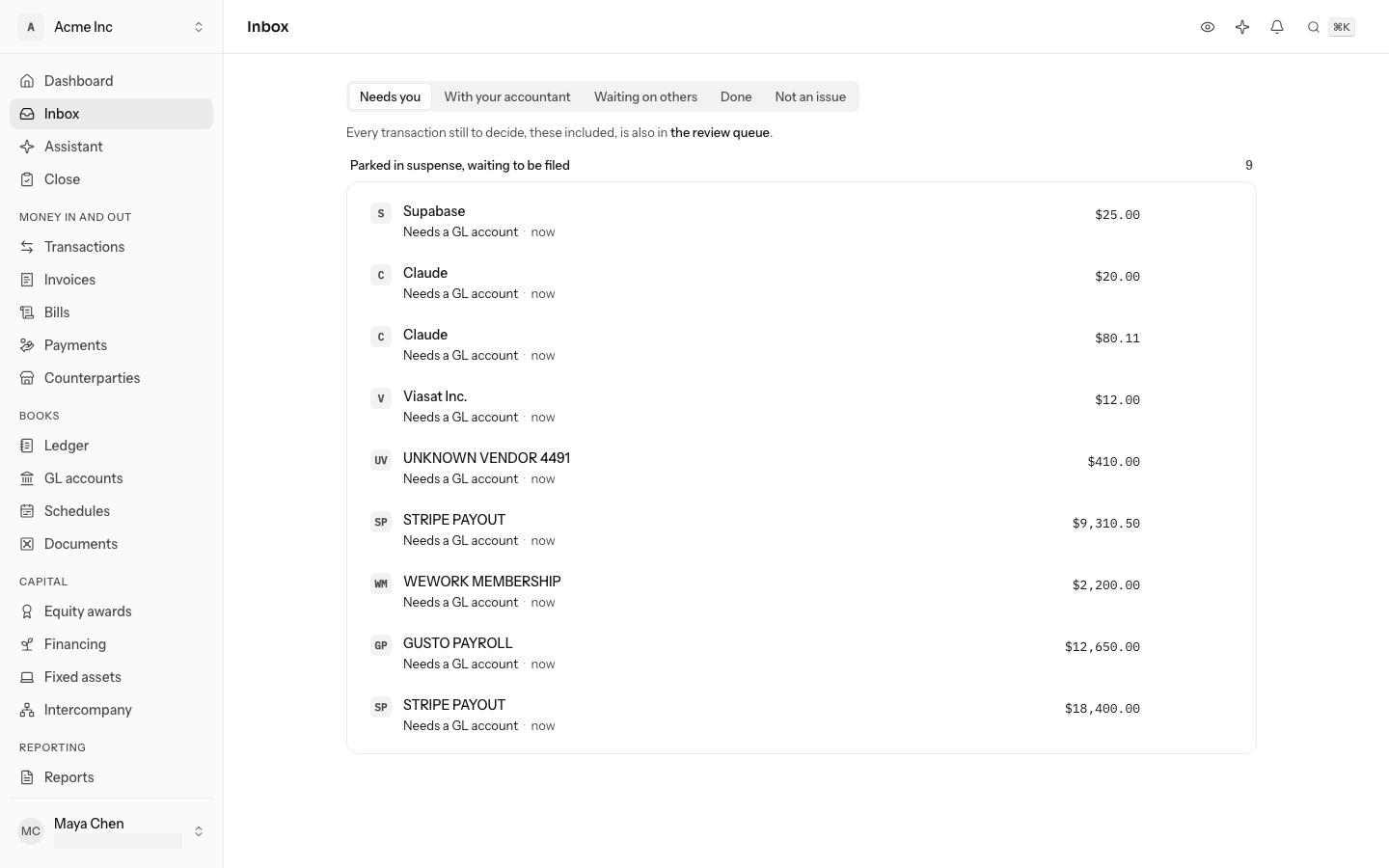
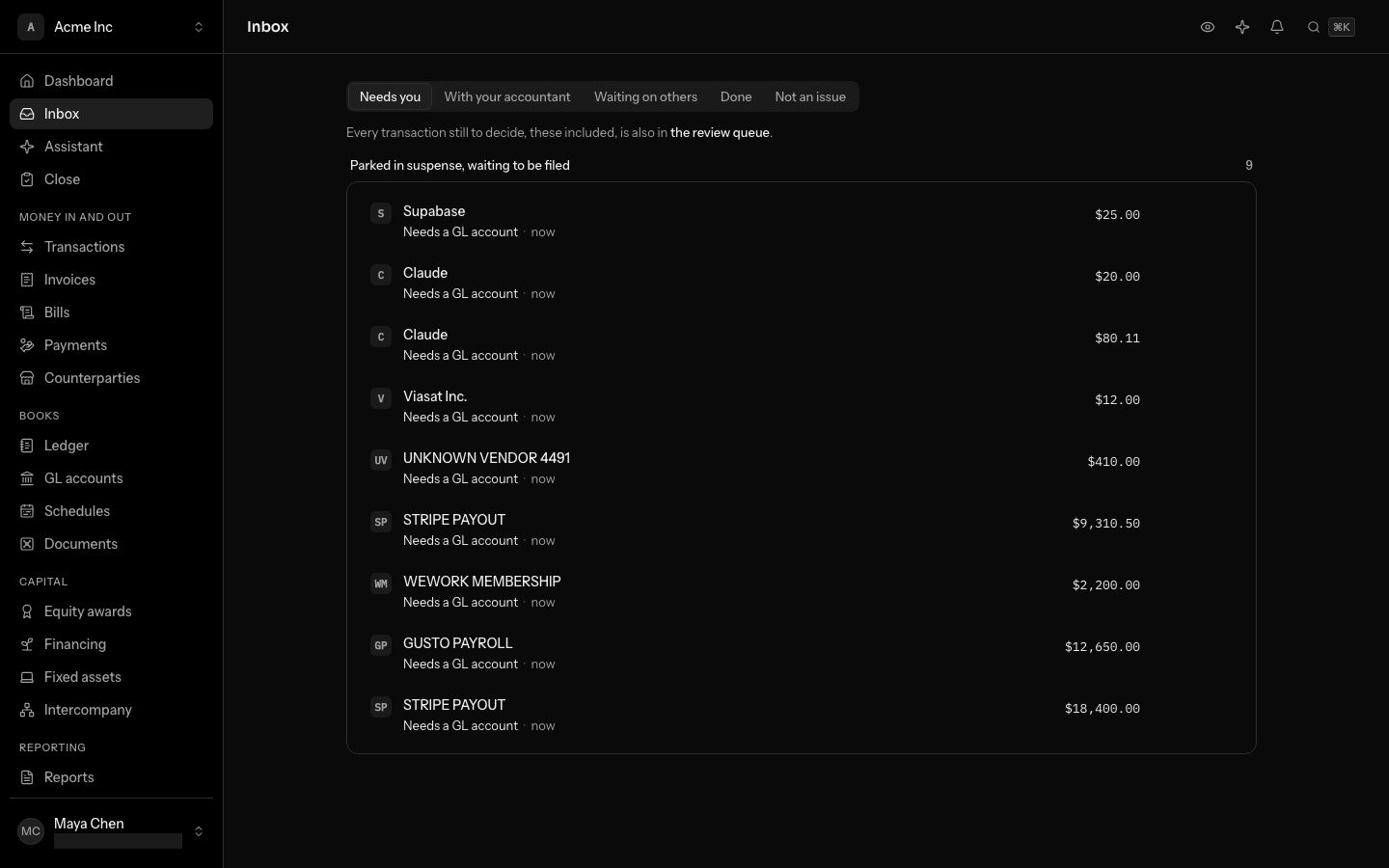
A month's close shows the same items for that month (see Close a month). The inbox is the whole queue, so you can work it without opening each month.
Still listed? Select its check mark, Mark done, write a note, then choose one:
Who an item waits on
Every item says what kind of answer it needs and who should give it:
- Needs you holds what only the founder can answer: what a payment was for, plus anything your accountant has escalated.
- With your accountant holds everything else when the books have an accountant, either a member with the accountant role or a firm with access. Without one, those items go to Needs you too.
- Waiting on others holds card spend whose receipt LedgerIt asked of the person who swiped the card. It closes when they upload it, and goes to Needs you when the request is cancelled or runs out (see Get missing receipts from cardholders).
An item that has waited on your accountant for more than 3 days moves to Needs you on its own, marked Waited more than 3 days with your accountant.
The Inbox row in the sidebar shows how many items are open in your own queue: Needs you, or With your accountant if you are the accountant. Past 99 it shows "99+".
Each tab shows how many open items it holds, such as Needs you 5. Owners and admins open on Needs you. An accountant opens on With your accountant.
Read an item
Open Inbox in the sidebar, or press G then I. A line over the list says how many items are open on the tab and how much money they add up to, such as 5 items · $2,299.95 unresolved.
Items are grouped by what you have to do, such as Attach receipts or Confirm unusual charges, with how many there are and a line on why it matters. Each row is one record: the payee's mark, its name as a link, the amount, and the date it was charged and on which card or account, such as Charged Oct 1 · Brex ••4242. Under that, the row says what it needs, and once an item has waited a week, how long ago it was raised. Books are wrong until fixed marks an item that leaves a figure wrong or missing until it is dealt with.
When one transaction has more than one problem, such as a charge with no receipt that is also far above what the vendor usually charges, it is one row with each problem listed under it. The row leaves the list when the last problem is dealt with.
Every problem offers the step that answers it as a button:
| The item needs | The button | What it does |
|---|---|---|
| A receipt | Needs a receipt | Opens the file picker and attaches the file to the transaction. Ask instead when the card belongs to someone outside the books |
| A GL account, with a suggestion | Approve | Files the transaction under the suggested account |
| A GL account, with no suggestion | Choose a GL account | Opens the transaction to file it |
| A check on an unusual charge | Looks right | Dismisses the check, and can widen it for the vendor |
| To know what a payment was for | Say what it was for | Keeps your answer on the item and moves it to Done |
| A match | Find the match | Opens the record to match it |
| Approval in the card program | Approve in Brex (or Ramp) | Opens the charge in the card program |
Everything else is in the row's ⋯ menu: Mark done, Not an issue, Send to your accountant and, for a suggestion, Always file the payee here. On a row with several problems, each entry says which problem it is for, such as Mark done: Needs a receipt. Select anywhere else on a row to preview the record beside the list without leaving it.
An item that needs a GL account also shows Suggested: the account LedgerIt would file it under, and why. "Filed there 2 times before" means the payee went there before. "The model is 58% sure" means the suggestion comes from the model alone.
Every transaction still waiting for a decision, including the ones listed here, is also in the review queue on Transactions. Transactions in review, at the end of the line over the list, opens it. The review queue is the faster place to file many at once.
Show one kind of item
A link from elsewhere can open the Inbox on one kind of item. The Receipts chip on the dashboard, for example, opens only Card spend with no receipt, on the tab where those items wait. A chip above the list names the kind and how many there are, such as 50+ when there are more than one page shows; select it to see every kind again. The tabs keep the narrowing as you move between them.
When some items of that kind wait in another tab, a line under the list says so and links to it, such as 2 are in Waiting on others, one line for each such tab. If the tab has none of that kind, it says Nothing of this kind here. over those lines, or, when no other tab has any either, offers Show every kind.
Approve a suggestion
- Read the suggested account on the item.
- Select Approve. The transaction is filed under that account and posted, and the item moves to Done.
To file every future transaction from that payee the same way, open the item's … menu and choose Always file the payee here (for example Always file Notion here) instead. LedgerIt writes a rule on the payee's name, files this transaction and closes the item. The next transaction from that payee is filed by the rule without asking anyone. The rule is listed on Rules, where you can change or delete it (see Rules).
A transaction dated in a closed month cannot be approved. Reopen the month first.
What LedgerIt found before asking
Before an item asking for a GL account reaches you, LedgerIt researches it, once an hour. It reads what the books already know about the transaction and asks the model with that evidence in front of it.
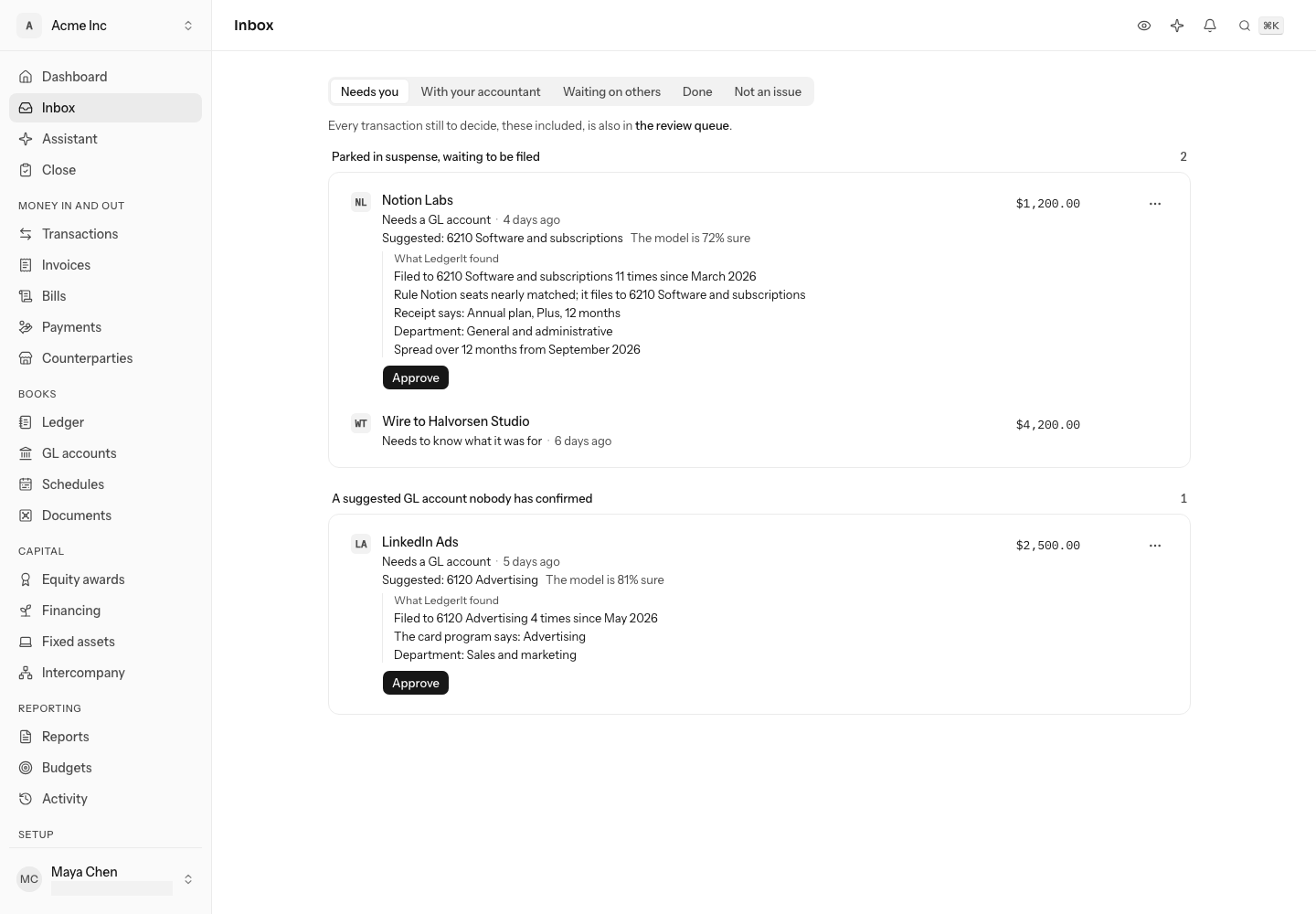
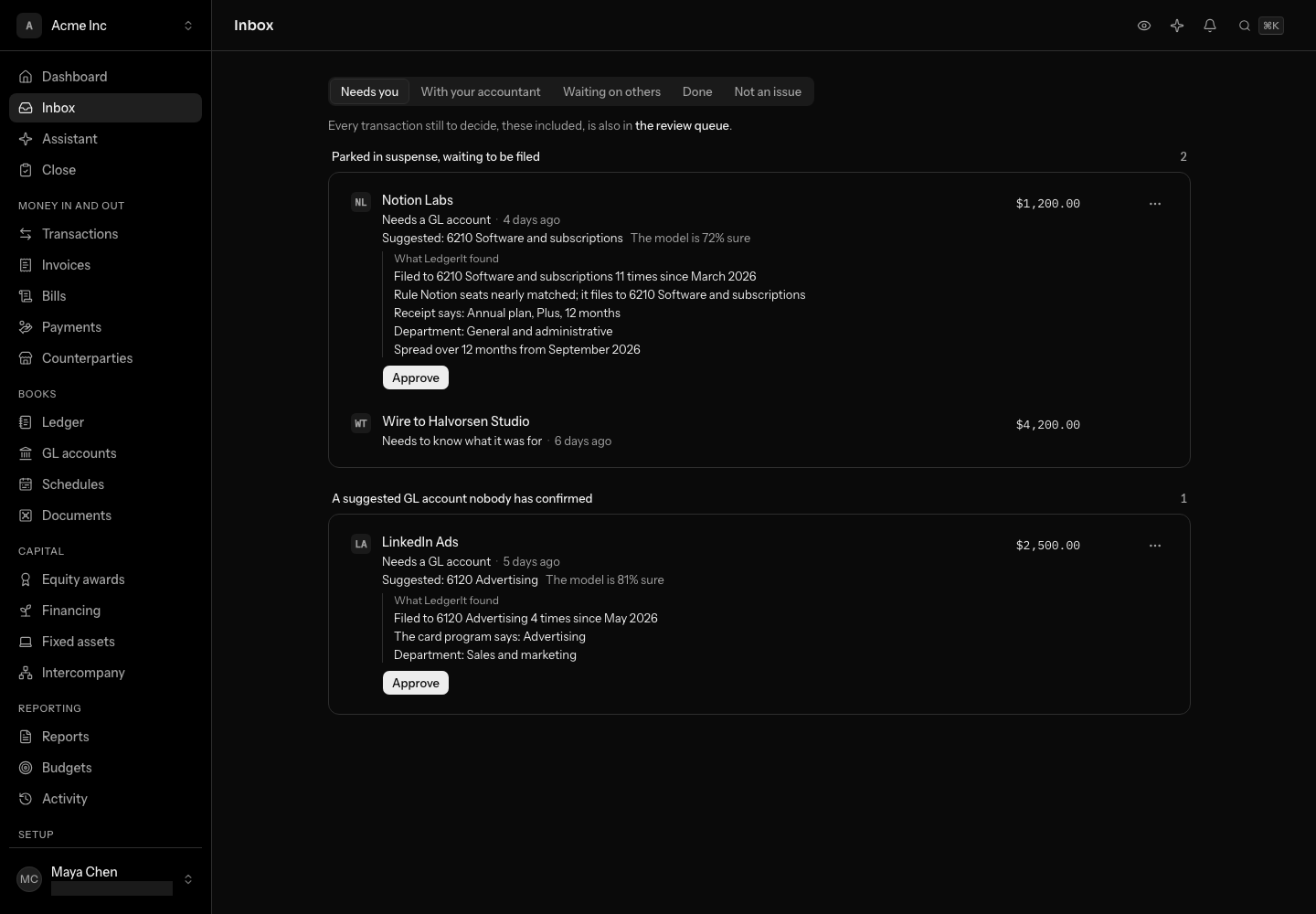
Under What LedgerIt found an item shows up to 3 lines of evidence, the strongest first:
- Filed to {account} 11 times since March 2026: where this payee went before, filed by a person or a rule.
- {account} is the merchant's usual GL account: the default account set on the counterparty.
- Rule {rule} nearly matched: a rule whose text matched but whose amount, account or type did not.
- Receipt says: the words read off a receipt attached to the transaction.
- The card program says: the category Brex or Ramp gave the charge.
- {transaction} was filed to {account}: another payee's transaction that looks like this one.
When the evidence says so, the item also shows a Department and a Spread over 12 months: a payment that buys more than a month, such as an annual plan, which a schedule spreads over the months it covers (see Schedules). Approve files the suggested account and names that department on the transaction. The spread is a suggestion: set up the schedule yourself.
When the model is at least as sure as your autonomy setting allows (90% by default), LedgerIt files the transaction itself, through the same checks as any filing by the model: under the materiality limit, and a payee the books know, and the item moves to Done. A transaction that buys more than a month, or one dated in a closed month, always waits for you.
Every answer the model gave, with the evidence it was shown, is kept as a model proposal that the API can read (model_proposals).
Attach receipts
Card spend with no receipt is listed under Attach receipts. Receipts back up card spend for taxes and audits.
- One at a time. Select Needs a receipt on the row, or drop the file onto the row. With the row highlighted, U opens the file picker.
- Several at once. Select Upload several over the group and pick every receipt you have. LedgerIt matches each one to its charge by amount and date within a few minutes, and the rows it matches leave the list.
- By email. Forward receipts to the address shown under Upload several; select the address to copy it. They are matched the same way (see Documents).
- On WhatsApp. The same line names WhatsApp: once your number is linked, send a photo of the receipt from your phone and it is matched the same way. Until then the line says link WhatsApp, which opens where to link it (see Use LedgerIt from WhatsApp).
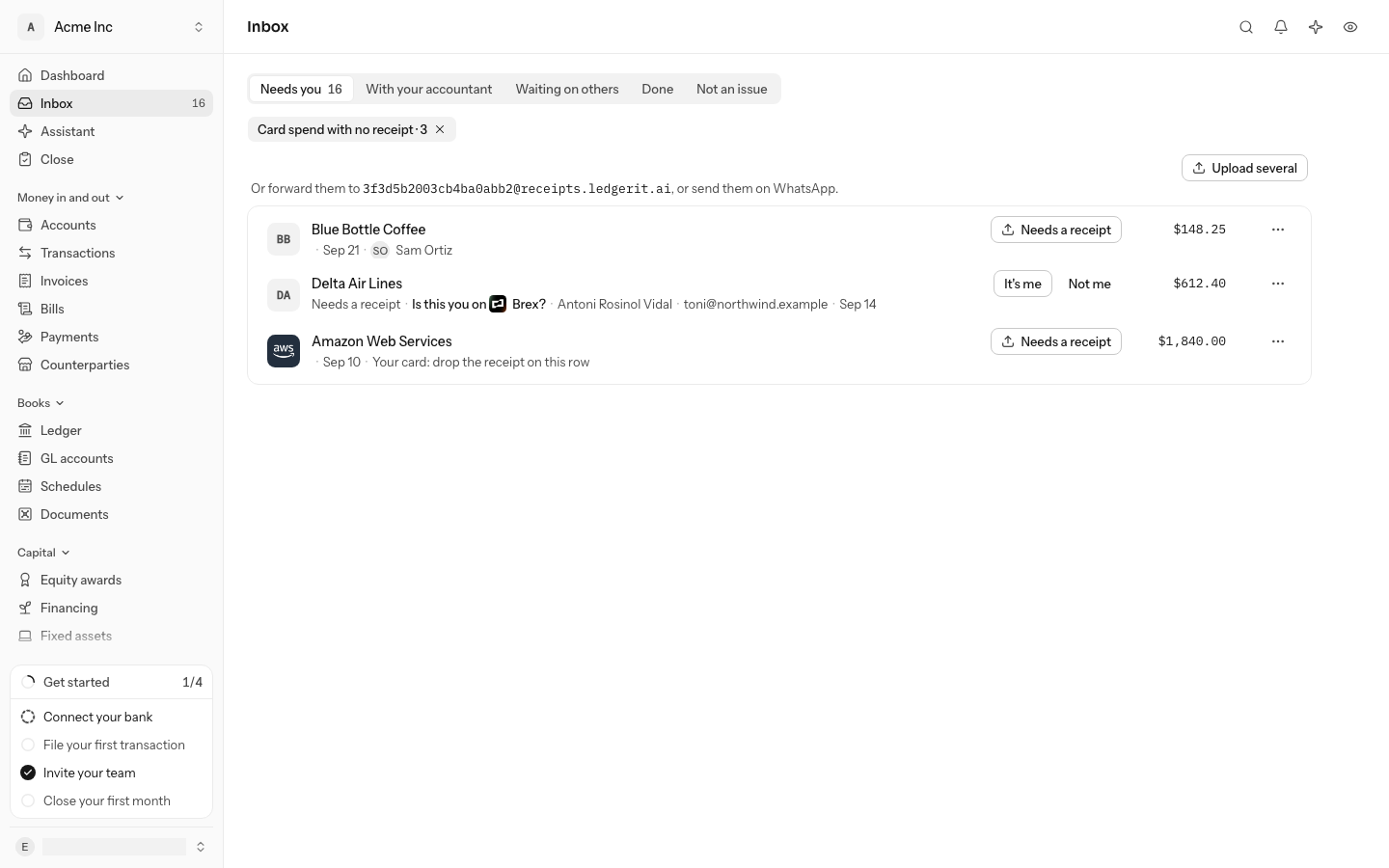
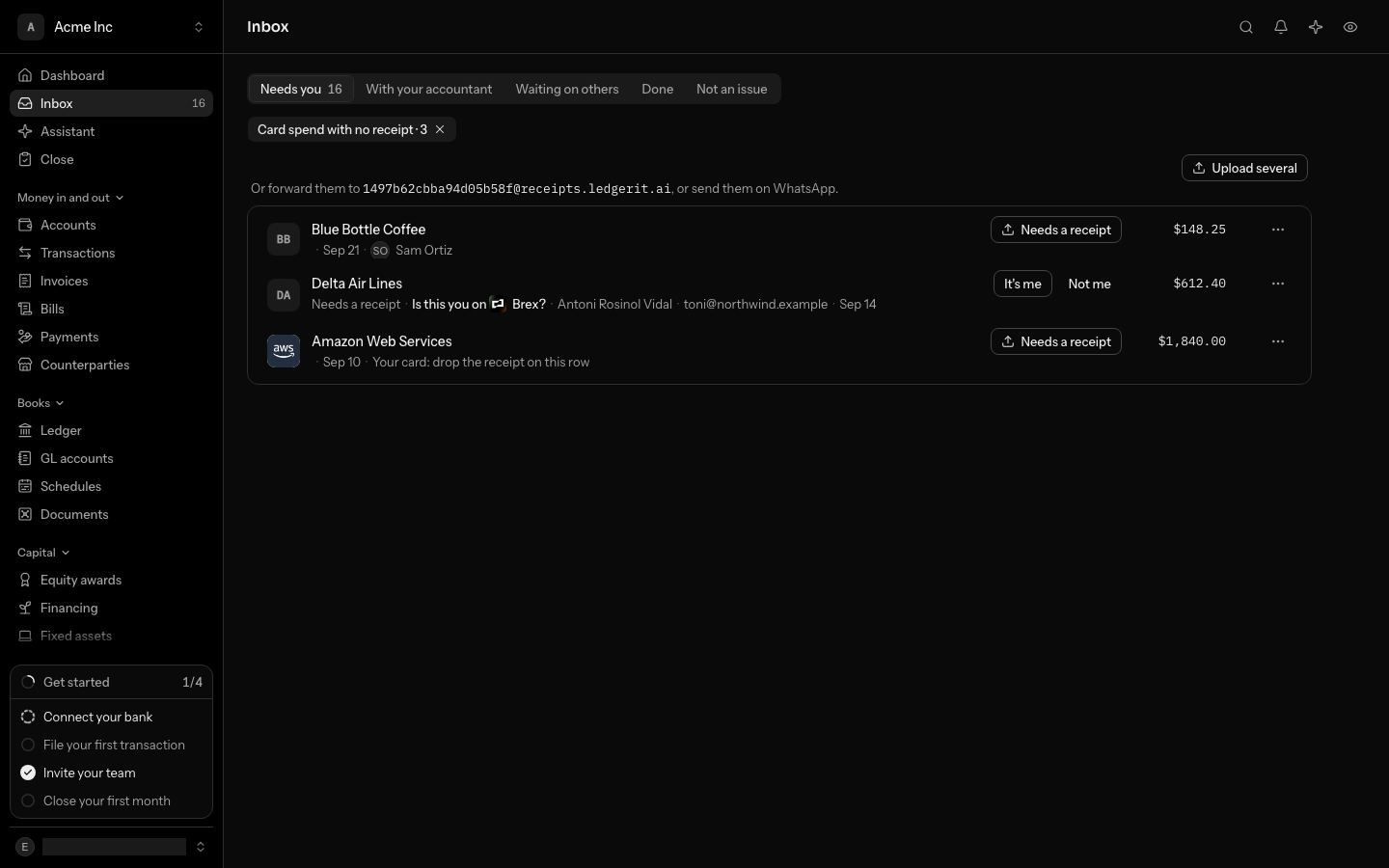
A row on another member's card says Assigned to and their name. When that member has your name, their email address is shown too, so you can tell two accounts apart. Anyone who can attach documents can still upload the receipt.
Send an item to your accountant
When the books have an accountant, an owner or admin can hand them an item from Needs you:
- Open the item's … menu and choose Send to your accountant.
- Write what you want them to look at. The note is optional.
- Select Send. The item moves to With your accountant, with Sent by the owner and your note on it.
Escalate to the founder
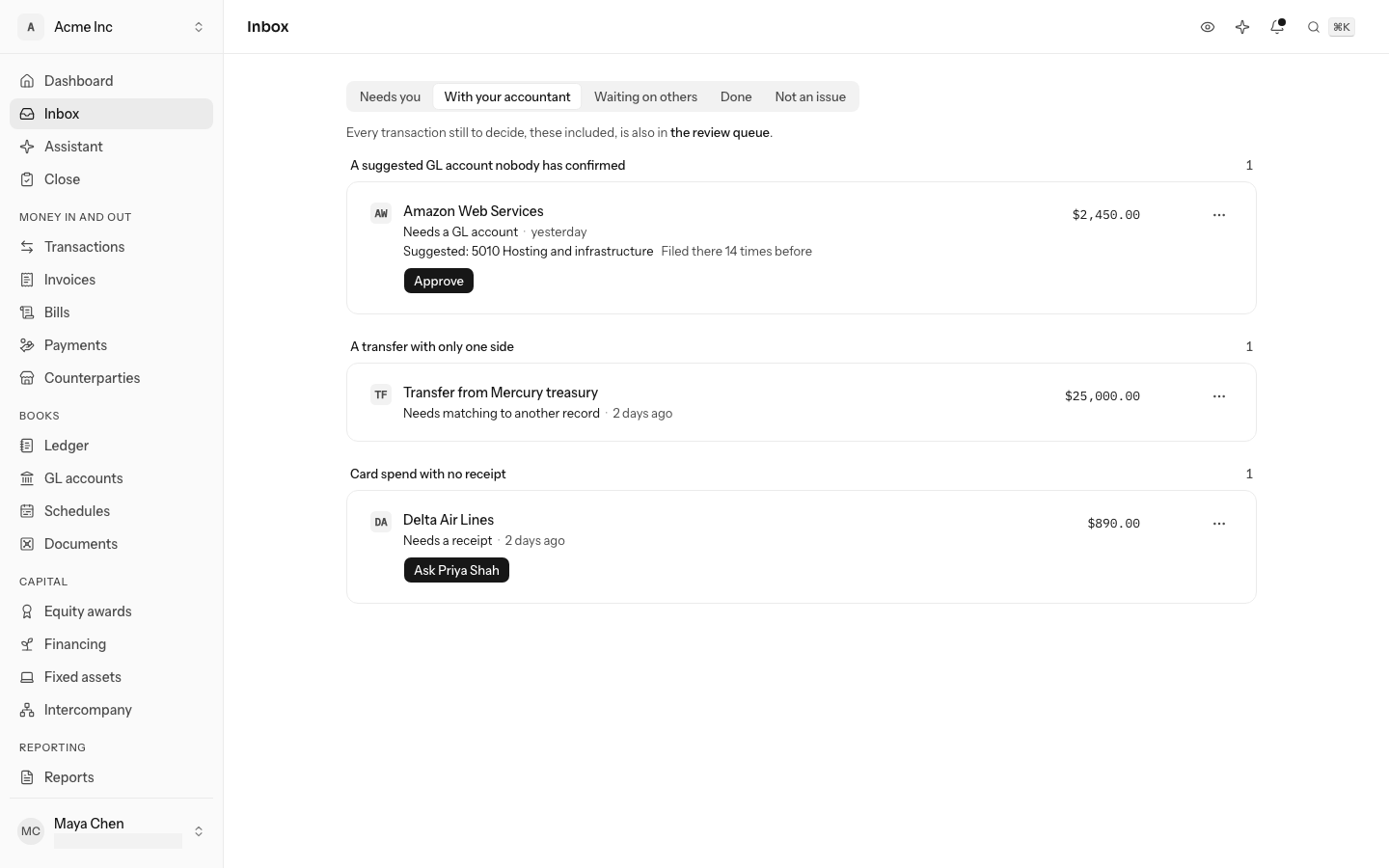
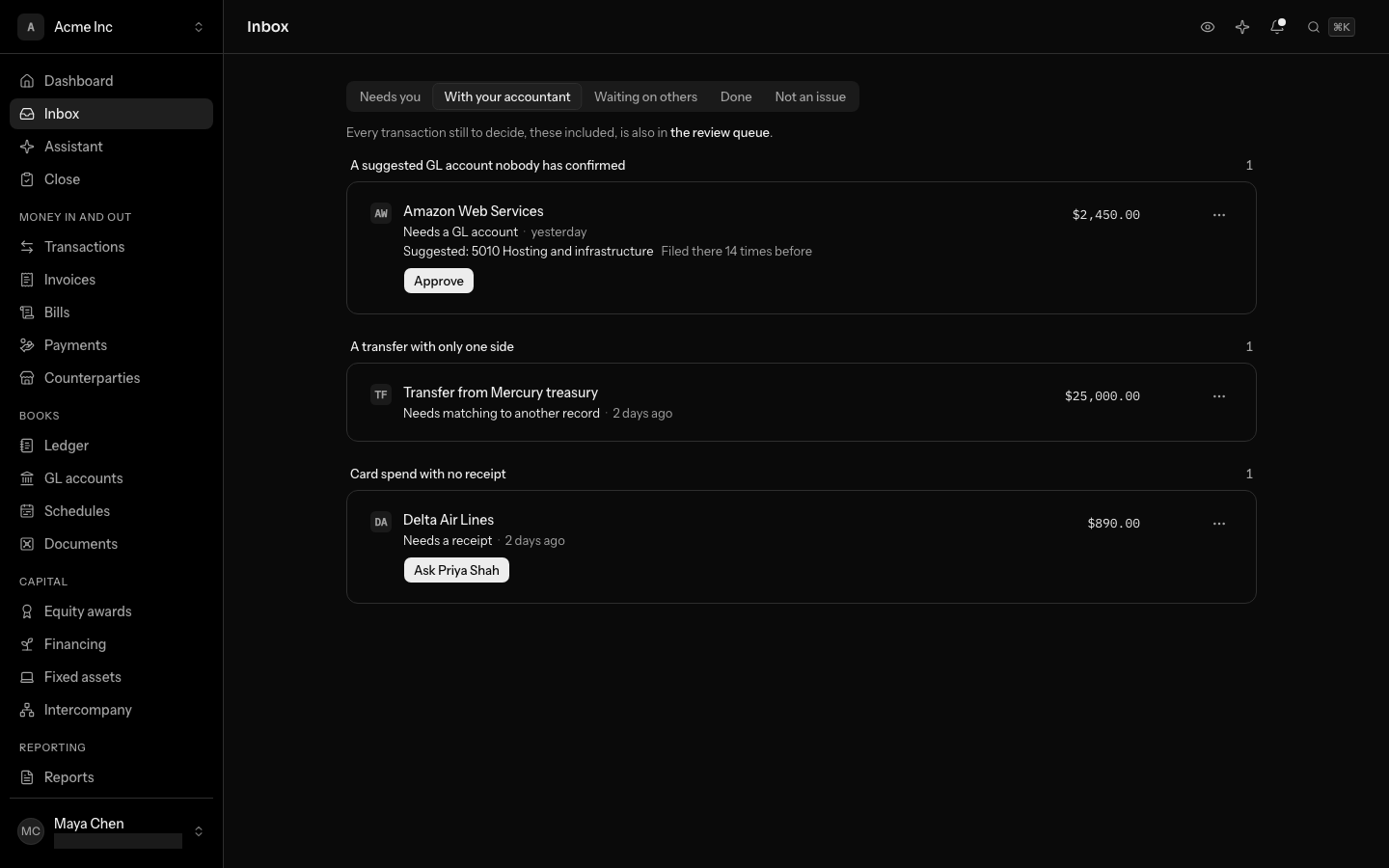
- On With your accountant, open the item's … menu and choose Escalate.
- Write the question you need answered, up to 500 characters. The note is optional.
- Select Escalate. The item moves to Needs you, with your note beside it.
Fix an item
Click a row, then J and K move between items and R marks the highlighted one.
- Select the item's button, or the record's name to open it. A fix made on the record (file the transaction, attach the receipt, reconcile the account) closes most items on its own. Filing a transaction parked in suspense clears its item.
- If an item is still listed, open its … menu and choose Mark done (or press R on the row), write what you did, and select Mark done. An item with no other step shows Mark done as its button.
Money from or to your own company
When the bank names your own company as the other party, for example a deposit described "Acme Inc to Acme Inc", "Incoming transfer from Acme Inc" or sent by "Acme, Inc.", it is a transfer between your own accounts. Nothing was earned or spent, so LedgerIt does not ask for a GL account or guess one. The item reads Money from or to your own company and waits for its other half.
The same item is raised in two more cases. When AI reads a transaction as money moving between your own accounts, it says so instead of choosing a GL account, and its words and confidence lead Suggested; it is never filed on AI's word. And when two or more transactions could be the other half of one, LedgerIt does not pick: it asks you, with each of them ranked.
- If the other account is connected, its half usually arrives within a few days and the two are matched on their own.
- Otherwise, open its GL account picker: the transfer leads Suggested, and under Transfer you pick the other half, one of your own accounts, or Another account (not connected). See File a transfer from the GL account picker. Match as a transfer in the transaction's ⋯ menu does the same.
LedgerIt only treats a transaction this way when the bank names your company as the other party, names it twice in the description, or names it once beside words for moving money: a deposit from your company ("transfer from", "ACH from", "wire from"), a payment to it, or a book or internal transfer or sweep. A customer's payment that names your company once, as who it was paid to, is still asked about as income, and so is a payment to another company whose name starts with yours, such as "Acme Holdings LLC".
Mark an item that needs nothing
Open the item's … menu and choose Not an issue (or press E on the row), write why nothing needs doing, and select Not an issue. The two answers are kept apart on purpose: "I fixed it" and "it was fine" are different facts, and an auditor will ask which.
Marking an item as not an issue does not put a transaction in the books. A month with transactions that are not posted or excluded still cannot be closed.
What the books check every day
Once a day LedgerIt reads the books the way an outside accountant reads them after the close, while the month is still open, and raises what it finds as an item. Each item shows the figure that tripped the check beside the usual one.
| Check | It is raised when | It asks for |
|---|---|---|
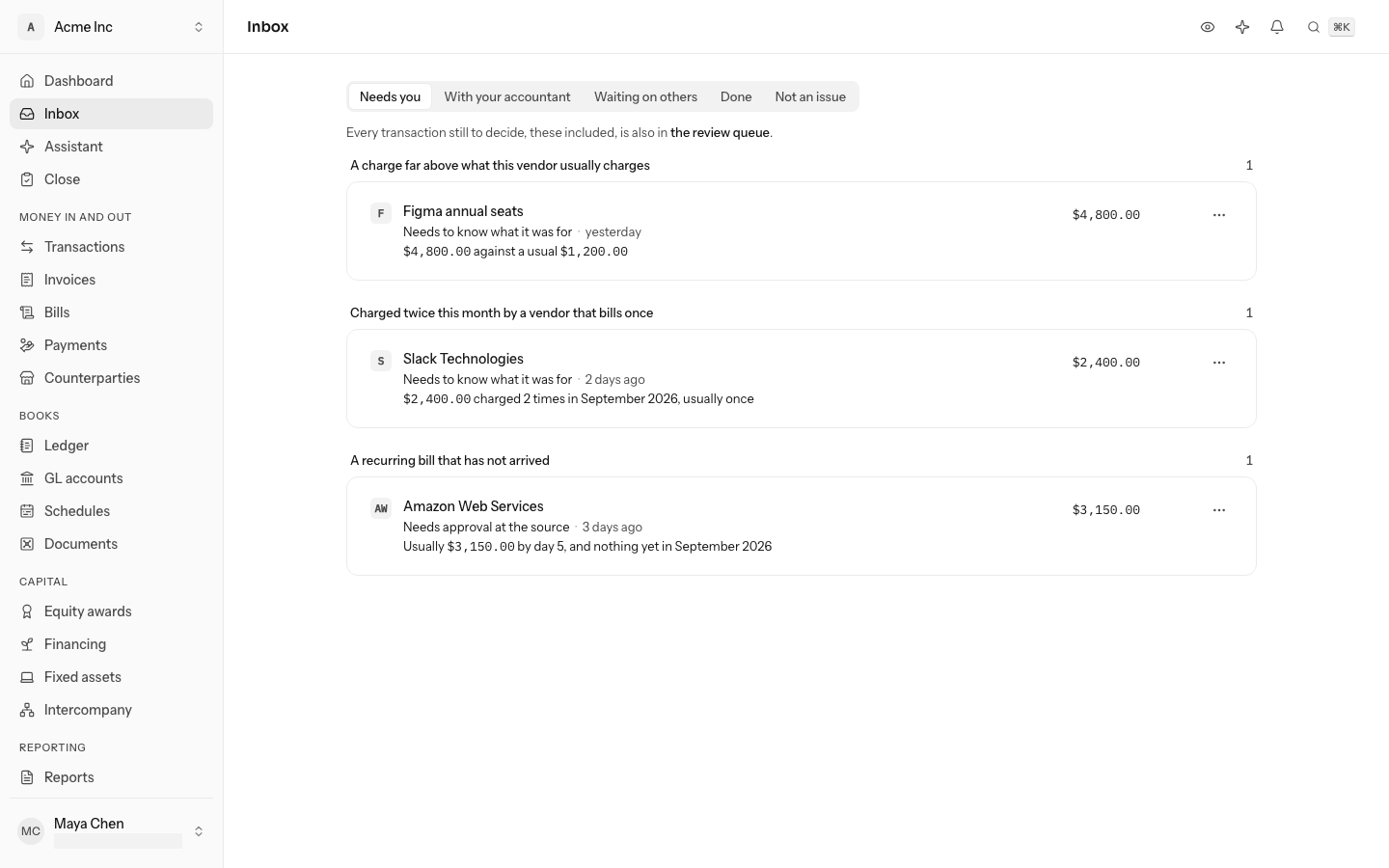
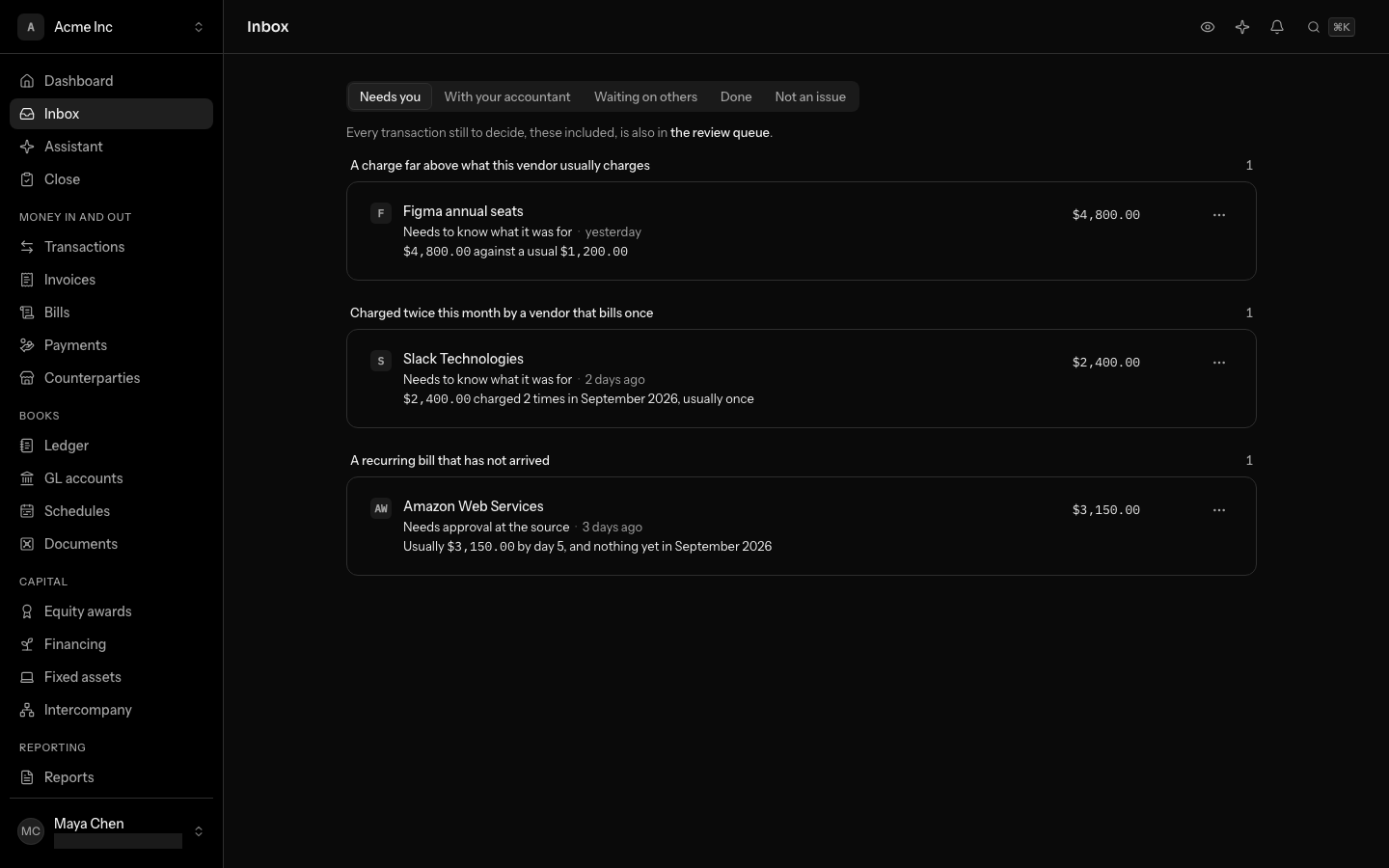
| Unusual amount | A charge is more than 3 times the median of the vendor's last 12, with at least 3 before it | What it was for |
| Processor or in-transit balance not cleared | The payment processor receivable (1210), or Cash in transit (1090), has not been back to zero for more than 10 days | A match: the payout or the fee, or the other half of a transfer |
| Transfer with one side | A transfer has no other side more than 5 days after its date | A match |
| Charged twice | The same vendor charges the same amount twice in a month, and billed once a month in at least 3 of the last 6 | What it was for |
| Expense account swing | An expense account's last full month is more than 50% and more than 2,000 away from its average over the 3 months before. The item names up to three vendors, schedules or entry kinds that moved it, each with how far it is from its own usual month | A GL account check |
| Recurring bill missing | A vendor whose bill was due in a month, by the rhythm its bills keep (every month, quarter or year), has nothing in it more than 5 days after its usual day, and has not been accrued for the month. It looks at this month and, until it is closed, the month before, so a bill due at month end is asked about once the month has ended | An approval to accrue it to Accrued liabilities (2200) |
Amounts are compared in the books' own currency. These items never block a close and never change the books: a fix is made on the record, and a posted entry is corrected by reversing it. An item closes itself on the next day's check once what it found no longer holds, for example when the missing bill arrives.
Accrue a recurring bill that has not arrived
When a vendor that bills every month, quarter or year has not sent the bill due this month, the month's books are missing a cost they will have. The item suggests the GL account the vendor's charges are filed to, and its amount is the vendor's usual bill. A quarterly or yearly vendor's item starts with Every quarter or Every year.
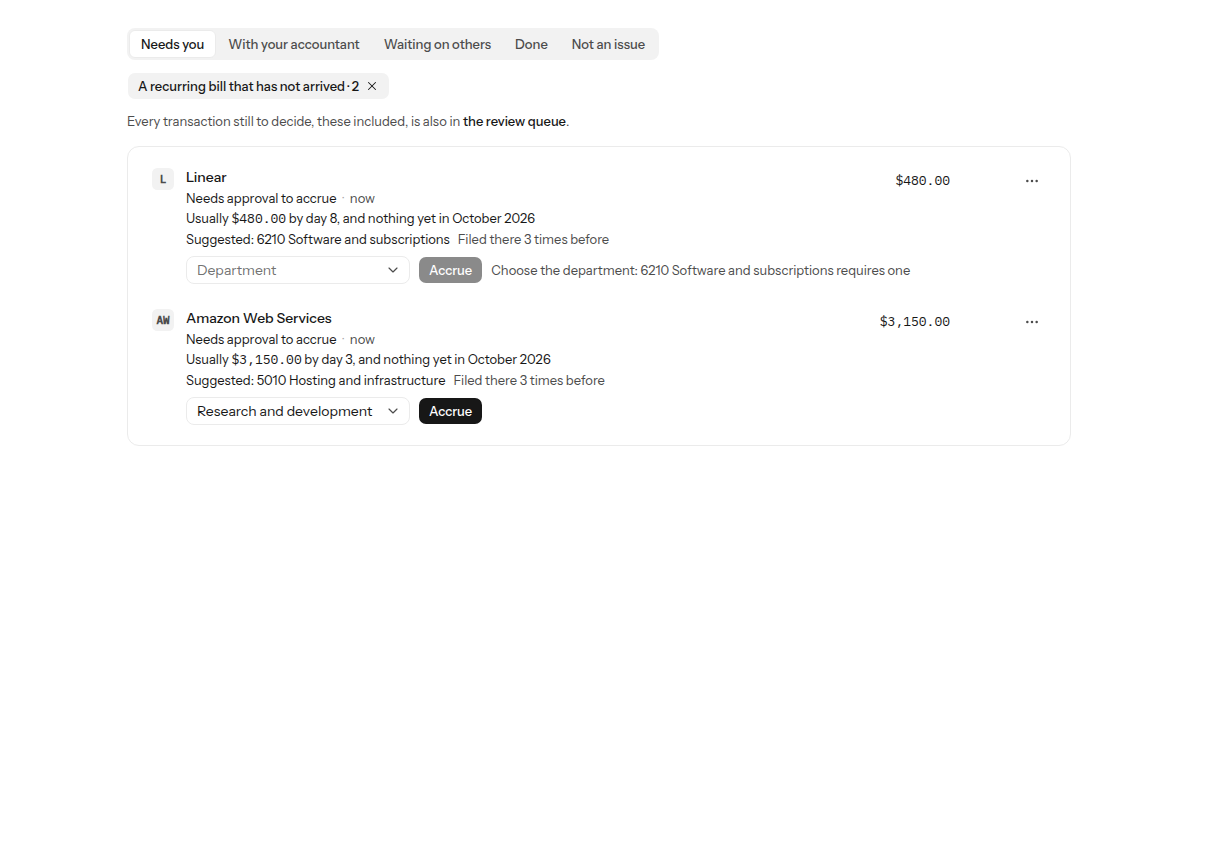
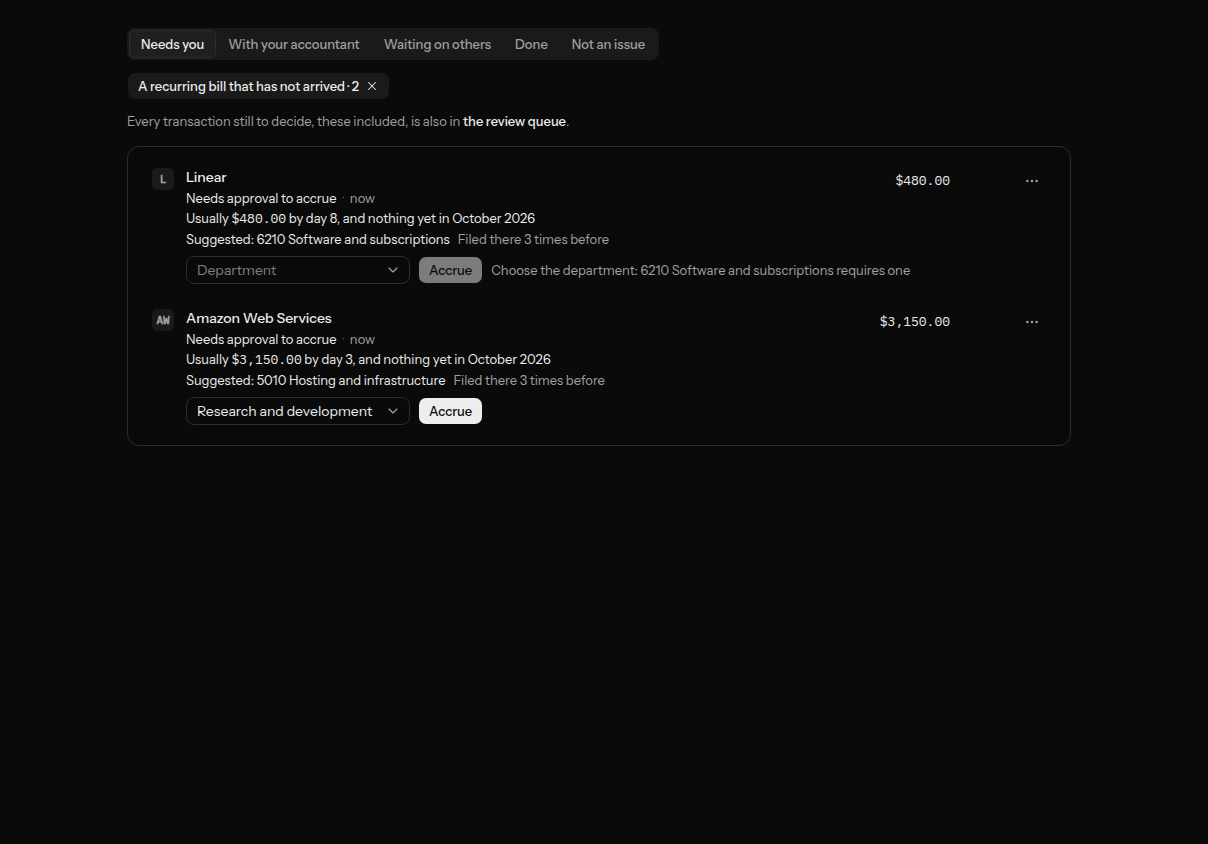
- Read the suggested account and the amount on the item.
- Check the department beside Accrue. When the vendor's charges to that account all name the same department, it is already picked; when they name different ones, pick the one this month's cost belongs to. If the account requires a department, Accrue waits until one is picked.
- Select Accrue. LedgerIt makes an accrual for the month, with the vendor, the account, that amount and the department, and the item moves to Done with Open the accrual, which opens it on Schedules.
The month's close books the estimate as a cost, held in Accrued liabilities (2200). When the vendor's charge arrives and is filed to the same account, the close takes the estimate back out:
- If the charge lands later in the same month, the month carries the charge alone.
- If it lands next month, next month carries only the difference between the charge and the estimate.
To accrue a different amount or to another account, use New accrual on Schedules and mark the item done (see Schedules); through the API, approve the item with an amount, an account_id or dimensions; the item's suggestion names the department it would use. A vendor whose charges are not filed yet has no suggestion and no Accrue. A month that is closed cannot be accrued.
Accrue payroll earned in one month and paid in the next
Payroll for the last days of a month is often paid in the next: a run on October 5 pays September 16–30. Booked when it is paid, September is short two weeks of wages and October carries four. Once a month ends, LedgerIt works out which of its days no payroll run paid by the month's end and asks once, in Needs you, as Payroll for September 2026.
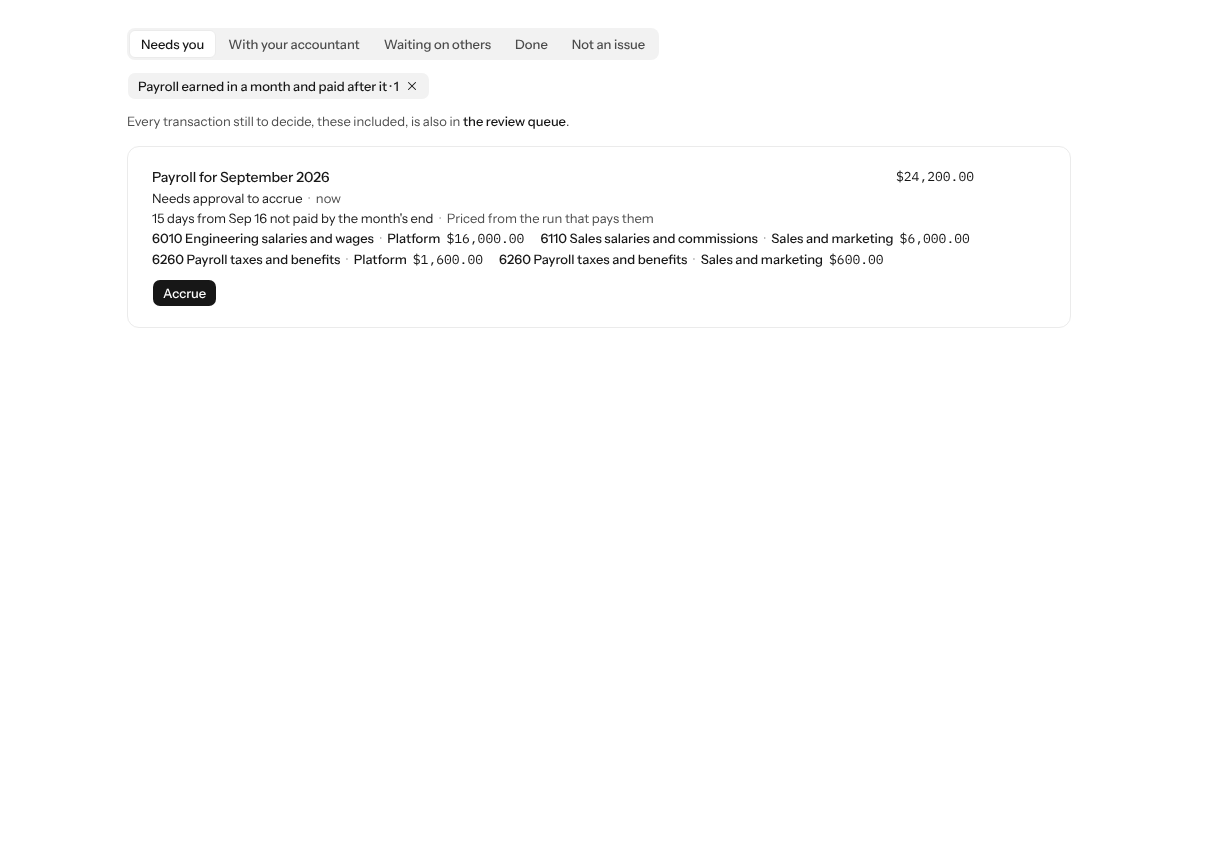
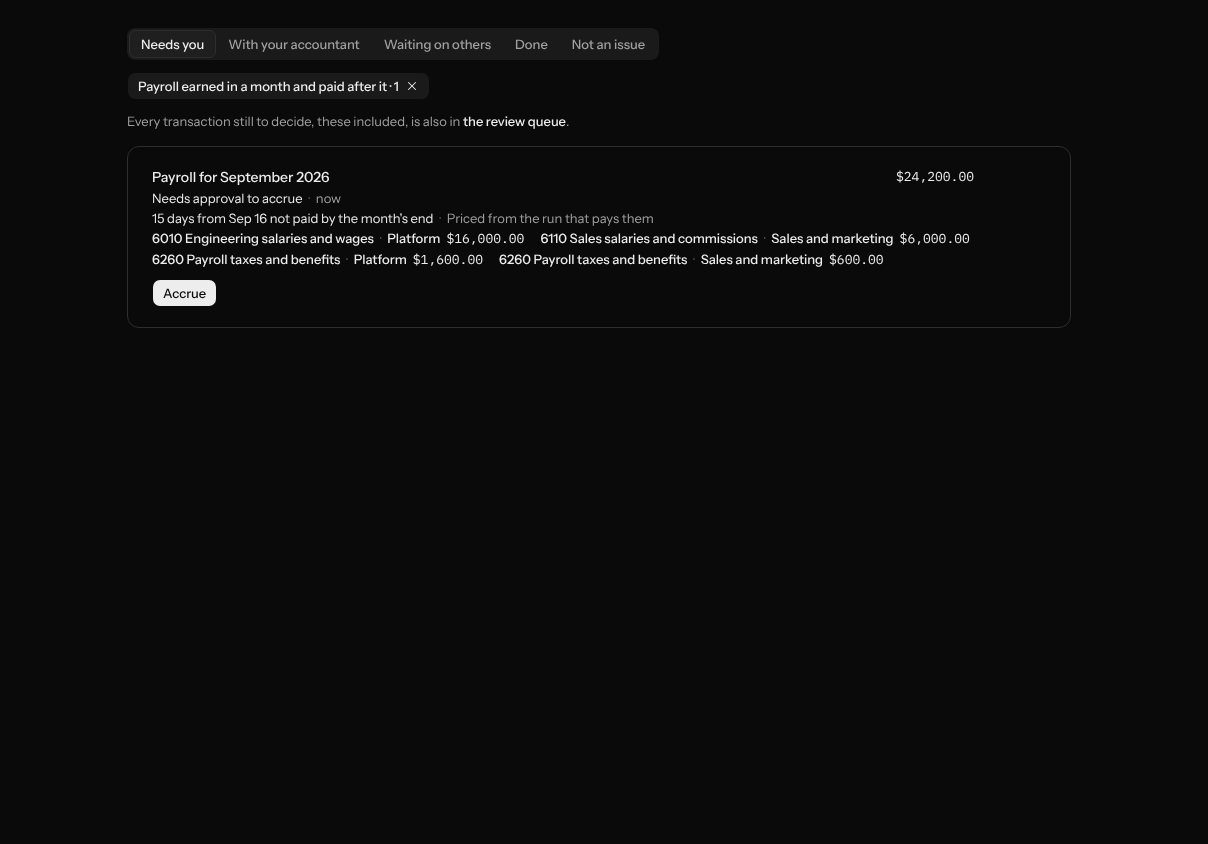
The item shows the days owed and each account's share, split by department the way the runs were (6010 Engineering salaries for Platform, 6110 Sales salaries for Sales and marketing); a department opens that month's spend by department:
- Days a run already in the books pays, after the month's end, are priced from that run.
- Days no run has paid yet are priced at the last regular run's cost per day, and say so. When the run that pays them arrives, the item changes to that run's figures.
Select Accrue. LedgerIt accrues each share to the month, in its department, and the item moves to Done with Open the accruals, which opens Schedules. The month's close books the wages as a cost, held in Accrued liabilities (2200). The next month's close takes them back out beside the run that paid them, so September carries all thirty days and October only its own.
The item holds the month's close until it is accrued or dismissed. A month that is closed, already accrued or dismissed is not asked about again.
Add a team your payroll names
Gusto, Rippling and Deel each say which department every person is in. When a department is one your books do not have yet, its people's wages file under their function (Research and development, Sales and marketing, or General and administrative) and the team does not show in spend by department. After a payroll sync, LedgerIt asks about each such department once, in Needs you, by its name.
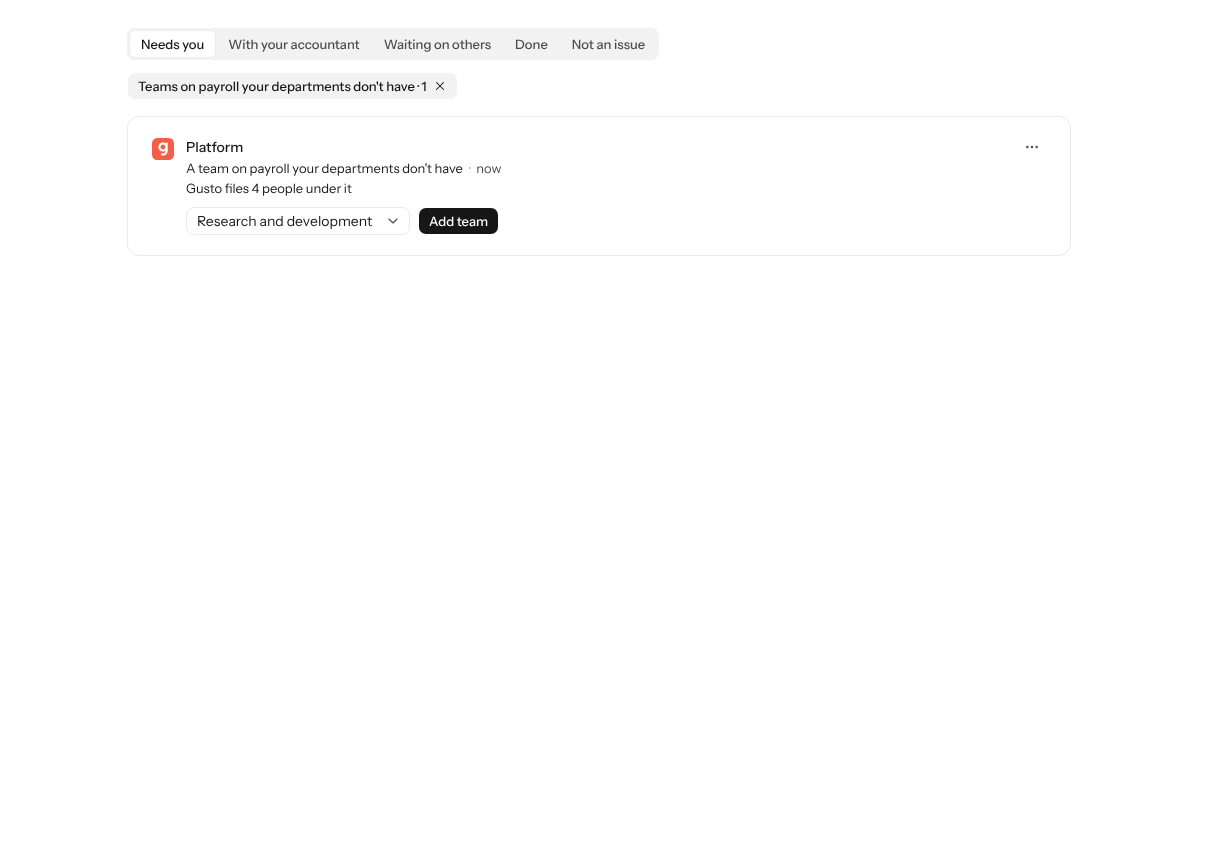
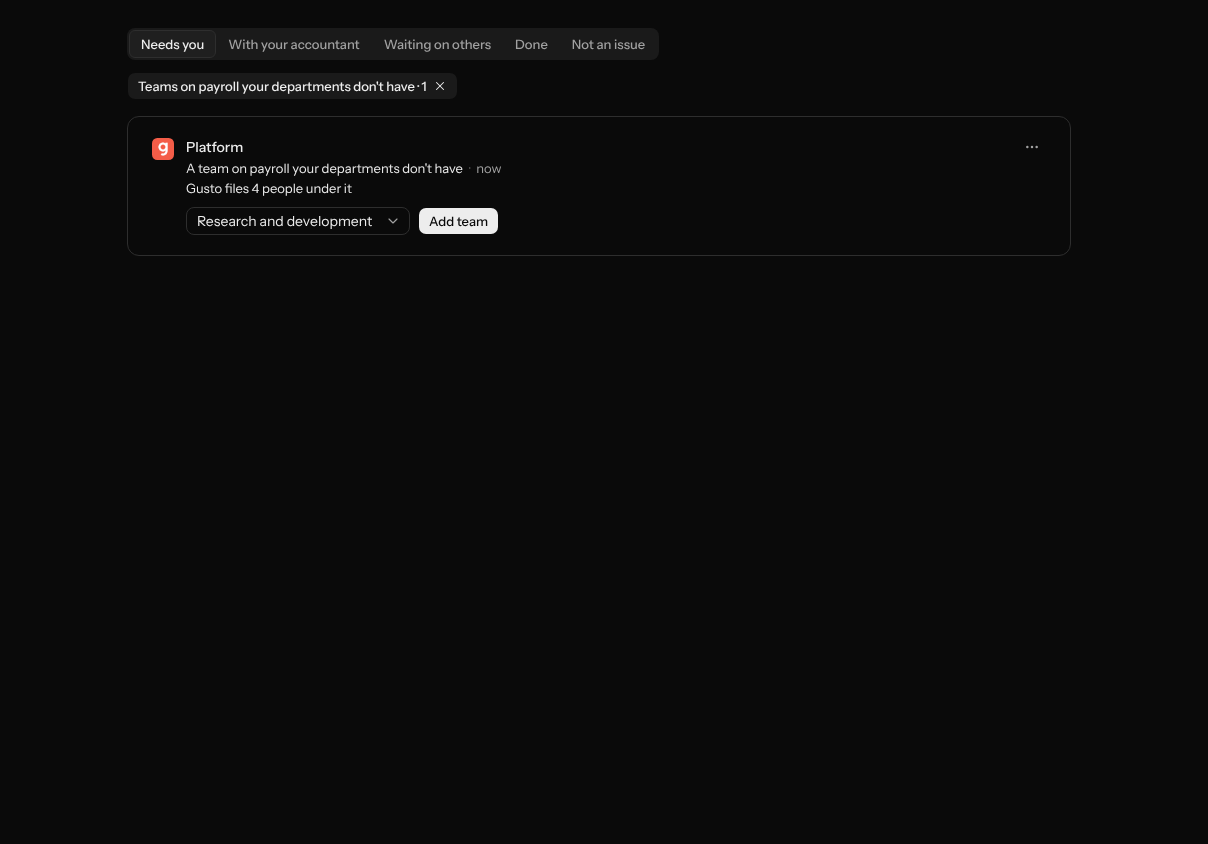
The department beside Add team is where the team goes, picked already as the function its name points to. Pick another if it belongs elsewhere, then select Add team. The team joins your departments, and from the next payroll run its people's wages file there, on the wage account of the department it sits under: a team under Research and development posts to engineering salaries. Runs already in the books keep their lines. The item moves to Done with See spend by department.
If it is not a team you report on, open ⋯ and select Not a team. LedgerIt does not ask about that department again, and its people keep filing under their function. The item never holds a month's close.
Settle a payment for an open invoice or bill
After each sync, LedgerIt looks for bank and card transactions that pay one of your open invoices or bills. A transaction gets one item when exactly one candidate fits: the invoice's number is in its description, or it names a customer whose one open invoice is for exactly its amount. The item reads, for example, "Pays INV-0042 from Initech", with each name linking to its page.
Select Settle. The transaction is filed under Accounts receivable (or Accounts payable) and applied to the invoice or bill, which reads Paid. A transaction already filed as income is reversed and posted again, so the sale is counted once. If it is not that invoice, mark the item done and LedgerIt does not ask about that transaction again. A transaction with two candidates is never asked about here: open it and pick one. A transaction whose description names an invoice or bill and pays exactly what is left on it is not asked about either: LedgerIt settles it by itself. See Settle an invoice or bill from the bank.
Dismiss what the check got wrong
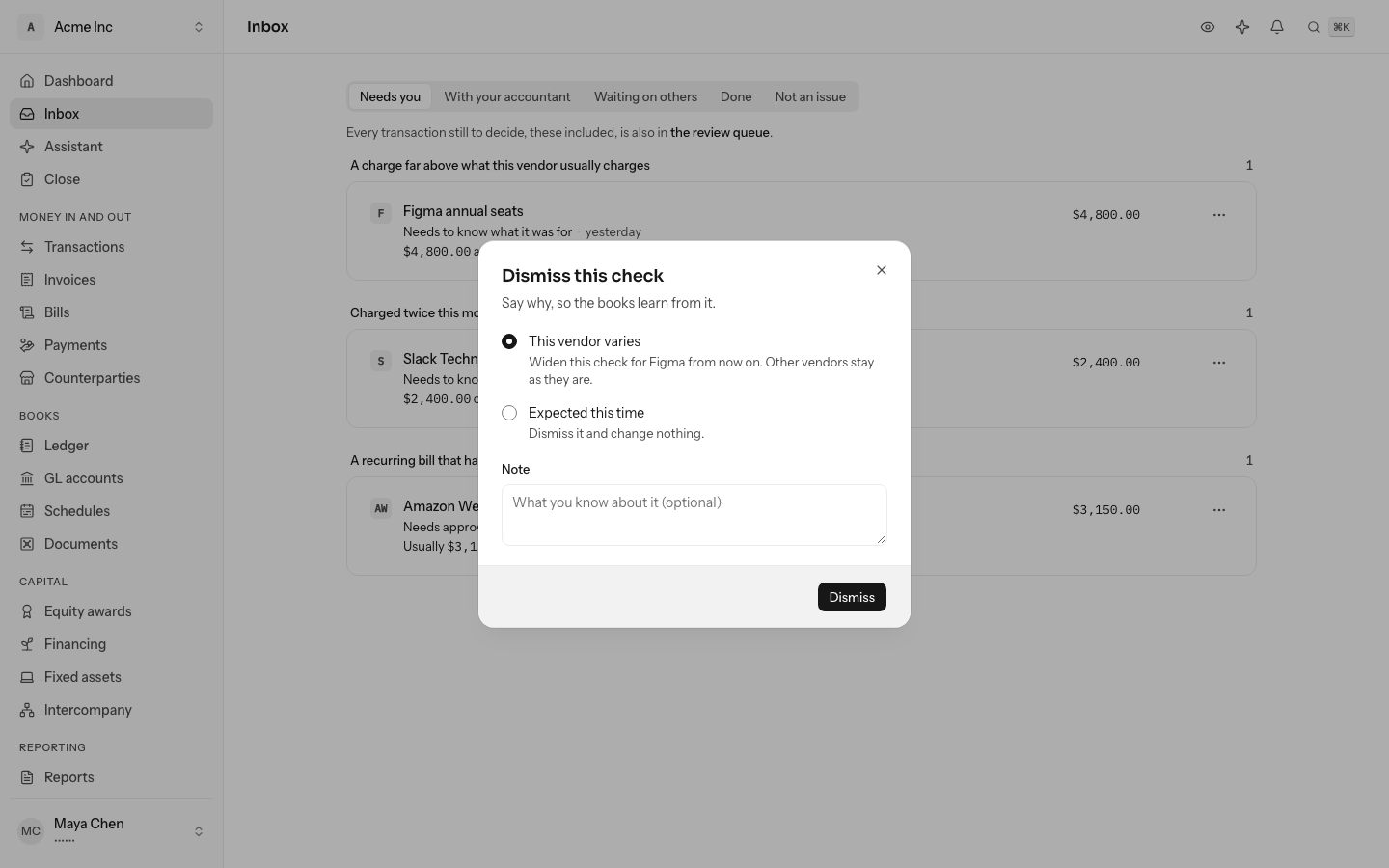
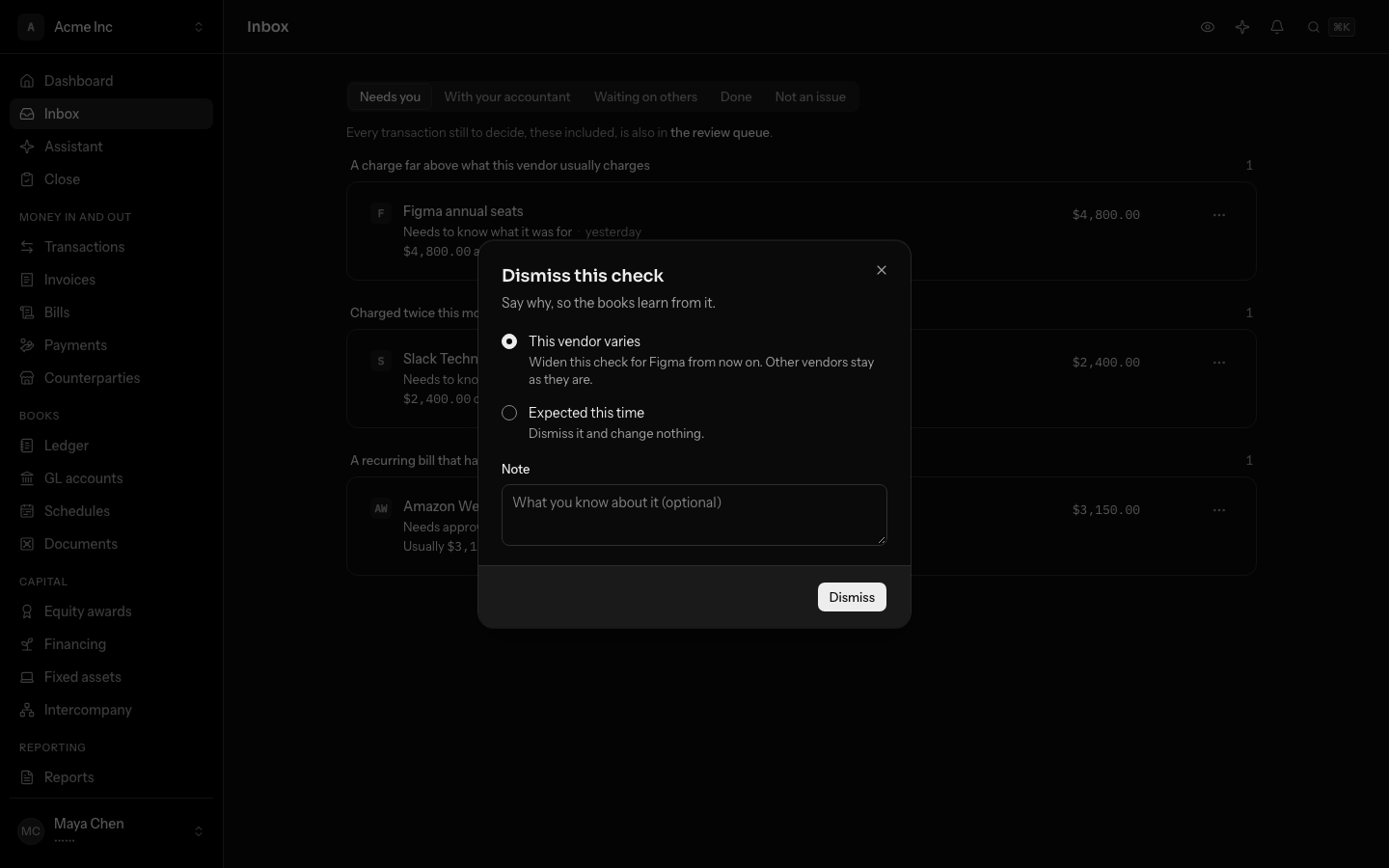
- On an item the daily check raised, select Looks right, or open its … menu and choose Not an issue.
- Choose why:
- This vendor varies widens that check for that vendor from now on. The threshold at least doubles, and grows enough that the figure you dismissed would not have been raised. Other vendors keep the default.
- Expected this time dismisses the item and changes nothing.
- Add a note if you want one, and select Dismiss. The item moves to Not an issue, marked with the reason.
This vendor varies is offered only on the checks about one vendor: unusual amount, charged twice and recurring bill missing. A dismissed item is not raised again for the same finding. To put a vendor back on the default threshold, delete its tolerance through the API.
Look back
The Done and Not an issue tabs list what was dealt with. Each item names the person who dealt with it, by filing or excluding the transaction or by marking the item, as Resolved by or Marked not an issue by with their name, and shows the note they wrote. An item with no name was closed by LedgerIt itself, for example when the model filed the transaction. The full history is on Activity.
From the keyboard
Press J and K to move between items, Enter to open the record, Space to preview it, R to mark the item highlighted done, E to mark it not an issue, and U to upload its receipt. See Work from the keyboard.
Who can do what
Anyone in the books can read the inbox. Approving, escalating, sending to your accountant and marking an item need a role that can post to the books: owner, admin or accountant. Uploading a receipt needs a role that can attach documents.
Do this through the API
Everything in this guide is also an API call, for scripts and agents. The reference lists each operation with its parameters and objects.
- ExceptionsWhat blocks a month from closing, and how each one is resolved.7 operations
- Books check tolerancesThe vendors a daily books check is wider for, and by how much, so a vendor whose amounts vary is not flagged every month.4 operations
- Model proposalsEvery GL account a model proposed for a transaction, with the evidence shown when LedgerIt researched an inbox item, and the department and spread it proposed.2 operations