Your company
Connect Claude, ChatGPT or Cursor
Ask about your books from Claude, ChatGPT, Cursor or any MCP client. Sign in once, choose the books, and choose read only or read and write.
LedgerIt runs an MCP server, so an AI client you already use can read your books and, if you let it, work in them. There is nothing to install and no key to copy: you add one address to the client, sign in to LedgerIt, and choose which books it may open and how far it may go. It acts as you, never with more access than you have.
How connecting works
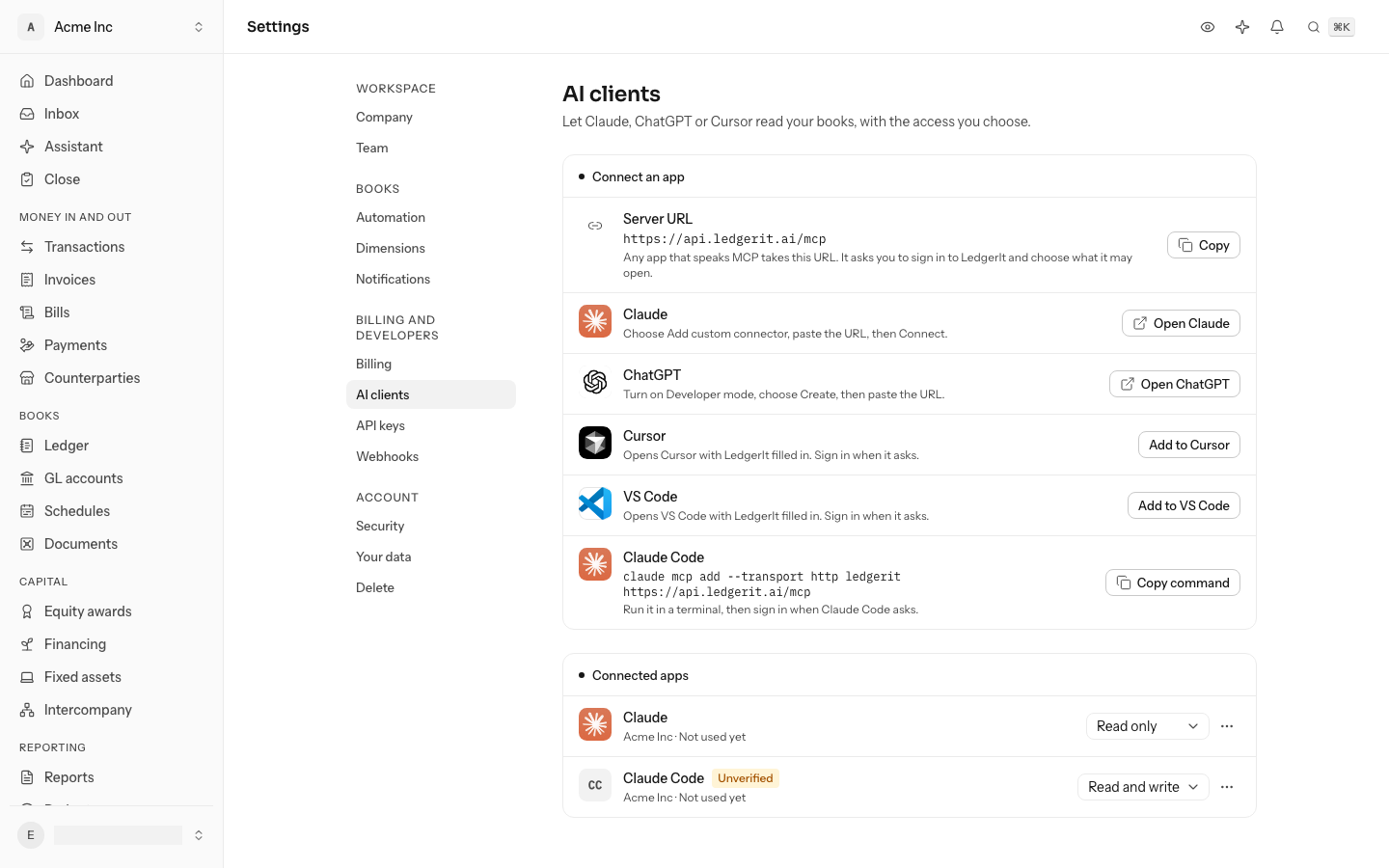
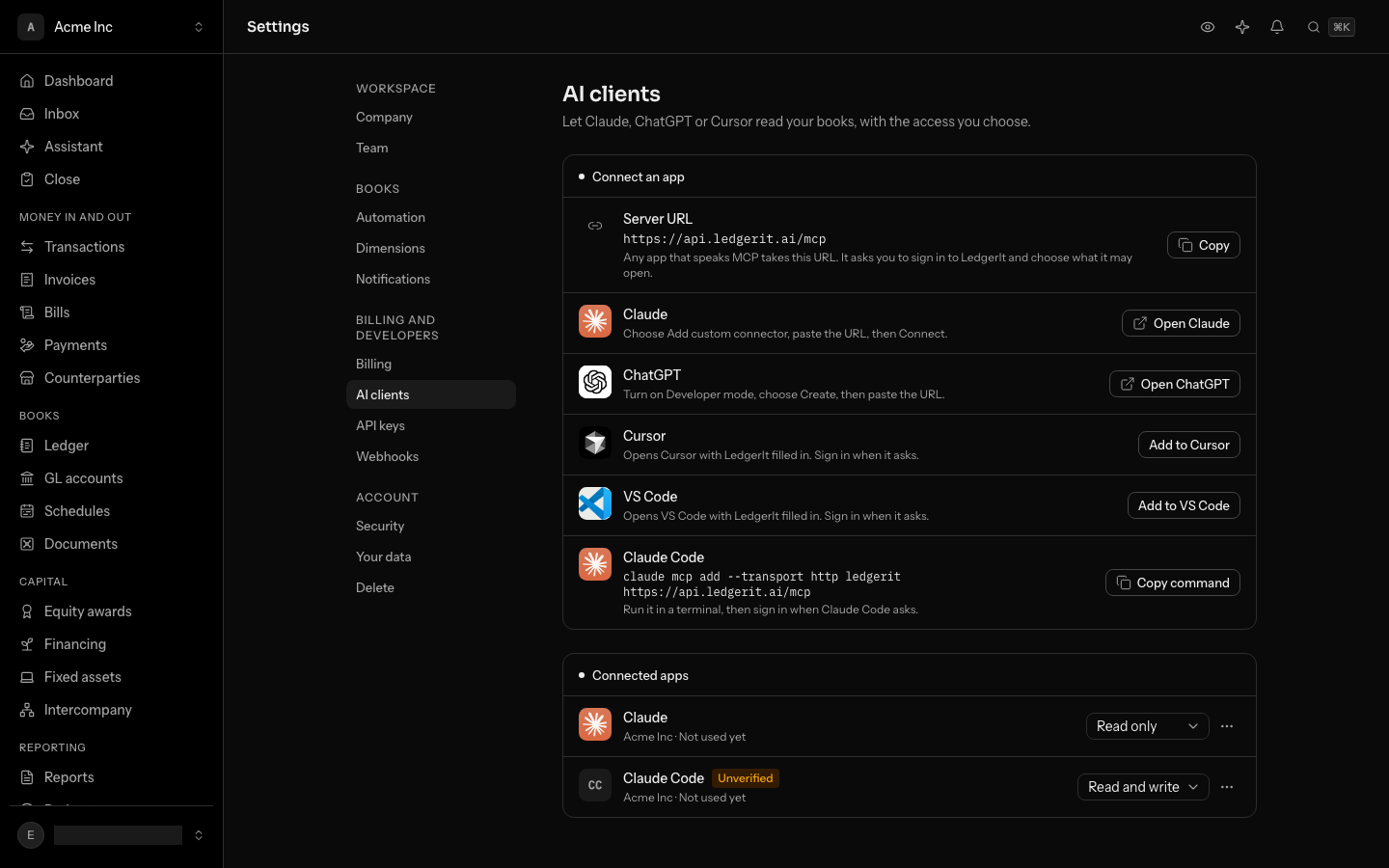
The address is https://api.ledgerit.ai/mcp. It is the same for every client and every company, and it is on every plan. You find it, with a button per client, under Settings → AI clients.
Connect Claude
On claude.ai, the desktop app or the mobile app:
- In Claude, open Settings → Connectors and choose Add custom connector.
- Name it LedgerIt, paste the address, and choose Add, then Connect.
- Claude opens LedgerIt. Sign in if you are not signed in already.
- Choose the books and the access, then Allow. You are taken back to Claude.
In Claude Code, run this once, then type /mcp and choose LedgerIt to sign in:
claude mcp add --transport http ledgerit https://api.ledgerit.ai/mcpConnect ChatGPT
- In ChatGPT, open Settings → Apps & Connectors, turn on Developer mode under Advanced settings, and choose Create.
- Name it LedgerIt, paste the address, choose OAuth, and save.
- Sign in to LedgerIt when it opens, choose the books and the access, then Allow.
Connect Cursor or VS Code
Under Settings → AI clients, choose Add to Cursor or Add to VS Code. The editor opens with LedgerIt filled in; it asks you to sign in the first time it calls LedgerIt. Any other client that speaks MCP over HTTP connects with the same address.
Choose the books and the access
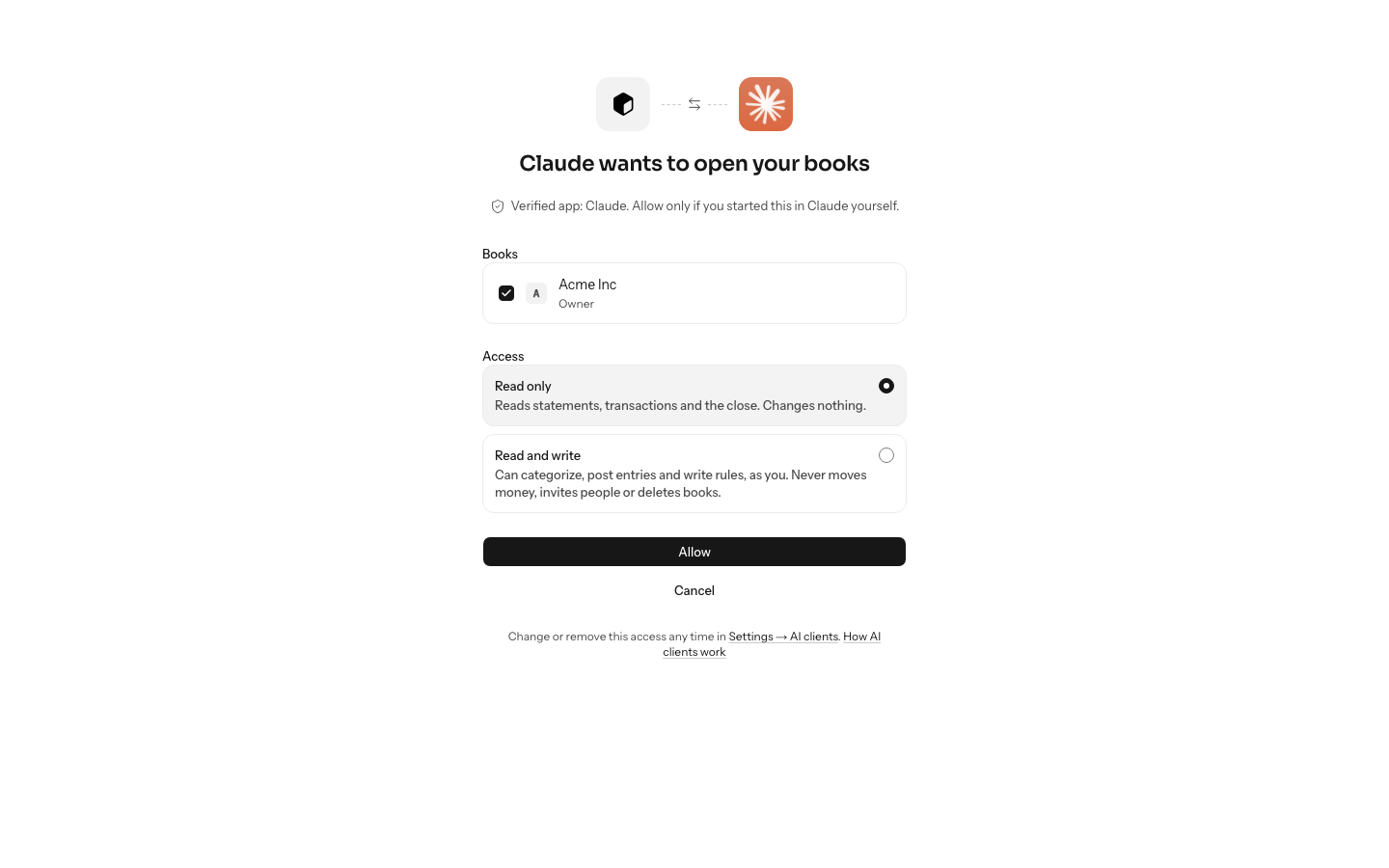
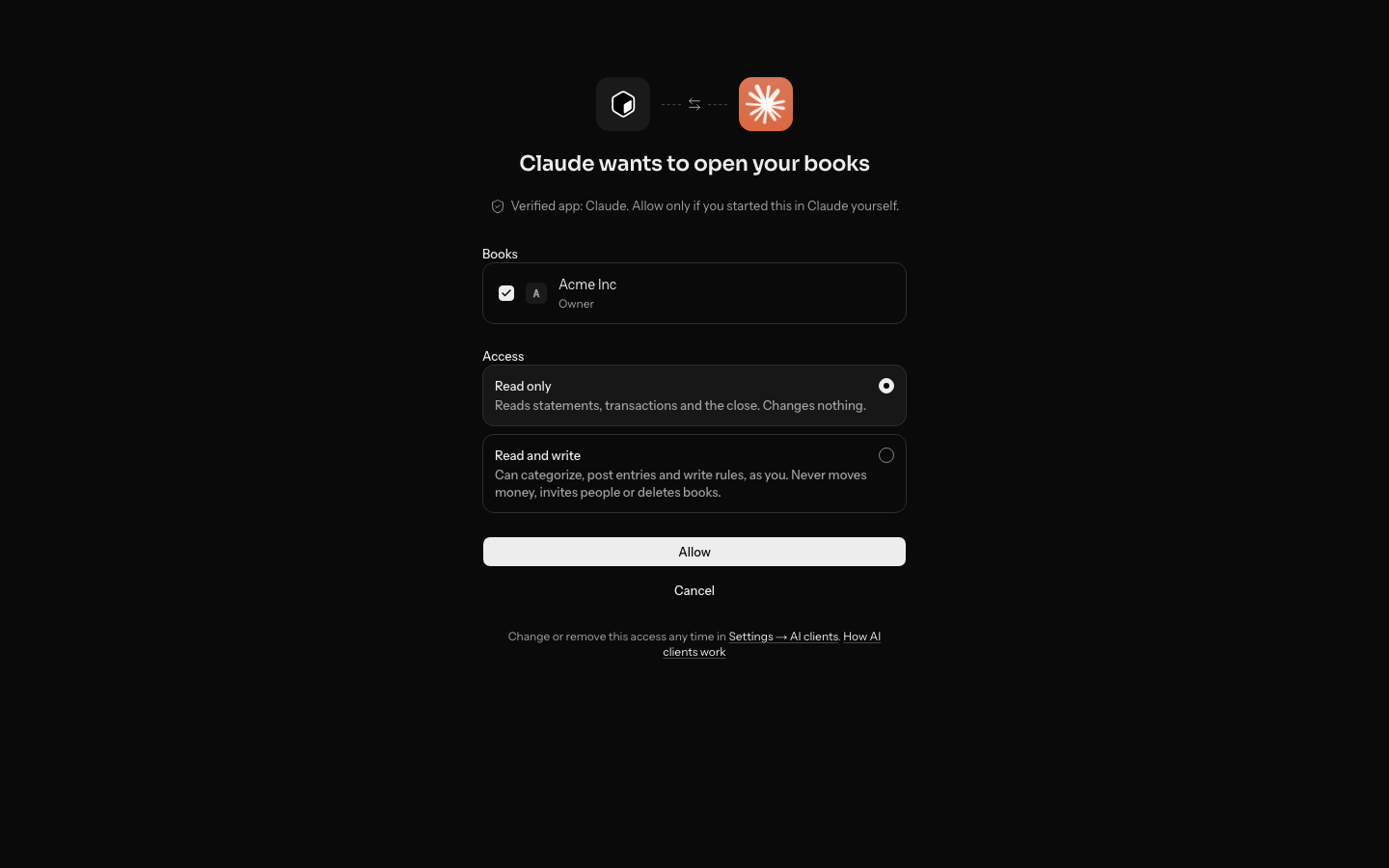
When a client asks to connect, LedgerIt shows you who is asking before anything is shared:
- The app. Claude and ChatGPT show as verified apps: LedgerIt only ever sends their sign-in back to claude.ai or chatgpt.com. Verified means the app is Claude, not that the request came from your own Claude account, so allow it only if you started it yourself. An app LedgerIt does not know shows the address it returns to, and a warning. An app on your own computer, such as Claude Code or Cursor, says so.
- The books. Choose one set of books, or several of the same company. A connection opens the books you chose and no others; to connect another company's books, connect again and choose them.
- The access. Read only is chosen for you. Choose Read and write only for a client you want to make changes.
A request can only be answered in the browser where you started it. If someone sends you a link to a LedgerIt consent screen, it opens to a warning instead, and nothing is shared.
If you have not used your authenticator app in the last 15 minutes, LedgerIt asks you for a code first. Letting a client in hands out access to your books, so it gets the same check as making an API key.
What a client can do
Never, through any client
PeopleInvite, remove or change anyone's role
Money outSend, release or approve a payment
The booksCreate or delete a set of books, or change billing
Tax idsSee a payroll or tax identifier in full
- Read only gives the client a viewer's access, whatever your own role: it reads statements, transactions, runway, the close, bills and invoices.
- Read and write lets it change the books as you: categorize a transaction, post or reverse a journal entry, write a rule, leave a comment. Your role still decides each change, so a member who cannot post cannot post through a client either. A posted entry is never edited; a correction is a reversal, as it is in the app.
- No client ever invites or removes people, sends or approves a payment, creates or deletes books, changes billing, or sees a payroll or tax identifier in full. You do those in LedgerIt.
Only people whose role can change the books are offered Read and write.
Ask about your books
How long does our cash last at this burn?
Cash is $2,184,300.00 and the last three months burned $148,200.00 a month on average, so runway is 14.7 months.
Each step is one call to LedgerIt, made as you, with the access you gave the connection.
The client picks the tools it needs. The most common ones, such as cash and runway, the three statements, transactions, the close and vendors, are listed by name. The rest of LedgerIt, such as budgets, fixed assets, SAFEs and reconciliations, it finds by searching. In Claude, the prompts LedgerIt adds appear as commands: a month overview, a review of the close, an explanation of the burn, a draft board update and a pass through the review queue.
Amounts come back exactly as the books hold them. Text from bank memos, receipts and invoices is passed to the client as data, never as instructions.
Change or disconnect a client
Every client you let in is listed under Connected apps in Settings → AI clients, with the books it opens, its access and when it last called. Change its access where it is shown; the next call uses the new access. To disconnect it, open the row's menu and choose Disconnect. It stops working on its next call, and you can connect it again any time.
A connection also ends on its own when you leave the books it opens, or when the books or your account are deleted. A client you have not used for 30 days asks you to sign in again.
Without signing in
A client that cannot sign in can use an API key instead: send it as Authorization: Bearer with the same address. The key's own access applies, in the books it was made in. See API quickstart.