Bookkeeping
Review and file transactions
Work through the review queue, file transactions to GL accounts one at a time or in bulk, exclude what does not belong and upload a statement.
Transactions is where every bank, card, payment processor and uploaded statement lands. You use it to check what each transaction was filed as and to decide the ones nobody has decided yet. Filing a transaction posts it to the books.
Anyone with access to the books can read this screen. Filing, excluding, unmatching and uploading need the owner, admin or accountant role; members and viewers cannot change transactions.
Find what needs you
The tabs across the top follow the order you work through a month. On a phone they are under Filter, beside the search:
| Tab | What it shows |
|---|---|
| Needs review | Transactions not yet in the books, plus ones decided but not yet posted. This is the review queue. |
| Posted | Transactions filed and posted to the books. |
| Excluded | Transactions you kept out of the books, with your reason. |
| Transfers | Money moved between your own accounts, each movement once, whatever its status. |
| All | Everything. The mark beside each amount says where a row stands. |
The tab you are on is part of the page's address, so the browser's Back button returns you to it after you open a transaction.
When the queue is empty you see Nothing is waiting. Every transaction is filed.
A row that a rule or the model already has a GL account for shows Accept beside the picker: choose it to file the row there as it stands. On a phone, Accept is the first item in the row's … menu.
You can work the whole queue from the keyboard. See Work the queue from the keyboard.
Under the tabs, narrow the list down. On a phone the search stays in sight and the rest are under Filter, which counts how many you have set:
- Search transactions finds rows whose description contains what you type, ignoring capitals.
- Every GL account filters to the rows filed under one GL account.
- From and To limit the dates.
- From a GL account's page, See all transactions opens the list filtered to that account; select its name above the list to show every account again.
Clear filters puts everything back.
Read a transaction row
Each row shows who the money went to or came from, the description, the date and the bank or card account it happened on. Money in carries a + sign; money out carries a − sign.
Each row reads in two lines: the description, then the date, the bank or card account and the counterparty, named after the mark at the start of the row. When the counterparty's name is the description, it is not said twice; choose the mark to open the counterparty. On the right sit the GL account it is filed under, a mark that says where it stands, and the amount. A GL account is one line of your chart of accounts, such as Software or Payroll. A row nobody has filed yet shows the holding account it is parked in, which keeps your cash figures right in the meantime.
| Mark | Meaning |
|---|---|
| Closed ring | In the books. |
| Dashed ring | Waiting for review, with a GL account a rule or the model suggested. Point at it to see which. |
| No mark | Waiting for review, with nothing suggested yet. |
| Struck-through ring | Excluded from the books. |
Point at the mark, or tab to it, to read who decided: Rule, Suggested with how sure the model was ("Suggested · 92%"), or Reviewed when a person filed it. When one of your rules filed the row, the mark also names the rule and what it matched, and choosing it opens the rule.
Other things you may see on a row:
- Hold — a card authorization, not the final charge. You can file it, but it never posts; the settled charge replaces it.
- A transfer between your own accounts shows the other account in place of a GL account, after a two-way arrow, such as ↔ Mercury checking or ↔ Cash in transit.
- A match line, such as Transfer, paired with another row, Duplicate of, Settled by or Refund of.
- A paperclip beside the description when a receipt or invoice is attached. Choose it to open the document.
Choose a row to open it. The transaction's page shows the same line as the row, with the GL account it is filed under as a chip you can choose to file it elsewhere, and the amount at the end of the name's line. Beside the chip are the paperclip, which opens its receipts, and the ⋯ menu, which holds the rest: who it is with, its department and how the source sent it, each opening a small panel, then Match as a transfer, Split across GL accounts, Spread over months, Capitalize as a fixed asset, Send back to review and Open in the bank or card's own app. Each menu line shows its keyboard shortcut. How it was filed lists every decision about its GL account, newest first, one line each: why it was filed there, with the date at the end; one it replaced names the GL account it chose and is marked Replaced. Below come what the card program knows (who spent it, linked to their profile when they are a member of your books; whether it still waits for approval; the original amount) and Source data: exactly what the bank or card sent, kept as first received and never edited.
As the source sent it in the ⋯ menu (or I) shows the transaction as the bank or card sent it, before LedgerIt named or filed it: the description in its own words, the account it came from with its last four digits, when it was authorized and posted, how it was paid, the provider's own category and how sure it was, and the import that brought it in. The account's digits come from the provider, so they stay even if you rename the GL account without them. See everything it sent jumps to Source data.
File a transaction
Accept the two rows that already have a GL account, and pick one for the other two.
- In Needs review, open the picker on the row (Choose a GL account).
- Pick the GL account it belongs to.
The row leaves the queue at once and is posted. A message in the corner says where it went, such as Apple filed under 7400 Rent and facilities, with Moved to Posted under it. If filing fails, the row comes back with a message saying why. LedgerIt refuses a GL account on the wrong side of the income statement, for example filing a payment you received to an expense.
Undo a filing, or change it later
Picked the wrong GL account? Select Undo on the message that follows every filing, or press ⌘Z (Ctrl+Z on Windows) on any screen. The row goes back to how it was: a row nobody had decided returns to Needs review with its earlier suggestion, a row you had filed elsewhere is filed back there, and a row a rule or the model had posted is posted again as theirs. Once a transaction has changed some other way, such as being excluded, split or matched, there is nothing left to undo for it. ⌘⇧Z (Ctrl+Shift+Z) files it again. LedgerIt remembers your last 20 filings in this browser tab, so you can press ⌘Z more than once. While you are typing in a field, ⌘Z undoes your typing instead.
A posted row is changed where you read it. In Posted, the GL account is the same picker as in the queue: pick another and the row is filed there, reversing its entry and posting a new one so the correction is on the record. To open the GL account's own page, choose the picker and select Open with the account's name at the bottom of the list.
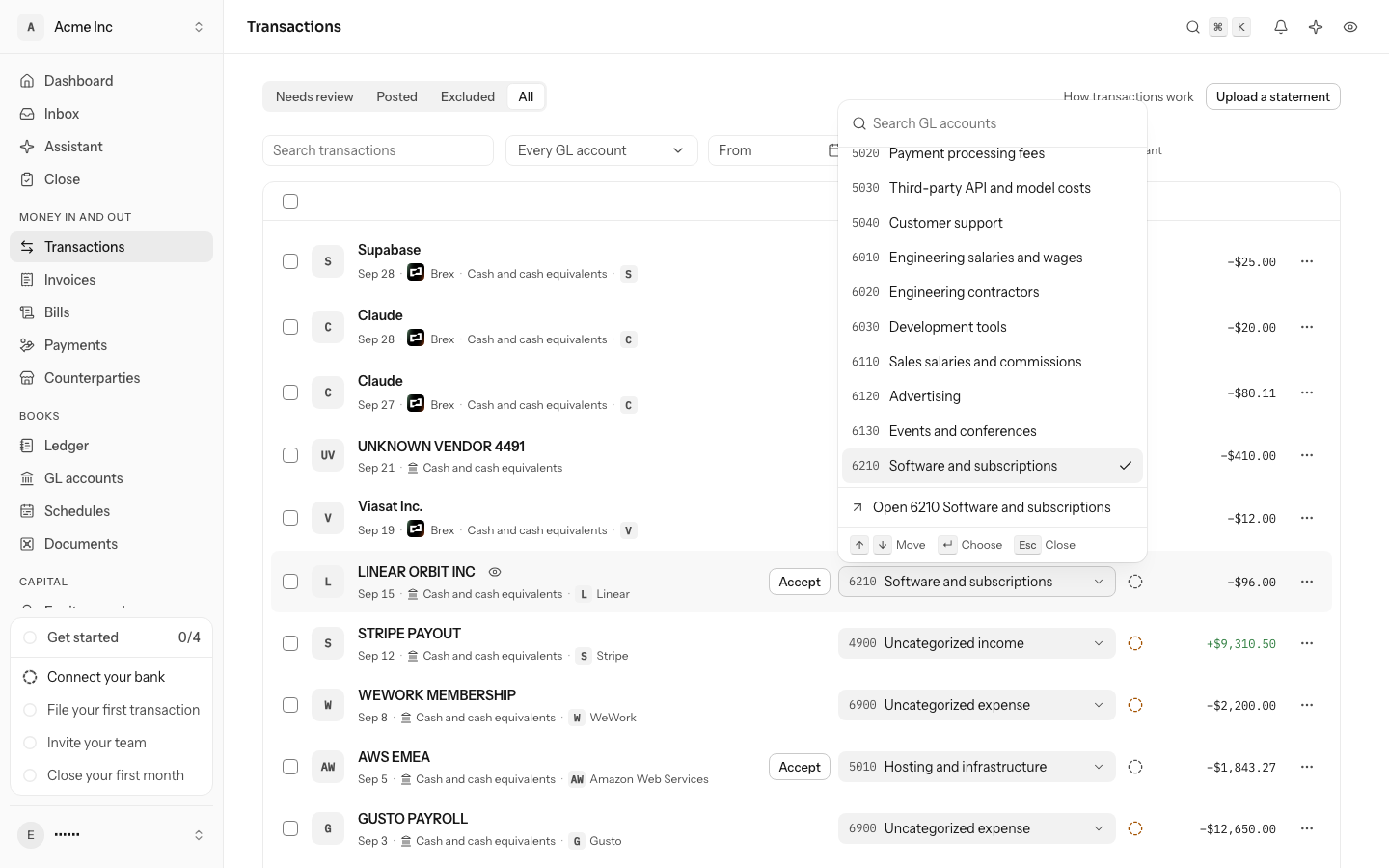
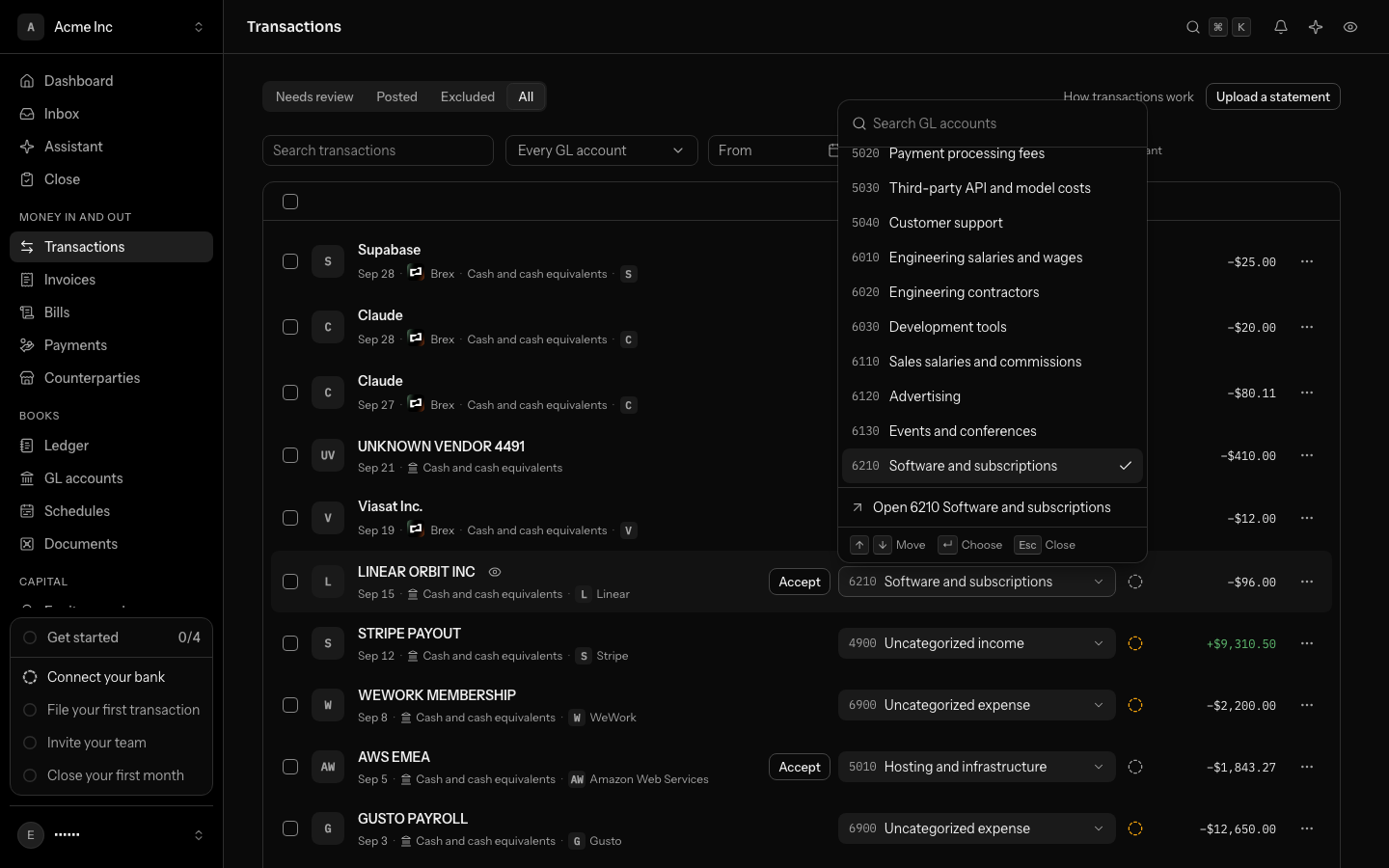
To send a filed row back to the queue, choose Send back to review from its row menu (the … button) or from the ⋯ menu on the transaction's page, or press ⇧U. A posted row comes out of the books by reversal, and the suggestion a rule or the model made before you filed it is put back. Undoing a filing or sending a row back is refused while its month is closed; reopen the month first.
Each filing, undo and send-back is on the transaction's history, with who did it.
File many transactions at once
- Tick the rows you want. Once one is ticked, a bar appears at the top of the list: tick its box to select every row on the page.
- Next to File under, pick the GL account.
The whole selection is filed in one step, and each row is judged on its own: a row that cannot go to that account (money in filed as an expense, a month that is closed) stays in the queue, and one message says how many stayed and why. The rest are filed and posted.
File everything from one merchant
Turn on Group by merchant beside the filters (on a phone, under Filter). The rows are gathered under who they are with: the counterparty when a row names one, otherwise the description as the bank printed it. Each heading says how many rows the merchant has and what they add up to, one total per currency when they were charged in more than one, and the merchant with the most rows comes first.
- Tick the box beside a merchant's name to select every row of theirs that can still be filed.
- Next to File under, pick the GL account.
The grouping covers the rows loaded so far; Load more adds to it. It stays on when you open a transaction and come back.
Split a transaction across GL accounts
Apple Store, Sep 24, on the Brex card. File parts of it to different GL accounts. The parts must add up to the transaction's amount.
Type 250.00 into the second part and pick its GL account: the button waits until the parts add up exactly.
One payment can be several things: a card charge that is part software and part travel, a payout that is revenue less fees.
- Open the transaction and select Split across GL accounts in the ⋯ menu, or press S.
- Each part has a GL account and an amount. The first part starts on the account the transaction is filed to now.
- Type the amounts. Left to assign counts down as you go, and reads The parts add up when they total the transaction's amount. Select Add a part for more than two; a split takes up to 20.
- Select Split and post. The button waits until the parts add up exactly.
The transaction posts one journal entry with a pair of lines for each part. Its page lists the parts under Split across, and the list shows Split across 2 GL accounts in place of one account's name, as a link to the transaction.
- Change the split opens the same box on the parts that stand. Saving replaces them.
- To undo a split, open the transaction, select Split across 2 GL accounts at the top of its page and choose one GL account.
- If the transaction was already in the books, splitting it reverses its entry and posts a new one, so the correction is on the record. That is refused while its month is closed.
- A transfer between your own accounts files nowhere, so it has no split.
Splitting takes the owner, admin or accountant role.
Spread a payment over the months it pays for
A year of software or insurance paid up front, or an annual contract a customer paid by wire, belongs to every month it covers. Open the transaction and select Spread over months in the ⋯ menu, or press O, then pick the first month and how many months it covers. Each month's close then takes that month's share into the P&L. While it is spread, the transaction keeps its GL account. Spread a payment over the months it pays for has the details.
A laptop, a server or furniture is not an expense either: it is equipment the company keeps for years. Open the transaction and select Capitalize as a fixed asset in the ⋯ menu, or press ⇧C. It is filed to 1600 Computer equipment and put in the fixed asset register in one step, and every close depreciates it. Depreciate equipment and sell it has the details.
Use the suggested GL accounts
When you choose the GL account chip on a transaction's page, the list opens with up to three GL accounts under Suggested, above Income and Expenses. Each one says why it is there:
- Filed here 2 times before: how many other transactions from the same payee you or a rule filed to that GL account. The most frequent comes first. When the source did not name a payee, transactions with the same description count instead.
- AI, 82% confident: the GL account the model proposed for this transaction, with its confidence and its reason. Once you file the transaction somewhere else, it is no longer suggested.
A GL account can carry both reasons. Nothing is filed until you pick one, and when there is nothing to go on, Suggested does not appear. Suspense GL accounts are never suggested.
Always file a merchant the same way
After you file a transaction yourself, its row menu (the … button) offers Always file here. Confirm the text the description should contain and choose Save the rule. Future matching transactions are filed automatically. See Automate filing with rules.
Rename it, change its date or add a note
A bank's words for a transaction are not always the ones you want in your books. On the transaction's page, select what you want to change and change it there:
- The name at the top: select it, type the new one and press Enter. Esc puts the old one back.
- The date in the line under the name: select it and pick a day from the calendar.
- Note: select Add a note and write it. Press ⌘ Enter or click away to keep it.
Each change saves on its own, straight away. What the bank or card sent stays as it was, under Source data, and the transaction's History lists each change.
A new name or a note changes nothing already in your books: a posted journal entry keeps the words it was posted with, and a note becomes the memo of the entry the transaction posts next. A new date on a transaction that is already in your books posts it again on that day: its journal entry is reversed in the old month and a new one is posted in the new month, so the correction is on the record. LedgerIt refuses a new date, and leaves your books as they were, while either month is closed (reopen it first), for a transaction spread over months (delete its schedule first), for one that pays invoices or bills (send it back to review first) and for one matched to a bank statement (undo the match first).
Say who a transaction is with
A bank line does not always say who was paid. Open the transaction: the counterparty, when one is named, is in the line under its description.
- Open the ⋯ menu and select Choose a counterparty, or press P, and pick one. Type to narrow the list.
- The name becomes a link to the counterparty's page, where this transaction is now listed.
- To take it off again, open the same panel (Who it is with in the ⋯ menu) and select Remove.
This changes who the transaction is attributed to and nothing in your books: the GL account it is filed to stays. LedgerIt refuses the change for one kind of transaction, one whose journal entry names the counterparty on a receivable or payable, and says so. File that transaction again instead. To add a counterparty that is not in the list, see Counterparties.
Name its department
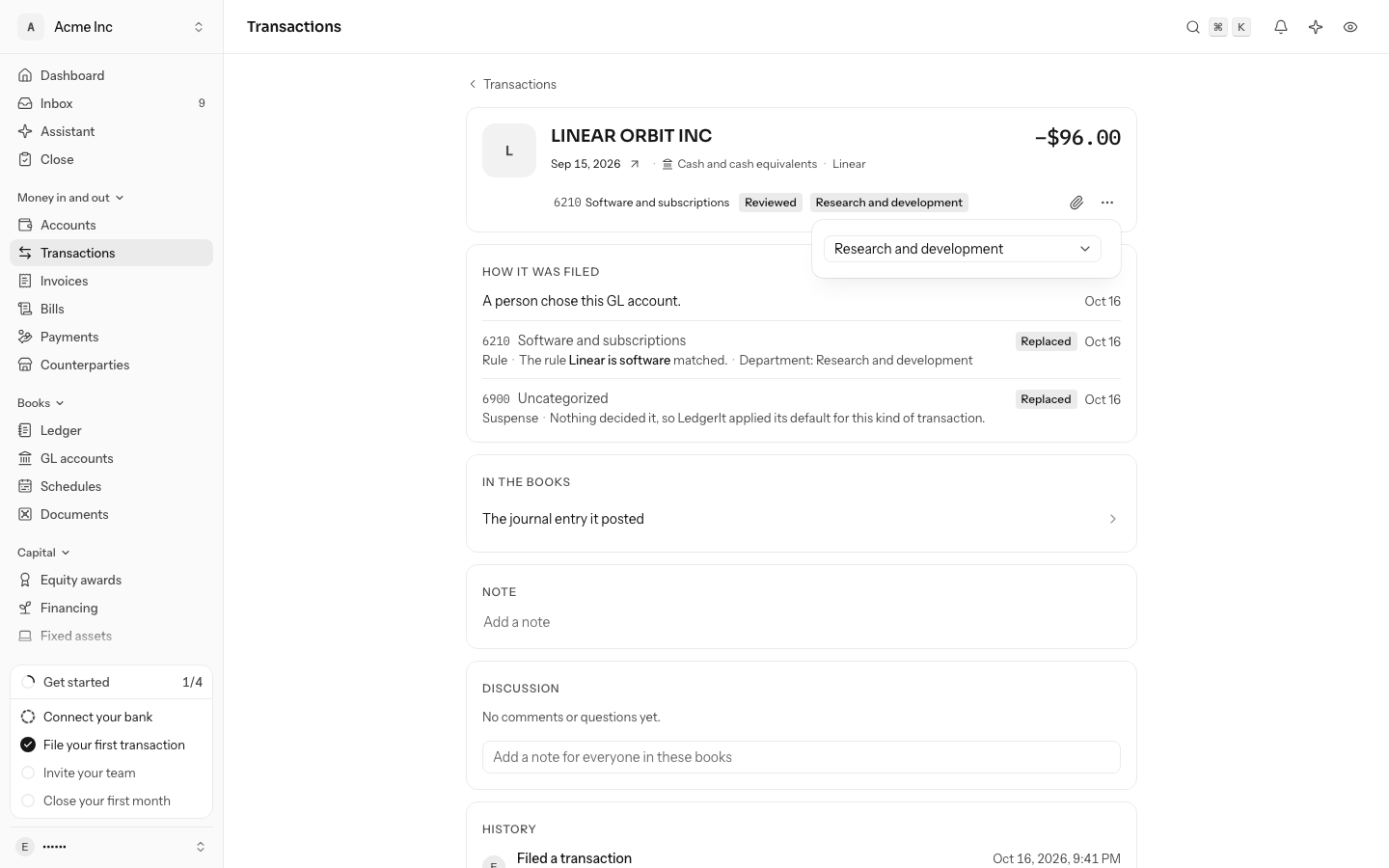
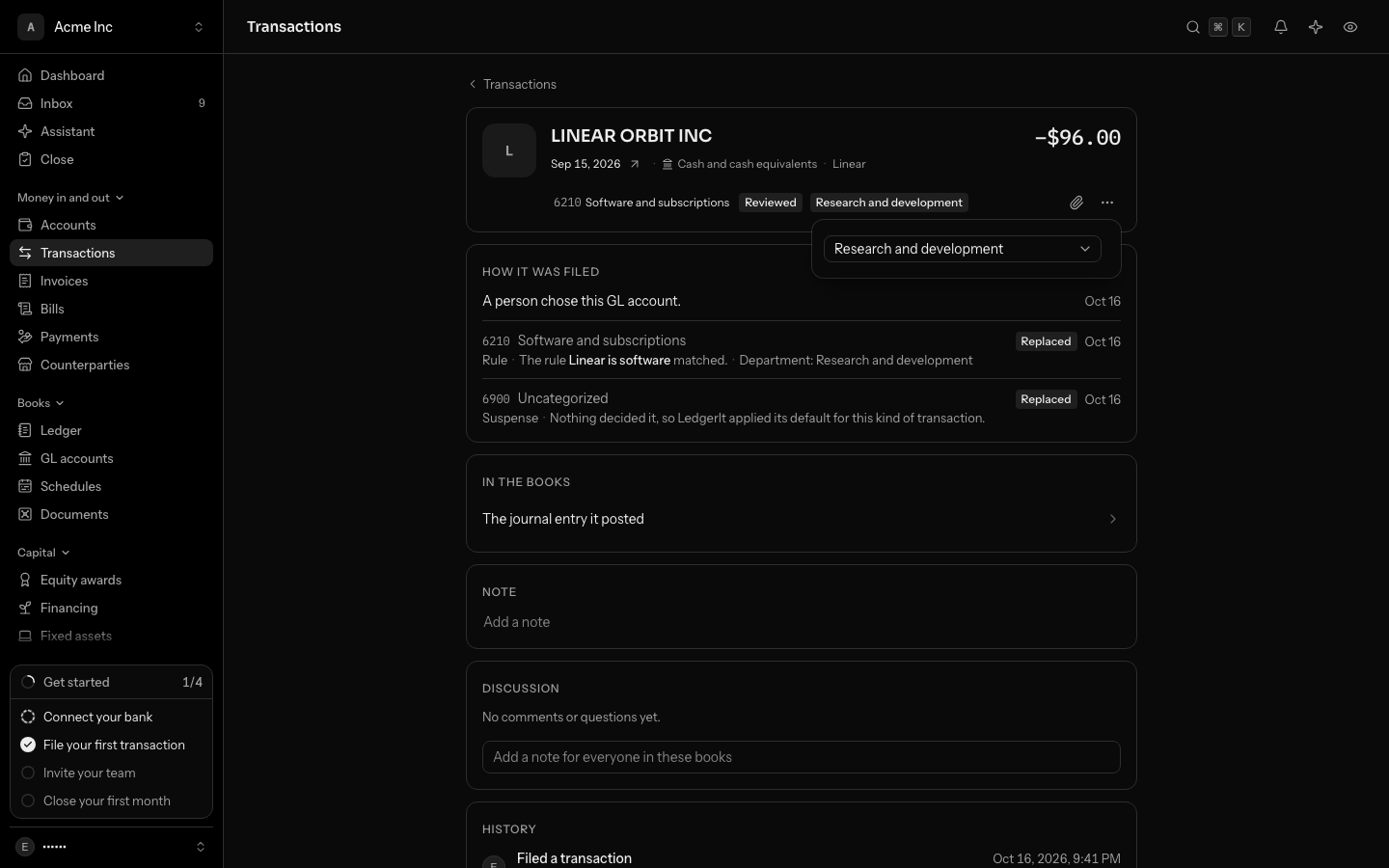
A card charge for a design tool is the design team's spend, whatever GL account it is filed to. Open the transaction, select Department in the ⋯ menu, or press Shift+D, and pick the department it is for. The department then shows as a chip beside the GL account. When your books slice by more than department, the panel is called Dimensions and has a picker for each, such as Project.
- The department goes on the line the transaction posts to its GL account, or on every part of a split. The bank or card side names none. Spend by department then counts it there.
- If the transaction is already in the books, LedgerIt reverses its entry and posts it again with the department, so the change is on the record. That is refused while its month is closed.
- If its GL account requires a department, the transaction waits in the review queue until it names one; picking it posts the transaction. Taking the department off a posted one is refused.
- To clear it, pick None.
- A spread transaction keeps its department: each month's share is taken out with it. Delete the schedule first to change it.
Changing it takes the owner, admin or accountant role. It is recorded in How it was filed and History.
See why a transaction was filed where it was
Open a transaction. How it was filed lists every decision about its GL account, newest first. The first is the one that stands: its account and who decided are at the top of the page, so here it says why. Each earlier one names its account and is marked Replaced.
Each decision shows the GL account, who decided, and the reason:
- Rule: a rule of your books matched, named as it was then.
- Suggested: a model proposed the account, with how confident it was and its own reasoning quoted below.
- Reviewed: a person chose the account, with their note if they left one.
- Suspense: nothing decided it, so LedgerIt applied its default.
A row that took over from a card hold, or a refund, says so and links to the transaction it followed.
Keep a transaction out of the books
Use Exclude for a personal charge or a duplicate the feed sent twice.
- Open the row menu and choose Exclude.
- Enter a Reason. It is required, so everyone can see why the transaction is missing.
- Choose Exclude.
The transaction stays on record in the Excluded tab and never reaches a statement. Exclude is offered only for a transaction that is not yet in the books. One that is already posted has to be corrected with a reversal: a new entry that cancels the original, so history is never edited. See Journal entries.
File a transfer from the GL account picker
A transfer is chosen where a GL account is. Open the GL account picker on the row or on the transaction's page. Under Transfer it lists:
- the transactions that could be the other half: the same amount on another of your accounts, moving the other way, with the amount, the account, the date and how many days apart they are. Choosing one matches the two.
- each of your own cash, card and other asset or liability accounts, as Transfer to or Transfer from the account, with its bank and last digits when it is connected. Choosing one files it as a transfer to or from that account. Accounts a SAFE, a convertible note, venture debt or a loan from a shareholder is carried in are not offered: that money is filed under Owner and financing instead. A bank loan you track on its own account, or what another company of your organization owes, is still paid down as a transfer.
- Another account (not connected), which holds it in 1090 Cash in transit until the other half arrives.
Search finds them too: type the account's name, its code, its last digits, its bank, or a word such as "transfer" or "sweep".
When the transaction is probably a transfer, LedgerIt says so at the top of Suggested, with the reason: the other half on the same day or a few days apart, how many times money moved between the two accounts before, how many transactions like this one, from this account, you filed as transfers with the same account before, that AI read it as a transfer (with its confidence and its words), or that the bank names your own company. When two transactions could be the other half, both are suggested, the nearest first, and you choose: LedgerIt never pairs them on its own, and asks in the Inbox.
A transfer stays changeable in the same picker. Choose another account to move its other end, or a GL account to file it as income or expense after all. The posted entry is reversed and the new one posted, so the change is on the record; when it was matched, its other half goes back to the review queue.
Match a transfer yourself
- Mercury checkingTransfer to Brex−$50,000.00Posts once, as the transfer
- Brex cashTransfer from Mercury+$50,000.00Kept out of the books, as its evidence


- Brex cash
- Debit$50,000.00
- Mercury checking
- Credit$50,000.00
The same amount to the cent, moving the opposite way on another of your accounts, not yet in the books. With exactly one candidate within a week, LedgerIt pairs them by itself.
Money moved between two of your own accounts arrives twice, once from each. LedgerIt pairs the two when there is exactly one candidate within a week. It leaves the pair alone when two rows could be the other half, or when the halves are dated further apart, because guessing would hide a cost.
To pair them yourself:
- Open either transaction and select Match as a transfer in the ⋯ menu, or press M.
- The box lists what it could be paired with: the same amount on another of your accounts, moving the other way, not yet in the books. The nearest in date is first.
- Select Match beside the other half.
The outgoing half posts once as a transfer. The incoming half is kept out of the books as its evidence and points at it, so the money is not counted twice.
- The amounts must be equal to the cent. A transfer that arrives short is a transfer and a fee: file the fee on its own.
- A transaction that is already in the books, excluded, matched to something else or still a hold is not offered as the other half. The transaction you start from may be in the books or already a transfer: its entry is reversed first.
- The transfer is in the books at once. If the match was wrong, choose Unmatch: its entry is reversed and both halves go back to the review queue.
File a transfer from an account that is not connected
Money from one of your own accounts that LedgerIt cannot see, such as a savings account at a bank you have not connected, arrives with no other half to match. It is neither income nor expense, so don't file it under a GL account.
Choose Another account (not connected) or the account in the GL account picker (see File a transfer from the GL account picker), or:
- Open the transaction and select Match as a transfer in the ⋯ menu, or press M.
- Under The other account is not connected, pick the Other account the money moved to or from. Only your own cash, card and other asset or liability accounts are offered.
- Or leave it empty: the transfer is held in 1090 Cash in transit, which LedgerIt opens the first time you use it.
- Select File as transfer.
It posts at once between the two accounts. Money in debits the account it arrived on; money out credits it. The transaction then reads Transfer from or Transfer to that account.
- Cash in transit is cash. A transfer through it never shows in the cash flow statement or the burn.
- A balance in Cash in transit is a transfer whose other half is not in LedgerIt yet. Once you connect that account, its half is filed against Cash in transit on its own when it is the same amount, the other way, within a week, and the balance goes back to zero. The two transactions then read Transfer, paired with each other.
- If two transactions could be the other half, or it arrives later than a week, file it yourself the same way with Other account set to 1090 Cash in transit.
- A balance still in Cash in transit after 10 days is raised in the Inbox like a stale clearing balance.
- A transaction already in the books is filed again: its entry is reversed and the transfer posted. One excluded or still a hold cannot be filed this way. A fee, interest or a refund is never a transfer.
File money from a founder, an investor or another company
A founder's wire, a SAFE's deposit or an advance from another company of your organization is neither income nor a transfer between your own accounts. Open the GL account picker on the transaction: under Owner and financing it lists what the money can be.
What it offers follows the company's Tax classification, given when the books were set up. A corporation (and books that have not said) has shareholders:
| Money in | Files to |
|---|---|
| Loan from shareholder | 2950 Loans from shareholders |
| Stock purchase | 3100 Common stock |
| Capital contribution | 3300 Additional paid-in capital |
| Money out | Files to |
|---|---|
| Repay shareholder loan | 2950 Loans from shareholders |
| Dividend | 3600 Dividends and distributions |
An LLC or a partnership is offered Member contribution (3500), Loan from member and Repay member loan (2950) and Member distribution (3600); a sole proprietorship Owner contribution (3500) and Owner draw (3600). Each account is opened the first time you use it.
- Money from a founder with no shares issued and no note is a loan to the company until a document says otherwise, so Loan from shareholder comes first. A stock purchase files all of it to 3100 Common stock; if the price per share was above par, move the excess to 3300 with a journal entry.
- A corporation has no owner's draw. Money to a founder that is pay or a reimbursement is an expense: file it under the expense account as usual.
- The choice posts at once. Choose a GL account, another purpose or Send back to review to change it: the entry is reversed and the new one posted.
Link a deposit to its SAFE, note or intercompany transaction
A SAFE, a convertible note or venture debt is recorded on Financing, and an amount between two companies of your organization on Intercompany. Each posts its own cash. The bank's transaction for the same money is that entry's evidence, so the cash is in the books once.
- When the instrument or intercompany transaction is in the books first, its bank transaction is linked on its own when it arrives: the same amount, the expected way, within a week, on the same account (or one held in 1090 Cash in transit), and nothing else fits either of them. A deposit already waiting is linked the moment you issue the SAFE, and one AI had already posted, say as revenue, is reversed and linked, unless its month is closed, a schedule or asset holds it, it pays an invoice or bill, or a statement reconciles it. The message after issuing says which transactions it linked and reversed.
- Otherwise Owner and financing offers it first: Investment: or Repayment: and the instrument's name, with its investor and date. Choosing it links the transaction. One you had already filed is reversed first.
- A draft instrument of the deposit's amount, dated within a week, is offered as Issue and its name: choosing it issues the draft through this bank account and links the deposit.
- Intercompany from or Intercompany to another company of your organization records it as an intercompany transaction in both sets of books: a deposit is what these books owe the other company, a payment what it owes these. The other company's own bank transaction is linked too when exactly one fits; otherwise its side waits in its Cash in transit until that transaction arrives. Both companies must keep the same currency, and you must be able to post in both.
A linked transaction's GL account reads Cash of and the instrument's or company's name; on the transaction's page the name opens it. When the instrument used the same bank account, the transaction is kept out of the books as its evidence. When it used another account, such as 1000 before the bank was connected, the transaction is posted as a transfer from that account, so the cash ends up where the bank says it is.
If a link is wrong, choose Unmatch in the row menu, or file the transaction some other way. What it posted is reversed, it goes back to the review queue and is not linked again on its own. The SAFE or intercompany transaction stays in the books. Voiding the SAFE or reversing the intercompany transaction sends its bank transaction back to review the same way.
Undo a wrong match
LedgerIt pairs transfers between your own accounts, duplicates and refunds automatically. If a pairing is wrong:
- Open the row menu and choose Unmatch.
- Enter a Reason and confirm.
Every row in the match goes back to needing review, and LedgerIt will not pair them again. A transfer already in the books is undone by reversal: its entry stays on the record, cancelled by a reversing one, and a half you filed against Cash in transit yourself keeps its entry. A duplicate or refund that is already in the books cannot be undone this way.
Settle an invoice or bill from the bank
A customer's wire for an invoice arrives in your bank like any other deposit. Filed as income, it would count the sale a second time, because issuing the invoice already did, and the invoice would stay owed. The deposit is the invoice being paid, so settle it instead.
Open the transaction. When it could pay one of your open invoices (money in) or approved bills (money out), Open invoices it may pay lists what LedgerIt found, best first:
- the invoice or bill whose number is in the transaction's description, however the bank wrote it:
INV-0042,inv 0042andINV0042all count; - for a transaction that names its customer or vendor, their one document for exactly the amount, or all of their open documents when those add up to it to the cent;
- for a transaction that names nobody, every document for exactly the amount.
Select Settle beside the right one. The transaction is filed under Accounts receivable (or Accounts payable), names that customer or vendor, and posts on its own day. The invoice or bill reads Paid, or shows what is still owed after a partial payment. The section then reads Pays, with each document and the amount paid. Money beyond what the documents had left shows as Not applied yet: it stays on the customer's account as unapplied cash.
A transaction already filed somewhere else, under income for example, is reversed and posted again, so the correction is on the record. In a closed month, reopen the month first.
To undo a settlement, send the transaction back to review (Shift+U). The invoice is owed again, and the filing that stood before comes back. Reversing the transaction's journal entry does the same.
When a transaction's description names exactly one open invoice or bill and its amount is exactly what is left on it, there is nothing to decide: LedgerIt settles it by itself after the sync, and Pays says that LedgerIt settled it and why. It never does this to a transaction you or one of your rules filed, or for part of what is owed. If it got one wrong, send the transaction back to review: the invoice is owed again, and from then on LedgerIt asks you about that transaction instead of settling it.
When a transaction has exactly one other candidate, LedgerIt asks about it in the Inbox after each sync, where you settle it in one click. When there are two or more, it waits for you to pick one here.
Upload a statement
If an account is not connected, choose Upload a statement above the list (on a phone, in the ⋯ menu) and pick a CSV or OFX export from your bank or card.
- Choose the bank or card Account it belongs to.
- Choose the file. LedgerIt shows how many transactions it found and the dates they cover.
- If the column names are not recognized, say which column is the Date, the Description and the amounts.
- Choose the import button, which counts what it will bring in, for example Import 42 transactions.
Rows already in the books are skipped, so an overlapping file is safe. Nothing is imported until every row reads. Imported transactions wait in the review queue.
LedgerIt also keeps the statement itself: the days it covers, the closing balance when an OFX file states one, and every line as your bank printed it, each pointing at the transaction it was imported as. A line the bank feed already brought in points at that transaction, so the statement and the feed never count the same money twice. Uploading the same statement again keeps the first one. A statement uploaded to the wrong account can be forgotten through the API; the transactions it brought in stay, to exclude or reverse on their own.
Match a statement to the books
Matching a statement checks every line your bank printed against what the books hold on that account, without posting anything:
- A line imported as a transaction you have filed is matched to the entry that transaction posted.
- A line and an entry of the same amount, at most four days apart, are matched when neither has another candidate.
- Several lines that add up to one entry are matched together, like customer payments the books record as one deposit.
- One line that adds up to several entries is matched to all of them, like a payout the books split by what it paid for.
Two lines that could each be the same entry are left for you. Match them by hand, choosing the statement lines and the entries whose totals agree, with a note saying why. A line is never matched twice, and a match that was wrong is undone, which frees its lines. Once every line is matched, the statement is reconciled. Matching runs through the API, not on a screen yet.
Discuss a transaction
Open a transaction to see its Discussion: the comments and questions about it, oldest first. Anyone with access to the books can read them. Owners, admins, accountants and members can write; viewers cannot.
The box under the discussion is one line until you choose it; then it opens with Comment and Ask someone above it.
To leave a note for everyone in the books:
- Choose the box. Comment is chosen.
- Write it, then choose Post comment.
To ask one person something you need to file the transaction, such as what a charge was for:
- Choose the box, then Ask someone.
- Pick them under Who to ask.
- Write the question, then choose Ask.
They get a notification, and the question shows on their dashboard under Needs you today until they answer. They answer it on the transaction under Your answer, and you get a notification when they do. Anyone who can write may choose Close question once it no longer matters.
If one of your rules already covers a transaction nobody has filed yet, asking about it files it by that rule instead, and nobody is asked. A message names the rule.
Answer a question, and file it every time
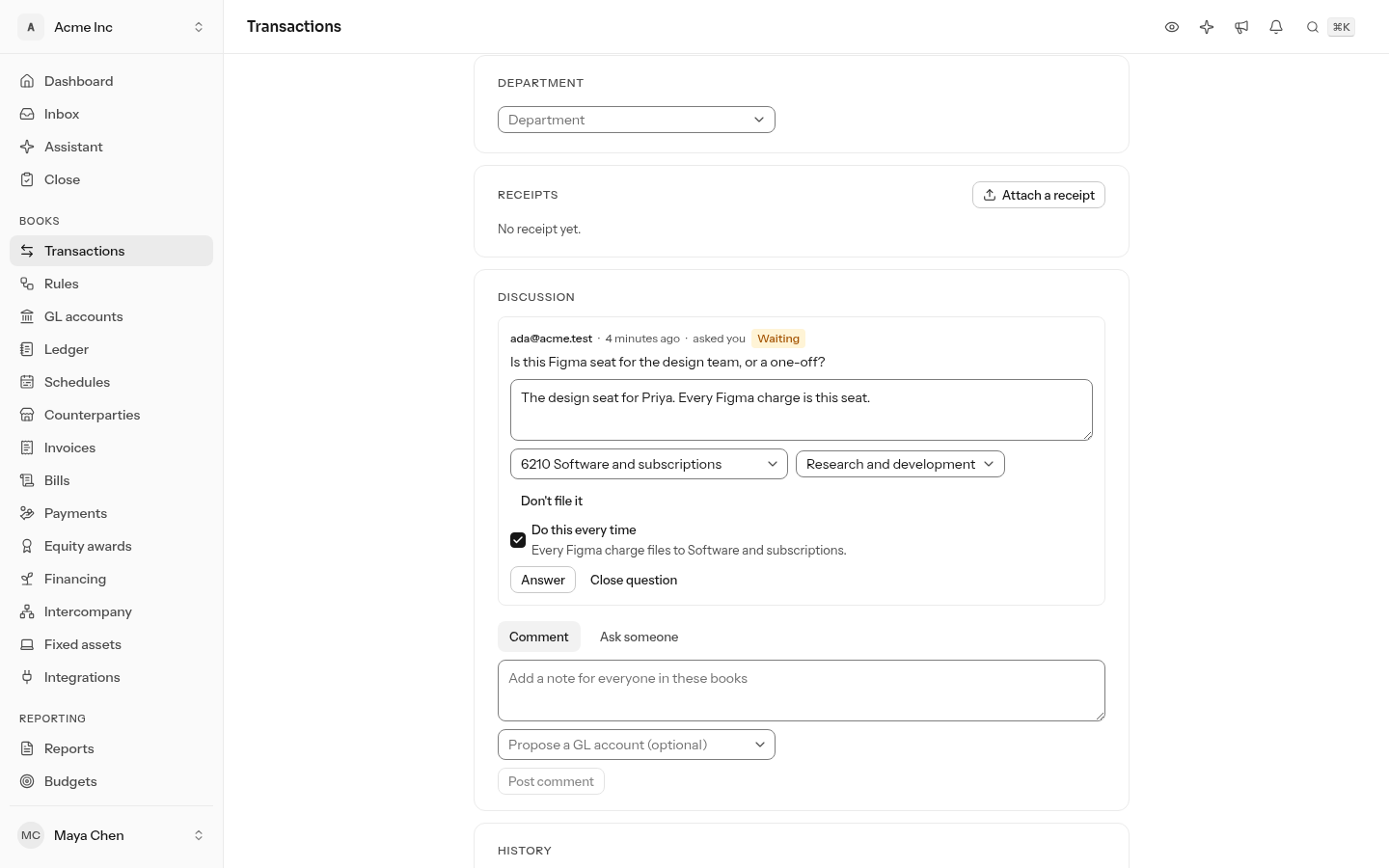
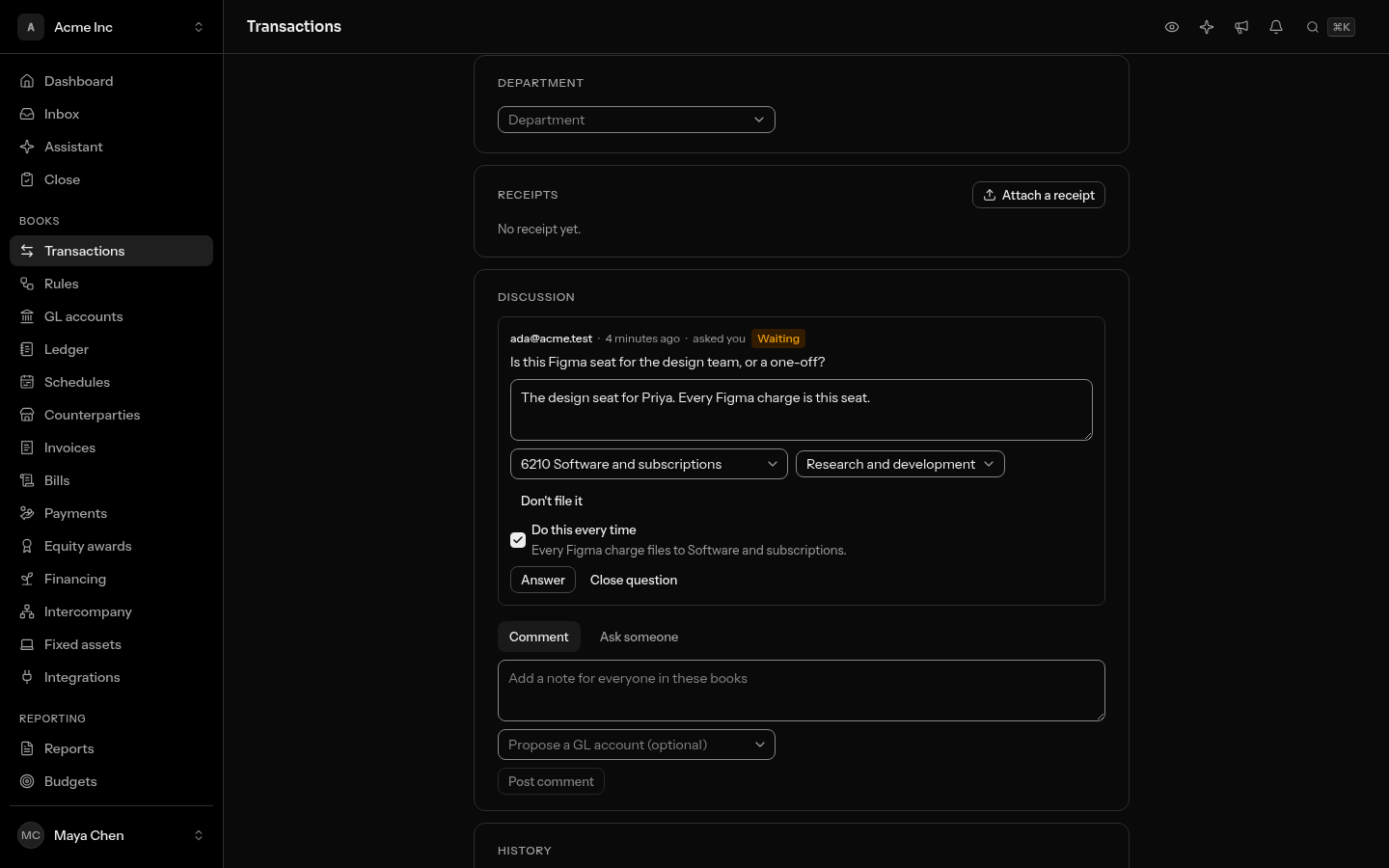
When a question about a transaction is asked of you, and you are an owner, admin or accountant, your answer can file it too:
- Write your answer.
- Under it, choose the GL account in File it under. Pick a department, or any other dimension, if it should carry one.
- To have every transaction like it filed the same way from now on, tick Do this every time. The line under it says the rule in words before it is written, for example Every Figma charge files to Software and subscriptions.
- Choose Answer.
Your answer is saved, the transaction is filed and posted, and the question is closed. With Do this every time, LedgerIt also writes a rule on the counterparty, marked From an answer on the Rules screen, so the next Figma charge is filed with no question and no model.
A rule is checked when it is written. If the account cannot take it, such as a header account or a closed one, nothing is filed and no rule is written, but your answer is kept and a message says why. Choose Don't file it to answer in words only.
Propose where a transaction belongs
A member can read the queue and cannot file. If you know where a transaction belongs, say so:
- Choose the box, and write what it is.
- Under the box, choose the account in Propose a GL account.
- Choose Post proposal.
Nothing is filed. Owners, admins and accountants get a notification, and the proposal is the first account under Suggested when they file the transaction, marked Proposed by 1 person in the discussion. On the comment they see File under and the account: choosing it files the transaction there and resolves the comment. Anyone who can write may propose, not only members.
Choose Resolve on a comment once it has been dealt with, and Reopen to bring it back. To delete a comment of your own, open its … menu and choose Delete. Every comment, question and answer is recorded in the transaction's history.
Related guides
- Connect banks and cards so transactions arrive on their own: Integrations.
- Close the month once the queue is clear: Close the month.
Work the queue from the keyboard
With a row highlighted (J and K move between rows):
| Key | What it does |
|---|---|
| A | Accept the GL account a rule or the model suggested. |
| E | Put the cursor in the row's picker, in the queue or on a posted row. Type a few letters of the account, then Enter. |
| ⌫ | Exclude the row. It asks for the reason, as the menu does. |
| R | Always file here: write a rule from a row you filed. |
| U | Undo a match. |
| ⇧U | Send back to review: take a filed row out of the books, to decide it again. |
| D | Open the row's receipt. |
| X | Tick the row, to file several under one account. |
| Enter | Open the transaction. |
A key only works on a row that offers the action: A does nothing on a row with no suggestion. When a row is filed and leaves the list, the next row is highlighted, so you can keep going without moving. ⌘Z undoes the last filing from anywhere and puts the cursor back on that row. Press ? to see these keys in the app. See Work from the keyboard.
Do this through the API
Everything in this guide is also an API call, for scripts and agents. The reference lists each operation with its parameters and objects.
- TransactionsMoney that moved at a bank, card or processor, and what it was filed as.23 operations
- CommentsNotes on a transaction for everyone in the books, which can mention members and be resolved.4 operations
- QuestionsA question about a transaction asked of one member, and their answer.5 operations
- Bank statementsUploaded statements kept as the bank printed them, each line pointing at the transaction it became.5 operations
- Reconciliation matchesWhich statement lines and which ledger lines are the same money, matched or undone.4 operations