Bookkeeping
Enter and approve vendor bills
Drop a vendor's bill as a PDF and have it read for you, or get bills by email; enter and approve them onto your payables, and void one entered by mistake.
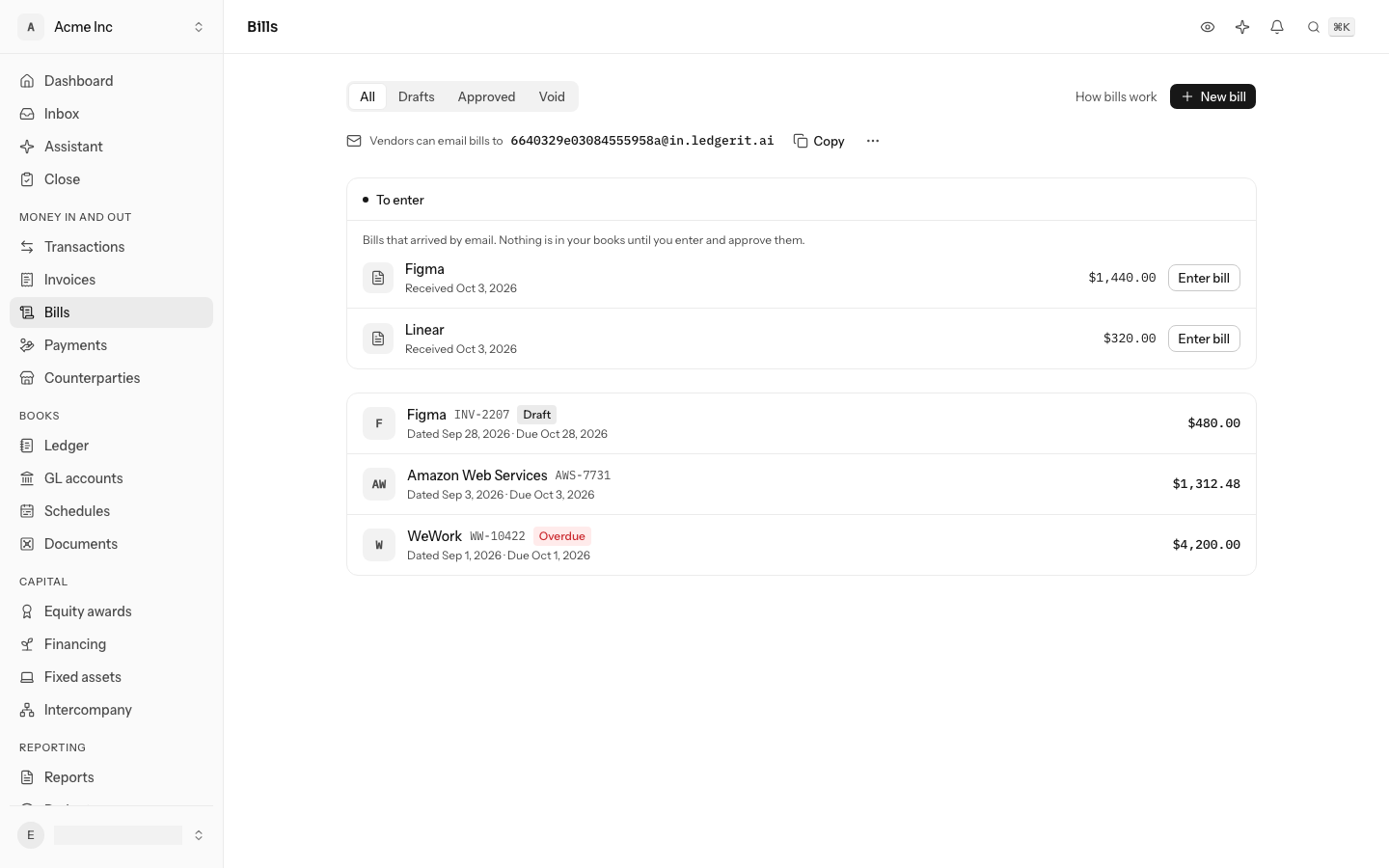
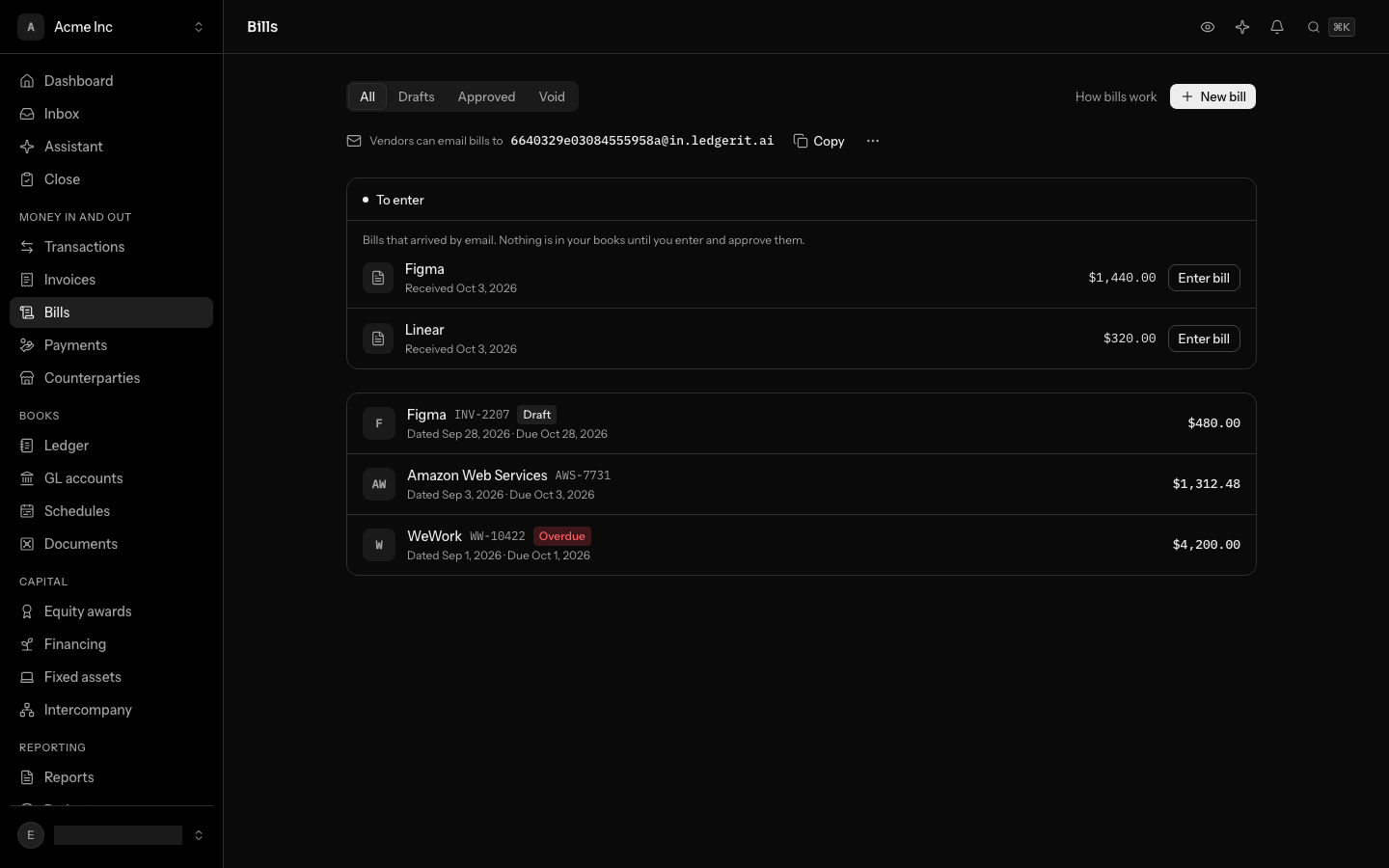
A bill is what a vendor charges you. While it is a draft it is not in your books, and you can change anything on it. Approving it puts it in your books: what you owe goes onto Accounts payable under the vendor's name, and each line goes to the account it is spent from. From then on LedgerIt tracks what is still owed and when it falls due. Open Bills in the sidebar to see every bill, newest first, with what you still owe.
From approved
Get bills by email
Your books have their own address for bills, shown at the top of Bills under Vendors can email bills to. Select Copy and give it to your vendors, or forward a bill there yourself. It is a different address from the one for receipts on Documents.
- Anyone can send to it. That is what a vendor does. What they send waits for you to enter and approve it, unless it is the bill the vendor sends every month, which LedgerIt approves itself (below).
- Each PDF or photo attached becomes a bill to enter, up to 25 MB each. An email with no PDF or photo brings nothing. A logo or signature placed in the email itself is left out.
- It is read for you. LedgerIt reads the vendor, their number, the dates, the total and the lines off each one, the same way it reads a bill you drop on the form. A bill from email is never matched to a bank transaction as a receipt, because it is not paid yet.
Bills that arrived and are not entered yet are listed under To enter, with what was read off them, beside any bill you dropped on the form and did not save. Select a name to open the bill as it came in. Owners and admins can select New address in the ⋯ menu beside Copy to replace the address. Email sent to the old one then reaches nothing, so give vendors the new one.
Enter a bill from its PDF
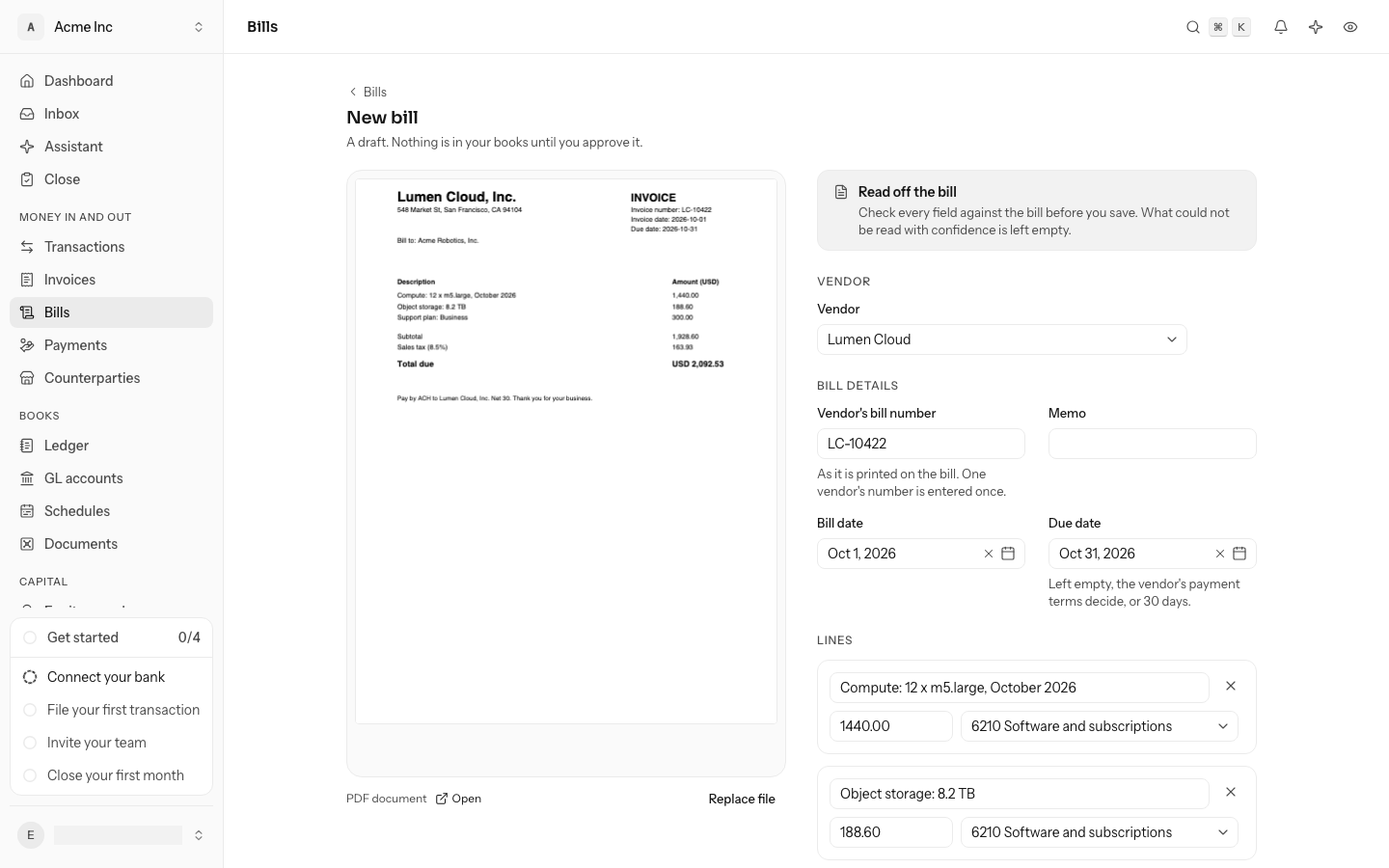
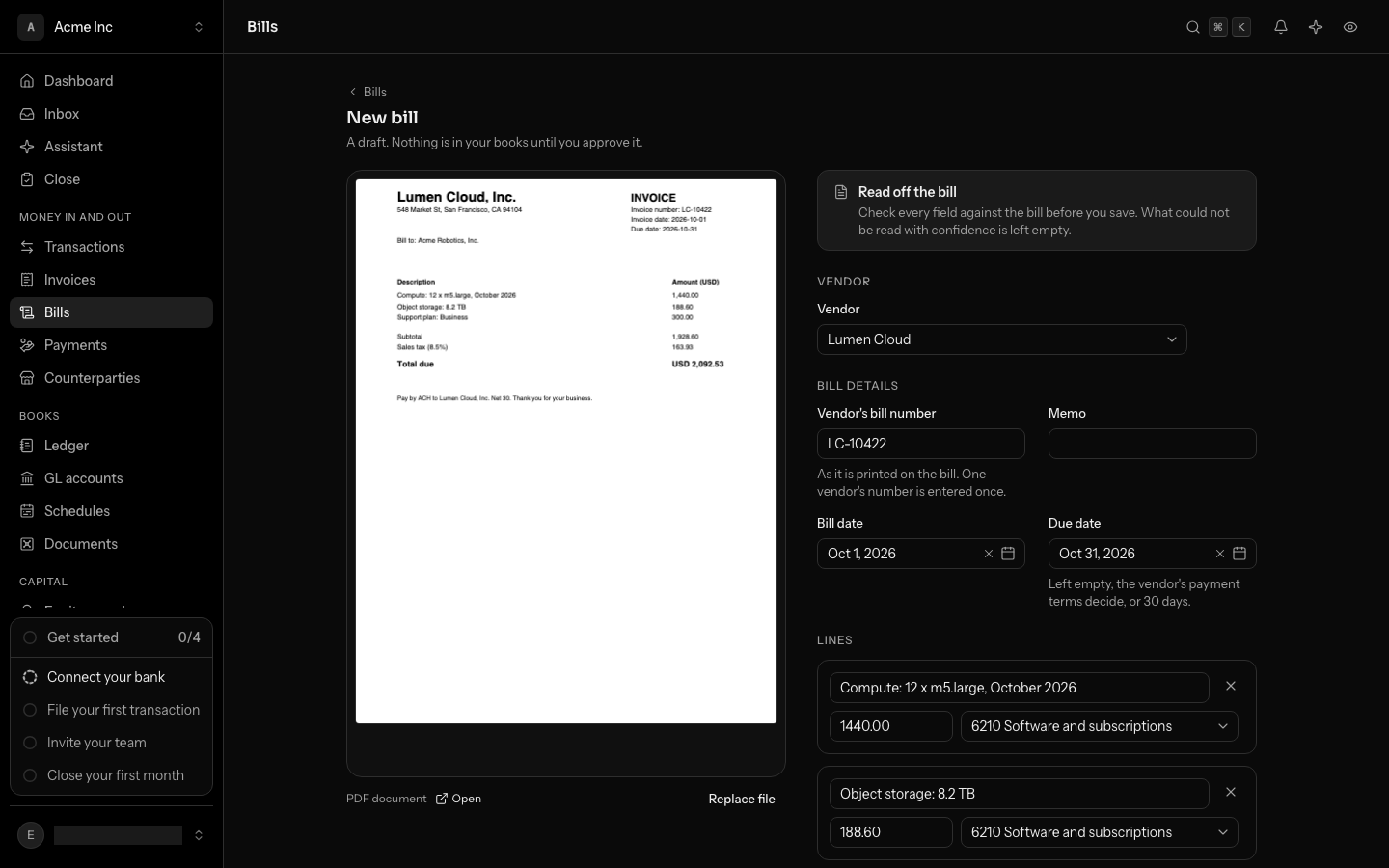
Select New bill, then drop the bill onto the page, or select Choose a file. A PDF or a photo, up to 25 MB. LedgerIt keeps the file, reads it, and fills the form from what is on it: the vendor, the vendor's number for the bill, the bill's date and due date, and one line per thing billed. The file stays on the left while you check the fields on the right.
- Check every field. What was read is a starting point, not the bill. A field LedgerIt could not read with confidence is left empty for you, and the total the bill states is shown under the lines when the lines you have do not add up to it.
- The vendor is matched by name. When exactly one vendor in your books has the name on the bill, it is chosen; "Figma, Inc." and "Figma" count as the same name. When none does, the form says who the bill is from and Add makes them a vendor in one click. When two could be, you choose.
- A vendor's usual account goes on every line. Set it on the vendor's page under Default account; a bill from them then starts with its lines filed.
- Nothing is saved until you select Save draft. Leave the page and the file waits under To enter on Bills, so nothing is lost. Select Replace file for the wrong file.
A bill that came in by email starts the same way: select Enter bill beside it under To enter, and the form opens with that file and what was read off it.
- Compute, March
- Support plan, 12 months
- Credit for a February outage
What approving will post
| Account | Debit | Credit |
|---|---|---|
| 5010Hosting and infrastructureCompute, March | $1,840.00 | |
| 1300Prepaid expensesSupport plan, 12 months | $2,400.00 | |
| 5010Hosting and infrastructureCredit for a February outage | $150.00 | |
| 2000Accounts payableLumen Cloud | $4,090.00 | |
| Balances | $4,240.00 | $4,240.00 |
A draft: nothing is in your books. Approving puts $4,090.00 on Accounts payable, owed to Lumen Cloud, due Apr 2, 2026.
A bill names the vendor, the vendor's own number for the bill, the bill's date and one or more lines. Each line has a description, an amount and the account it is spent from. That is usually an expense like Software and subscriptions, or an asset like Prepaid expenses for a year paid up front. A negative line is a credit on the bill. A bill that came some other way is typed in the same form, without a file.
- The vendor's number is taken once. The same vendor's bill number entered again is the same bill, so LedgerIt refuses it. It does not matter how the number is written: "inv-88 " and "INV-88" are one bill. Another vendor's INV-88 is a different bill.
- Due day: a bill falls due on the vendor's payment terms from the bill's date, or 30 days after it when the vendor has no terms. You can give a due day of your own instead.
- Amounts are taken as given and are refused with more decimal places than your currency has.
Select Add a line for each thing billed, and Save draft when it is done. The draft opens on its own page. Its number, its dates and its memo are changed where they are shown: select one, change it, and press Enter or click away to save it, or Escape to keep it as it was. Edit draft (the pencil) opens the same form again, with the file, to change the vendor or the lines, and Delete draft, in the ⋯ menu, removes it, as often as you like.
Check a bill against the usual
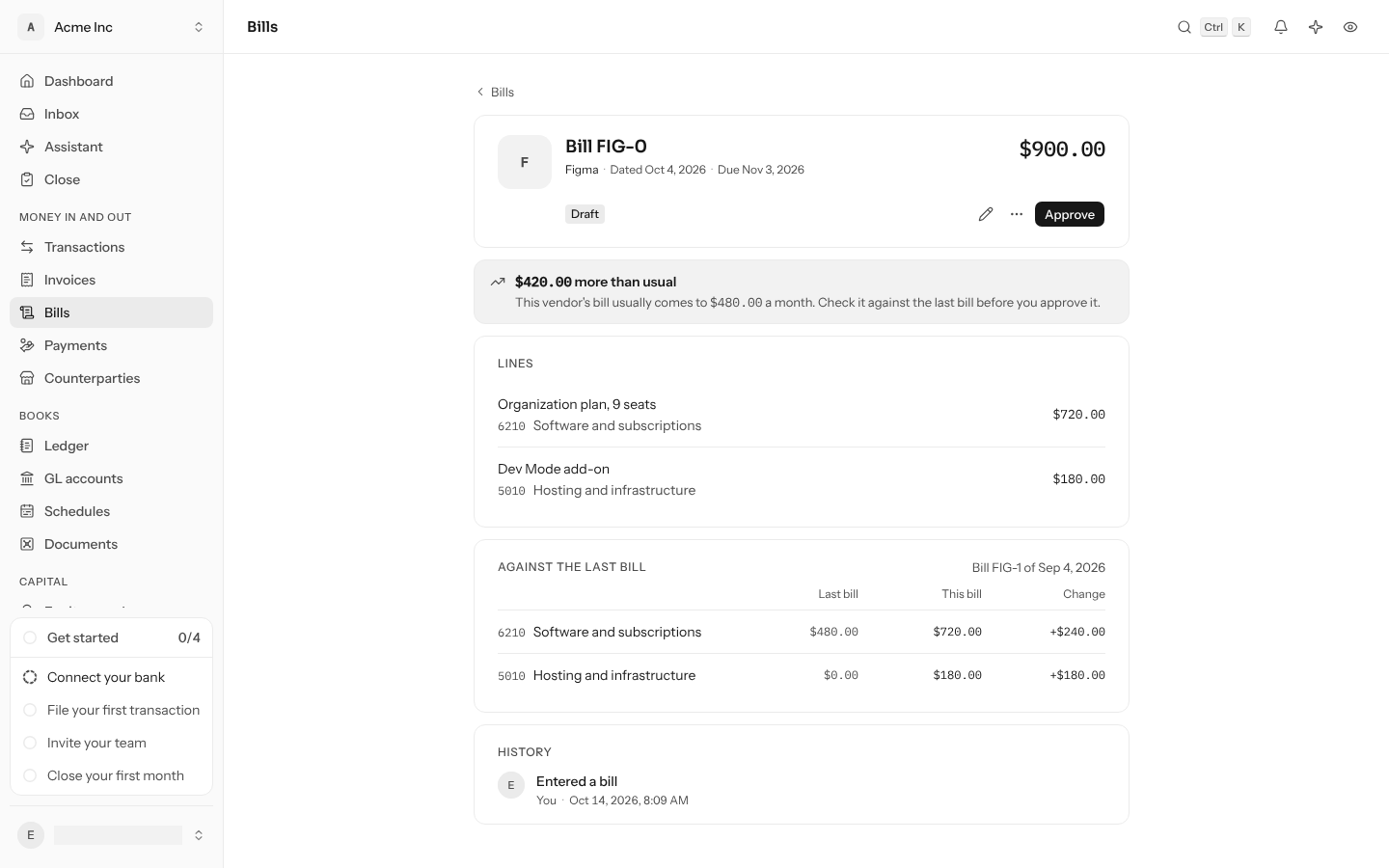
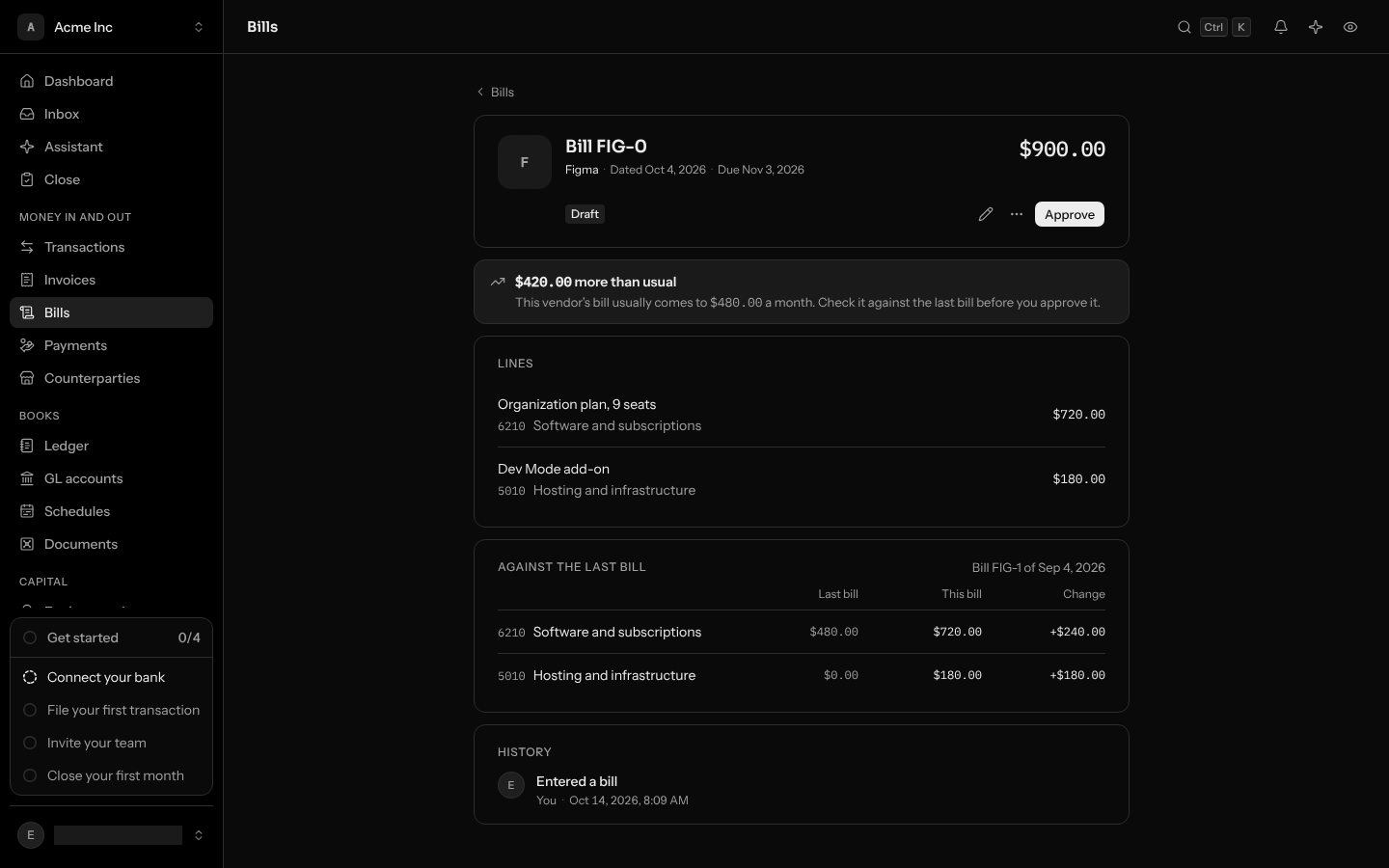
A bill's page lays it beside what the vendor usually bills and beside its last bill, so a price rise is caught before you approve or pay it.
- More than usual. When a vendor bills every month, quarter or year, LedgerIt measures each bill against the higher of the bills before it: the two before it for a vendor that bills every month or quarter, last year's for one that bills every year. A bill 1.25 times that or more says by how much at the top of its page, and Approve says it again before you confirm. It is the same rule Upcoming bills on the dashboard flags with. A price rise that sticks is questioned once: the next bill at the new price is measured against the one that rose. A later bill never changes what an earlier one was measured against.
- Against the last bill. Each account the bill or the vendor's last bill charges, with what each charged it and the change, so "$420 more" reads as "Software and subscriptions up $240, Hosting and infrastructure new at $180". Select the last bill's number to open it. A first bill from a vendor has nothing to compare with, and a voided bill is never the last bill.
Nothing is stopped: a bill over its usual is approved like any other. Agents read the same comparison from the API.
Approve a bill
On a draft's page, select Approve and confirm. Approving posts one journal entry, dated the bill's day, marked Bill in the ledger, as the figure above shows. What you owe ages from the bill's due day, so the aging shows it as current until then and as late after. When a payment is applied to the bill, what is still owed goes down.
The list marks a bill Overdue once its due day has passed with something still owed, and Paid once nothing is. A bill's page links to the entry it posted.
An approved bill no longer changes. To correct one, void it and enter another, or, when LedgerIt approved it, send it back to draft.
Bills LedgerIt approves itself
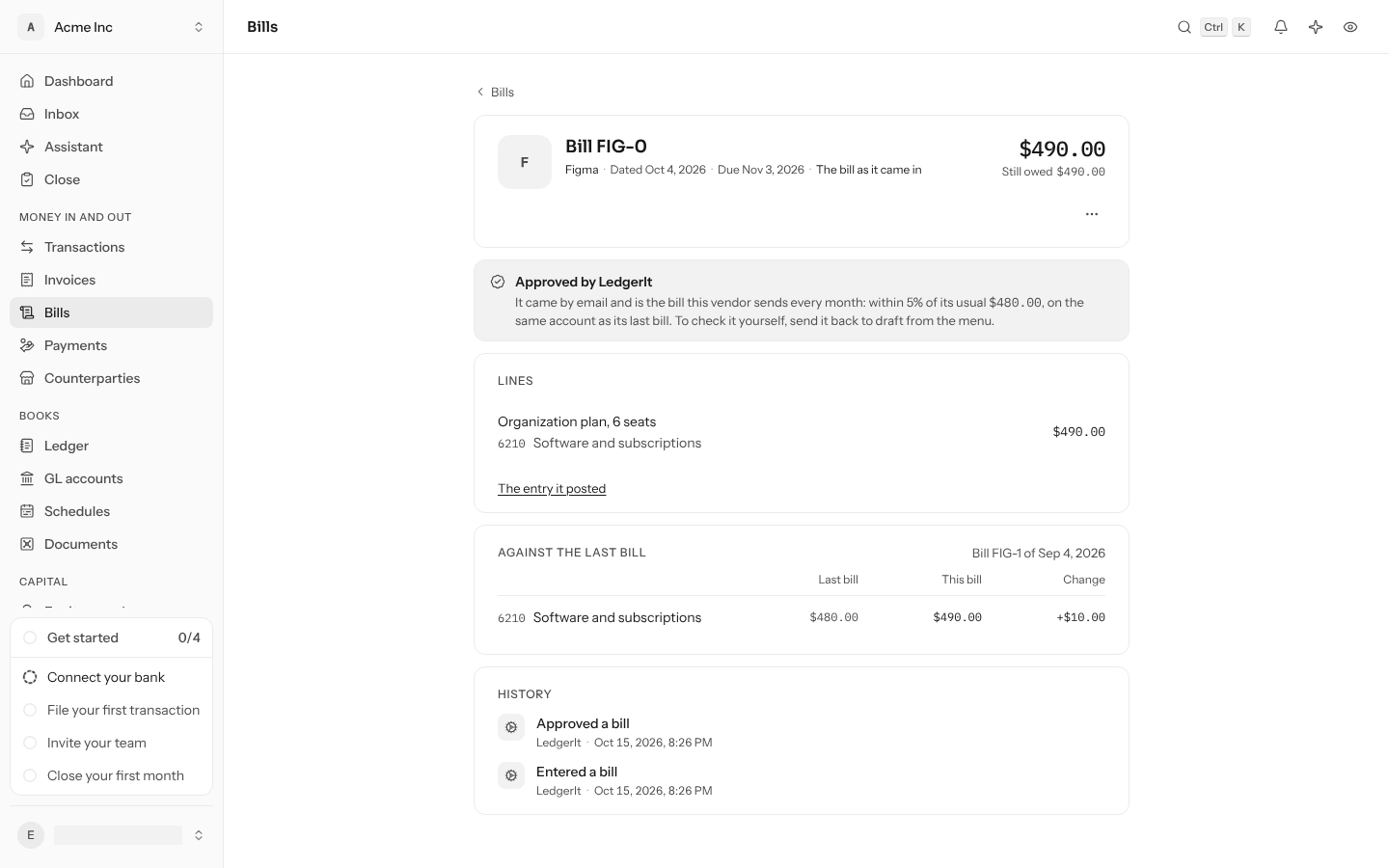
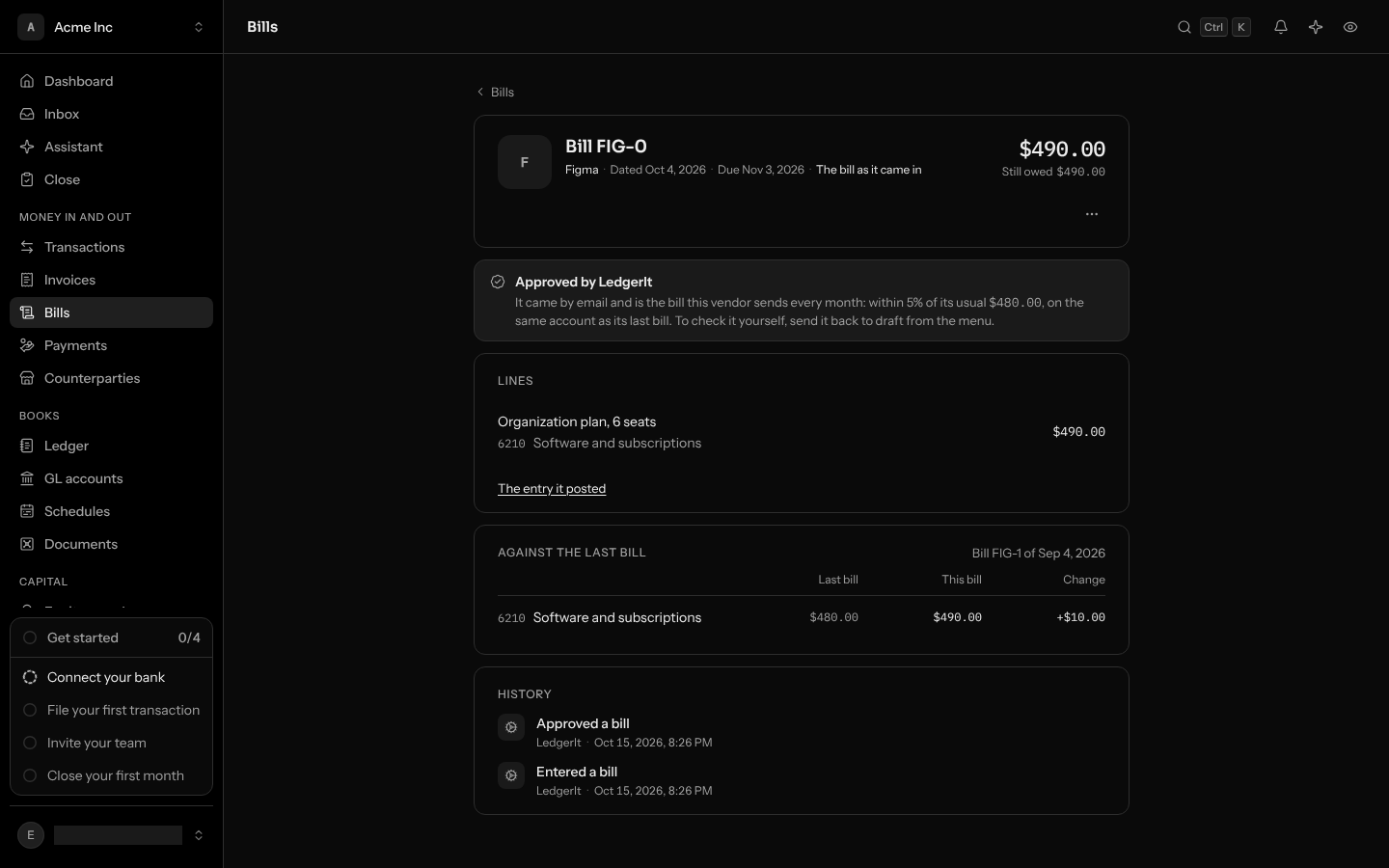
Most bills are the same subscriptions every month, at the same price. When a bill that arrives by email is exactly the one your books expect, LedgerIt enters it and approves it, and it never waits under To enter. Its page says Approved by LedgerIt and why, and the list marks it the same way.
It is the bill your books expect when all of these hold:
- It came by email to the bills address. A bill you drop on the form is yours to enter.
- It was read surely. The vendor, the vendor's number, the date and the total were each read at least as surely as Confidence needed asks of the model, 90% by default, and the currency is your books'.
- The vendor is in your books under that name, and only one vendor has it.
- It came from an address the vendor is known by. Anyone can send to the bills address, so a vendor's name on a PDF proves nothing. The email has to come from the address an earlier bill of the vendor's came from, one you approved yourself, and the mail server that received it has to have proved that address: the vendor's domain signed the email (DKIM), or its DMARC check passed. So the first bill from a vendor's address waits for you, and once you approve it, the vendor's next bills from that address can approve themselves. A bill from an address that only looks like the vendor's, or one a mail server could not prove, waits for you.
- It is the vendor's bill in its rhythm. The vendor bills every month, quarter or year, this is its newest bill and the only one in its month, and it comes within 5% of the vendor's usual, either way, as Check a bill against the usual above measures it.
- It goes where the last bill went. The vendor's last bill was approved and charged one expense account; this one goes on that account, in one line. A last bill split across accounts, or on an asset like Prepaid expenses, leaves the bill for you.
- It is no more than Always review above, $2,500 by default, the same limit the model files transactions under. Both are set in Settings, under Automation (the model's limits); at $0, LedgerIt approves no bill itself.
- Your books take it. The vendor's number is new, and the month is open.
Anything else waits under To enter, as before. A bill LedgerIt approved is paid like any other, by you.
To check one yourself, open the bill, select Send back to draft in the ⋯ menu and confirm. Its entry is reversed and the bill waits as a draft, as it came in, for you to change and approve. LedgerIt never approves that bill again. A bill with a payment applied to it cannot be sent back: undo the payment first.
Pay a bill from the bank
A bill you pay from your bank or card arrives with your other transactions. Settle that transaction against the bill instead of filing it as an expense, which the bill already counted. Open the transaction and select Settle under Open bills it may pay, or settle it from the Inbox. A payment whose description names the bill's number and that pays exactly what is left on it is settled by LedgerIt, with nothing to click. The bill shows what is still owed, or Paid. See Settle an invoice or bill from the bank.
Void a bill
On an approved bill's page, open the ⋯ menu, select Void and confirm. Voiding reverses the bill's entry, so it is no longer owed. The bill stays listed as void, with both entries in the ledger, and its number stays taken. A bill with a payment applied to it cannot be voided: undo the payment first.
Who can do what
Anyone in the books can read bills. Seeing the bills address, entering, approving, sending back and voiding bills need a role that can post to the books: owner, admin or accountant. Replacing the address needs an owner or admin.
Do this through the API
Everything in this guide is also an API call, for scripts and agents. The reference lists each operation with its parameters and objects.
- BillsWhat vendors billed: drafts entered freely, one vendor's number taken once, approved onto payables with their due day, voided by reversal.9 operations
- Bill inboxThe address vendors send their bills to, and the emails sent there with what became of each.3 operations
- DocumentsThe receipts and invoices behind transactions, and which transactions each supports.8 operations