Bookkeeping
Record payments and apply them
Record money a customer paid you or you paid a vendor, apply it across invoices and bills, and see what is left unapplied.
A payment is money that moved between you and a customer or a vendor. Recording one puts it in your books on the day it moved, through the bank, cash or card account it went through. Applying it says which invoices or bills it paid. Open Payments in the sidebar to see every payment, newest first, with what it has not been applied to yet. Paying a vendor through LedgerIt runs through the API today.
A payment that went through a bank or card LedgerIt syncs arrives as a transaction already. Settle that transaction against the invoice or bill instead of recording a payment, or the cash is counted twice. See Settle an invoice or bill from the bank.
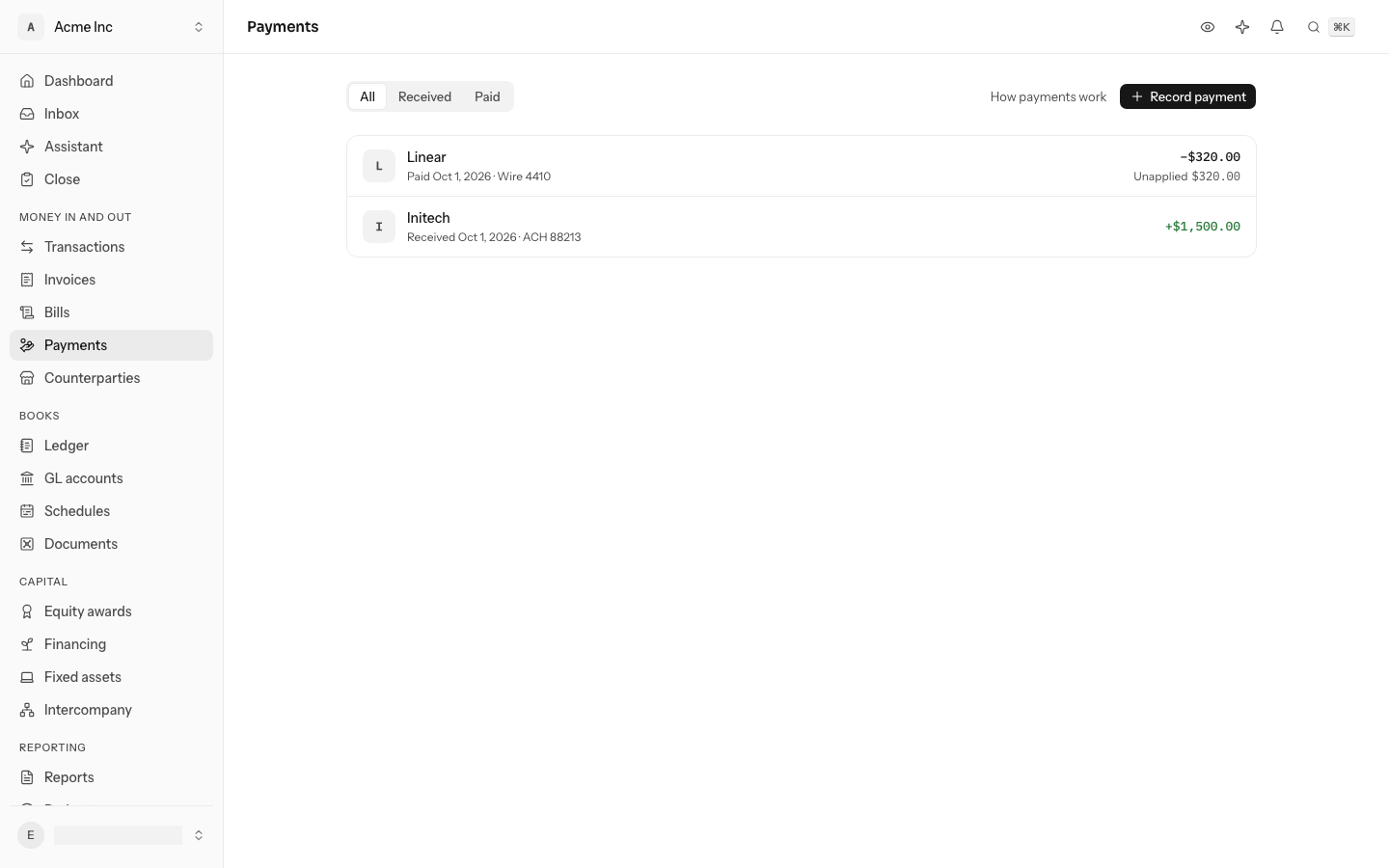
Record a payment
There are two kinds today:
- Money in from a customer, through a bank or cash account. It comes off the customer's balance on Accounts receivable.
- Money out to a vendor, through a bank, cash or card account. It comes off what you owe them on Accounts payable.
Select Record payment, choose Received from a customer or Paid to a vendor, and give who, the amount, the day the money moved, the account it moved Through and the bank's reference if you have one. The payment posts one journal entry, marked Payment in the ledger.
Apply it to invoices or bills
A payment can be applied as it is recorded, or later:
- Oldest first, as it is recorded: leave Apply it to their oldest invoices or bills first ticked. LedgerIt applies it to the customer's or vendor's open invoices or bills, the earliest due first, until it runs out.
- To the invoices or bills you name, each for an amount, on the payment's page. One payment can be spread across several invoices, and one invoice can take several payments.
To apply what is left of a payment, open it and select Apply to invoices or bills. The customer's open invoices, or the vendor's open bills, are listed with the earliest due first.
Select Fill oldest first, or type an amount against an invoice.
Fill oldest first types in the amounts for you until the payment runs out; Clear empties them. An amount cannot be more than is owed on its invoice or bill, and the amounts together cannot be more than the payment has left. Anything you leave out stays unapplied.
A payment's page lists the invoices and bills it was applied to, each linked. Whatever is not applied stays on the payment as unapplied. It still counts against the customer's or vendor's balance in the aging, so the aging always adds up to Accounts receivable and Accounts payable. Apply it whenever the invoice it was meant for arrives.
Void a payment
On a payment's page, open the ⋯ menu, select Void and confirm. Voiding reverses the payment's entry, for a payment recorded by mistake. It stays listed as void. A payment that is applied to an invoice or bill cannot be voided: undo those allocations first, so no invoice is left marked paid by money that never arrived.
Pay a vendor through LedgerIt
LedgerIt can also hold a payment you want to send, so it only goes once the right person has said yes to exactly that payment, and then send it once through your bank.
- 1 · Pay this vendorTo sendWritten. Nothing is sent and nothing is in your books.
- 2 · Ask for approval, then ApproveTo send, approvedThis exact payment, by an owner, an admin or an approver whose limit covers it, within 72 hours.
- 3 · ReleaseReleasedIt no longer changes, and is sent on its day through its account's bank.
- 4 · On its daySentOnce a bank can send through LedgerIt; none can yet. A bank that does not answer is asked again, never sent twice.
Other ways it can go
- Add where the vendor is paid. Give their bank account and routing number for ACH or wire, or their mailing address for a check. LedgerIt keeps the details encrypted and only ever shows the last four digits or the city. A change of details is a new version, and the old one is retired. You do this on the vendor's page: see Say where a vendor is paid.
- Verify it. Someone who may approve money confirms the details with the vendor, for example by calling a number you already had for them, and writes down how. Nothing can be sent to details nobody verified.
- Write the payment. On the vendor's page, select Pay this vendor at the top (offered once their details are verified). Give the Amount, the day to Pay on, the bank account it comes From and, if you like, a Reference, then select Write payment. You land on the payment's page, marked To send: nothing is sent and nothing is in your books.
- Ask for approval. In the payment's Sending section, select Ask for approval. The approval is for that payment exactly: its amount, its day, its account and that version of the vendor's details. It expires after 72 hours.
- Approve it. An owner or admin, or someone whose approval limit covers the amount, opens the payment and selects Approve or Reject, with a note if they wish. A rejected payment can be asked for again. Deciding asks for a code from your authenticator app; see Set up two-step verification.
- Release it. Once approved, select Release: the payment becomes Released. If anything changed after the approval, such as the amount or where it goes, or the approval expired, the page says the approval no longer counts and offers Ask for approval again instead of Release.
- MCMaya Chen · OwnerOwners approve any amountMay approve
- SOSam Okafor · AdminAdmins approve any amountMay approve
- PRPriya Raman · AccountantWrites payments, but approves noneMay not
- LPLeo Park · MemberTheir limit of $5,000.00 covers itMay approve
- ASAna Silva · ViewerCannot approve moneyMay not
$1,800.00: 3 people may approve it. Approve and Reject both ask for a code from their authenticator app.
A payment not yet released can be changed or cancelled, under Sending on its page:
- Change opens the payment's amount, day, account and reference. If the vendor's details were replaced since it was written, the payment moves to their current ones. Saving cancels any approval still waiting, and an approval already given stops counting, because it approved something else: ask for approval again.
- Cancel payment gives it up. It stays listed as Cancelled.
When a payment is sent
A released payment due today or earlier is sent through the bank its account is connected to. One due later is sent on its day.
- submitted means it went to the bank. The bank either has it or has not answered yet.
- If the bank does not answer, for example because the connection timed out, LedgerIt never sends the payment again. It asks the bank whether it has the payment: after 1, 5, 15, 30 and 60 minutes, then every 15 minutes until the bank says.
- failed means the bank refused it, or said it never got it. LedgerIt believes "never got it" only 30 minutes after sending, so a bank slow to record the payment is asked again rather than taken at its word. A failed payment is never sent. To try again, write a new payment and have it approved.
No bank can send through LedgerIt yet. Until one can, a released payment stays Released and nothing leaves your account; its page says so.
Who can do what
Anyone in the books can read payments, destinations and approvals. Recording, applying, voiding and writing payments, and adding destinations, need a role that can post to the books: owner, admin or accountant. Verifying or blocking a destination needs the right to approve money, which owners and admins have. Approving a payment needs that right too, or an approval limit in the payment's currency that covers its amount; see Let someone approve payments.
Do this through the API
Everything in this guide is also an API call, for scripts and agents. The reference lists each operation with its parameters and objects.
- PaymentsMoney received from customers and paid to vendors, applied across invoices and bills, with what is left unapplied.10 operations
- Payment destinationsWhere vendors are paid: versioned bank accounts and addresses, kept encrypted, verified by a person before money goes there.5 operations
- ApprovalsA person's go-ahead for a payment, bound to its amount and destination, expiring, and stale the moment either changes.3 operations